


What problem does MyHeritage Add Select All Button to Matches List solve?
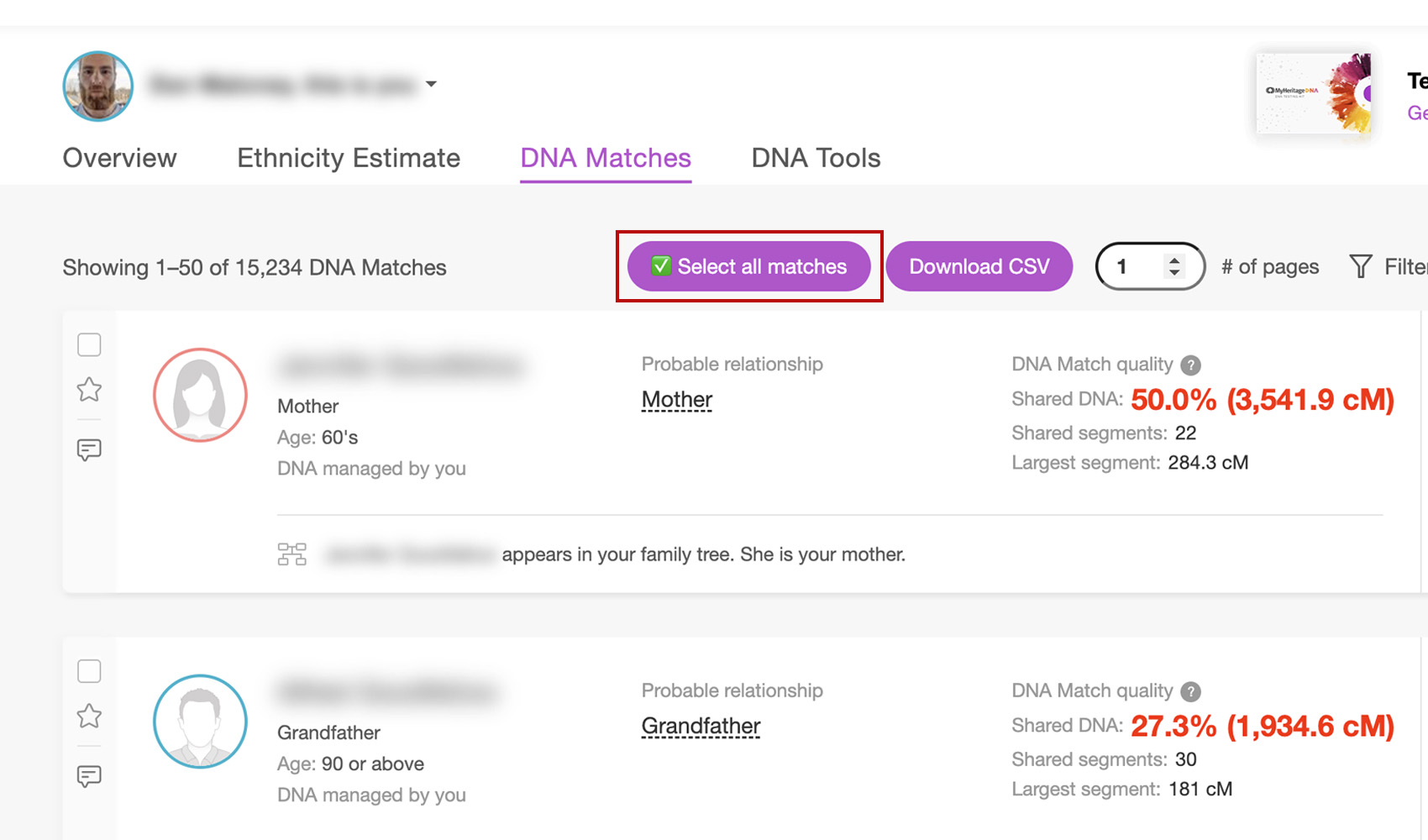
When you want to add a whole page of MyHeritage DNA matches to a group, ticking each checkbox by hand is slow. MyHeritage Add Select All Button to Matches List ticks every match on the page in one click, so you can apply a group label to all of them at once.
How does MyHeritage Add Select All Button to Matches List work?
A Select all matches button is added to the top of your DNA matches list. Click it to tick the checkbox for every match on the current page. A progress overlay shows how many have been ticked and includes a Stop button, so you can end it early on a full page of matches. The button then changes to Deselect all matches, which unticks them again the same way.
How do I use MyHeritage Add Select All Button to Matches List?
- Ensure MyHeritage Add Select All Button to Matches List is enabled in the Genealogy Assistant pop-up panel.
- Navigate to your MyHeritage DNA matches list.
- Click the Select all matches button at the top of the list to tick every match on the current page.
- To stop before every match is ticked, click Stop in the overlay. Everything already ticked stays ticked.
- Apply your group label to the selected matches using MyHeritage’s own toolbar.
- Click Deselect all matches to untick them again.
MyHeritage Add Select All Button to Matches List is a feature of the software Genealogy Assistant.
Genealogy Assistant is an extension for Google Chrome, Mozilla Firefox, Microsoft Edge and Apple Safari which supercharges your family history research by adding over 100 custom features to popular genealogy websites like Ancestry, MyHeritage, FamilySearch, FamilyTreeDNA and more. You can watch a full video walkthrough on YouTube.
Install Genealogy Assistant for Google Chrome | Install for Mozilla Firefox | Install for Microsoft Edge | Install for Apple Safari