


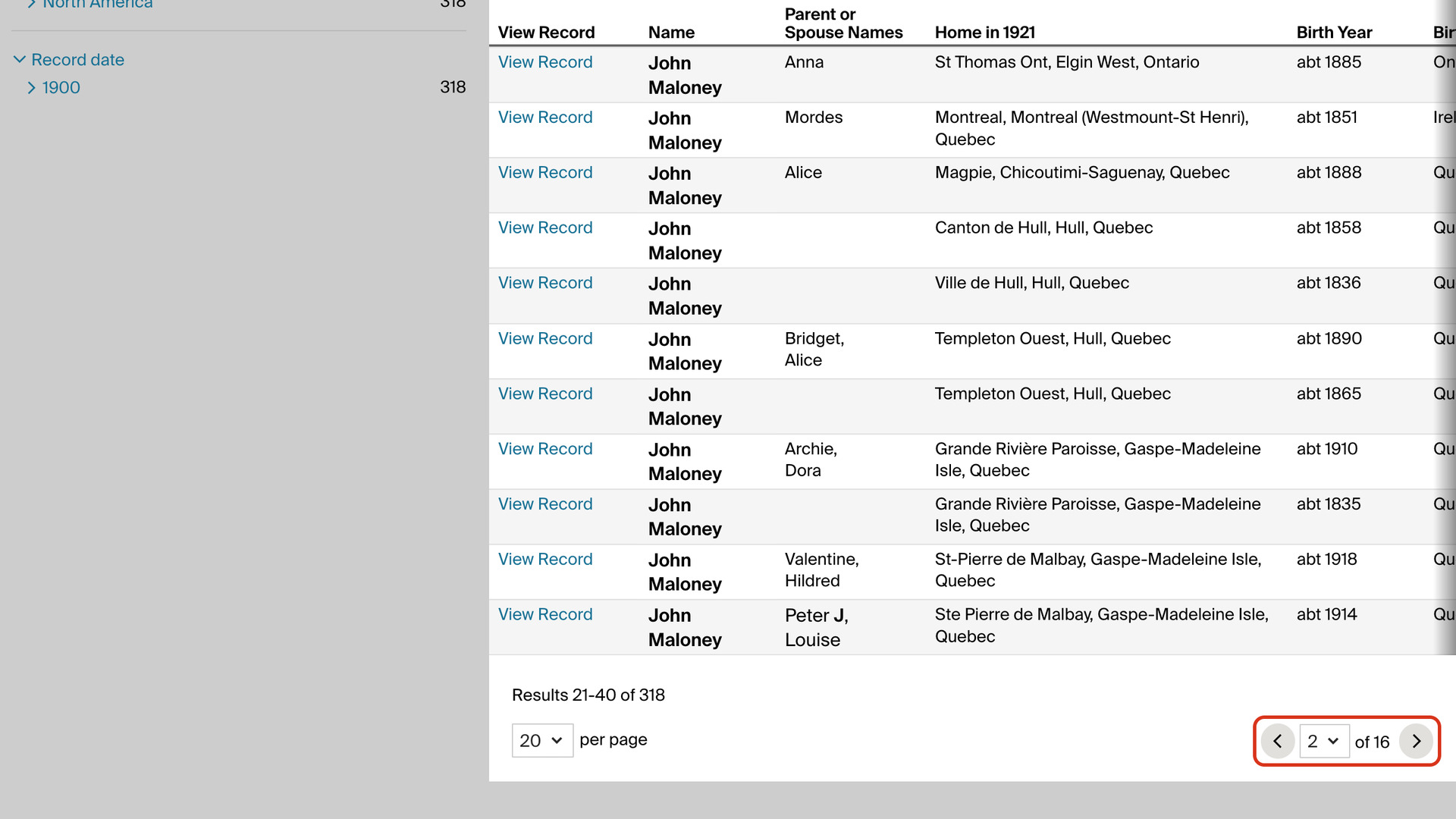
What problem does Add Keyboard Navigation to Search solve?
Add Keyboard Navigation to Search lets you turn the pages of Ancestry search results with the arrow keys on your keyboard. Without it, every new page of results means scrolling to the bottom of the list to find the next page button and click it.
How does Add Keyboard Navigation to Search work?
On any Ancestry search results page, press the Right arrow key to load the next page of results, or the Left arrow key to go back a page. You can stay where you are on the page and work through a long list of results without reaching for the mouse.
Each key press does the same as clicking the next or previous page button at the bottom of the results, so the results load just as they normally would. While you are typing in a box, such as the name fields of the search form, the arrow keys move through your text as usual.
How do I use Add Keyboard Navigation to Search?
- In the Genealogy Assistant pop-up panel, make sure Add Keyboard Navigation to Search is turned on.
- Run a search on Ancestry. The search results page opens.
- Press the
Rightarrow key. The next page of results loads. - Press the
Leftarrow key to go back to the previous page.
Keyboard Shortcuts
Rightloads the next page of search results.Leftloads the previous page of search results.
Related features
- Add Keyboard Shortcuts to Family Tree: Move around any Ancestry tree with single-key shortcuts, and search anyone on eight genealogy sites from their person card, even in other members’ trees.
- ScotlandsPeople Keyboard Navigation: Use the left and right arrow keys to move between pages of any ScotlandsPeople search results.
- Change Text Case via Shift + Up/Down: Hold Shift and press the up or down arrow in any input box to switch it to uppercase or standard case.
Add Keyboard Navigation to Search is a feature of the software Genealogy Assistant.
Genealogy Assistant is an extension for Google Chrome, Mozilla Firefox, Microsoft Edge and Apple Safari which supercharges your family history research by adding over 100 custom features to popular genealogy websites like Ancestry, MyHeritage, FamilySearch, FamilyTreeDNA and more. You can watch a full video walkthrough on YouTube.
Install Genealogy Assistant for Google Chrome | Install for Mozilla Firefox | Install for Microsoft Edge | Install for Apple Safari