

What problem does MyHeritage Download Matches Pages as CSV File solve?
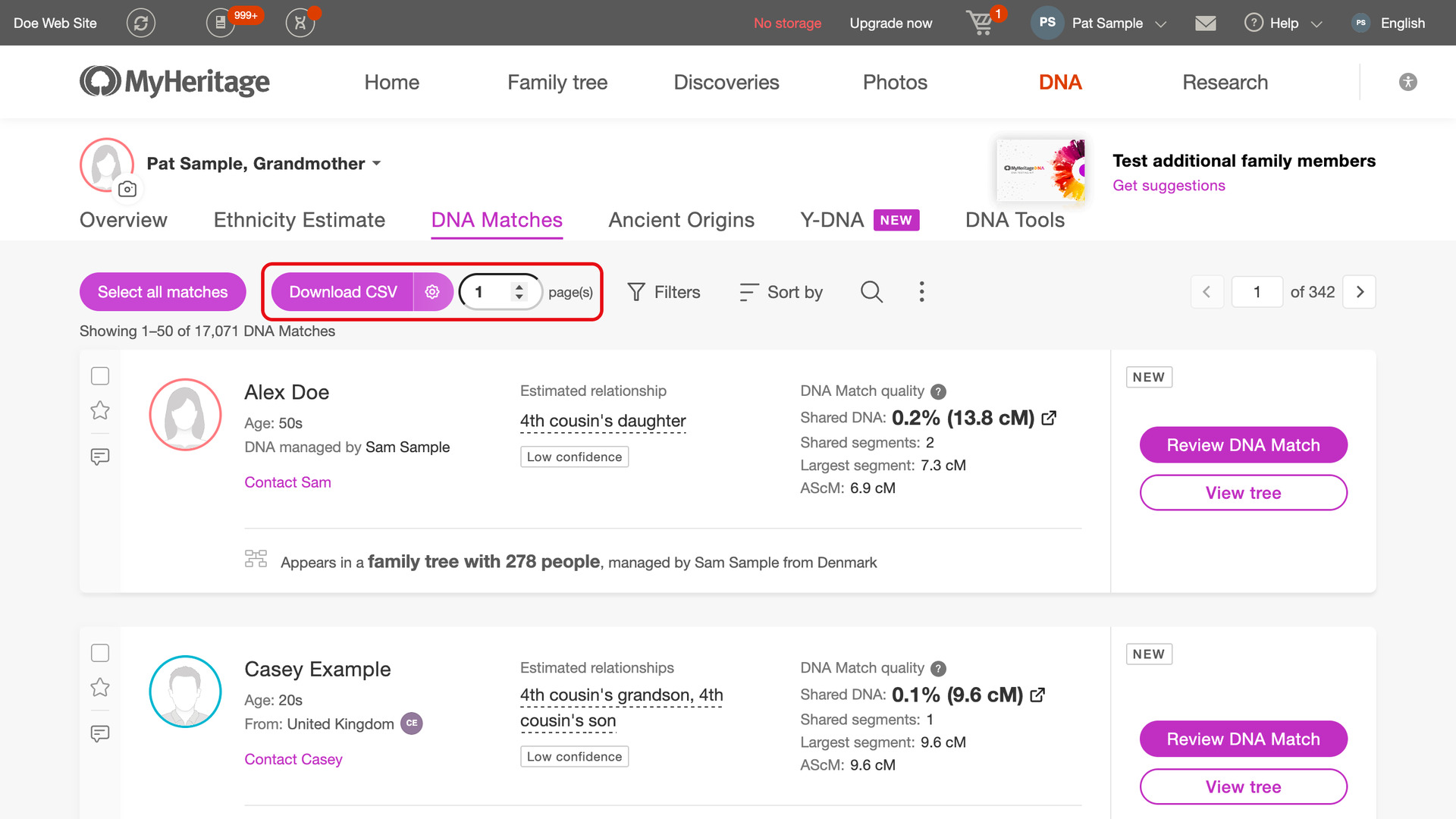
MyHeritage Download Matches Pages as CSV File adds a Download CSV button to your MyHeritage DNA matches list, which saves your matches to a CSV file. You can open it in Excel, Numbers or Google Sheets. MyHeritage has no way to export the list, so without it every match has to be copied off the screen.
How does MyHeritage Download Matches Pages as CSV File work?
The Download CSV button sits at the start of the toolbar at the top of your matches list, beside a box for the number of pages to download. The download starts from the page you are on and follows the filters, search and sort order on screen.
A page holds as many matches as the list shows at once: 50 with MyHeritage Always Display 50 Matches in List turned on, or MyHeritage’s usual 10 without it. If you ask for more pages than are left, the download stops at the end of the list.
A progress window shows how many matches have been saved, with a Cancel Download button. You can use other tabs while it runs, and the tab’s title shows how far it has got. If you try to leave the page, your browser asks you to confirm first.
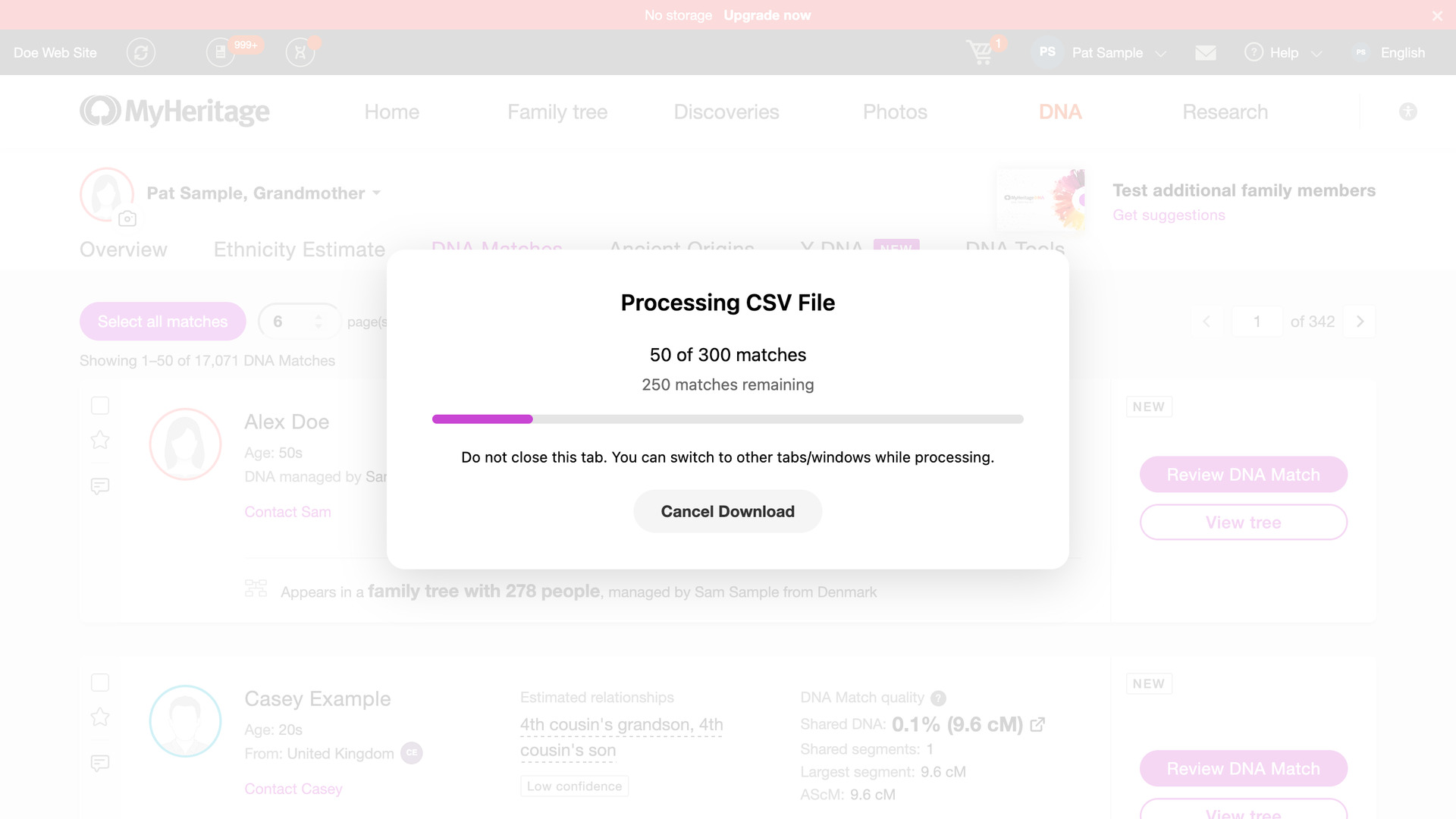
MyHeritage only lets an account load so many matches in a short time. When it starts refusing, the progress window says the download is paused and counts down to its next try. The download then carries on more slowly, so a long list finishes without you starting it again.
Every match is saved as soon as it loads, so a download that stops loses nothing. If you cancel, close the tab or MyHeritage stops responding, the file keeps what was saved. A Resume download button then appears after the pages box, showing how much was done.
Click Resume download to carry on where it stopped, with the filters and sort it started with; the file it saves has every match, including those from the stopped download. The × on it discards the stopped download. A stopped download you leave is kept for 30 days.
After very heavy use, MyHeritage can stop answering for a while, sometimes for a whole network. The download then pauses and suggests resuming later or from another network, which is usually all it takes to finish the list.
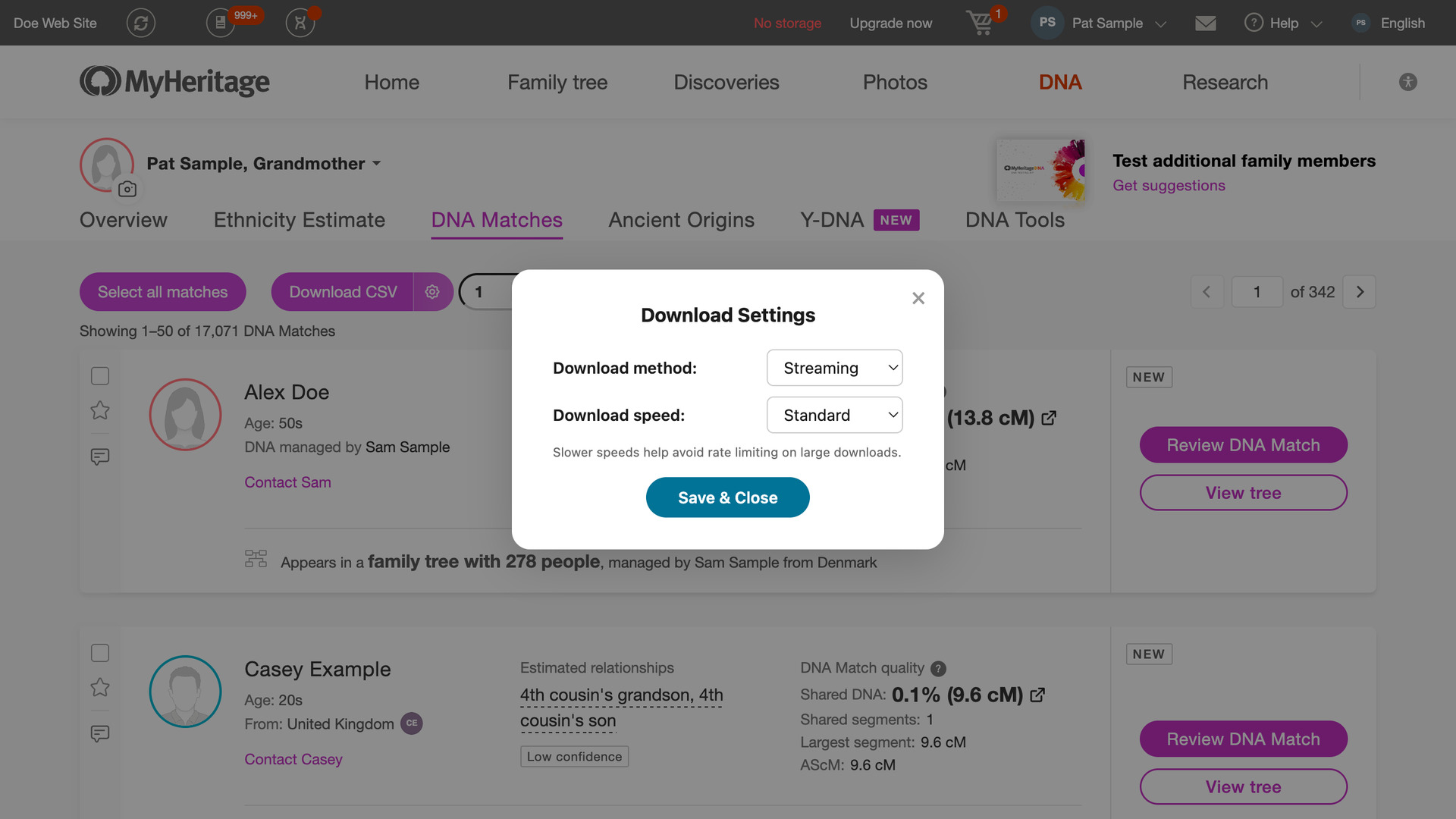
The gear button on the right of Download CSV opens Download Settings on the matches list itself. There you can choose the download method and the download speed; a slower speed makes MyHeritage less likely to pause your download.
How do I use MyHeritage Download Matches Pages as CSV File?
- In the Genealogy Assistant pop-up panel, make sure Download Matches Pages as CSV File is turned on.
- Open your MyHeritage DNA matches list. To download only some of your matches, apply MyHeritage’s filters, search or sort first and go to the page you want to start from.
- Type the number of pages in the box next to Download CSV.
- Click Download CSV. When it finishes, the CSV file is saved to your downloads folder.
- If a download stops early, click Resume download after the pages box to carry on, or the × on it to discard it.
- To change the speed, click the gear button on the right of Download CSV.
- Choose a Download speed. Standard suits most lists; choose Walk or Crawl only if MyHeritage keeps pausing your downloads.
- Click Close. Your choices are saved as you make them.
The same settings are on the Advanced Settings page under Download Options, where they also apply to your other downloads. To open it there, click Edit advanced settings at the bottom of the pop-up panel.
CSV Columns
Match Name, Estimated Relationship, Shared cM, Shared Percentage, Shared Segments, Largest Segment, Avg Segment cM, Tree Size, Location, Groups, Star Status, GUID, URL, Notes, Shared Surnames, Ancestral Places, Theory, Theory Status, Managed By, Age, Gender, Birth Place, Tree Owner, Relationship Range, Common Ancestors, Profile Link, Tree Link, New
Avg Segment cM is the shared cM divided by the number of shared segments. It is the same AScM that MyHeritage Highlight DNA Matches 25cM+ shows on the list. Groups lists the labels you gave the match, and Star Status reads Starred for matches you starred.
Shared Surnames and Ancestral Places are the surnames and places MyHeritage found in both your tree and the match’s tree. Theory and Theory Status are filled in when MyHeritage has a Theory of Family Relativity for the match: the relationship it suggests, and whether it is pending, confirmed or rejected.
Relationship Range lists the relationships MyHeritage considers possible for the DNA you share, and Common Ancestors says where your shared ancestors most likely sit, such as Great-grandparents. New reads New for the matches MyHeritage marks as new on your list.
Location is the match’s country and Age the age group MyHeritage shows for them. Managed By names the person who manages the test when it is not the match. Birth Place and Tree Owner come from the match’s tree, and Tree Link opens the match in that tree.
NOTICE: CSV DOWNLOAD TOOLS ARE FOR PERSONAL RESEARCH ONLY.
Related features
- MyHeritage Download Shared Matches as CSV File: Save the shared matches of any MyHeritage match to a CSV file, or only the triangulated ones from the drop-down beside the Download CSV button.
- MyHeritage Always Display 50 Matches in List: Shows 50 MyHeritage DNA matches per page instead of 10.
- MyHeritage: Add Pagination to Top of Matches List: Move between pages of your MyHeritage matches list from the top of the page, with page buttons or by typing a page number.
MyHeritage Download Matches Pages as CSV is a feature of the software Genealogy Assistant.
Genealogy Assistant is an extension for Google Chrome, Mozilla Firefox, Microsoft Edge and Apple Safari which supercharges your family history research by adding over 100 custom features to popular genealogy websites like Ancestry, MyHeritage, FamilySearch, FamilyTreeDNA and more.
Install Genealogy Assistant for Google Chrome | Install for Mozilla Firefox | Install for Microsoft Edge | Install for Apple Safari