

This guide installs Genealogy Assistant in your browser and starts your free 30-day trial, with every feature turned on. It takes a few minutes in Chrome, Firefox or Edge. Safari on a Mac installs from a small app instead, which Install Genealogy Assistant for Safari covers.
How do I install Genealogy Assistant?
- Open the store page for your browser:
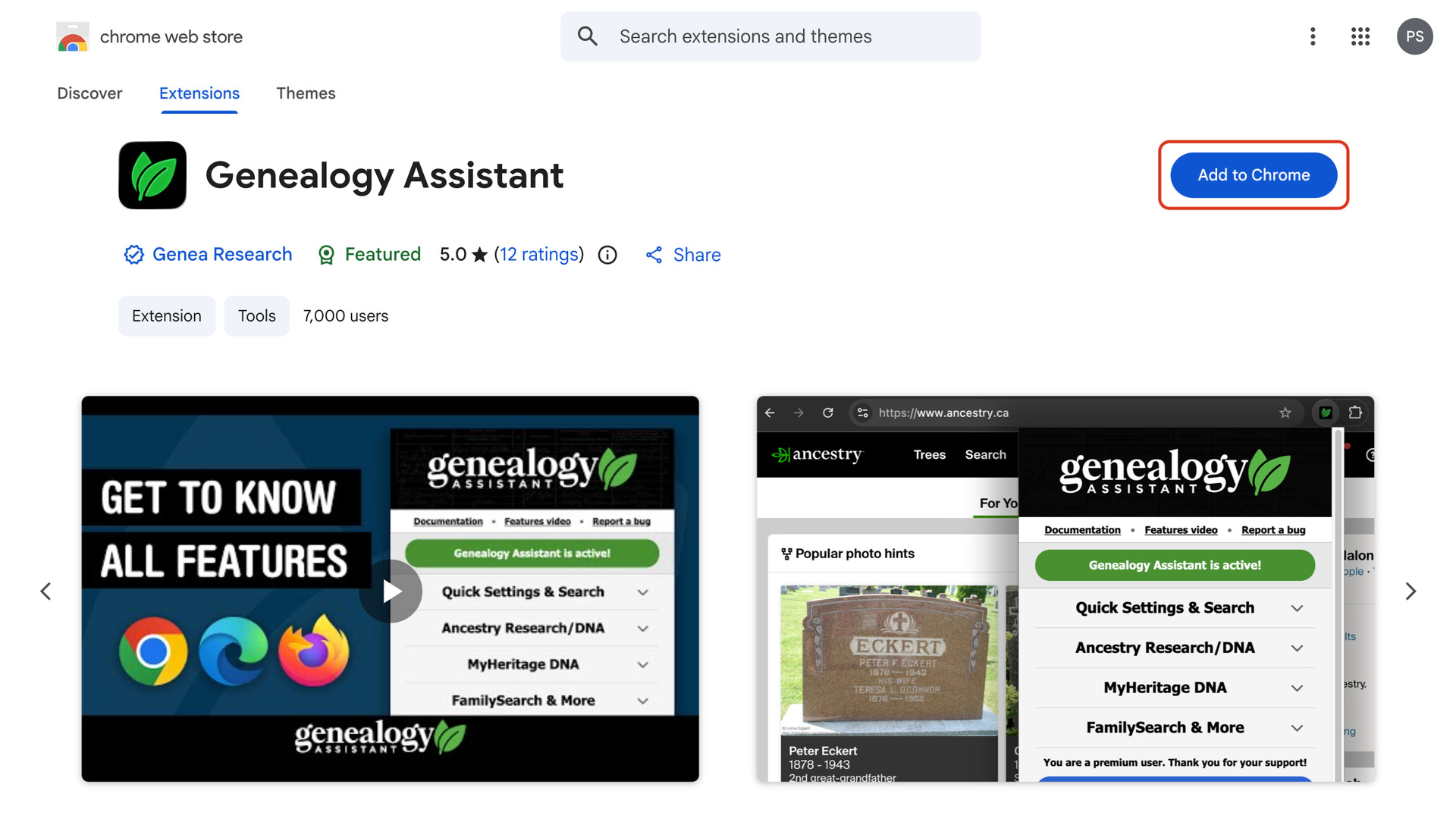
- On the Chrome Web Store page, click Add to Chrome. The Firefox and Edge stores have their own button in the same place.
- Click Add extension in the box that asks you to confirm. Genealogy Assistant installs, and a new tab opens its page on genea.ca with a video walkthrough of the features.
How do I pin the icon to the toolbar?
Your browser tucks a new extension’s icon into a menu at first. Pinning it keeps the Genealogy Assistant icon beside the address bar. One click on it opens the Genealogy Assistant pop-up panel, with every feature and its settings in one place.
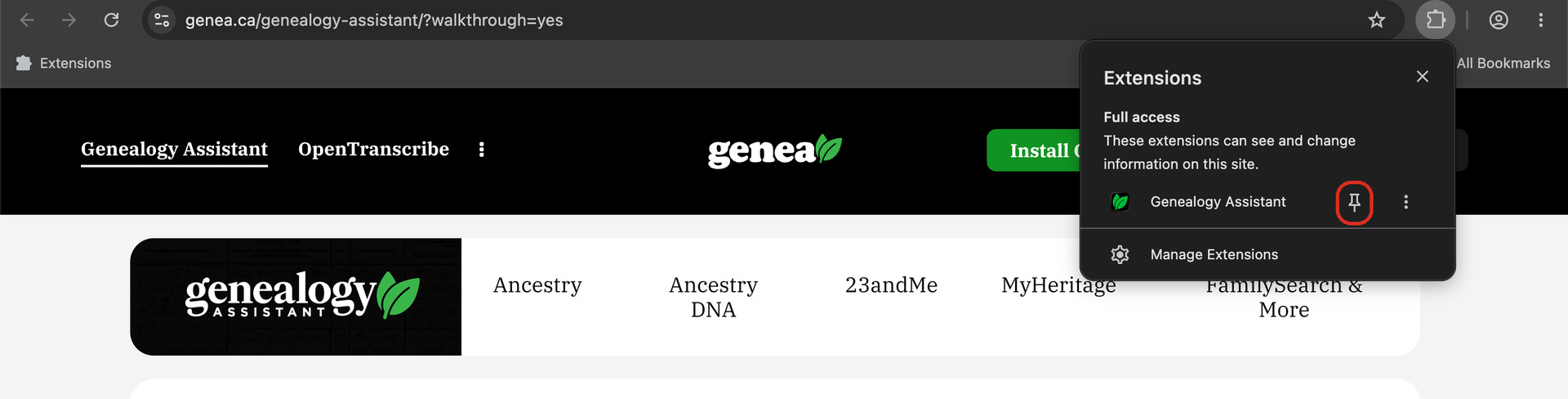
- Click the puzzle-piece icon at the right of the address bar. A list of your extensions opens.
- Click the pin beside Genealogy Assistant. Its icon now stays in the toolbar.
How do I start my free trial?
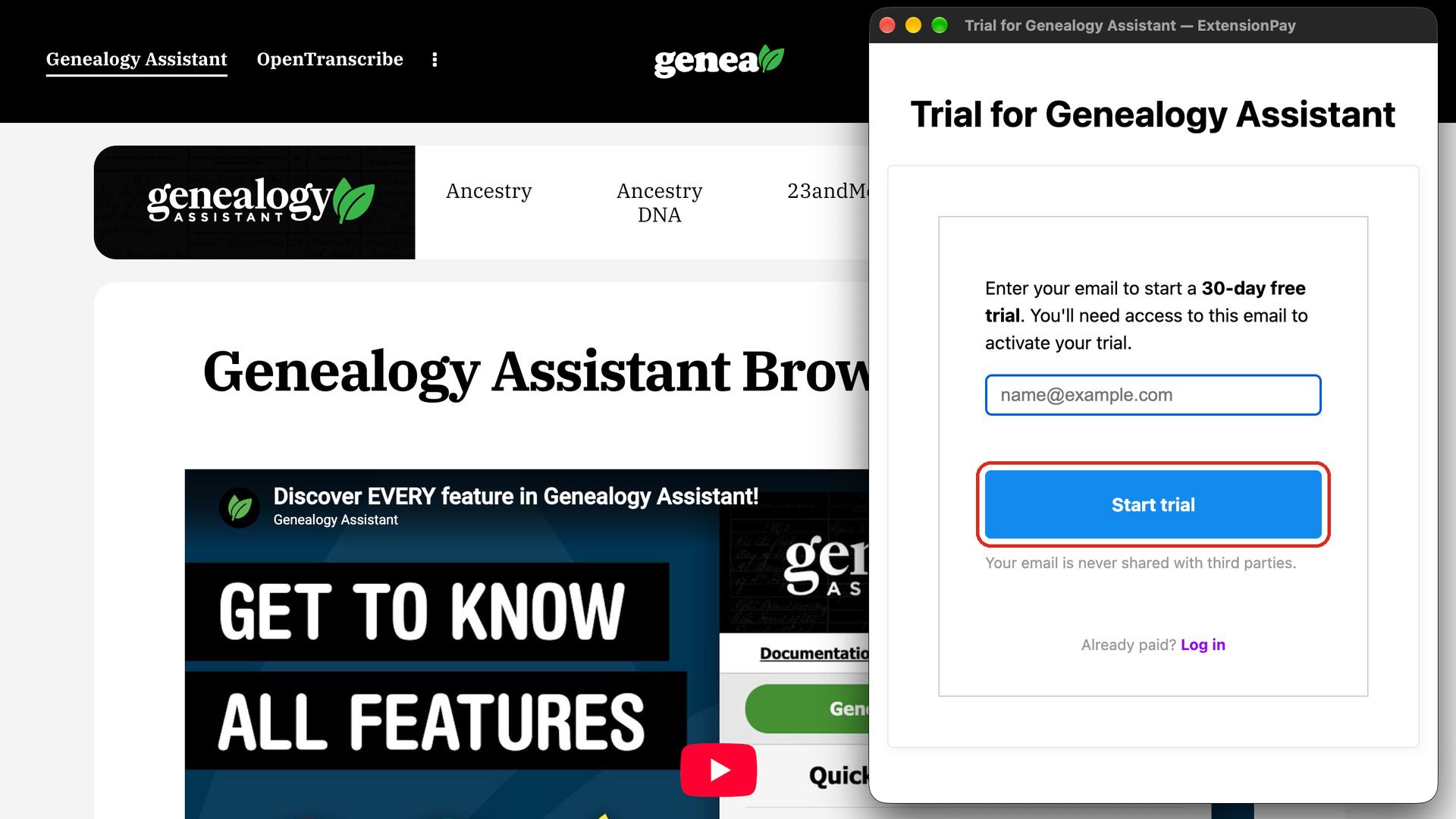
- Click the Genealogy Assistant icon in the toolbar. A window from ExtensionPay, our payment service, opens and asks for your email address.
- Type your email address and click Start trial.
- Open the confirmation email from Genealogy Assistant and click the link in it. Your trial starts.
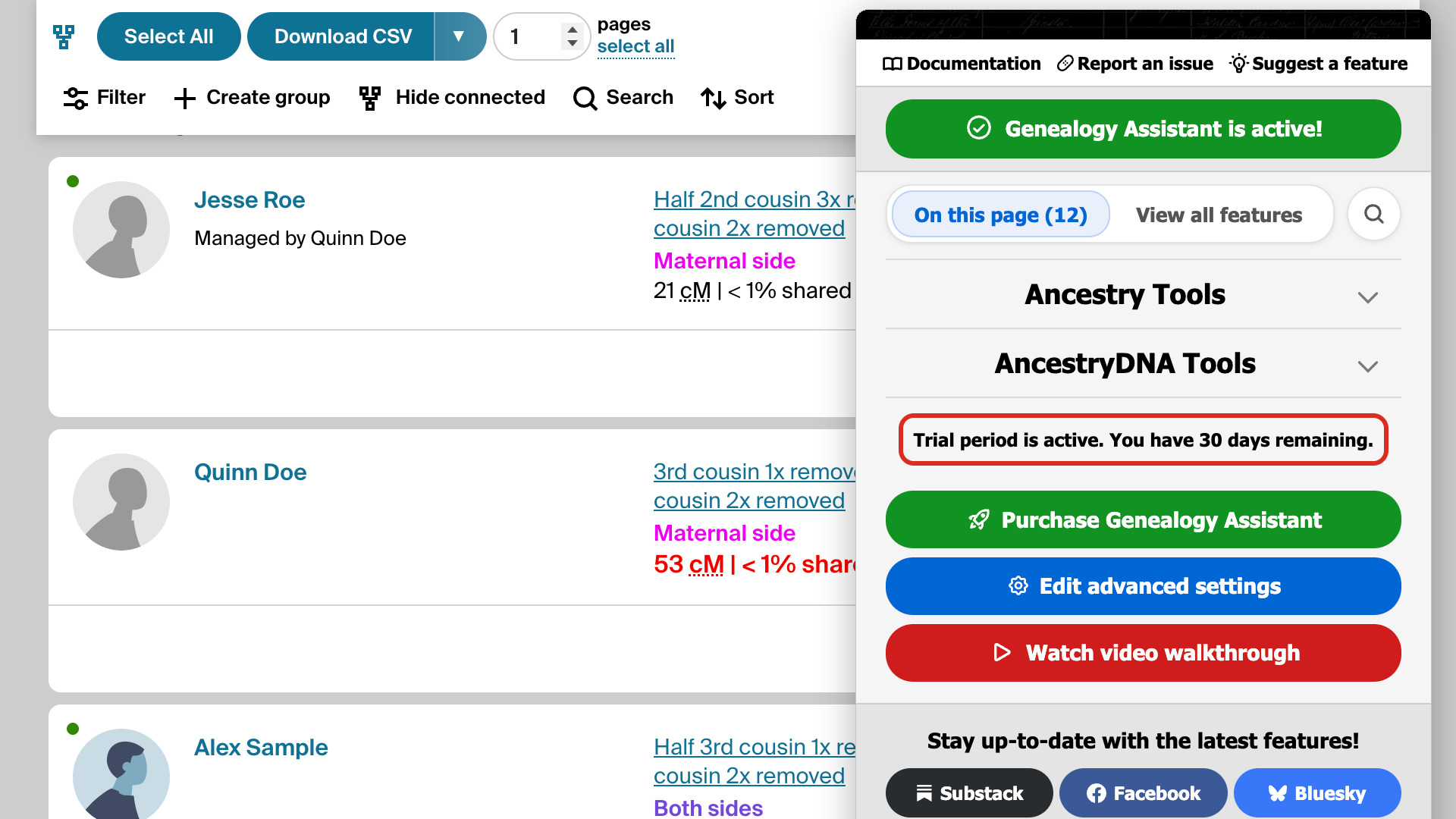
- Click the Genealogy Assistant icon again. Every feature is turned on, and the bottom of the pop-up panel reads Trial period is active. You have 30 days remaining.
Your trial belongs to your email address, not to this computer. To use Genealogy Assistant on another computer or in another browser, install it there and type the same email address in the trial window. Your trial, and later your plan, carries over.
What if the confirmation email doesn’t arrive?
Look in your spam or junk folder first. If it is not there, click the Genealogy Assistant icon again. The trial window opens each time until your trial has started, so you can check the address and send it again. Still nothing? Email us at [email protected].
When your trial ends, How to purchase Genealogy Assistant shows how to choose a plan and pay for it. If you have already paid on another computer, skip the trial and follow How to log in to your Genealogy Assistant account instead.