


What problem does Add Keyboard Shortcuts to Family Tree solve?
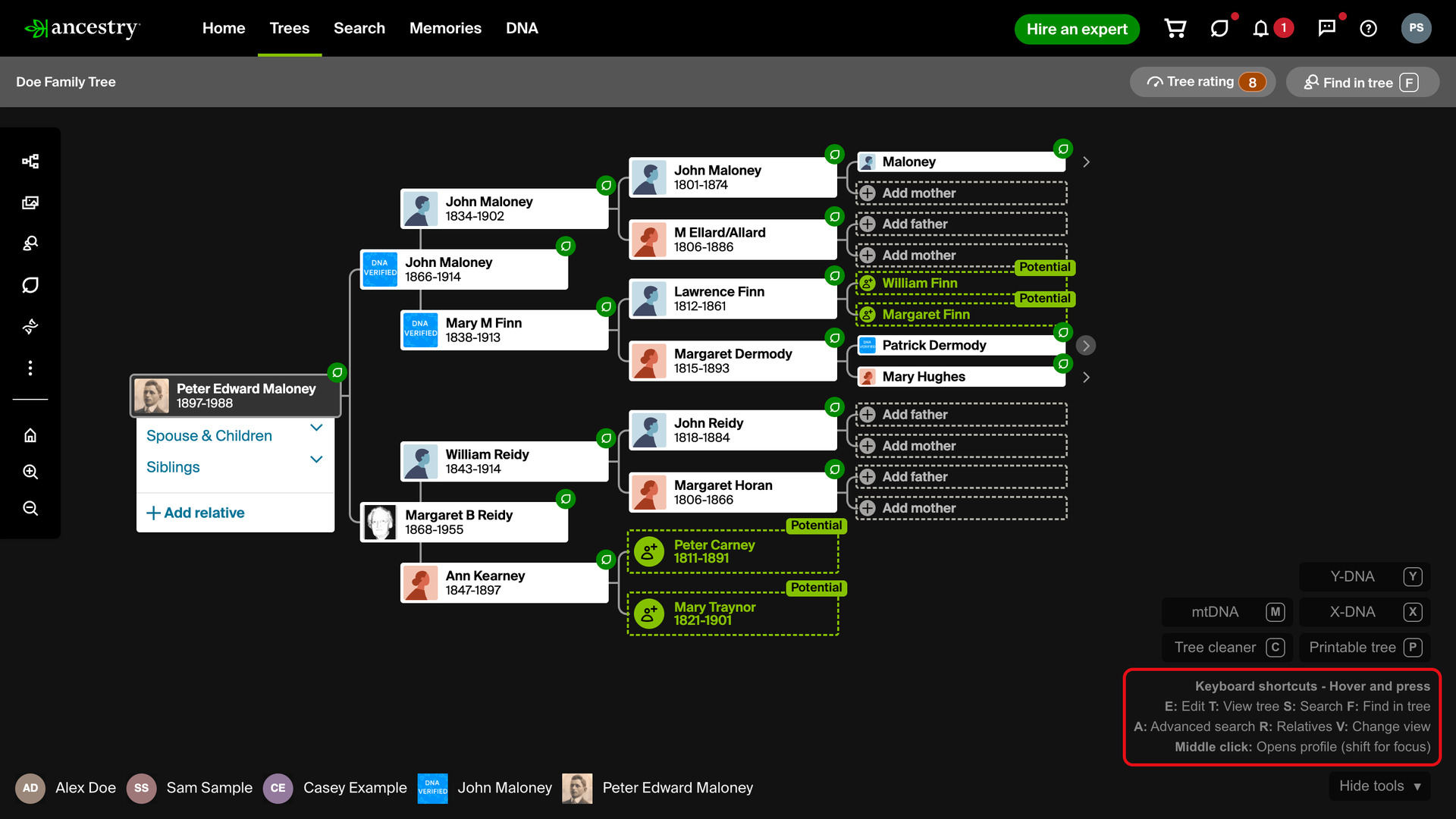
Add Keyboard Shortcuts to Family Tree lets you edit, search and open the people on an Ancestry family tree with one key while you point at them. A guide in the bottom right corner of the tree lists the shortcuts. Without it, each of those actions takes a right-click, a menu and another click.
How does Add Keyboard Shortcuts to Family Tree work?
A short guide to the shortcuts sits in the bottom right corner of the tree, under the panel of Genealogy Assistant tree buttons. Most shortcuts act on the person under the pointer, so there is no menu to open first. Each one is listed under Keyboard Shortcuts at the end of this page.
The letters on the panel buttons are shortcuts too. Those buttons come from other tree features, so each key works when its feature is turned on. Hide tools under the panel folds the buttons and the guide away, and View tools brings them back.
Middle-click a person to open their profile in a new tab in the background, so the tree stays where it is. Hold Shift as you middle-click to switch to the new tab. This also works on the names in Ancestry’s search results when you look for a person in the tree.
In the horizontal view, it also works on the names under Spouse & Children and Siblings beneath the focus person. There a normal click would move the tree to that person instead. Ancestry lists those relatives for the focus person only.
For anyone else in the horizontal view, point at their card and a small round relatives badge appears at its bottom right corner. Click it, or press R, to open a Relatives panel under that person with the same lists, half siblings included, and birth and death years.
Each name in the Relatives panel opens that person’s profile in a new tab, with a click or a middle-click. The panel closes when you click away from it, scroll or press Escape. The focus person has no badge, because Ancestry already lists their relatives.

Clicking a person on the tree opens their card. Some trees, such as public trees belonging to other members, show no Search button on the card. One is added there, so you can search Ancestry’s records for anyone in any tree you view.
Point at the Search button on any tree and an Advanced Search menu opens. It searches the person on eight genealogy websites, filled in from the card:
- Ancestry (Basic)
- FamilySearch Records
- FamilySearch Tree
- FindMyPast
- MyHeritage
- WikiTree
- FindAGrave
- Newspapers.com
Each site has a tick box, and Search selected at the top opens every ticked site at once. Your ticks are remembered and shared with the same menu on profile pages. The menu stays open until you click away from it or press Escape.
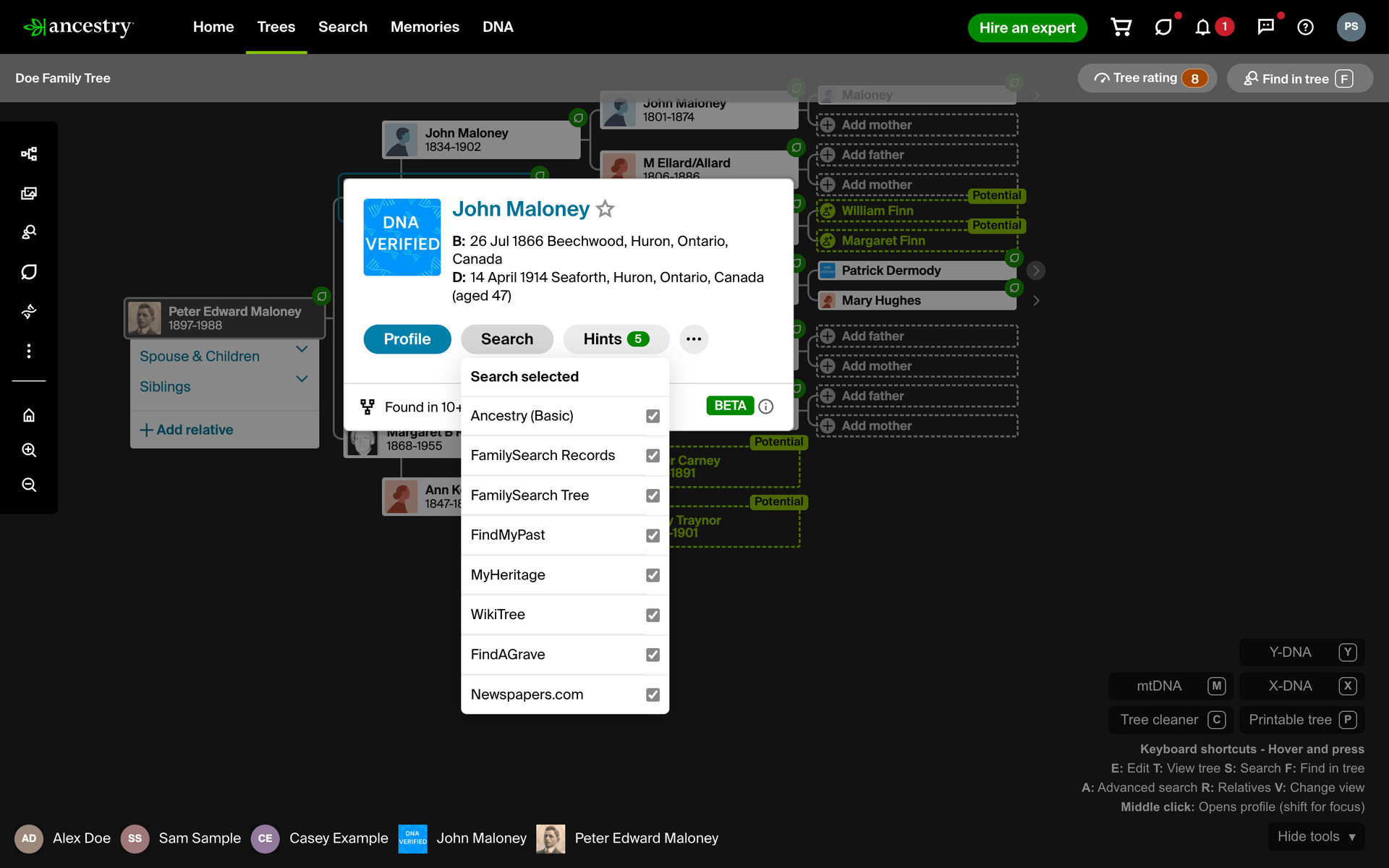
The card also shows the person’s age at death at the end of the death line, worked out from the dates already on it. With full dates the age is exact, and with only years it is a range, such as 91 to 92. A living person shows their age today, and a person with no death date shows none.
How do I use Add Keyboard Shortcuts to Family Tree?
- In the Genealogy Assistant pop-up panel, make sure Keyboard Shortcuts for Family Tree is turned on.
- Open any Ancestry family tree. The shortcut guide appears in the bottom right corner.
- Point at a person and press one of the keys listed under Keyboard Shortcuts.
- Click a person to open their card. Their age at death is at the end of the death line.
- On the card, point at Search. The Advanced Search menu opens.
- Click a site to search it, or tick the sites you want and click Search selected. Each search opens in a new tab.
- In the horizontal view, click the relatives badge on a person’s card, or press
R. The Relatives panel opens under them.
Keyboard Shortcuts
Eopens Ancestry’s edit panel for the person you point at.Tmoves the tree to the person you point at.Ssearches Ancestry’s records for the person you point at, on any tree.Aopens the Advanced Search menu for the person you point at, without opening their card.Ropens the Relatives panel for the person you point at, in the horizontal view.Fopens Ancestry’s box for finding a person in the tree. Its button at the top right of the tree shows an F.Vswitches the tree to another view.Escapecloses the open card, panel or menu.Y,MandXshow or hide the Y-DNA, mtDNA and X-DNA paths of View DNA Inheritance Paths.CandPturn the Tree cleaner and Printable tree of Family Tree Screenshot Tools on or off.G,DandHexpand the tree, collapse it and hide siblings with Easy Hide and Expand in Family Tree, in the vertical view.Lstarts or stops picking two people with Relationship Finder in Family Tree, in the vertical view.- A middle-click on a person opens their profile in a background tab, and
Shiftwith a middle-click switches to it.
Related features
- Easy Hide and Expand in Family Tree: Expand tree, Collapse tree and Hide siblings buttons open or close one generation at a time in the vertical view, so you can stay focused on a direct line.
- Relationship Finder in Family Tree: Click any two people in the vertical tree view to see how they are related, from 3rd cousin 2x removed to wife of 2nd great‑granduncle.
- Add Keyboard Shortcuts to DNA Matches: Reach the common links and buttons on any Ancestry DNA match page from your keyboard, with a small letter beside each one showing its shortcut.
Add Keyboard Shortcuts to Family Tree is a feature of the software Genealogy Assistant.
Genealogy Assistant is an extension for Google Chrome, Mozilla Firefox, Microsoft Edge and Apple Safari which supercharges your family history research by adding over 100 custom features to popular genealogy websites like Ancestry, MyHeritage, FamilySearch, FamilyTreeDNA and more. You can watch a full video walkthrough on YouTube.
Install Genealogy Assistant for Google Chrome | Install for Mozilla Firefox | Install for Microsoft Edge | Install for Apple Safari