


What problem does Save All People in Tree to CSV File solve?
Ancestry does not let you export a plain list of every person in your tree. To get one you either have to download a full GEDCOM and process it elsewhere, or copy names off the All People page one screen at a time. Save All People in Tree to CSV File adds a one-click download button to the All People page that walks every page of your tree and saves the entire list to a CSV file, and connects it directly to the Surname Comparison Tool.
How does Save All People in Tree to CSV File work?
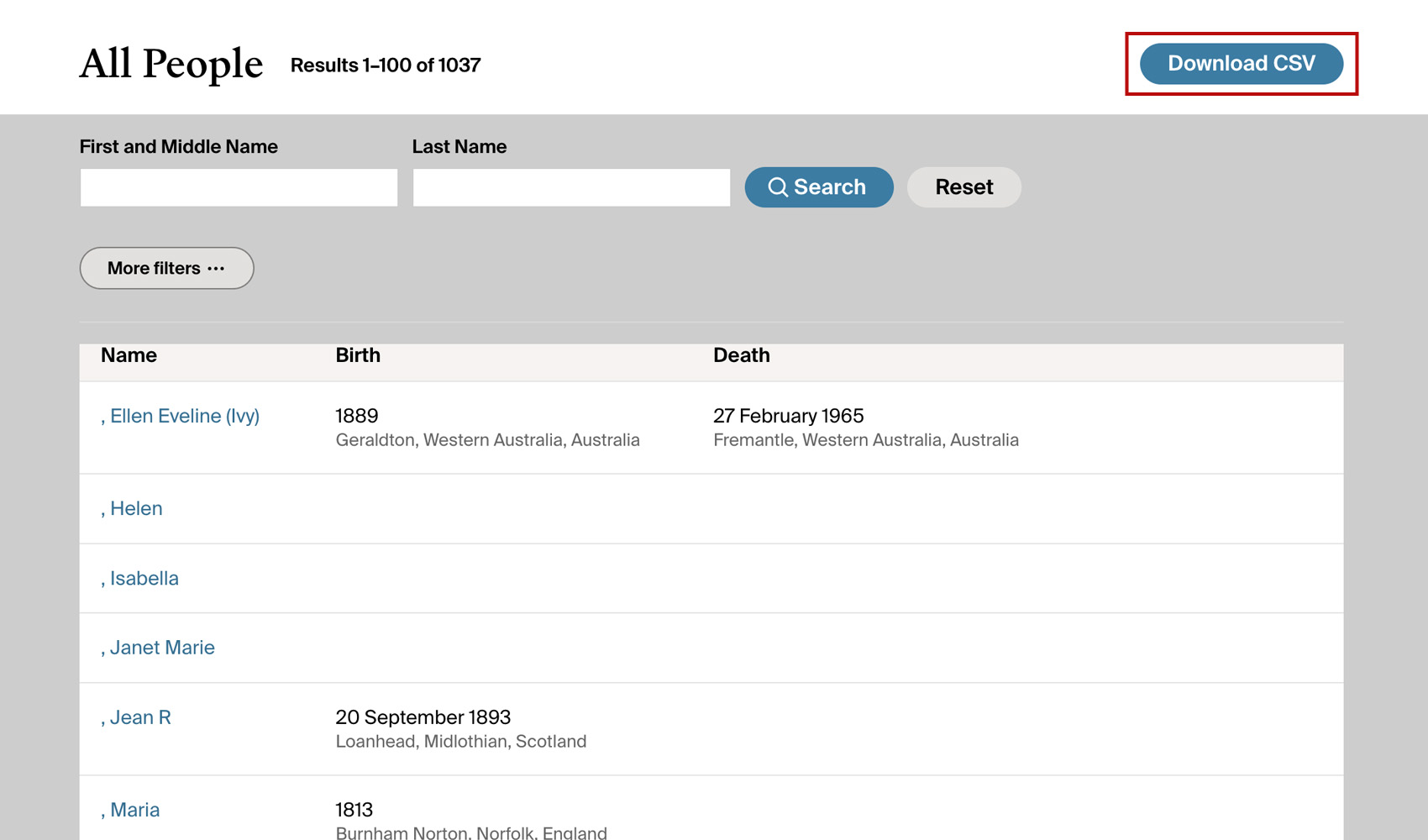
A new button titled Download CSV appears at the top right of the list of people in any family tree. Clicking this button downloads every person in the list, with your current search, sort and filters, into a CSV file for your research project, including birth, death and marriage details, places, parents, spouses, notes and more.
Beside it are a gear icon labelled Download Settings, + Compare, and View Surname Comparison Tool. The download starts from the page of the list you are on, shows its progress with a Cancel button, and is named after the tree.
+ Compare loads the same people into the Surname Comparison Tool so you can line this tree up against a DNA match’s tree to spot shared surnames. View Surname Comparison Tool opens the tool directly in a new tab, and the gear icon lets you change the download speed.
How do I use Save All People in Tree to CSV File?
- Ensure Save All People in Tree to CSV File is enabled in the Genealogy Assistant pop-up panel.
- Open any Ancestry family tree and click the People tab to view the All People list. Search, sort or filter the list first if you only want some of the people.
- Click Download CSV to save the list to a CSV file, + Compare to load the tree into the Surname Comparison Tool, or View Surname Comparison Tool to open the tool in a new tab.
- Click Cancel in the progress overlay to stop a download early. The people read so far are still saved.
- To change the download speed, click the gear icon beside Download CSV, choose a Download speed and click Save & Close.
CSV Columns
- Surname
- Given Names
- Birth Date
- Birth Date (ISO)
- Birth Place
- Death Date
- Death Date (ISO)
- Death Place
- URL
- Person ID
- Gender
- Alternate Names
- First Marriage Date
- First Marriage Date (ISO)
- First Marriage Place
- Spouses
- Birth County
- Birth State/Province
- Birth Country
- Death County
- Death State/Province
- Death Country
- Father
- Mother
- Children
- Created
- Last Modified
- Notes
The ISO columns hold the same dates in year, month, day form (for example 1988-09-23, or just 1988 when only a year is recorded) so they sort correctly in a spreadsheet. URL links straight to the person’s profile page, and Person ID is Ancestry’s own number for that person.
Spouses lists every spouse in marriage order, Children is the number of children in the tree, and the county, state and country columns split each place into its parts so you can sort or filter by them. Created and Last Modified are the dates the person was added to the tree and last edited.
On a tree you own, these columns are added before Notes: Relationship to You, Direct Line, Line, End of Line, Age at First Marriage, Age at Death, Hints, Record Hints, Photo Hints, Story Hints, Member Tree Hints, Record Sources, Family Tree Sources, Other Sources, Geneanet Sources, No Sources, Only Tree Sources, Possible Errors, Possible Duplicates, Tags, ThruLines, Linked DNA, Possible DNA Match, Profile Photo.
NOTICE: CSV DOWNLOAD TOOLS ARE FOR PERSONAL RESEARCH PROJECTS ONLY.
Save All People in Tree to CSV File is a feature of the software Genealogy Assistant.
Genealogy Assistant is an extension for Google Chrome, Mozilla Firefox, Microsoft Edge and Apple Safari which supercharges your family history research by adding over 100 custom features to popular genealogy websites like Ancestry, MyHeritage, FamilySearch, FamilyTreeDNA and more. You can watch a full video walkthrough on YouTube.
Install Genealogy Assistant for Google Chrome | Install for Mozilla Firefox | Install for Microsoft Edge | Install for Apple Safari