


What problem does FamilySearch Advanced Paging for Image Viewer solve?
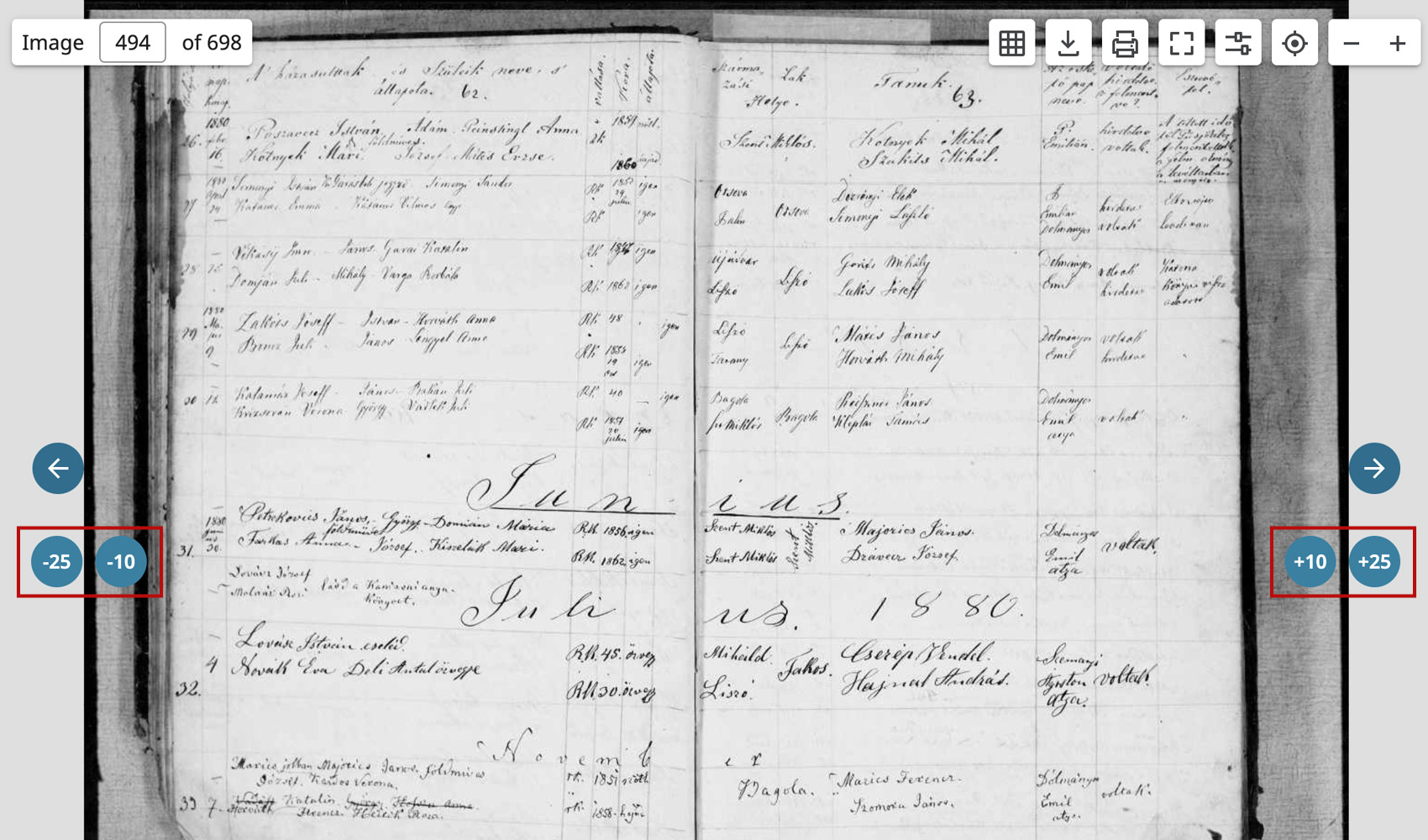
Stepping through a long set of FamilySearch images one page at a time is slow, and the only way to jump further is to type a number into the image input. FamilySearch Advanced Paging for Image Viewer adds a row of skip buttons that move you forward and backward by 2, 10, 25 or 50 images at a time so you can scan through a film much faster.
How does FamilySearch Advanced Paging for Image Viewer work?
On the FamilySearch image viewer, a small toolbar of skip buttons is added just below the standard image controls. Each button updates the image number input by its set amount and loads that image. The toolbar can be minimised to a single button when it is in the way, and your minimised state is remembered the next time you open the viewer.
How do I use FamilySearch Advanced Paging for Image Viewer?
- Ensure FamilySearch Advanced Paging for Image Viewer is enabled in the Genealogy Assistant pop-up panel.
- Open any image in the FamilySearch image viewer.
- Use the skip buttons to jump forward or backward by 2, 10, 25 or 50 images at a time.
- Click the − button to minimise the toolbar to a single icon.
- Click the + button to expand the toolbar again.
Skip Buttons
- -50 goes back 50 images
- -25 goes back 25 images
- -10 goes back 10 images
- -2 goes back 2 images
- +2 goes forward 2 images
- +10 goes forward 10 images
- +25 goes forward 25 images
- +50 goes forward 50 images
FamilySearch Advanced Paging for Image Viewer is a feature of the software Genealogy Assistant.
Genealogy Assistant is an extension for Google Chrome, Mozilla Firefox, Microsoft Edge and Apple Safari which supercharges your family history research by adding over 100 custom features to popular genealogy websites like Ancestry, MyHeritage, FamilySearch, FamilyTreeDNA and more. You can watch a full video walkthrough on YouTube.
Install Genealogy Assistant for Google Chrome | Install for Mozilla Firefox | Install for Microsoft Edge | Install for Apple Safari