


What problem does Quick Search via Alt + Q solve?
Finding a record collection in the Card Catalog, a person in one of your trees or one of your DNA tests usually means clicking through several menus, and the search you need is often on a different website from the one you are reading. Quick Search via Alt + Q opens a search prompt on any web page, so a few characters take you straight to the result, and short prefixes send the same search to several genealogy sites at once.
How does Quick Search via Alt + Q work?
Press Alt + Q (Option + Q on Mac) on any web page to open a search prompt, or type ga then Space in the address bar. On supported genealogy sites the previous Ctrl + / shortcut still works for now.
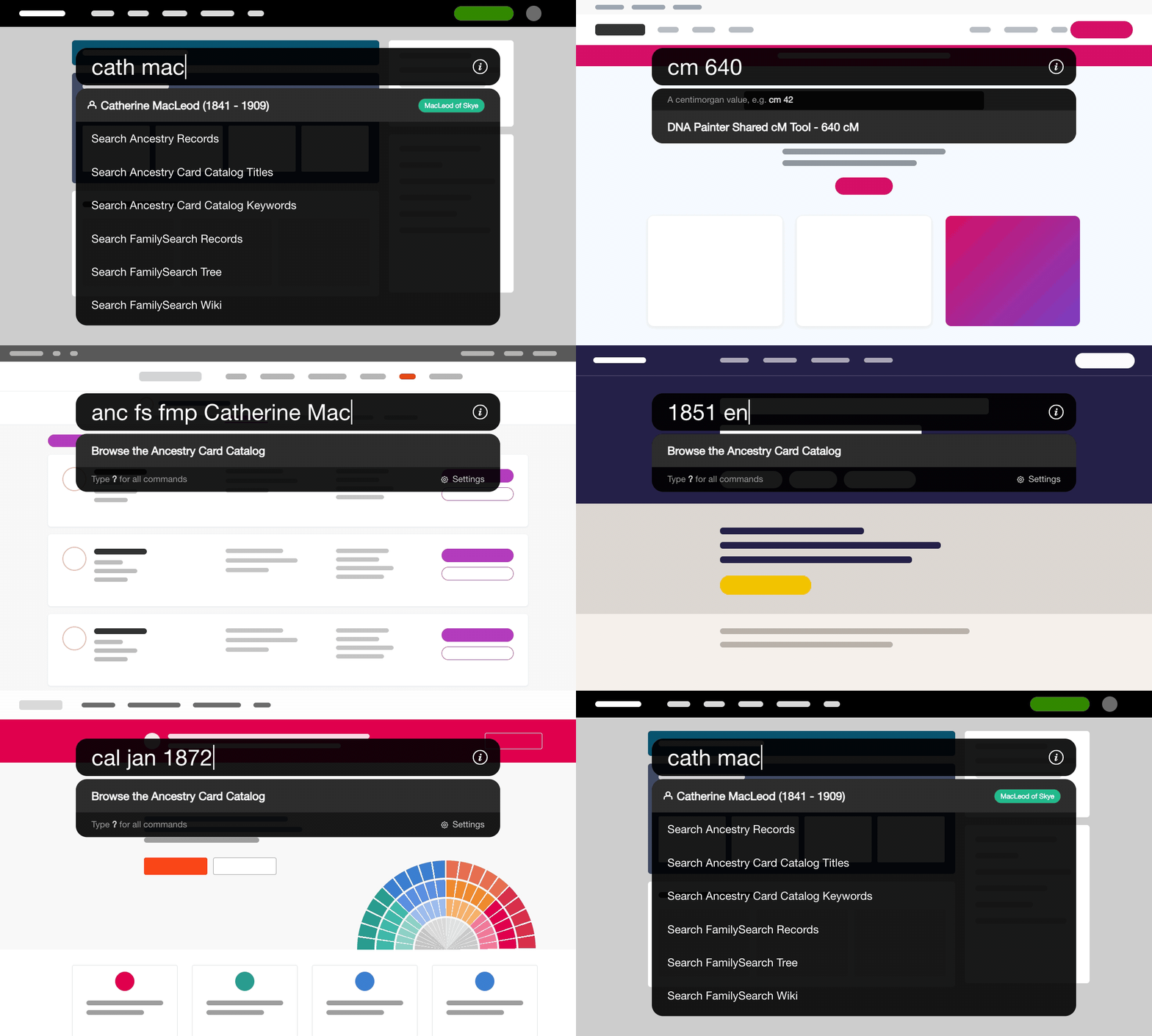
This prompt searches the record collections in the Card Catalog by keyword, such as census years, locations or record types. Results appear immediately, and selecting one takes you directly to the collection’s search page.
The prompt opens in the centre of the screen, and with nothing typed it shows your three most recent searches and a link to browse the Ancestry Card Catalog. Use the Up and Down arrow keys to highlight a result, press Enter to open it in a new tab, or press Escape to close the prompt.
Start typing and matching results appear: record collections from the Card Catalog, people from the Ancestry trees you have added, people from any GEDCOM tree you have uploaded, your DNA tests, and ready-made searches for your text on Ancestry, FamilySearch, FindMyPast, MyHeritage, WikiTree, Find a Grave and Newspapers.com.
With more than one tree added, each person shows their tree’s name in a coloured pill, and when the place you typed is in England, Wales, Scotland or Ireland, that country’s civil registration index is offered as well.
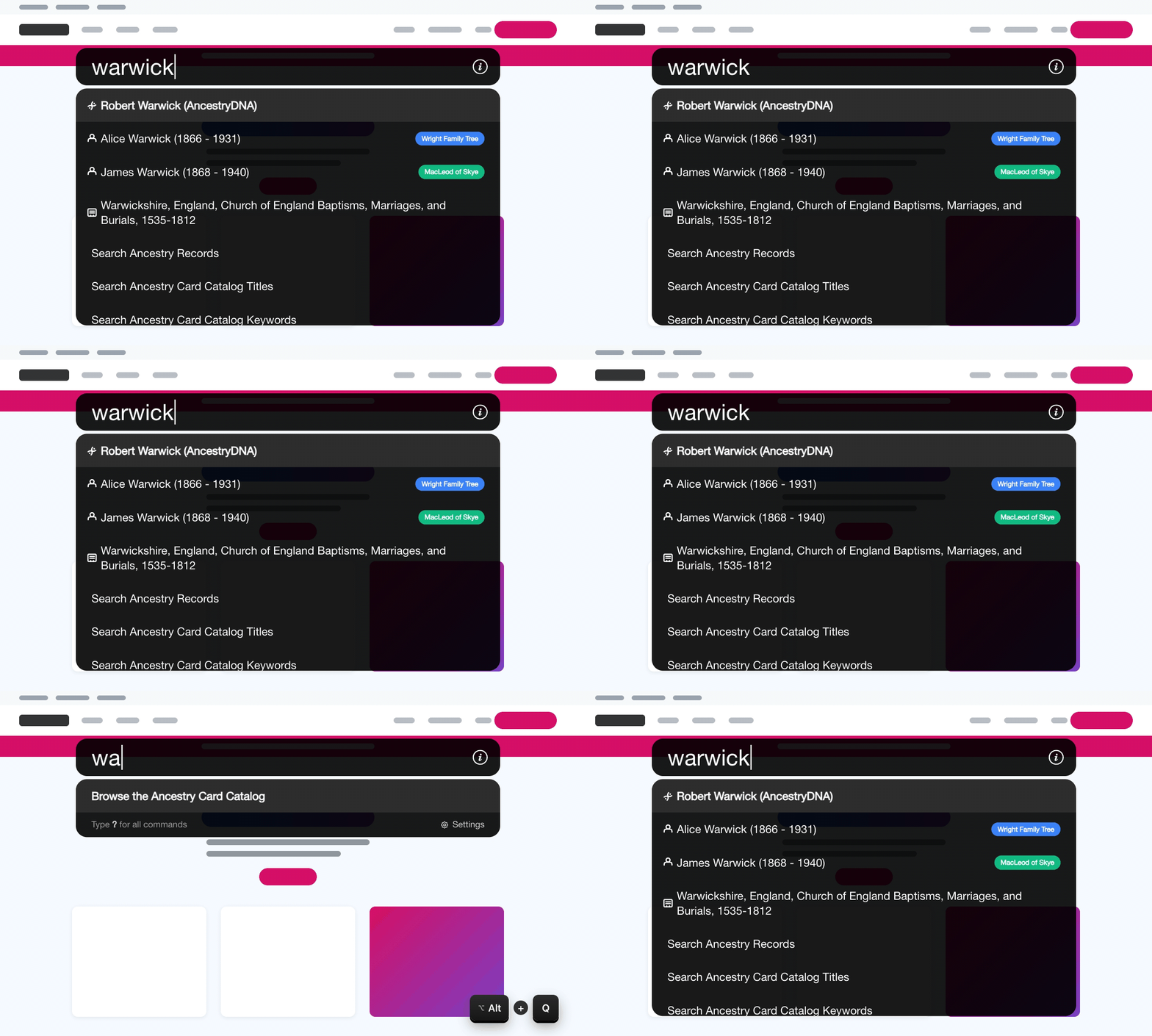
In Chrome, Edge and Firefox you can also search without opening the prompt at all. Click in the address bar, type ga followed by a space, then type your search. The same results appear as suggestions under the address bar, and Enter opens the highlighted one. This works on every tab, including the new tab page.
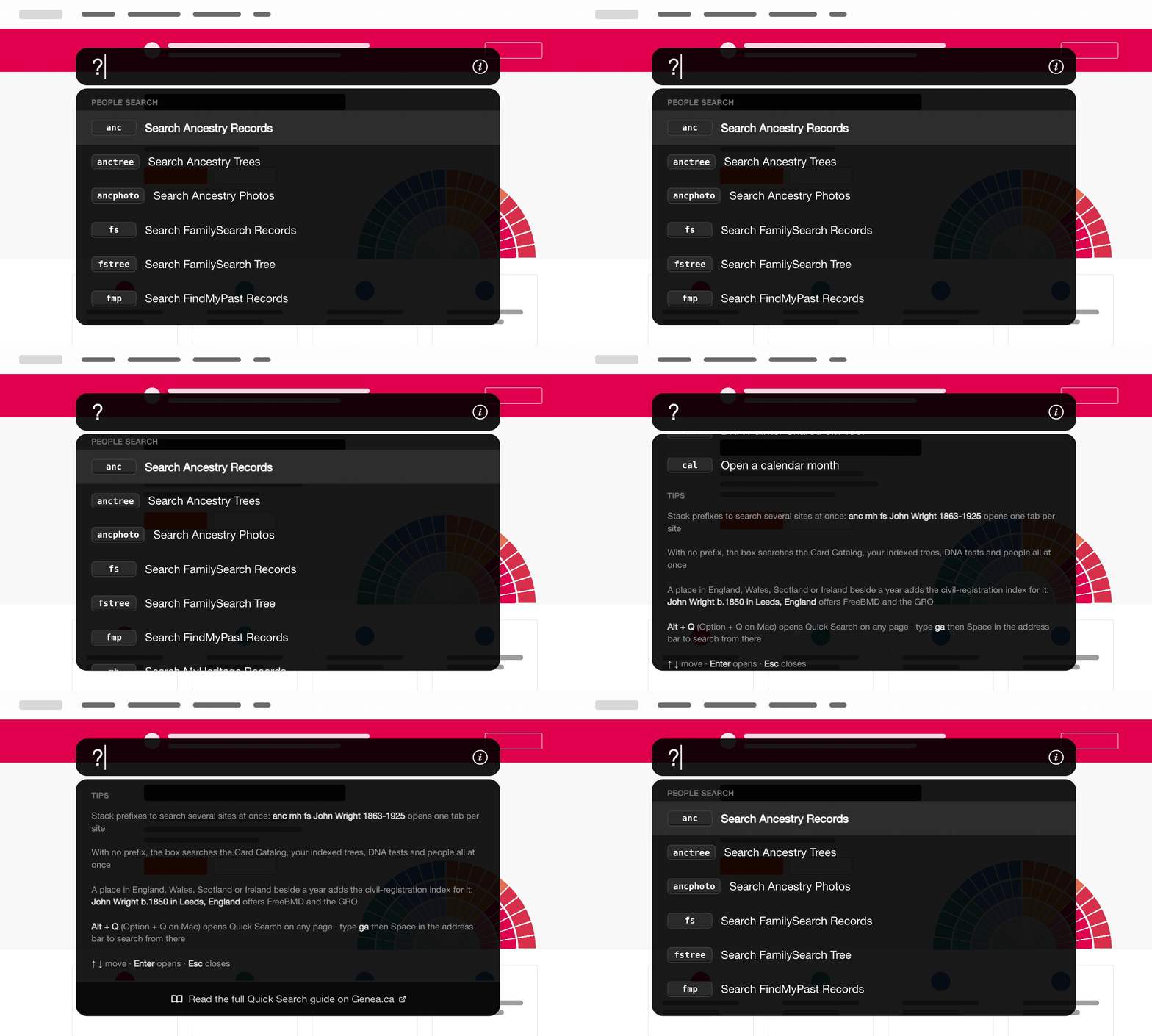
Type ? in the prompt, or click the information icon at its right-hand end, to list every command with a short description. Selecting a command fills in its prefix so you can carry on typing your search.
While you type a single word that begins a command, the matching commands appear at the top of the results, and once a prefix is recognised a one-line hint above the results shows what to type next.
To search for a person on another genealogy website, type one of the prefixes below, then the name with optional birth and death details in plain language, for example anc John Wright b.1863 in England d.1925 in Canada.
ancorsearchsearches Ancestry records.anctreesearches Ancestry family trees.ancphotosearches Ancestry photos.fssearches FamilySearch records.fstreesearches the FamilySearch family tree.fmpsearches FindMyPast.mhsearches MyHeritage.wtsearches WikiTree.gravesearches Find a Grave.newssearches Newspapers.com.freebmdsearches the FreeBMD index of England and Wales births and deaths.grosearches the General Register Office index of England and Wales births and deaths.spsearches the ScotlandsPeople statutory and church registers.igsearches the IrishGenealogy civil records.
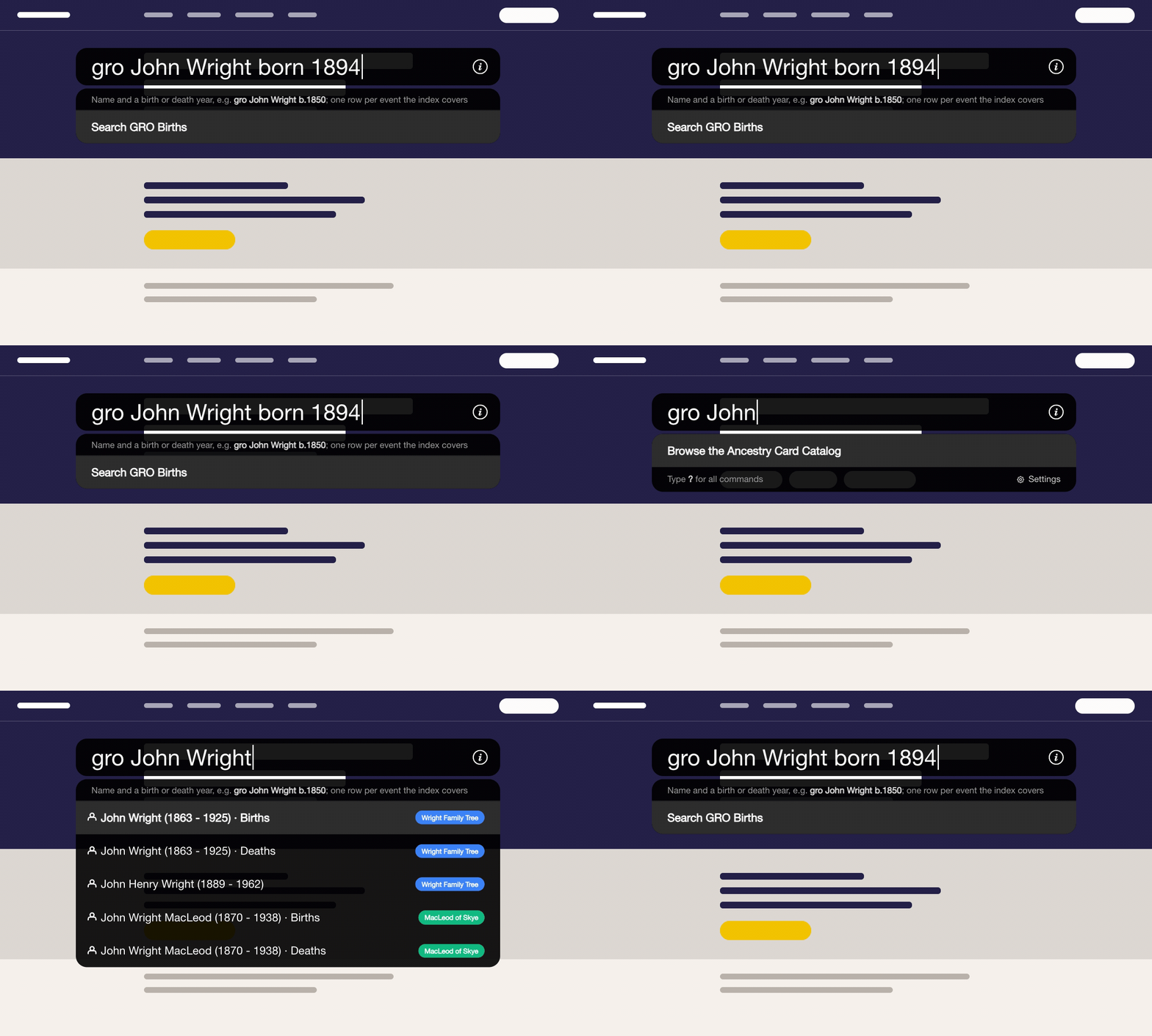
The last four prefixes search birth and death indexes, so they need a year: gro John Wright b.1850 offers a births search, and gro John Wright 1850-1920 offers a births search and a deaths search.
A birth still closed to the public, or a year the GRO has not yet indexed, shows nothing. The same searches appear on their own, without a prefix, whenever the birth or death place you type is in England, Wales, Scotland or Ireland.
The GRO index also needs you to be signed in to the GRO website. If you are not, the search waits on the GRO sign-in page and runs as soon as you have signed in, so there is nothing to type again.
You can stack several people search prefixes together to open the same search on multiple sites at once, one tab per site, for example anc mh fs John Wright. For any Ancestry search, add -x to the end of your query to match every field exactly, for example anc John Wright b.1863 in England -x.
When you type a people search prefix followed by a name only, people from your indexed trees who match that name are offered underneath, and choosing one runs the search with their birth and death details filled in.
Other prefixes open a research tool, search the Card Catalog, or go straight to one of your trees or DNA tests.
treefinds one of your Ancestry trees by name, including trees shared with you.dnafinds one of your DNA tests by name.titleorkeywordsearches the Ancestry Card Catalog by collection title or keyword.wikisearches the FamilySearch Wiki.cmfollowed by a centimorgan amount opens the DNA Painter Shared cM Tool.calfollowed by a month and year opens a perpetual calendar.
Collections you visit on Ancestry and FamilySearch are remembered and offered alongside the Card Catalog results, so a collection you use often, such as a census or a parish register, is a couple of keystrokes away.
Your list of Ancestry trees and your DNA tests are added to Quick Search on their own, and refreshed about every six hours. The people in a tree are added only when you ask for that tree: tick it in the Quick Search settings, click Index People on the tree’s list of all people page, or upload its GEDCOM file.
You can add up to 10 trees. Until you have added one, a line above the footer of the prompt reads Search the people in your family tree: add a tree, and clicking add a tree opens the settings.
The bottom row of the prompt shows Type ? for all commands on the left and a Settings link on the right, and clicking Settings lets you manage Quick Search without leaving the page you are on.
The settings list the trees already added, the trees on your Ancestry account with a tick box beside each, a Choose GEDCOM file button, and the automatic update switch with its status. They match the Quick Search section of the Advanced Settings page. Click Done, press Escape, or start typing to return to your results.
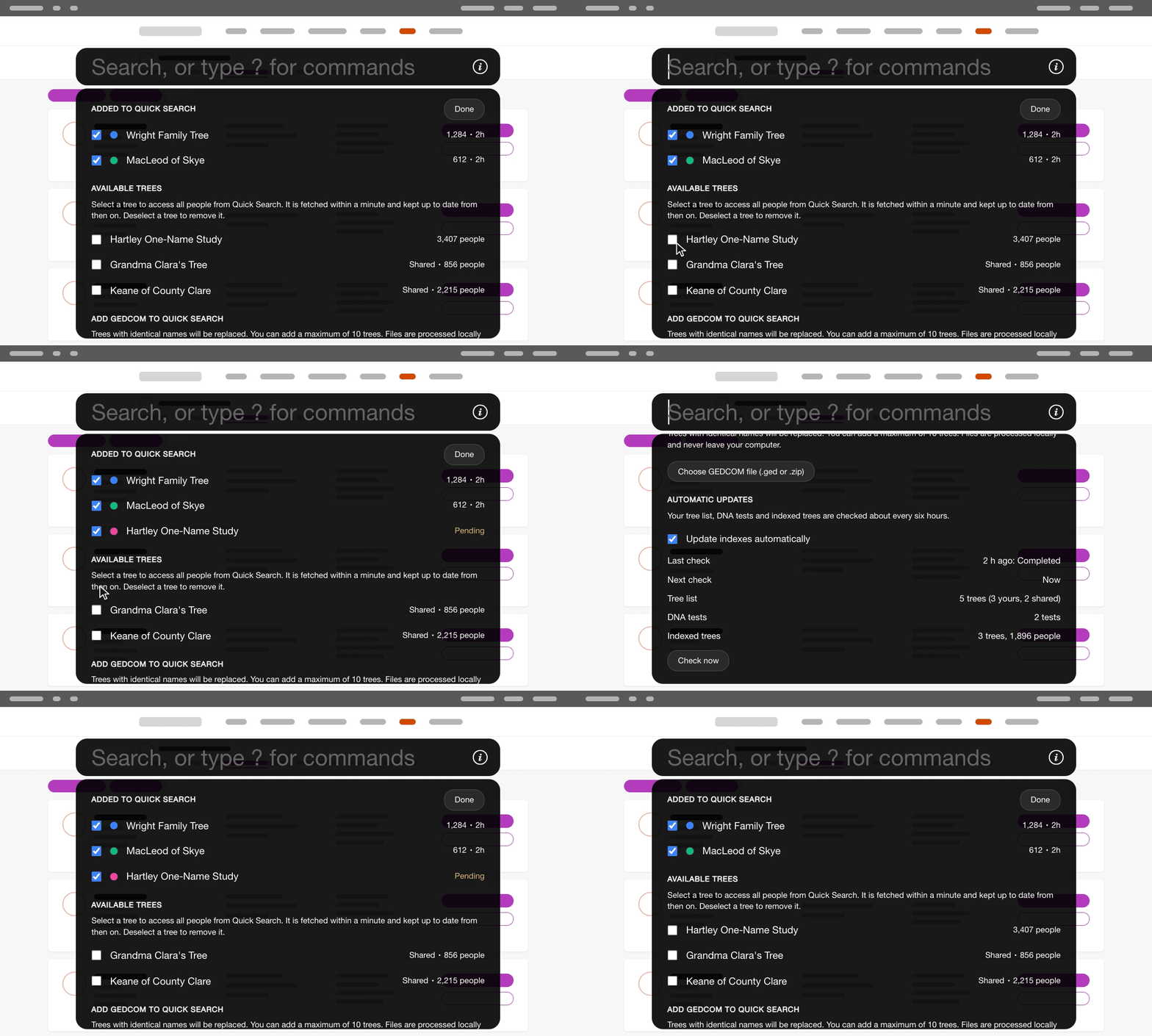
While Quick Search is enabled and you are signed in to Ancestry in this browser, the extension checks for changes about every six hours, whether or not you have Ancestry open. It refreshes your tree list and DNA tests, then fetches only the people who were added, edited or removed in each tree you have added.
There is nothing to run again: a person you add on Ancestry today is searchable after the next check, or right away if you click Check now in the settings. Very large trees are read across several checks the first time, and a tree uploaded from a GEDCOM file is checked only for changes made after the file was exported.
How do I use Quick Search via Alt + Q?
- Ensure Quick Search via Alt + Q is enabled in the Genealogy Assistant pop-up panel.
- Press
Alt+Q(orOption+Qon a Mac) on any web page to open the search prompt. On supported genealogy sites the previous shortcut,Ctrl+/by default, still opens it as well. - Or click in the address bar, type
gaand a space, then your search, and choose a suggestion. - Start typing. To search record collections, trees, DNA tests and people at once, just type a keyword or name. To send the search to a particular site or tool, type one of the prefixes listed above followed by your search. Type
?at any time to see the full list of commands. - Use the
UpandDownarrow keys to highlight a result, then pressEnterto open it. - To change the keyboard shortcut, add or remove trees, or control automatic updates, click Settings in the bottom right corner of the prompt, or open the Genealogy Assistant pop-up panel and click the settings icon next to Quick Search via Alt + Q. This opens the Advanced Settings page at the Quick Search section.
- Click Change shortcut in browser to open your browser’s extension shortcuts page and pick a different key combination for opening Quick Search on any page.
- Under Legacy Shortcut on Genealogy Sites, click Record New Shortcut to change the older in-page shortcut. It only works on supported genealogy sites and will be retired in a future release.
- Under Trees, tick a tree in Available trees to add its people. The tree is fetched right away and kept up to date from then on. Untick a tree under Added to Quick Search to remove it.
- Click Choose GEDCOM file to add a tree from a GEDCOM file exported from Ancestry (.ged or .zip). This is the quickest way to add a tree of more than 20,000 people, because the file is read in one go and only later changes are fetched from Ancestry.
- Under Automatic Updates, untick Update indexes automatically to stop the checks. The status below shows the last check and its result, when the next check is due, and how many trees, DNA tests and people are indexed. Click Check now to run a check right away instead of waiting.
- Settings save automatically.
Keyboard Shortcuts
Alt+Q(Windows and Linux) orOption+Q(Mac) opens the Quick Search prompt on any web pageCtrl+/(Windows) orCmd+/(Mac), or your recorded legacy shortcut, opens the prompt on supported genealogy sites?shows every commandUpandDownmove between resultsEnteropens the highlighted resultEscapecloses the search prompt
Quick Search via Alt + Q is a feature of the software Genealogy Assistant.
Genealogy Assistant is an extension for Google Chrome, Mozilla Firefox, Microsoft Edge and Apple Safari which supercharges your family history research by adding over 100 custom features to popular genealogy websites like Ancestry, MyHeritage, FamilySearch, FamilyTreeDNA and more. You can watch a full video walkthrough on YouTube.
Install Genealogy Assistant for Google Chrome | Install for Mozilla Firefox | Install for Microsoft Edge | Install for Apple Safari