



What problem does Advanced Paging for Image Viewer solve?
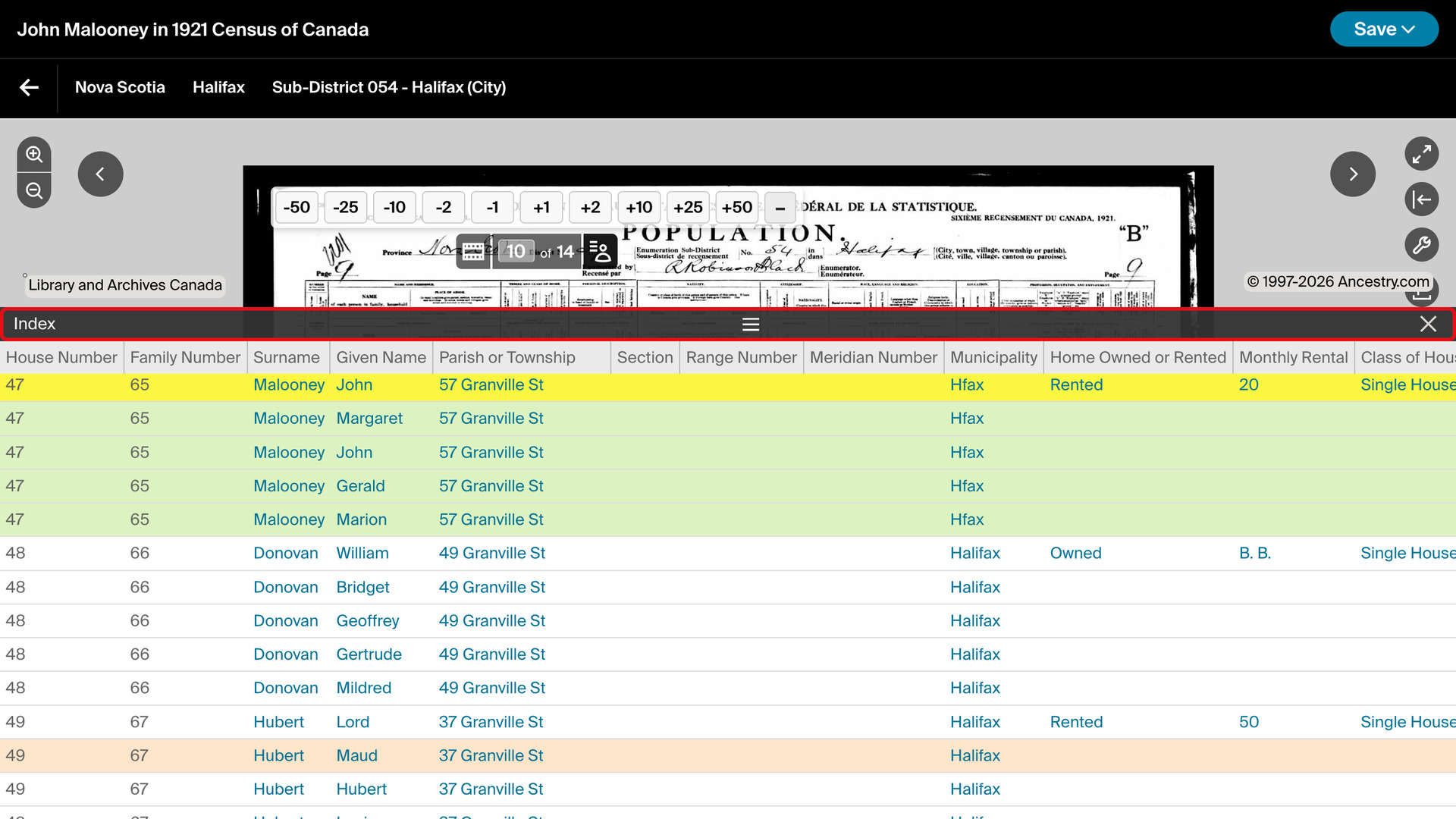
Advanced Paging for Image Viewer adds a row of buttons to Ancestry’s image viewer that move forward or back by 1, 2, 10, 25 or 50 images at a time. Without it, reaching an image 40 pages further on in a census or parish register means clicking the next image arrow 40 times.
How does Advanced Paging for Image Viewer work?
The row sits at the bottom of the image viewer, just above Ancestry’s own page number box. Five buttons go back (-50, -25, -10, -2, -1) and five go forward (+1, +2, +10, +25, +50). Click one to jump that many images.
Ancestry’s page number updates as usual after each jump, and a jump never goes past the first or last image of the set. Near the end of a set, +50 takes you straight to the last image, which makes it a quick way to reach the end.
The minimize button at the right end of the row hides the buttons, so they stay out of the way of the image. A + button then appears beside Ancestry’s page controls; click it to bring the row back. The viewer remembers your choice the next time you open it.
The index panel below the image, which lists the people indexed on that page, can also be made taller. Click its header to stretch the panel to most of the height of the window and read more names at once. Click the header again to return it to its usual size.
How do I use Advanced Paging for Image Viewer?
- In the Genealogy Assistant pop-up panel, make sure Advanced Paging for Image Viewer is turned on.
- Open an image in Ancestry’s image viewer, for example from a record or while browsing a collection.
- Click a button in the row at the bottom of the viewer, for example +10. The viewer jumps ten images forward.
- To hide the row, click the minimize button at its right end. Click + beside Ancestry’s page controls to show it again.
- To read more of the index, click the header of the index panel below the image. Click it again to return it to its usual size.
Related features
- Add Download Image Button to Viewer: Adds a Download this image button to the Ancestry image viewer that saves it to your computer.
- FamilySearch Advanced Paging for Image Viewer: Skip 2, 10, 25 or 50 images at a time in the FamilySearch viewer.
- Canadiana: Image Viewer Tools: Skip 1, 2, 10, 25 or 50 images at a time in the Canadiana Heritage viewer, page with the arrow keys, and download a range of full-size images as one ZIP file.
Advanced Paging for Image Viewer is a feature of the software Genealogy Assistant.
Genealogy Assistant is an extension for Google Chrome, Mozilla Firefox, Microsoft Edge and Apple Safari which supercharges your family history research by adding over 100 custom features to popular genealogy websites like Ancestry, MyHeritage, FamilySearch, FamilyTreeDNA and more. You can watch a full video walkthrough on YouTube.
Install Genealogy Assistant for Google Chrome | Install for Mozilla Firefox | Install for Microsoft Edge | Install for Apple Safari