

What problem does MyHeritage Download Shared Matches as CSV File solve?
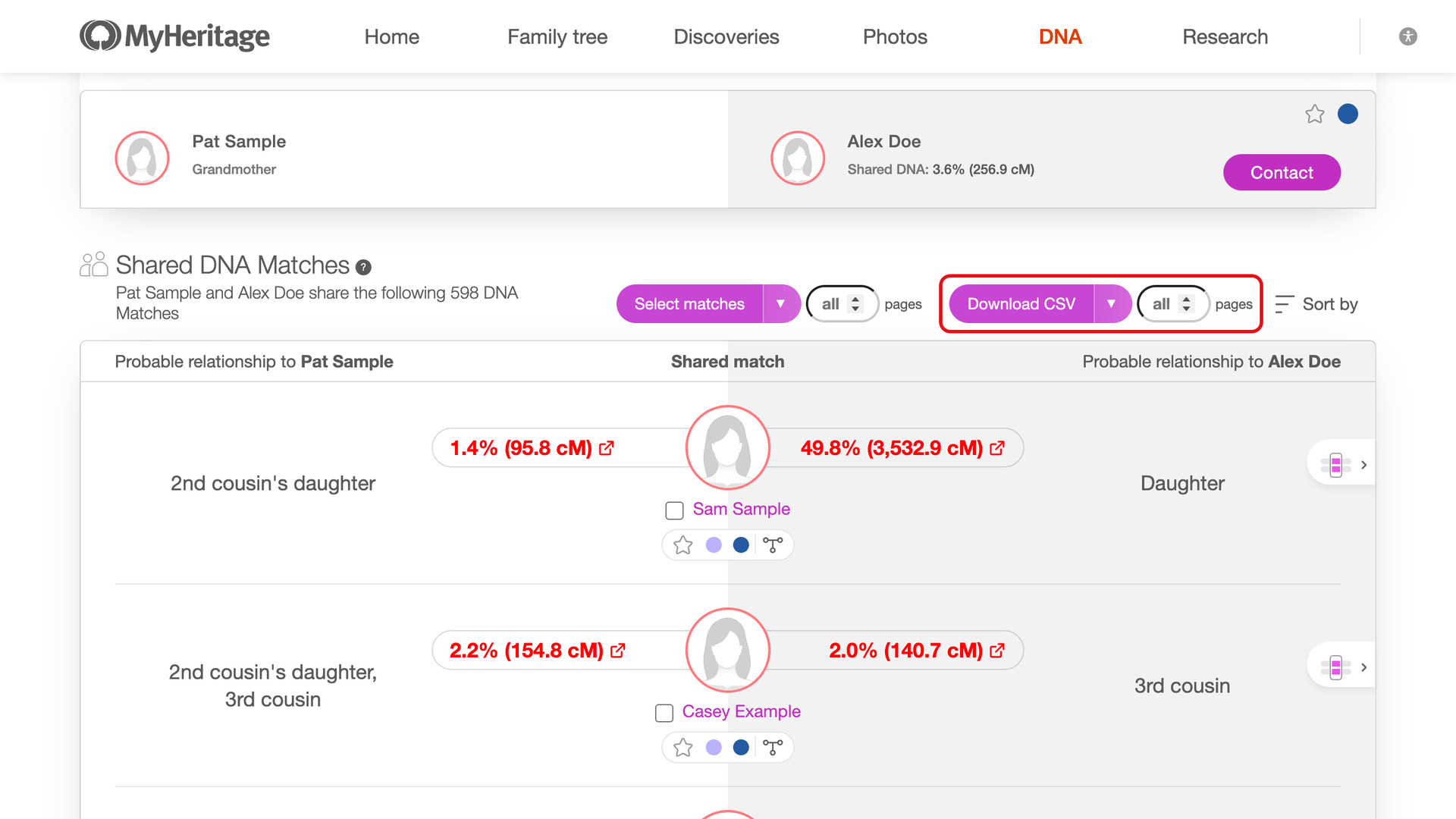
MyHeritage Download Shared Matches as CSV File adds a Download CSV button to the shared matches of any MyHeritage DNA match. It saves them to a CSV file with how each one relates to both you and the match. MyHeritage has no way to export them.
How does MyHeritage Download Shared Matches as CSV File work?
The Download CSV button sits at the top of the shared matches, beside the sort options, with a box for the number of pages to download. A page is 10 shared matches, as many as each click on Show more DNA Matches adds. Leave the box empty, where it shows all, to download every page.
The download follows the sort order on screen. A progress window shows how many shared matches have been saved, with a Cancel Download button. When MyHeritage limits requests, it pauses and counts down to its next try, then carries on.
Where a shared match triangulates with you and the match you are viewing, MyHeritage puts a small chromosome browser icon on its row. The CSV records the number of triangulated segments behind that icon, and leaves the column blank for shared matches that do not triangulate.
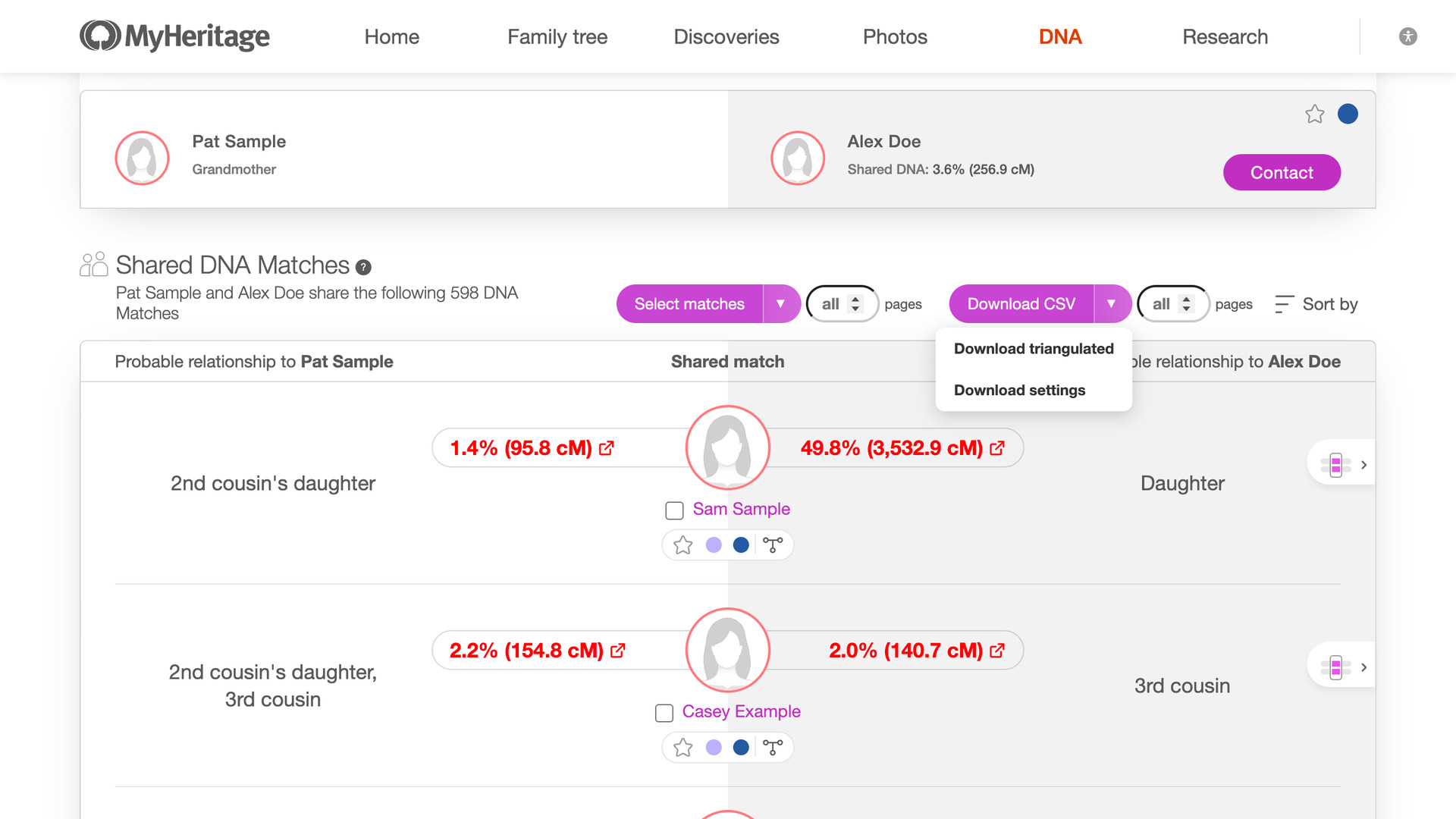
The arrow beside the button opens a menu. Download triangulated downloads the same pages but saves only the shared matches that triangulate; if none do, the progress window says so and no file is saved. Download settings opens the download speed on the page itself.
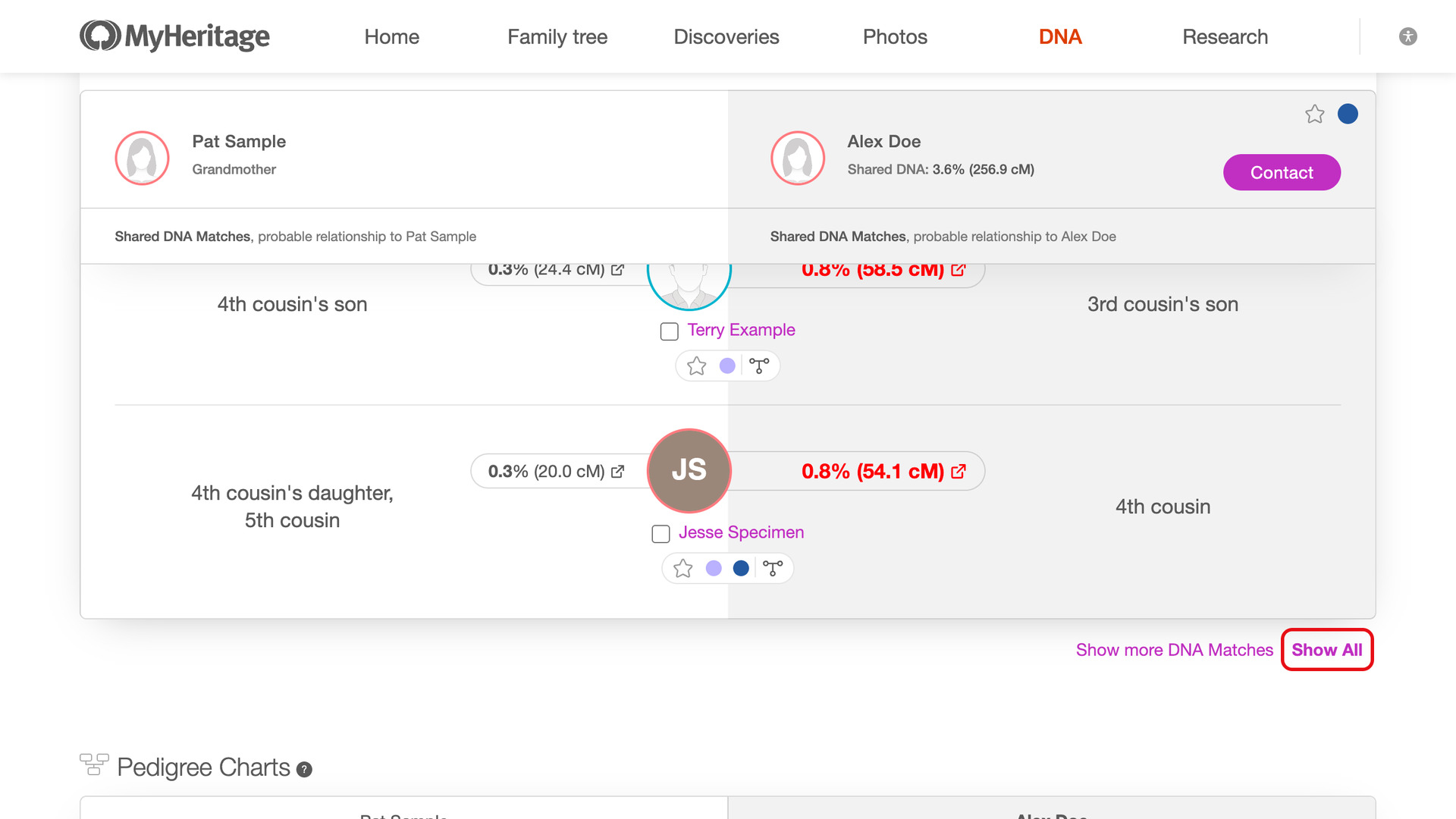
A Show All link is added beside MyHeritage’s Show more DNA Matches link under the shared matches. It loads every remaining shared match onto the page without downloading anything, so you can read or sort the full list on screen first.
While it loads, the link changes to Stop with a running count of the shared matches loaded, and clicking it stops the loading. Show All follows the same speed as the download. A slower speed can finish a long list sooner, because MyHeritage holds back a list asked for too quickly.
How do I use MyHeritage Download Shared Matches as CSV File?
- In the Genealogy Assistant pop-up panel, make sure Download Shared Matches as CSV File is turned on.
- Open one of your MyHeritage DNA matches and scroll down to its shared matches.
- Type the number of pages in the box next to Download CSV, or leave it empty for every page.
- Click Download CSV. When it finishes, the CSV file is saved to your downloads folder.
- To save only the shared matches that triangulate, click the arrow beside Download CSV and choose Download triangulated.
- To stop early, click Cancel Download. The file is saved with every shared match collected so far.
- To load every shared match onto the page instead, click Show All beside Show more DNA Matches. Click it again to stop.
- To change the speed, click the arrow beside Download CSV and choose Download settings.
- Choose a Download speed. Standard suits most lists; choose Walk or Crawl if MyHeritage keeps pausing the download.
- Click Save & Close.
The same setting is on the Advanced Settings page under Download Options, where it also applies to your other downloads. To open it there, click Edit advanced settings at the bottom of the pop-up panel.
CSV Columns
Match Name, Estimated Relationship, Shared cM, Shared Percentage, Groups, Star Status, GUID, URL, Also Matches, GUID of Match, Estimated Relationship to Match, Shared cM with Match, Shared Percentage with Match, Triangulated Segments, Tree Size, Notes, Gender, Tree Owner, Tree Link, Relationship Range, Common Ancestors, Relationship Range to Match, Common Ancestors with Match
Also Matches names the match you are viewing, and GUID of Match is their test’s ID. The columns ending in “to Match” or “with Match” compare each shared match with that person. Your own figures are in Estimated Relationship, Shared cM and Shared Percentage.
Relationship Range lists the relationships MyHeritage considers possible for the DNA you share with each shared match, and Common Ancestors says where your shared ancestors most likely sit. Relationship Range to Match and Common Ancestors with Match give the same for the match you are viewing.
Groups lists the labels you gave each shared match, Star Status reads Starred for those you starred, and Notes holds your notes on them. Triangulated Segments is the count behind MyHeritage’s chromosome browser icon, blank when they do not triangulate.
NOTICE: CSV DOWNLOAD TOOLS ARE FOR PERSONAL RESEARCH ONLY.
Related features
- MyHeritage Download Matches Pages as CSV File: Download your MyHeritage DNA matches to a CSV file, as many pages as you choose, including the average segment size (AScM) for each match.
- MyHeritage Add Select All Button to Shared Matches: Tick every shared match on the page with one button, and load a set number of pages at once with Auto-load pages at the bottom of the list.
- MyHeritage Default Sort by Highest Mutual Matches: MyHeritage shared matches open sorted by the most centimorgans shared with your match, so the strongest connections are at the top.
MyHeritage Download Shared Matches as CSV is a feature of the software Genealogy Assistant.
Genealogy Assistant is an extension for Google Chrome, Mozilla Firefox, Microsoft Edge and Apple Safari which supercharges your family history research by adding over 100 custom features to popular genealogy websites like Ancestry, MyHeritage, FamilySearch, FamilyTreeDNA and more.
Install Genealogy Assistant for Google Chrome | Install for Mozilla Firefox | Install for Microsoft Edge | Install for Apple Safari