


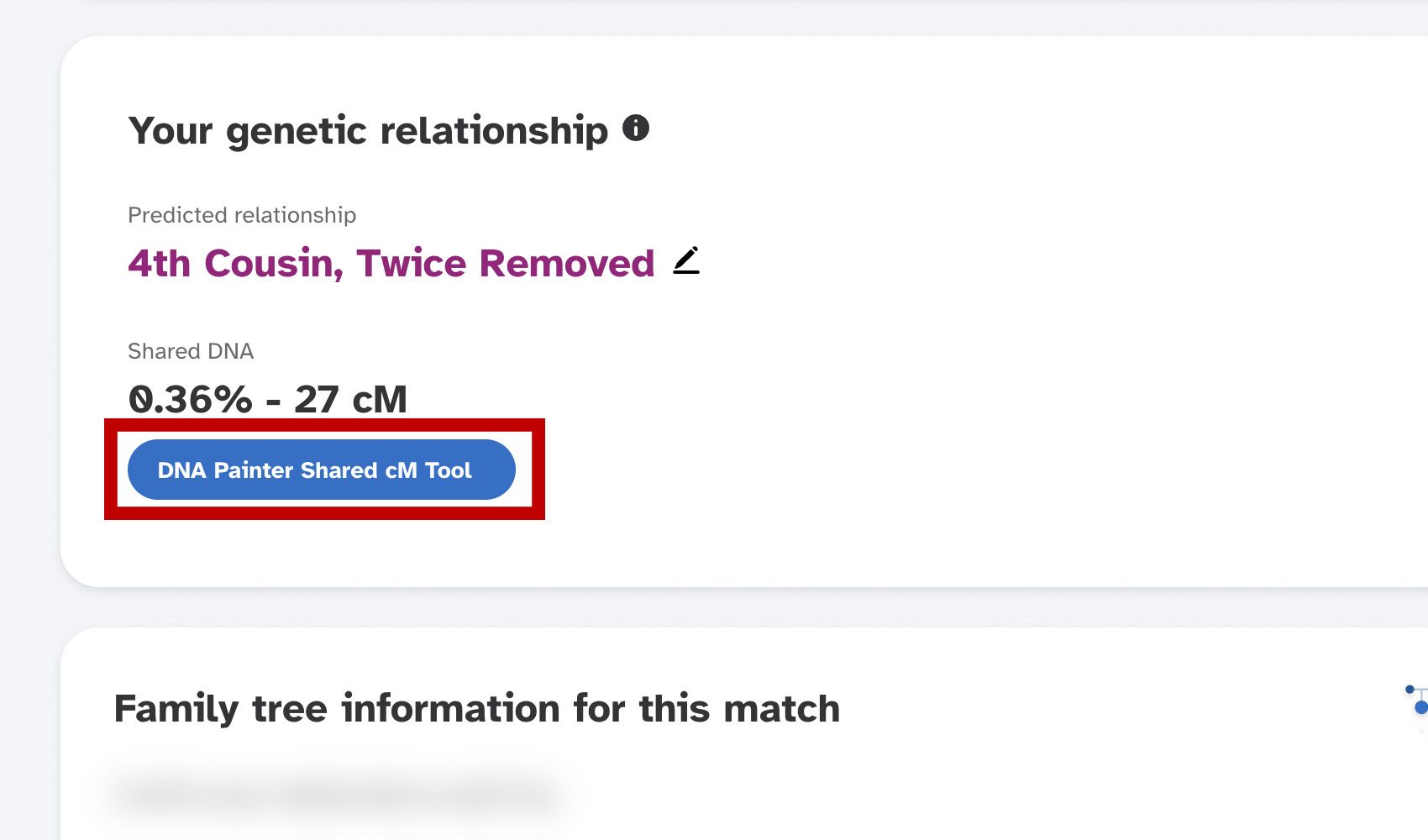
What problem does 23andMe DNA Painter Shared cM Tool Button solve?
To check the likely relationships for a 23andMe match you have to convert the shared percentage to centimorgans, open DNA Painter’s Shared cM Tool in another tab, and paste the value in. 23andMe DNA Painter Shared cM Tool Button turns that into a single click by adding a button to each match’s profile that opens DNA Painter with the cM value already filled in.
How does 23andMe DNA Painter Shared cM Tool Button work?
On any 23andMe match profile, a DNA Painter Shared cM Tool button is added to the shared DNA section. Clicking it converts the shared percentage to centimorgans and opens DNA Painter’s Shared cM Tool in a new tab with the value already entered, ready to show possible relationships. Hidden segment details on the page are also expanded automatically and the shared percentage is bolded for easier reading.
How do I use 23andMe DNA Painter Shared cM Tool Button?
- Ensure 23andMe DNA Painter Shared cM Tool Button is enabled in the Genealogy Assistant pop-up panel.
- Open any 23andMe match profile.
- Click the DNA Painter Shared cM Tool button. DNA Painter will open in a new tab with the cM value pre-filled.
23andMe DNA Painter Shared cM Tool Button is a feature of the software Genealogy Assistant.
Genealogy Assistant is an extension for Google Chrome, Mozilla Firefox, Microsoft Edge and Apple Safari which supercharges your family history research by adding over 100 custom features to popular genealogy websites like Ancestry, MyHeritage, FamilySearch, FamilyTreeDNA and more. You can watch a full video walkthrough on YouTube.
Install Genealogy Assistant for Google Chrome | Install for Mozilla Firefox | Install for Microsoft Edge | Install for Apple Safari