


What problem does Canadiana: Image Viewer Tools solve?
The microfilm reels on Canadiana Héritage often run to more than a thousand images, and the viewer moves one image at a time and saves one image at a time. Working through a census reel or a set of land petitions means a long run of clicks, and taking a section of it offline means saving every page by hand. Canadiana: Image Viewer Tools adds skip buttons, arrow key paging, and a range download to the viewer’s own toolbars.
How does Canadiana: Image Viewer Tools work?
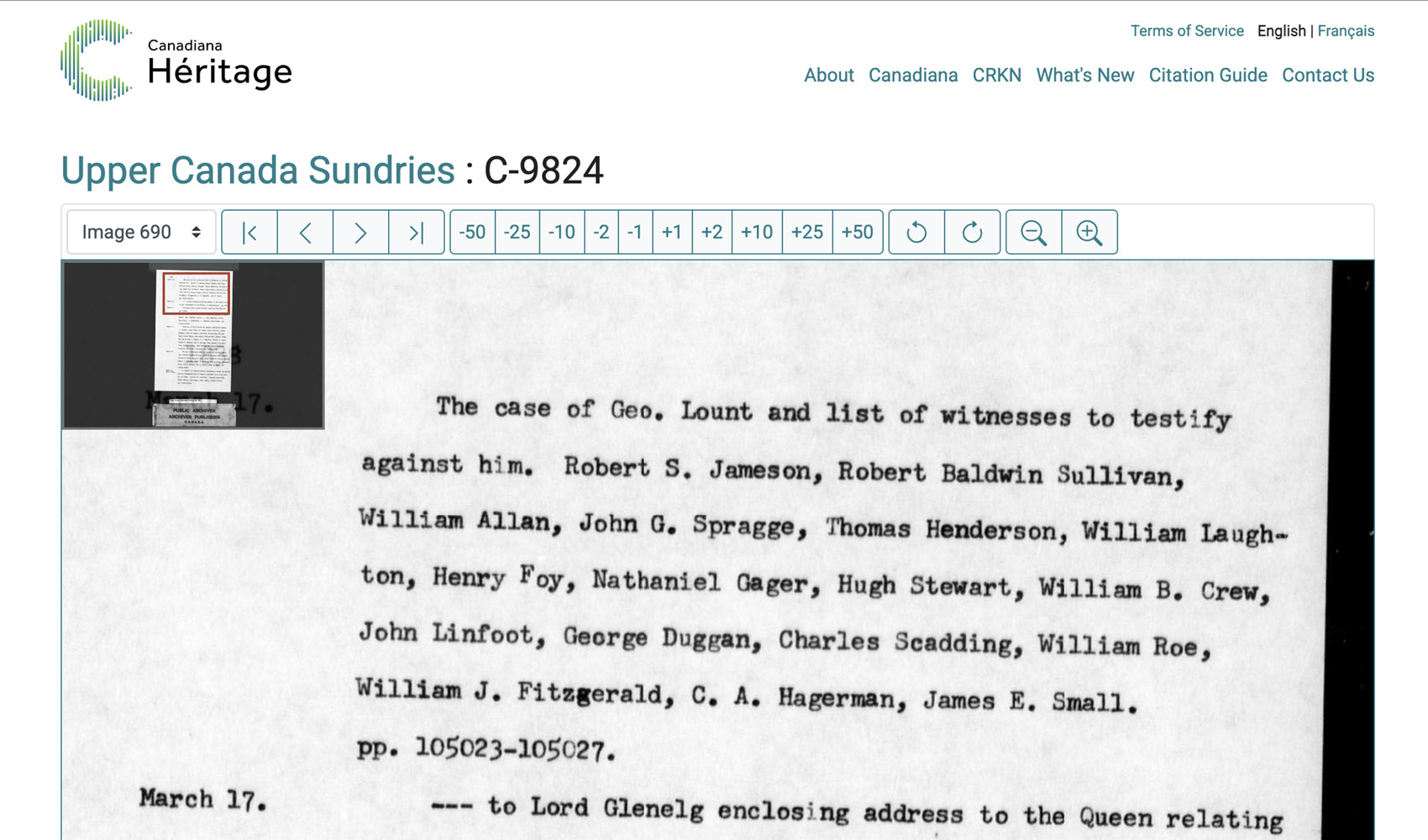
Three tools are added to the image viewer on Canadiana Héritage. Skip buttons beside the paging controls jump backwards and forwards by 1, 2, 10, 25 or 50 images at a time. The left and right arrow keys move to the previous and next image. A Download pages button in the lower toolbar lets you pick a first and last image number and saves every full-resolution image in that range to your computer as a single ZIP file.
The skip buttons sit in the top toolbar, immediately to the right of the viewer’s own first, previous, next, and last buttons, and read -50, -25, -10, -2, -1, +1, +2, +10, +25 and +50. They move the viewer the same way its own buttons do, so the image, the page menu, and the page count all stay in step. The arrow keys are ignored while you are typing in a field and while you are panning a zoomed image, so they never get in the way of the search box or the viewer itself.
The two number boxes beside Download pages follow the image you are viewing as you page through the document, so the range is always ready to go from where you are. Once you type your own numbers they stay where you put them. While a download runs, a progress window shows how many images have been saved and how many are left, and a Cancel button stops the run and keeps everything downloaded up to that point.
How do I use Canadiana: Image Viewer Tools?
- Ensure Canadiana: Image Viewer Tools is enabled in the Genealogy Assistant pop-up panel.
- Open any document on Canadiana Héritage in the image viewer.
- Click any skip button in the top toolbar to jump forward or back by that many images.
- Press the
LeftorRightarrow key anywhere on the page to move to the previous or next image. - To save a range of images, find Download pages in the lower toolbar and set the two number boxes to the first and last image you want.
- Click Download pages. A progress window opens while the images are collected, and the ZIP file is saved to your computer when the range is finished.
- Click Cancel in the progress window at any point to stop early. The images already collected are still saved.
Keyboard Shortcuts
Leftgoes to the previous imageRightgoes to the next image
NOTICE: IMAGE DOWNLOAD TOOLS ARE FOR PERSONAL RESEARCH PROJECTS ONLY.
Canadiana: Image Viewer Tools is a feature of the software Genealogy Assistant.
Genealogy Assistant is an extension for Google Chrome, Mozilla Firefox, Microsoft Edge and Apple Safari which supercharges your family history research by adding over 100 custom features to popular genealogy websites like Ancestry, MyHeritage, FamilySearch, FamilyTreeDNA and more. You can watch a full video walkthrough on YouTube.
Install Genealogy Assistant for Google Chrome | Install for Mozilla Firefox | Install for Microsoft Edge | Install for Apple Safari