

What problem does Save Public Member Trees to CSV solve?
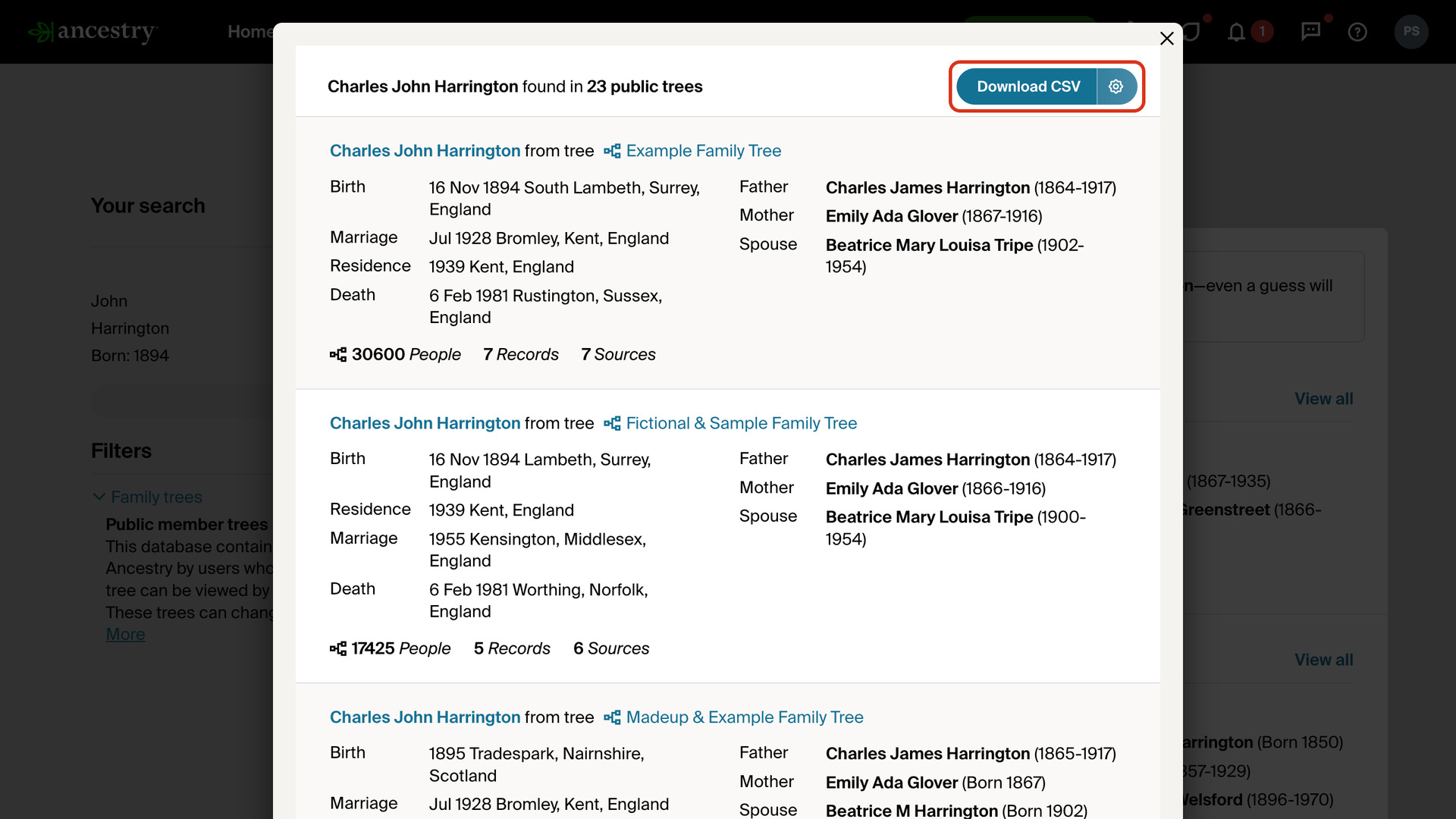
Save Public Member Trees to CSV adds a Download CSV button to Ancestry’s list of the public trees a person appears in. It saves every tree’s version of that person to one CSV file, where Ancestry shows them ten at a time with no way to save them.
How does Save Public Member Trees to CSV work?
In Public Member Trees search results, click a person’s tree count or View all to open the window listing every public tree that person appears in. The Download CSV button sits at the top of that window, with a settings icon on its right.
Clicking it reads every page of the list and saves one row per tree. Each row holds the name as that tree records it, with the person’s life events and close family. It also gives the tree’s name and size, and how many records, sources and media are attached.
Every row also has two links: one to that member’s page for the person, and one to the member’s tree. The name is saved exactly as each member typed it, so spelling variations and maiden names stand out when you sort the rows.
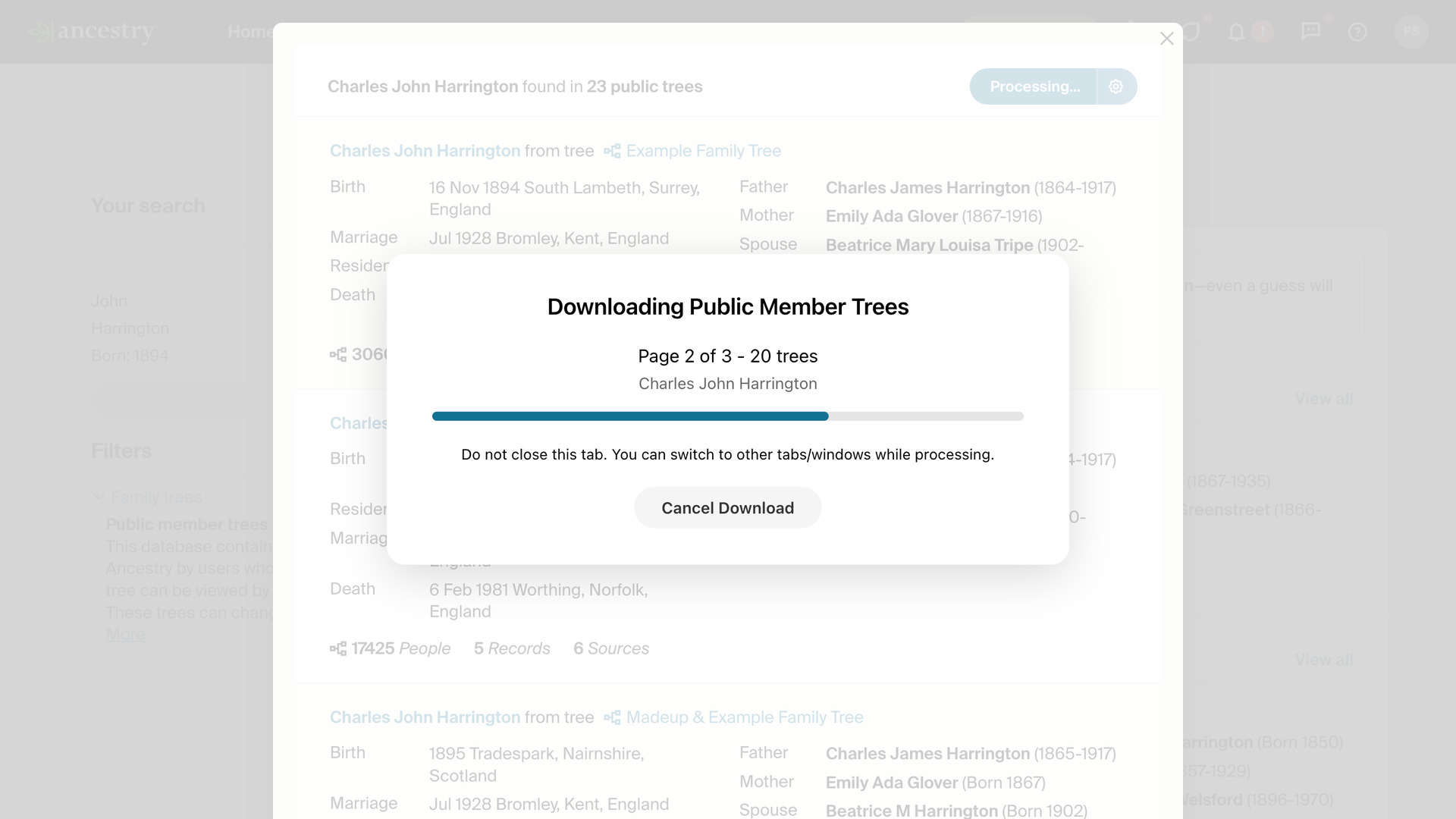
A progress window shows the page it has reached and how many trees it has found, with a Cancel Download button. Someone found in a few hundred trees takes a couple of minutes. If you cancel, the file still saves every tree collected so far.
When it finishes, the CSV file is saved to your downloads folder, named after the person and the date, and a window tells you how many trees were saved. Each download covers one person, so open another person’s trees for the next file.
The settings icon on the button opens Download Settings, where Download speed can be Standard, Walk or Crawl. Standard suits most lists; choose Walk or Crawl if Ancestry stops responding partway through a long one. The speed applies to all your downloads.
How do I use Save Public Member Trees to CSV?
- In the Genealogy Assistant pop-up panel, make sure Save Public Member Trees to CSV is turned on.
- On Ancestry, search the Public Member Trees collection for the person you are researching.
- In the results, click the person’s tree count or View all. The window listing that person’s trees opens.
- Click Download CSV at the top of the window. When it finishes, the CSV file is saved to your downloads folder.
- To change the speed, click the settings icon on the right of Download CSV.
- Choose a Download speed. Standard suits most lists; choose Walk or Crawl only if Ancestry stops responding during your downloads.
- Click Save & Close.
The same Download speed setting is on the Advanced Settings page under Download Options, where it applies to every download in Genealogy Assistant.
CSV Columns
Search Result Person, Tree Person Name, Gender, Birth, Birth Year, Birth Place, Death, Death Year, Death Place, Marriages, Residences, Father, Mother, Spouses, Children, Tree Name, Tree Size, Attached Records, Attached Sources, Attached Media, Trees In Cluster, Person URL, Tree URL, Tree ID, Person ID, Cluster ID
Search Result Person is the name shown in the search results, and Tree Person Name is the name as that tree records it. Marriages, Residences, Spouses and Children can hold more than one entry, separated by semicolons.
Father, Mother, Spouses and Children show birth and death years in brackets where the tree has them. Trees In Cluster is the number of public trees the person was found in, and Cluster ID is Ancestry’s identifier for that group of trees. Only public trees are included.
NOTICE: CSV DOWNLOAD TOOLS ARE FOR PERSONAL RESEARCH ONLY.
Related features
- Save All People in Tree to CSV File: Download every person in a family tree to a CSV file, with births, deaths, marriages, places, parents, spouses and notes, following your current search and filters.
- Save Member Search Results to CSV: Saves Member Search results to a CSV file with each member’s name, matching research interest, location, join and last sign-in dates, tree count and profile link.
- Surname Comparison Tool for Ancestry: Collect the surnames from a DNA match’s linked tree, or any tree’s list of all people, and compare which ones appear across several trees, variants included.
Save Public Member Trees to CSV is a feature of the software Genealogy Assistant.
Genealogy Assistant is an extension for Google Chrome, Mozilla Firefox, Microsoft Edge and Apple Safari which supercharges your family history research by adding over 100 custom features to popular genealogy websites like Ancestry, MyHeritage, FamilySearch, FamilyTreeDNA and more. You can watch a full video walkthrough on YouTube.
Install Genealogy Assistant for Google Chrome | Install for Mozilla Firefox | Install for Microsoft Edge | Install for Apple Safari