


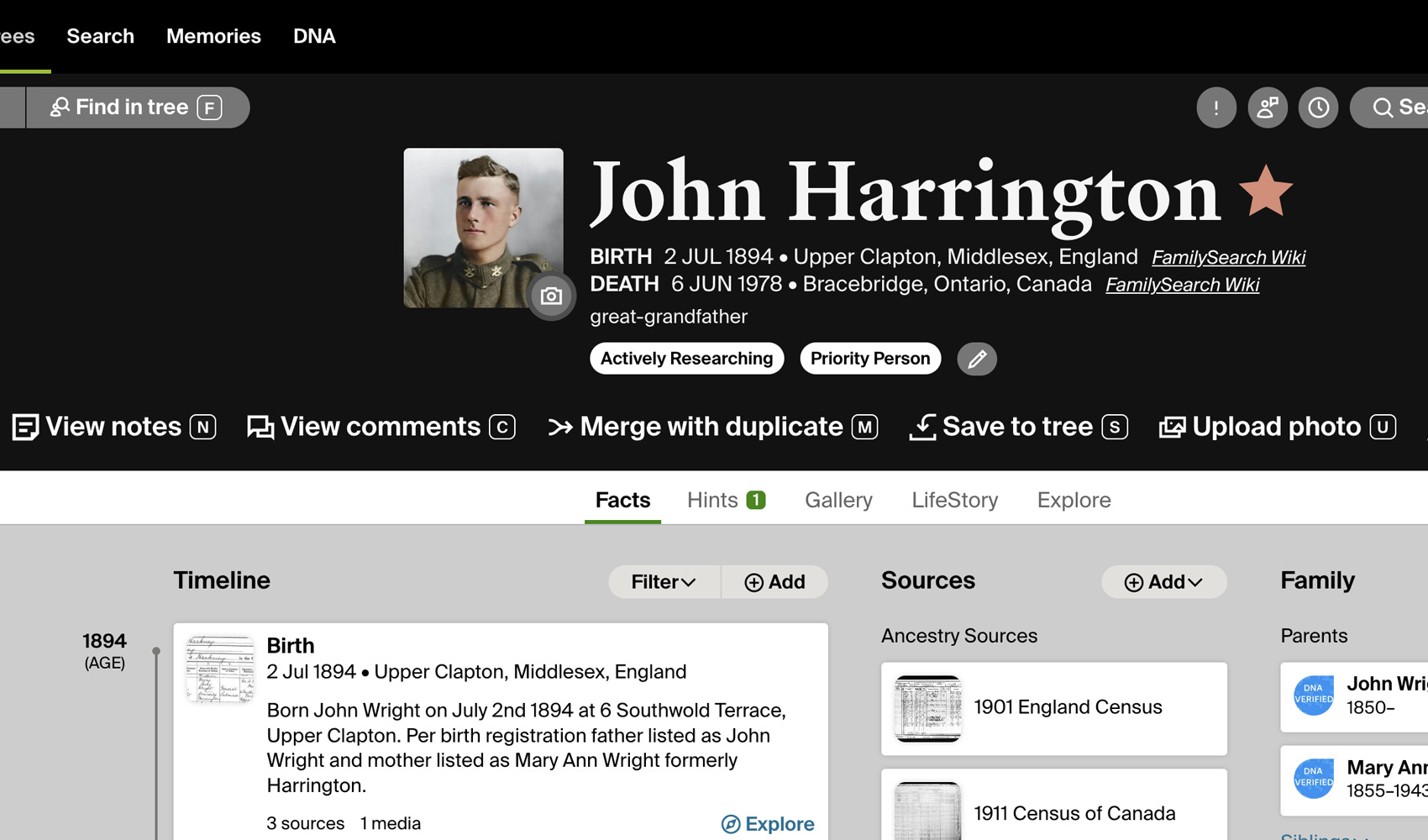
What problem does Advanced Research Tools on Profiles solve?
The default research tools menu on Ancestry person profiles is buried inside dropdowns and only appears on your own trees. Advanced Research Tools on Profiles turns those tools into a single row of clickable links right on the profile page, with keyboard shortcuts and the option to show or hide each link, so the tools you actually use are always one click or one keypress away.
How does Advanced Research Tools on Profiles work?
The research tools menu on every Ancestry profile page is replaced with an enhanced row of links. The links are fully customizable from the Genealogy Assistant Advanced Settings page, allowing you to enable or disable each tool to fit your workflow. The tools also appear on profile pages in other people’s trees, not just your own. Each link has a small letter icon next to it which corresponds to its keyboard shortcut, and the same shortcuts work on the Find in tree and Search buttons in the page header and on the Add button above the timeline on the Facts tab. You can switch the link size between Standard and Larger if you prefer larger text.
Pressing A or clicking Add opens the Add fact or event window with the event type list already open, so you can choose the fact type without a second click.
Ancestry shows a count beside the Hints tab but not beside the Gallery tab. A count of the photos and other media saved to the profile is added there, so you can see how much is in the gallery before you open it. The count is hidden when the gallery is empty.
How do I use Advanced Research Tools on Profiles?
- Ensure Advanced Research Tools on Profiles is enabled in the Genealogy Assistant pop-up panel.
- Open any person profile in any Ancestry family tree. The advanced research tools row will appear in the page header.
- Click any link in the row, or hover over the page and press the matching letter key shown next to the link.
- On the Facts tab, press
Aor click Add above the timeline to open the Add fact or event window. - To customize which links appear or change the link size, open the Genealogy Assistant pop-up panel and click the settings icon next to Advanced Research Tools on Profiles. This opens the Advanced Settings page at the Advanced Research Tools section. Toggle individual tools on or off, or change the Link size between Standard and Larger. Settings save automatically. Reload the profile page to see your changes.
Keyboard Shortcuts
Topens the person in the family tree viewLopens the list of people in the treeNopens the notes for the profileCopens the comments for the profileMstarts a merge with a duplicate profileSsaves the profile to your treeXopens Member ConnectUopens the upload photo dialogEopens Quick EditRopens the edit relationships panelHopens Charts & ReportsVopens the view changes panel for the treeKruns a check for errorsPopens the print dialogFjumps to Find in TreeQopens the Ancestry search formAopens the Add fact or event window on the Facts tabDopens the Ancestry Add DNA matches tool for the profile (off by default; turn it on in the Advanced Settings page under Advanced Research Tools)
Advanced Research Tools on Profiles is a feature of the software Genealogy Assistant.
Genealogy Assistant is an extension for Google Chrome, Mozilla Firefox, Microsoft Edge and Apple Safari which supercharges your family history research by adding over 100 custom features to popular genealogy websites like Ancestry, MyHeritage, FamilySearch, FamilyTreeDNA and more. You can watch a full video walkthrough on YouTube.
Install Genealogy Assistant for Google Chrome | Install for Mozilla Firefox | Install for Microsoft Edge | Install for Apple Safari