


What problem does Save Member Search Results to CSV solve?
Ancestry’s Member Search finds other researchers who list the same surname, place, and time period as you, but it shows them ten or twenty at a time with no way to save the list. Working through a common surname means paging through dozens of screens and copying names by hand. Save Member Search Results to CSV adds a download button above the results that collects every matching member into a single CSV file, so you can sort the whole list and decide who is worth contacting.
How does Save Member Search Results to CSV work?
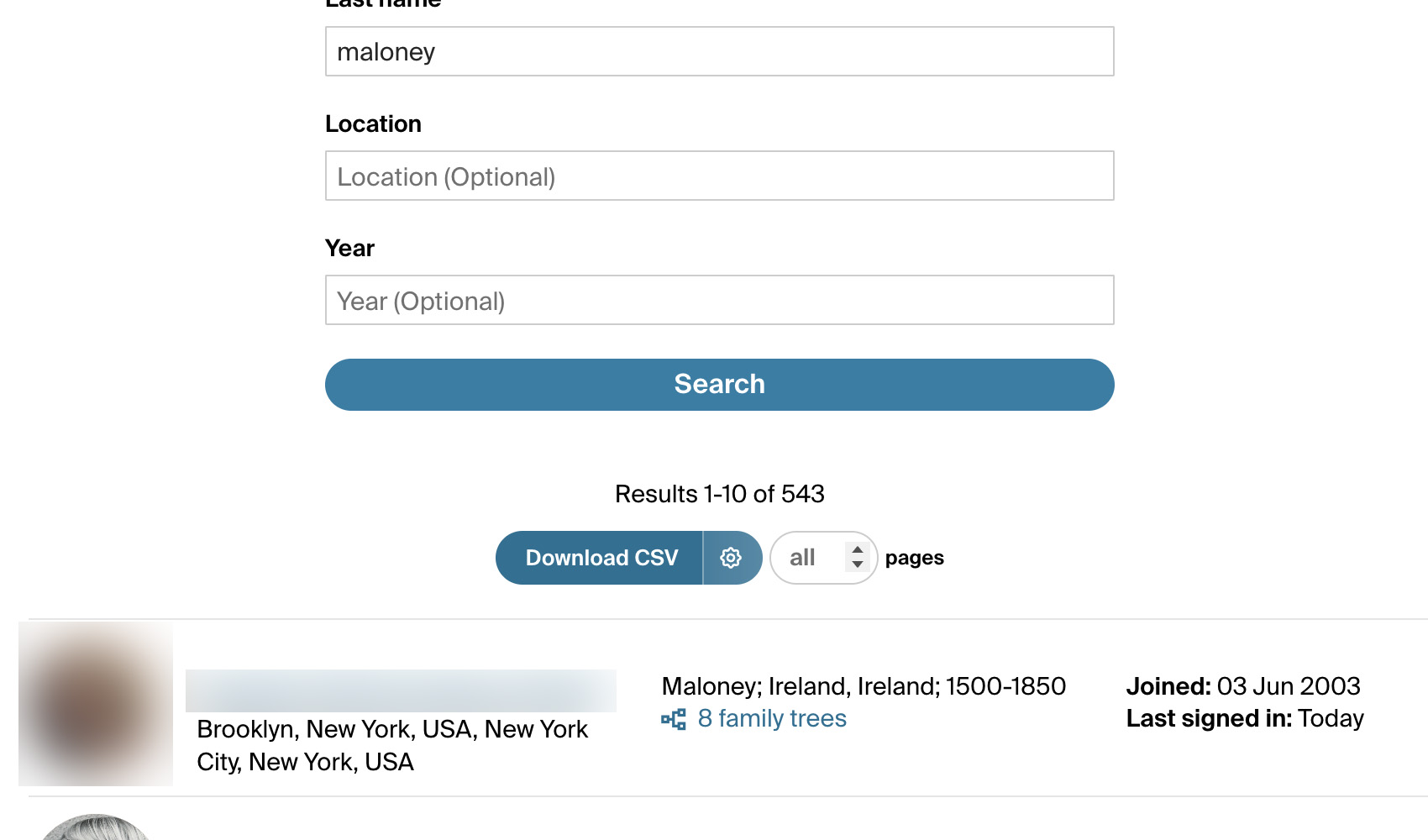
A new button titled Download CSV appears above your results on the Member Search page, along with a box to choose how many pages to download, which defaults to all of them. Clicking it collects every matching member and saves a CSV containing their display name, the surname, year and place of the research interest that matched, their location and age range, the exact dates they joined and last signed in, how many family trees they have, and a direct link to their profile. Ancestry returns this list in a different order every time it is requested, so the download reads through it several times and removes duplicates, which recovers members that reading the list once would miss.
The join and last signed in dates are the exact dates from Ancestry’s own records, not the rounded summaries the page displays. Where the results list only tells you someone signed in “Today” or “Last week”, the CSV gives you the date itself, so you can sort by recent activity and put the members who are still using Ancestry at the top of your contact list.
A progress panel tracks the download and shows which pass it is on. Because the list is read through more than once, a large surname takes a few minutes to finish. You can click Cancel Download at any point and keep whatever has been collected so far.
How do I use Save Member Search Results to CSV?
- Ensure Save Member Search Results to CSV is enabled in the Genealogy Assistant pop-up panel.
- Open Ancestry’s Member Search page and choose the Research interest tab.
- Enter a last name, and optionally a location and a year, then click Search. Narrowing the search with a location or year also narrows the download, so the CSV always matches the results you are looking at.
- Leave the pages box set to all to download the whole list, or enter a number to stop after that many pages.
- Click Download CSV. Watch the progress panel and click Cancel Download if you need to stop early. The CSV file downloads automatically when the search finishes, and a summary tells you how many members were saved.
- To change how quickly the download runs, click the settings icon on the right side of the Download CSV button and set Download Speed to Standard, Walk, Crawl, or Custom. Choose a slower speed if Ancestry stops responding partway through. Settings save automatically.
CSV Columns
Member Name, Research Surname, Research Location, Research Year, Member Location, Age Group, Joined, Last Signed In, Family Trees, Profile URL, User ID
Members who list more than one matching research interest appear once for each one, so you can see every surname, place, and date range they are researching. Location and age group are only filled in when the member has chosen to share them.
NOTICE: CSV DOWNLOAD TOOLS ARE FOR PERSONAL RESEARCH PROJECTS ONLY.
Save Member Search Results to CSV is a feature of the software Genealogy Assistant.
Genealogy Assistant is an extension for Google Chrome, Mozilla Firefox, Microsoft Edge and Apple Safari which supercharges your family history research by adding over 100 custom features to popular genealogy websites like Ancestry, MyHeritage, FamilySearch, FamilyTreeDNA and more. You can watch a full video walkthrough on YouTube.
Install Genealogy Assistant for Google Chrome | Install for Mozilla Firefox | Install for Microsoft Edge | Install for Apple Safari