

What problem does GEDmatch DNA Painter Shared cM Tool solve?
GEDmatch DNA Painter Shared cM Tool turns each Total cM value in GEDmatch’s One-to-Many results into a link to DNA Painter’s Shared cM Tool, with that amount already filled in. Without it, every value has to be copied into DNA Painter by hand to see which relationships it fits.
How does GEDmatch DNA Painter Shared cM Tool work?
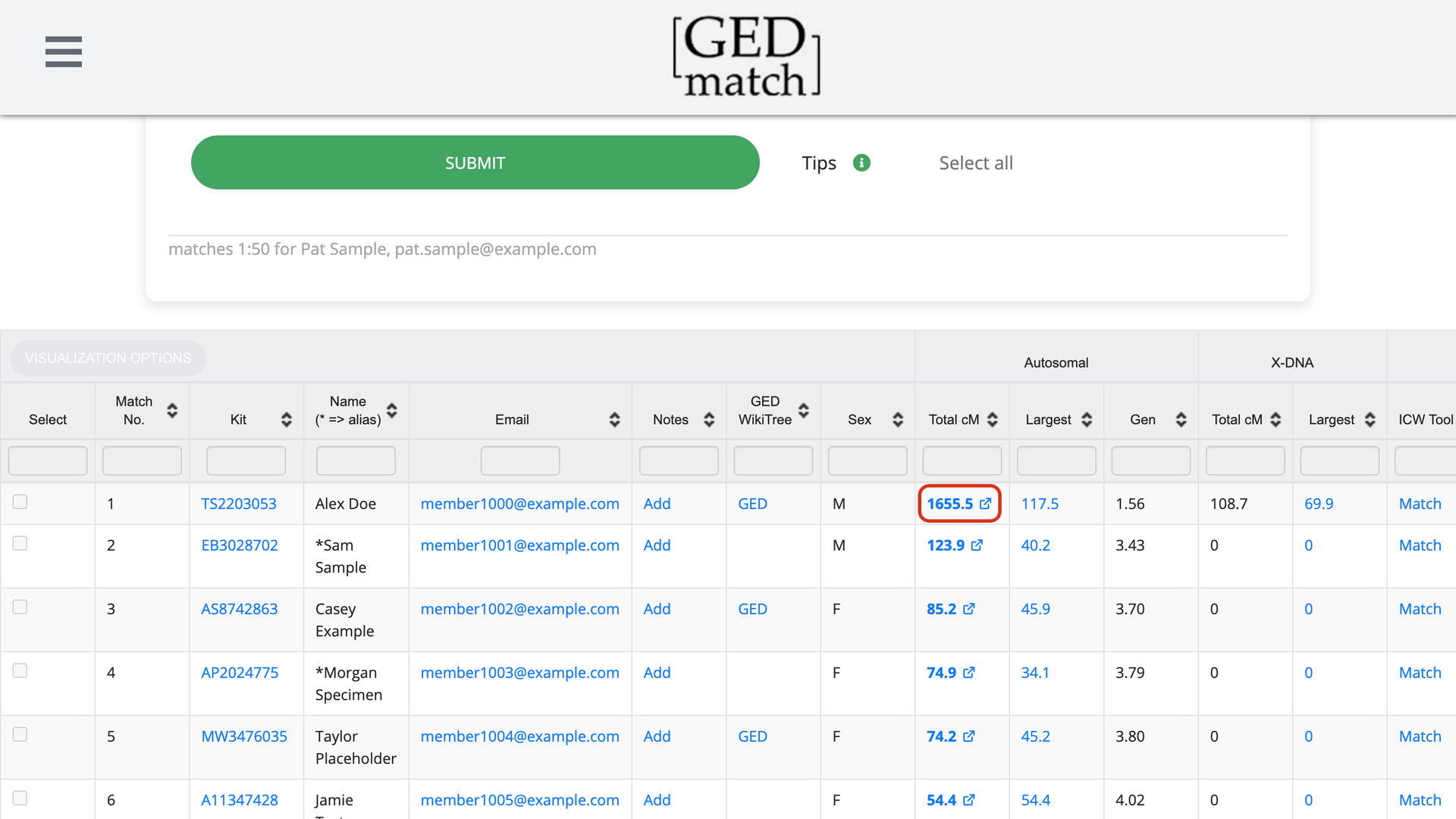
In the One-to-Many results, each value in the Total cM column becomes a bold link with a small open-in-new-tab icon. Click it and DNA Painter’s Shared cM Tool opens in a new tab with that amount entered, showing which relationships it fits and how likely each one is.
It works on both classic One-to-Many pages, the Limited and the Original versions, and on GEDmatch’s beta site. On the beta site, Total cM already links to GEDmatch’s own relationship probability page, and that link opens DNA Painter instead. The links stay when you sort the table.
How do I use GEDmatch DNA Painter Shared cM Tool?
- In the Genealogy Assistant pop-up panel, make sure GEDmatch: DNA Painter Shared cM Tool is turned on.
- On GEDmatch, open One-to-Many for your kit.
- On the classic Limited page, click Submit. The results table appears.
- Click a value in the Total cM column. DNA Painter opens in a new tab with the value filled in.
Related features
- FamilyTreeDNA: DNA Painter Shared cM Tool: Click the shared cM of any match in a FamilyTreeDNA matches list to open it in DNA Painter’s Shared cM Tool.
- DNA Painter Shared cM Tool Button: A Shared cM Tool button on every Ancestry DNA match page opens DNA Painter’s Shared cM Tool with the match’s cM already filled in.
- GEDmatch: Keyboard Shortcuts: Hover over a match in the GEDmatch One-to-Many results and press one key to open its One-to-One comparison, matches in common or note, and page with the arrow keys.
GEDmatch DNA Painter Shared cM Tool is a feature of the software Genealogy Assistant.
Genealogy Assistant is an extension for Google Chrome, Mozilla Firefox, Microsoft Edge and Apple Safari which supercharges your family history research by adding over 100 custom features to popular genealogy websites like Ancestry, MyHeritage, FamilySearch, FamilyTreeDNA and more.
Install Genealogy Assistant for Google Chrome | Install for Mozilla Firefox | Install for Microsoft Edge | Install for Apple Safari