

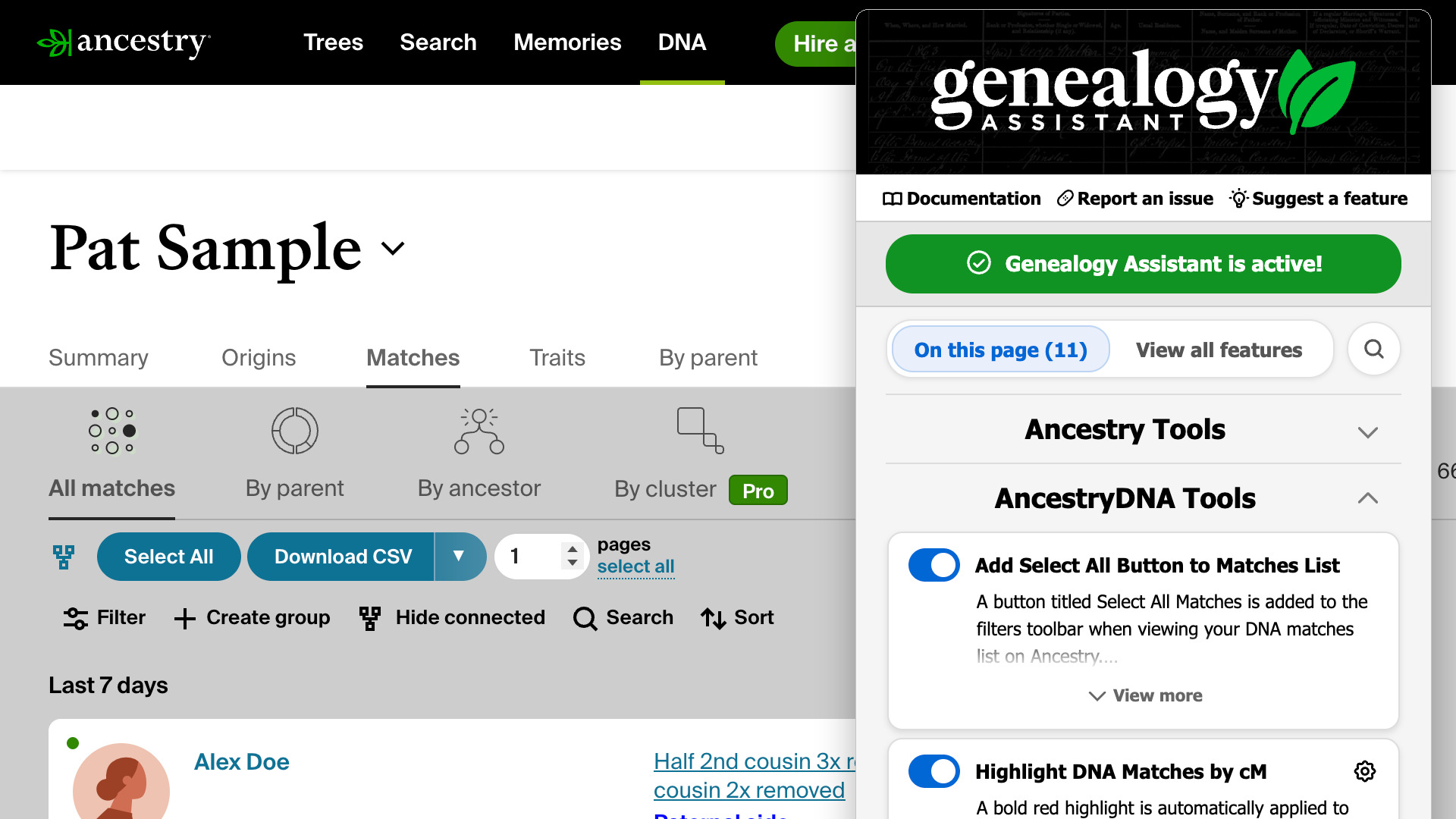
This guide shows you how to find any Genealogy Assistant feature in the pop-up panel, turn it on or off, and change its settings. Read it once you have installed the extension, or whenever a feature is not doing what you expect on a page.
How do I open the pop-up panel?
- Click the Genealogy Assistant icon in your browser’s toolbar, to the right of the address bar. The pop-up panel opens under it.
- Click anywhere on the web page to close it again.
If the icon is not in your toolbar, click the puzzle-piece icon there, then the pin beside Genealogy Assistant. The icon then stays in view on every page. How to install Genealogy Assistant covers this step with the rest of the setup.
Under the logo at the top of the pop-up panel are three links:
- Documentation opens the Genealogy Assistant page on this website.
- Report an issue tells us about something that is not working.
- Suggest a feature sends us an idea for a new one.
Now and then a short notice from us appears under these links, such as news of a change on a website. Click Read more to see all of it, or the close icon at its right to hide it. A notice you close does not come back, and the next one appears in the same place.
How do I find a feature?
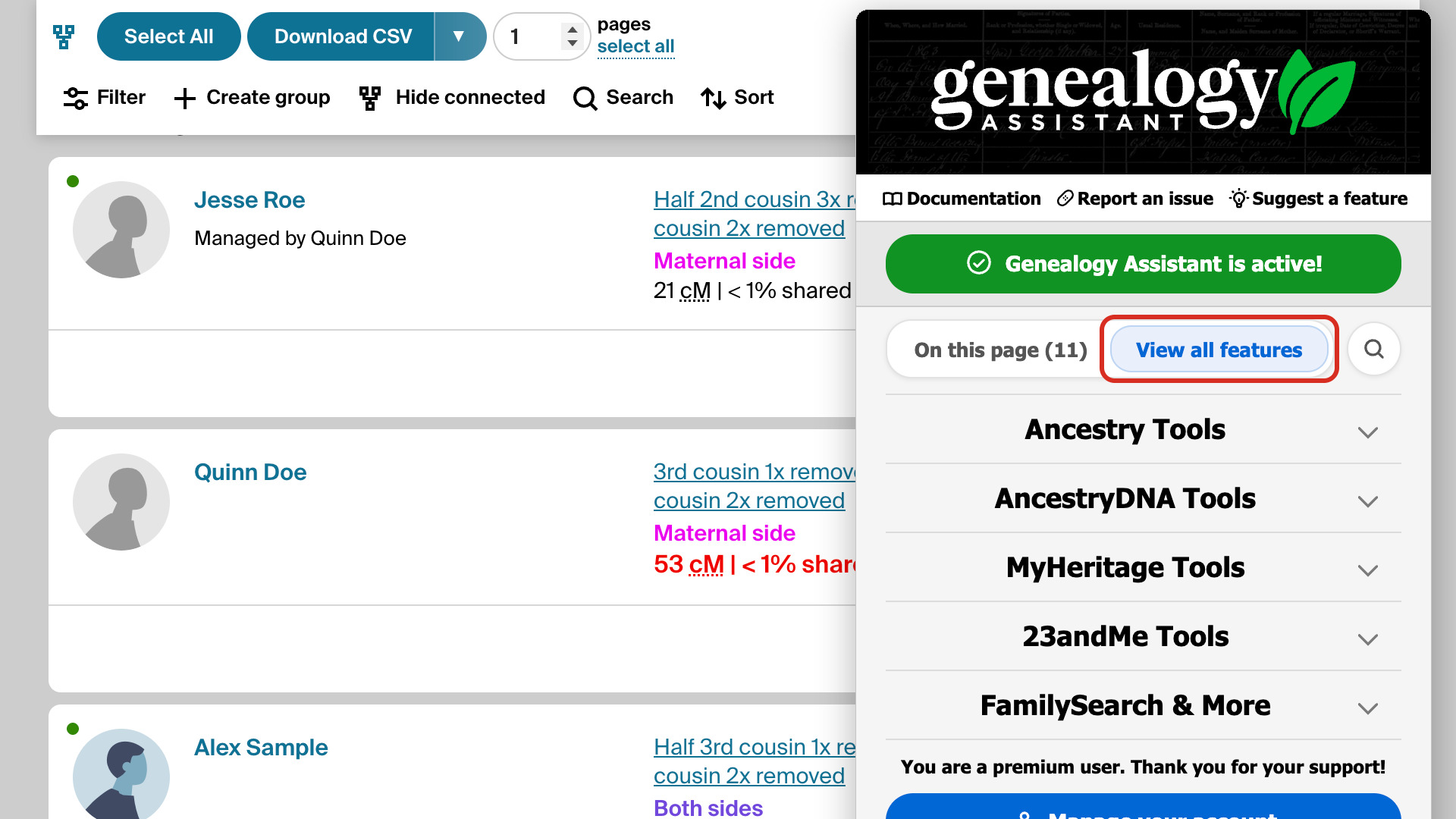
The features are sorted by website into five groups:
- Ancestry Tools
- AncestryDNA Tools
- MyHeritage Tools
- 23andMe Tools
- FamilySearch & More, for FamilySearch and the other websites
Click a group’s heading to open or close it, and the pop-up panel remembers which groups you left open. Above the groups are a filter and a search button, so you can find a feature without opening every group in turn.
- Open the pop-up panel on a genealogy website. On this page is selected, and only the features that work on the page you are viewing are shown. The number in brackets is how many there are.
- Click View all features to see every feature in every group.
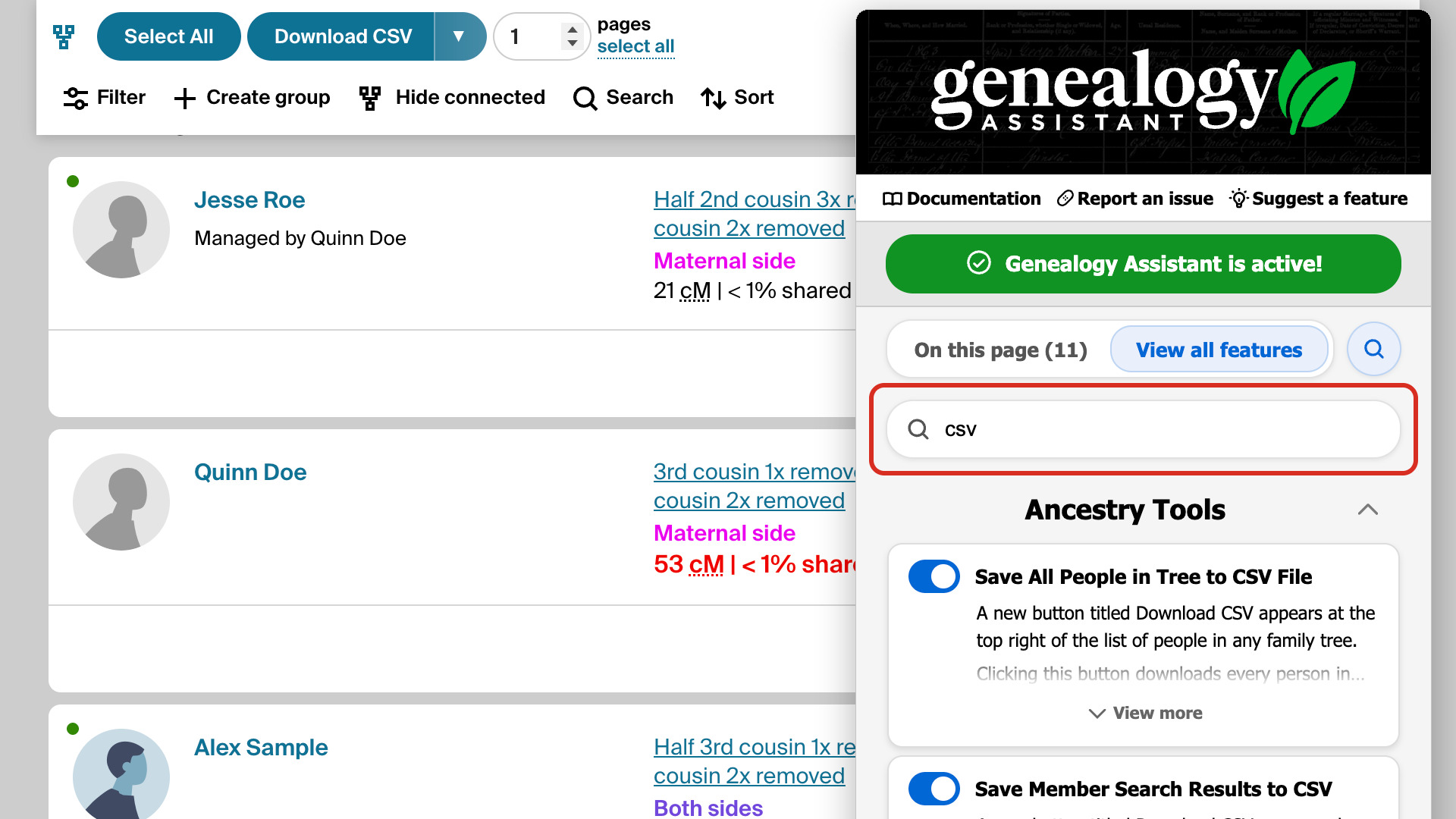
- Click the search button, the magnifying glass at the right of the filter. A search box opens under it.
- Type a word, such as csv. Every feature with that word in its name or description is listed, from all five groups.
- Click the search button again to close the search. The list goes back to On this page.
On a website that Genealogy Assistant does not work on, On this page is greyed out and every feature is listed. Quick Search via Alt + Q works on any page, so it is in the On this page list on every genealogy website. To change a feature for another website, click View all features.
How do I turn a feature on or off?
Every feature is turned on when your trial starts. You only need these steps for a feature you would rather not use, or to bring back one you turned off earlier. Your choice is kept for every visit, on every website, until you change it again.
- Find the feature in the pop-up panel.
- Click the switch to the left of its name. The switch is blue when the feature is on. When it is off, the switch is grey and the feature’s description fades.
- Reload the web page you are on. A change shows the next time a page opens or reloads.
How do I read more about a feature?
Under each feature’s name are the first three lines of its description. The full description says everything the feature does. Each feature also has its own page on this website, with pictures and step-by-step instructions for using it.
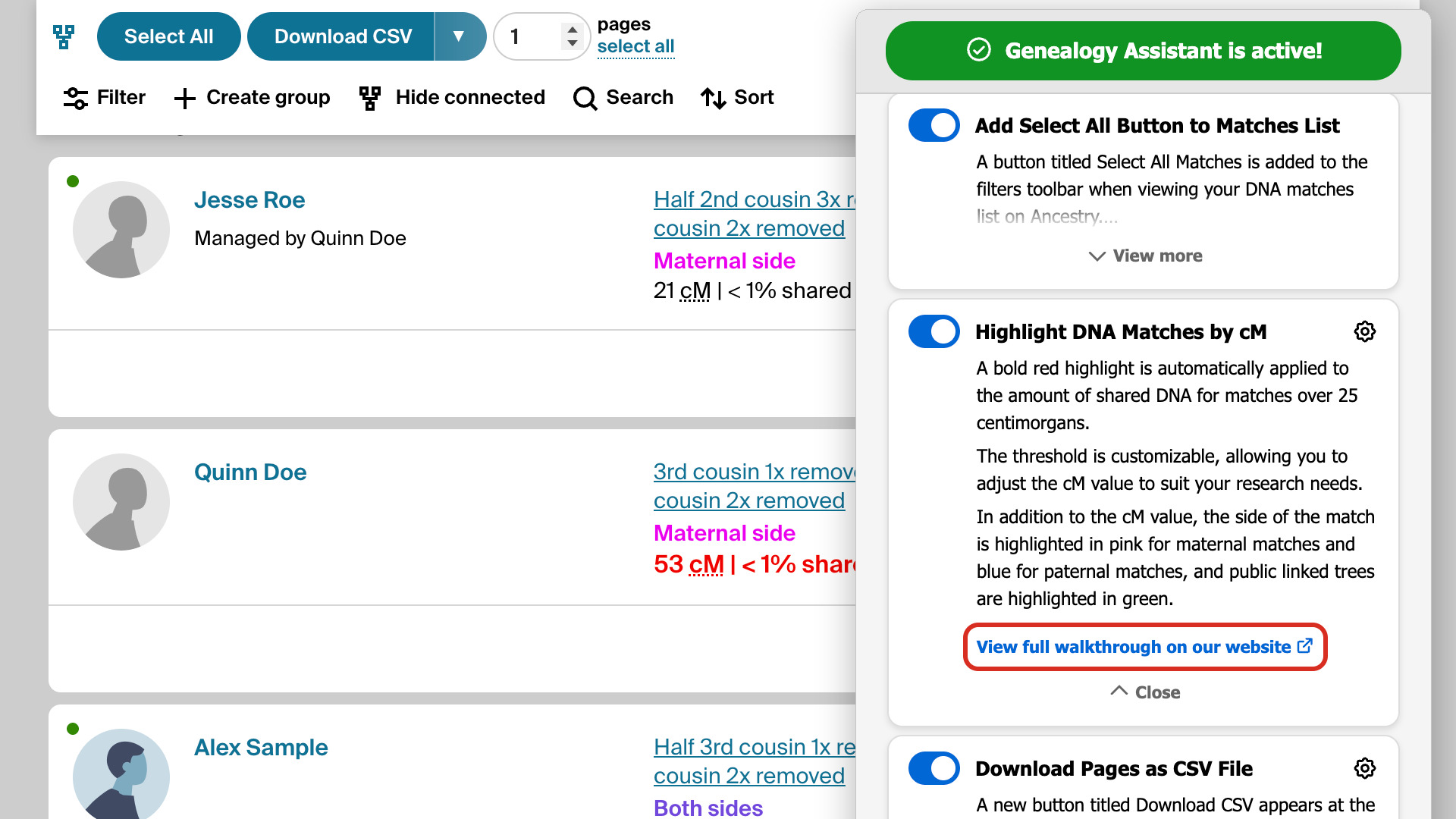
- Click View more under the description. The full description opens, with a View full walkthrough on our website link under it, and View more now reads Close.
- Click View full walkthrough on our website to open the feature’s page in a new tab. Clicking the feature’s name opens the same page.
- Click Close to shorten the description again.
How do I change a feature’s settings?
Some features have settings you can change, such as a highlight threshold or the speed of a download. Those features have a settings icon at the right end of their name. The settings open inside the pop-up panel, so you never leave the page you are on.
- Click the settings icon at the right of the feature’s name. Advanced Settings opens at that feature’s section.
- Change the setting. It saves straight away and Saved appears for a moment. A number saves as soon as you click away from its box.
- Click the × at the top right, or Return to main screen at the bottom, to go back to the features.
- Reload the web page you are on to see the new setting.
To see every setting at once, click Edit advanced settings near the bottom of the pop-up panel. Advanced Settings also holds Quick Search’s family trees, the buttons that turn every feature on or off, and a backup of your settings and data.
How do I set the colour scheme and default sorting?
Ancestry Tools and AncestryDNA Tools start with a few rows of their own. Each choice row has two or three options; click one to use it, and the option in use is highlighted in blue. The rows are:
- Default Website Colour Scheme: Darker, the default, gives Ancestry’s pages a darker look, and Standard keeps Ancestry’s own colours. See Ancestry Colour Scheme.
- Launch Surname Comparison Tool, a button that opens Ancestry in a new tab and starts the Surname Comparison Tool.
- Default DNA Match List Sorting: Newest or Closest, the order your AncestryDNA match list opens in. Closest is the default. See Ancestry Match List Sorting.
- Default Shared Matches Sorting: Date, Tester or Match, the order a match’s Shared Matches tab opens in. Match needs Ancestry Pro Tools and is greyed out without it. See Ancestry Shared Matches Sorting.
How do I turn every feature off at once?
- Click Genealogy Assistant is active! under the links at the top of the pop-up panel (it reads Click to disable while you point at it). Every feature turns off, and the button now reads Genealogy Assistant is disabled!
- Reload the web page you are on. It shows the website as it is without Genealogy Assistant.
- To turn the features back on, click Genealogy Assistant is disabled! The features you had on before come back on, and the others stay off.
To start again from a clean slate instead, use Feature Management in Advanced Settings. Enable all features turns every feature on at its defaults. Disable all features turns them all off, so you can turn on just the few you want.
How do I check my trial or plan?
- Scroll to the bottom of the pop-up panel.
- Read the line above the buttons. During your trial it reads Trial period is active. You have 30 days remaining. The number counts down each day. With a plan, it reads You are a premium user. Thank you for your support!
- During your trial, click the green Purchase Genealogy Assistant button to choose a plan.
- With a plan, click the blue Manage your account button to open your account page at Stripe, our payment processor. There you can change your card or cancel.
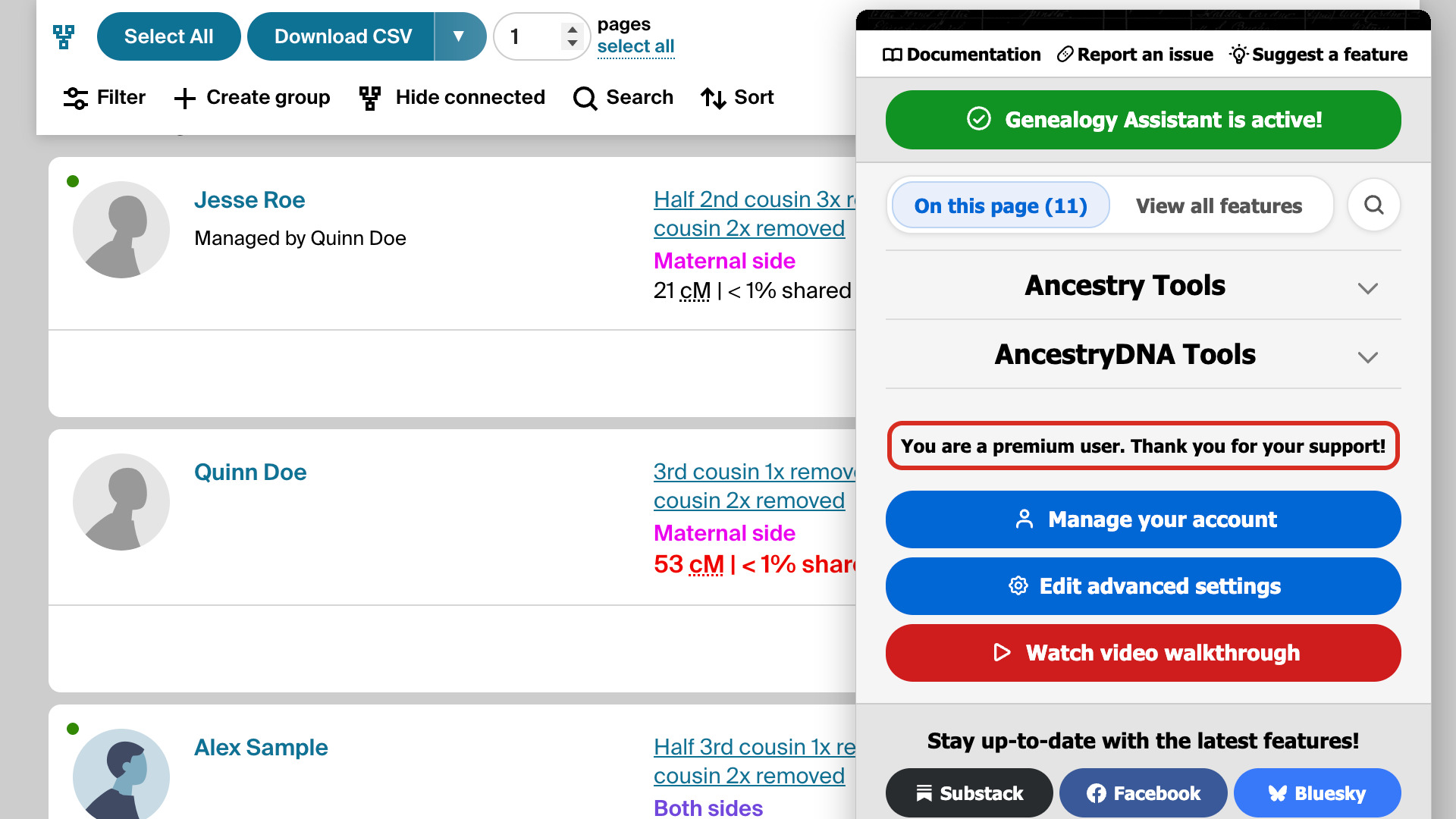
How to purchase Genealogy Assistant walks through the plans and the payment page. Your trial and your plan belong to your email address, so they work on every computer you log in on. To move from a monthly or yearly plan to lifetime, follow How to switch to a lifetime plan.
Where can I get help?
Each feature’s own page on this website is the place to start, through View full walkthrough on our website or the feature’s name. For a tour of the whole extension, click Watch video walkthrough at the bottom of the pop-up panel to open our video on YouTube.
To tell us about a problem, click Report an issue at the top of the pop-up panel. Please include the version number from the very bottom of the pop-up panel, which starts with a v. Under Stay up-to-date with the latest features! are our Substack, Facebook and Bluesky pages.
What if the switches are greyed out?
When every switch is greyed out, your free trial has ended. The line at the bottom of the pop-up panel reads Trial period expired. Please upgrade to continue using premium features. The plan page opens so you can choose a plan, as in How to purchase Genealogy Assistant.
If you have already paid, log in with the email address you paid with, as in How to log in to your Genealogy Assistant account. If the button at the top reads Genealogy Assistant is disabled!, click it to turn your features back on.
A single feature greyed out on its own, with a switch you cannot click, has been turned off by us for now. This usually means a website changed its pages and we are fixing the feature. It comes back by itself once the fix is ready, on or off as you left it.
Next, Advanced Settings in Genealogy Assistant explains every setting, section by section. It also covers adding your family trees to Quick Search and backing up your settings and data.