


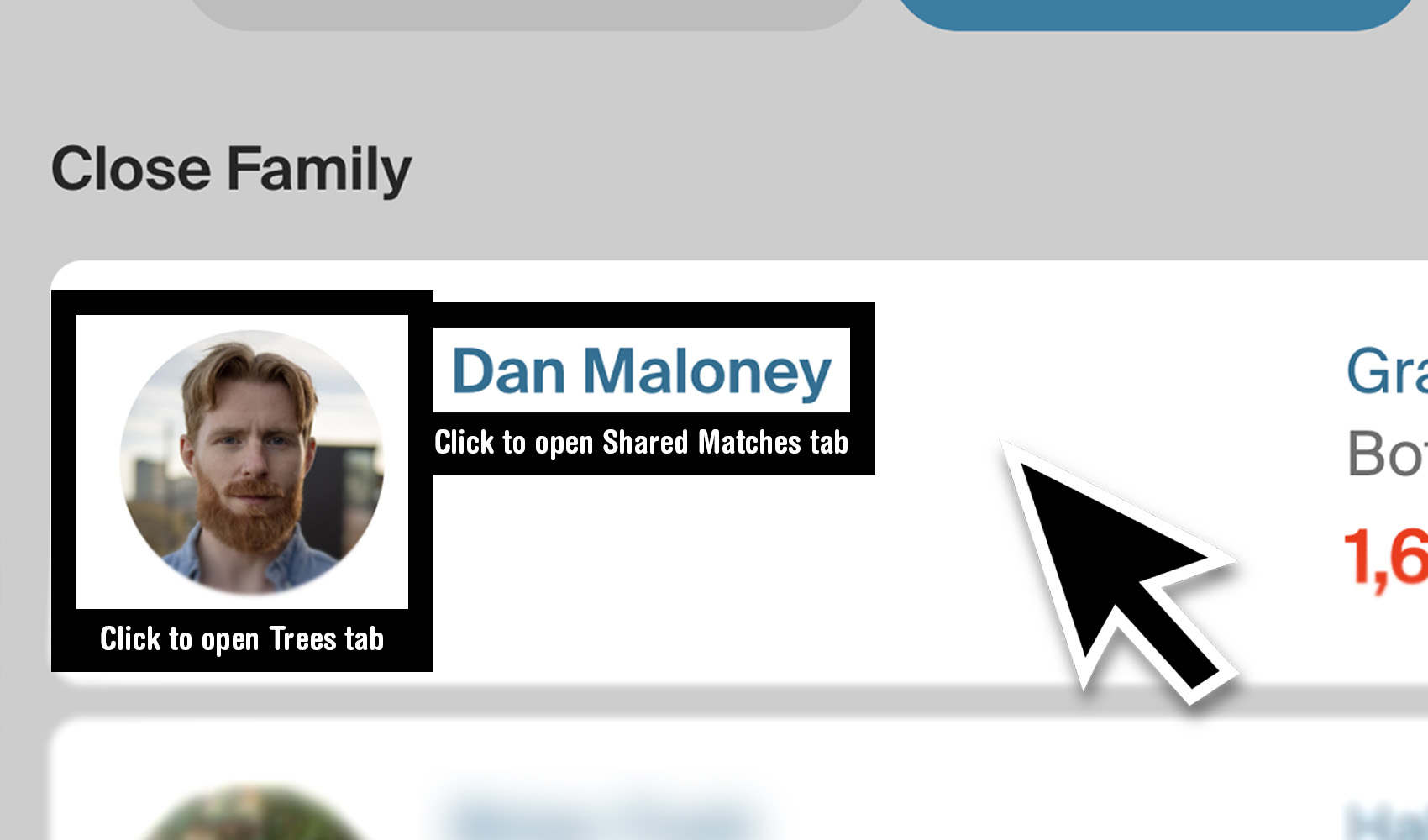
What problem does Open Shared Matches from Match Name solve?
When you click a match’s name in your AncestryDNA match list, Ancestry opens that match on the Trees tab. If you work primarily from shared matches (looking for group overlaps and cluster connections), that is the wrong tab for every single click and you have to press Shared Matches every time. Open Shared Matches from Match Name changes what the name link does so clicking it lands directly on the Shared Matches tab.
How does Open Shared Matches from Match Name work?
On your AncestryDNA match list, every match name link is updated so it points to the Shared Matches tab instead of the Trees tab. Clicking a name takes you straight to that match’s list of shared matches, with the sort order and page size you have set on other Genealogy Assistant features already applied. The match’s photo still opens the Trees tab, so you can still reach either view with a single click. The name opens shared matches and the photo opens trees.
How do I use Open Shared Matches from Match Name?
- Ensure Open Shared Matches from Match Name is enabled in the Genealogy Assistant pop-up panel.
- Open your AncestryDNA match list.
- Click any match’s name to open that match directly on the Shared Matches tab.
Open Shared Matches from Match Name is a feature of the software Genealogy Assistant.
Genealogy Assistant is an extension for Google Chrome, Mozilla Firefox, Microsoft Edge and Apple Safari which supercharges your family history research by adding over 100 custom features to popular genealogy websites like Ancestry, MyHeritage, FamilySearch, FamilyTreeDNA and more. You can watch a full video walkthrough on YouTube.
Install Genealogy Assistant for Google Chrome | Install for Mozilla Firefox | Install for Microsoft Edge | Install for Apple Safari