


What problem does Add Pagination to Top of Matches List solve?
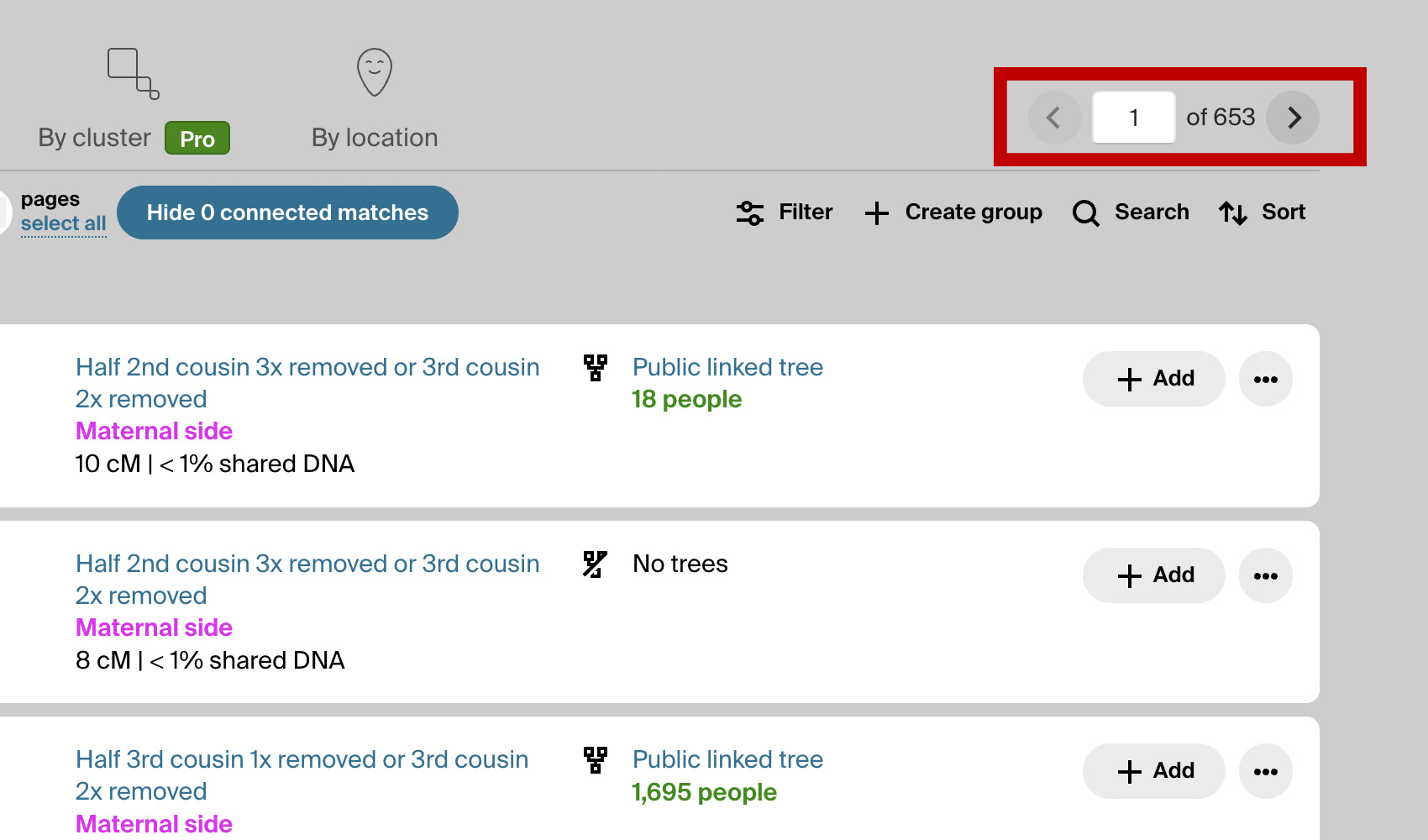
Ancestry only puts the pagination controls at the bottom of your DNA match list, so every time you want to move to the next page you have to scroll all the way down. On a list with thousands of matches that is a lot of scrolling. Add Pagination to Top of Matches List adds a second pagination bar at the top of the list so you never have to scroll to turn a page.
How does Add Pagination to Top of Matches List work?
A pagination bar is added above your AncestryDNA match list with a previous arrow, a page number box, the total page count, and a next arrow. Typing a number in the box and pressing Enter jumps straight to that page. Left and right arrow keys on the keyboard also move you between pages one at a time. Whenever you apply a new filter the bar automatically snaps back to page 1 so you start fresh with the new results.
How do I use Add Pagination to Top of Matches List?
- Ensure Add Pagination to Top of Matches List is enabled in the Genealogy Assistant pop-up panel.
- Open your AncestryDNA match list. A pagination bar will appear above the list.
- Click the previous or next arrow, type a page number and press Enter, or use the
LeftandRightarrow keys to move between pages.
Keyboard Shortcuts
Leftgoes to the previous page of matchesRightgoes to the next page of matches
Add Pagination to Top of Matches List is a feature of the software Genealogy Assistant.
Genealogy Assistant is an extension for Google Chrome, Mozilla Firefox, Microsoft Edge and Apple Safari which supercharges your family history research by adding over 100 custom features to popular genealogy websites like Ancestry, MyHeritage, FamilySearch, FamilyTreeDNA and more. You can watch a full video walkthrough on YouTube.
Install Genealogy Assistant for Google Chrome | Install for Mozilla Firefox | Install for Microsoft Edge | Install for Apple Safari