


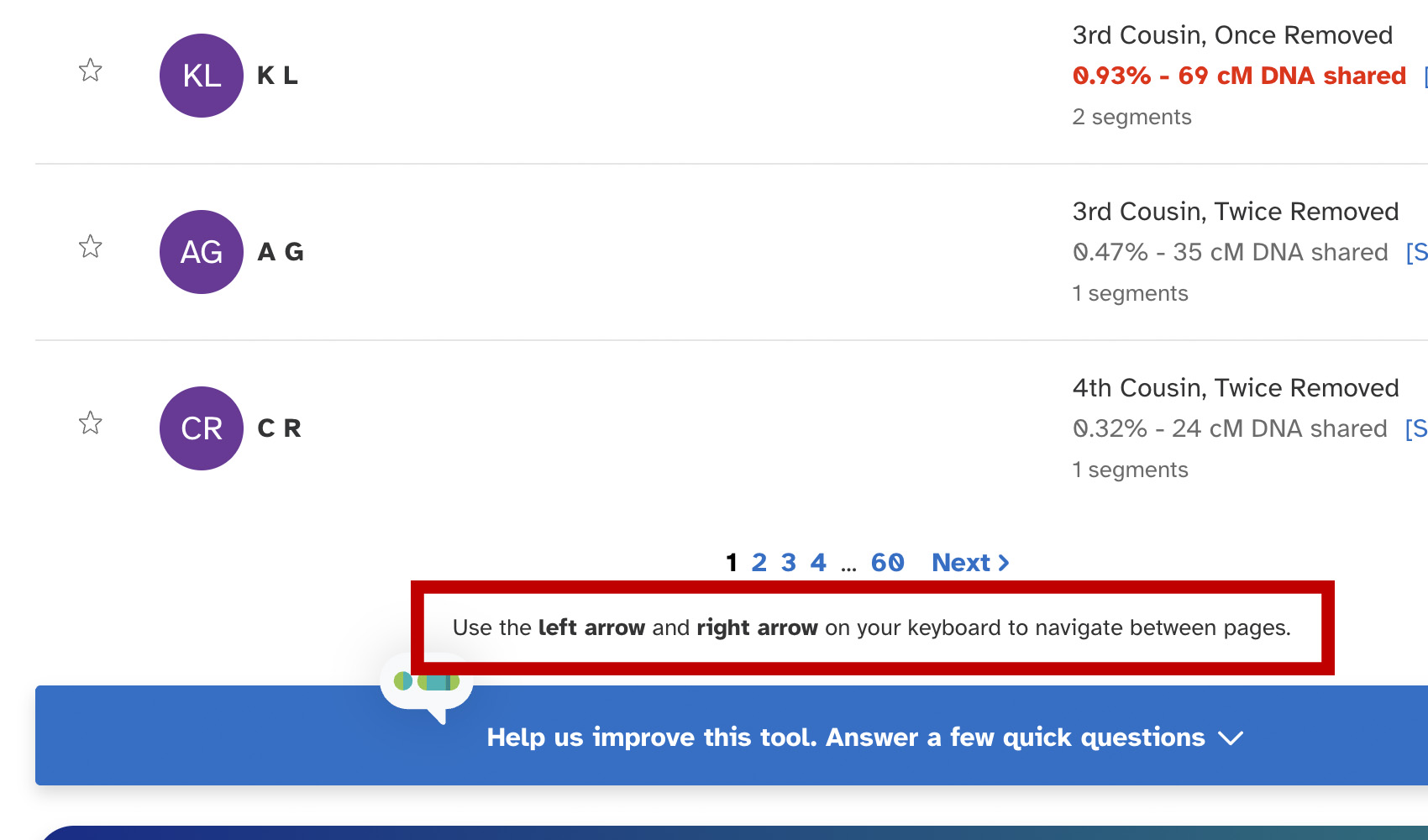
What problem does 23andMe Add Keyboard Nav to Matches List solve?
The 23andMe DNA Relatives list only shows pagination controls at the bottom of the page, so working through a long match list means a lot of mouse travel. 23andMe Add Keyboard Nav to Matches List lets you flip through pages of matches using just the left and right arrow keys.
How does 23andMe Add Keyboard Nav to Matches List work?
On your 23andMe DNA Relatives list, pressing the left or right arrow key clicks the previous or next page button in the native paginator, taking you to the next page of matches. A short hint is added below the pagination so you know the shortcut is available. The arrow keys are ignored while you are typing into a text field so they don’t interfere with the search box.
How do I use 23andMe Add Keyboard Nav to Matches List?
- Ensure 23andMe Add Keyboard Nav to Matches List is enabled in the Genealogy Assistant pop-up panel.
- Open your 23andMe DNA Relatives list.
- Press the
LeftorRightarrow key anywhere on the page to move to the previous or next page of matches.
Keyboard Shortcuts
Leftgoes to the previous page of matchesRightgoes to the next page of matches
23andMe Add Keyboard Nav to Matches List is a feature of the software Genealogy Assistant.
Genealogy Assistant is an extension for Google Chrome, Mozilla Firefox, Microsoft Edge and Apple Safari which supercharges your family history research by adding over 100 custom features to popular genealogy websites like Ancestry, MyHeritage, FamilySearch, FamilyTreeDNA and more. You can watch a full video walkthrough on YouTube.
Install Genealogy Assistant for Google Chrome | Install for Mozilla Firefox | Install for Microsoft Edge | Install for Apple Safari