


What problem does Family Tree Screenshot Tools solve?
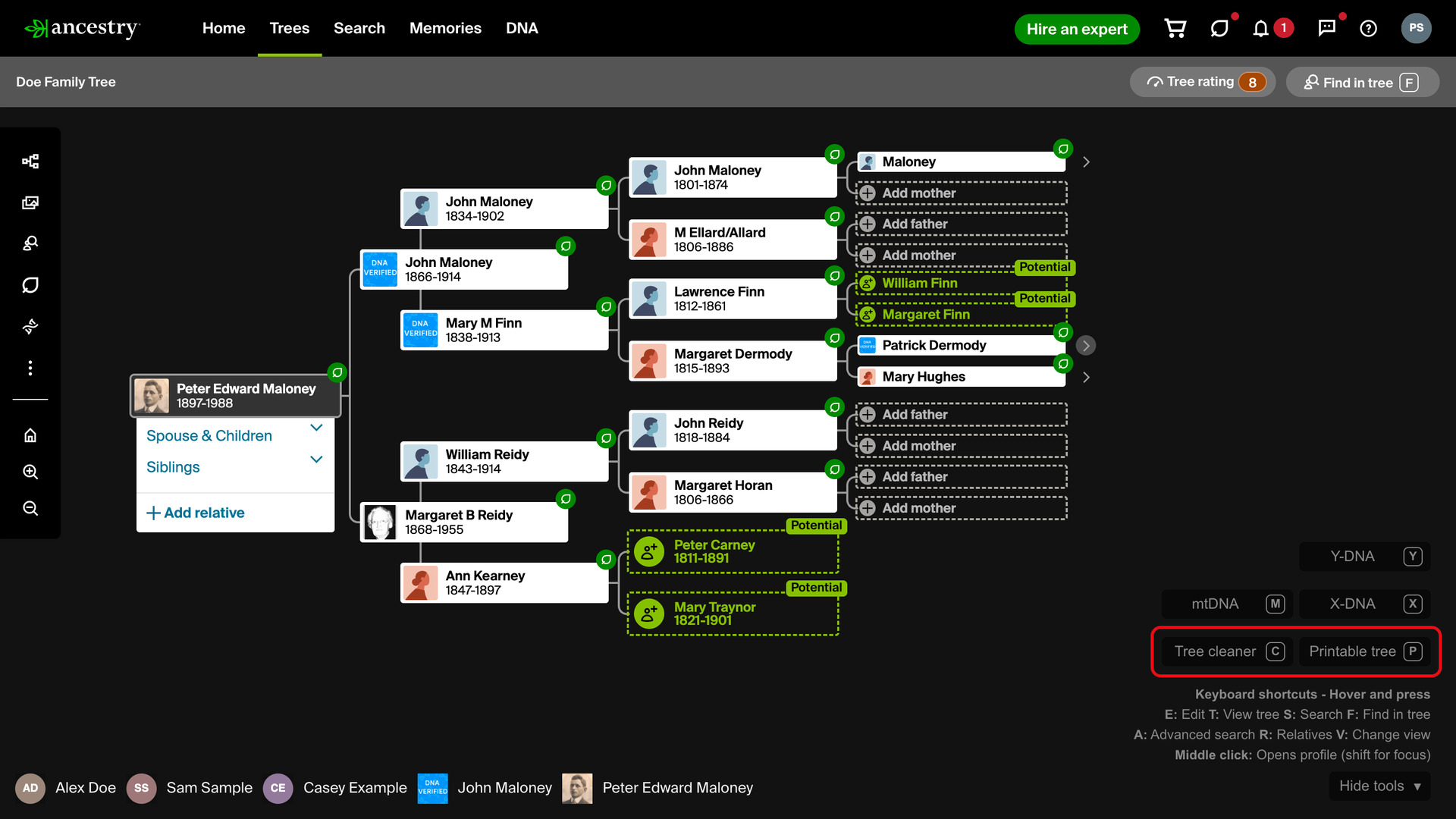
Family Tree Screenshot Tools adds Tree cleaner and Printable tree buttons to the bottom right of your Ancestry family tree. They strip the small icons and arrows off the tree, or turn it black and white for printing. A screenshot or printout then shows just the people and the lines between them.
How does Family Tree Screenshot Tools work?
Both buttons sit in the panel of Genealogy Assistant tree tools at the bottom right of the tree, in the horizontal and vertical views. A button turns blue while its look is on, and clicking it again puts the tree back the way Ancestry draws it.
Tree cleaner keeps Ancestry’s colours but hides the clutter around the people, and draws the lines between them thicker. These are the things it hides:
- The hint leaves and other small icons on each person’s card.
- The arrows that open more generations, siblings and relatives.
- The relationship labels on the lines down to children.
- The links at the foot of the focus person’s family list in the horizontal view.
Printable tree hides the same things and turns the tree into a high-contrast black and white design for printing. The background becomes white, the text black, and every line and the border round each person’s card thick and black.
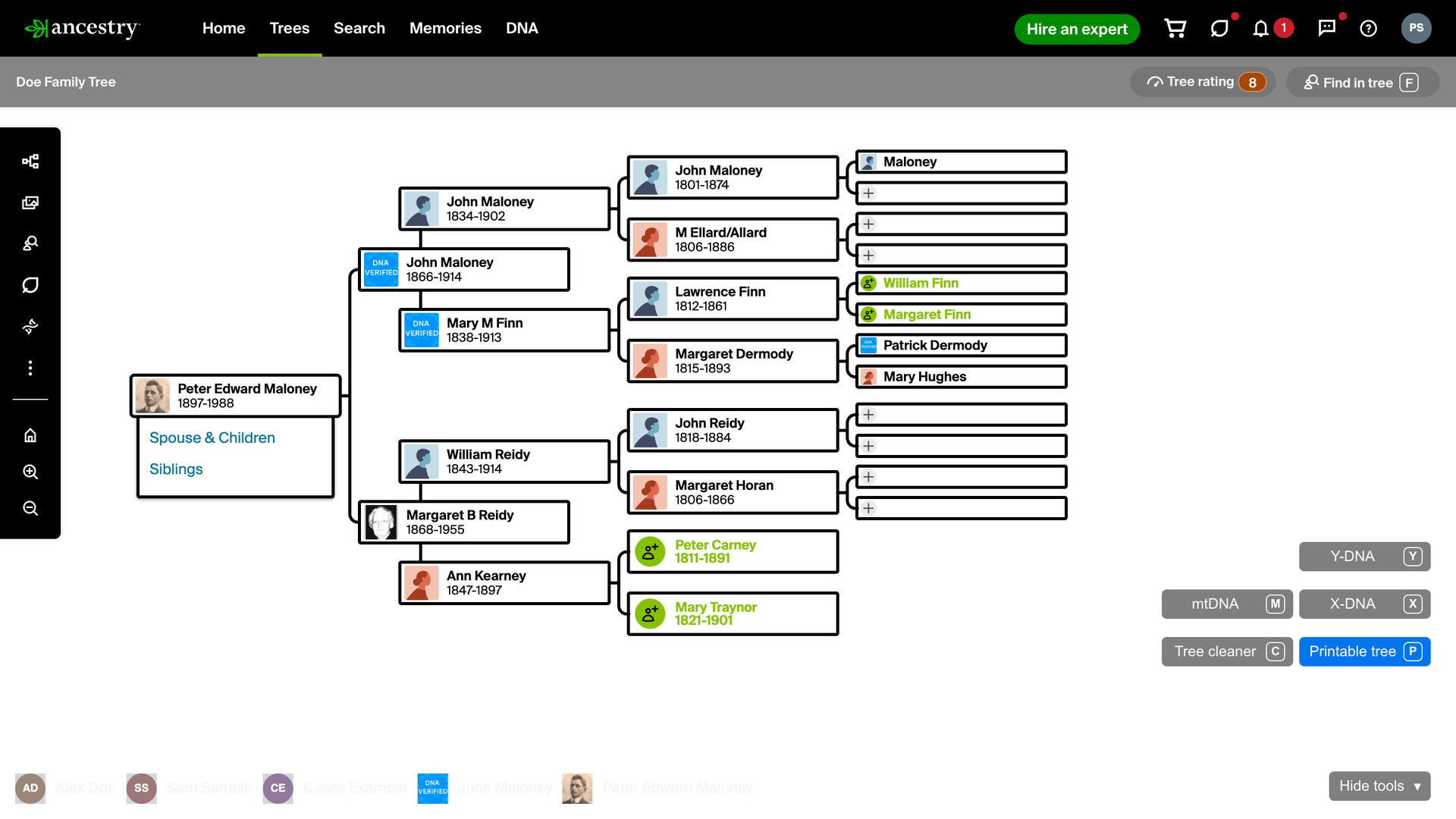
The buttons show their shortcut letters, C for Tree cleaner and P for Printable tree, and a second press switches the look off again. The keys work when Keyboard Shortcuts for Family Tree is also turned on.
How do I use Family Tree Screenshot Tools?
The buttons appear in the horizontal and vertical views; the fan view does not have them.
- In the Genealogy Assistant pop-up panel, make sure Family Tree Screenshot Tools is turned on.
- Open your Ancestry family tree in the horizontal or vertical view.
- Click Tree cleaner at the bottom right. The icons and arrows disappear and the button turns blue.
- Or click Printable tree. The tree turns black and white.
- Take your screenshot, or print the page from your browser.
- Click the same button again to return to Ancestry’s usual look.
Keyboard Shortcuts
Cturns Tree cleaner on or off.Pturns Printable tree on or off.
Related features
- Easy Hide and Expand in Family Tree: Expand tree, Collapse tree and Hide siblings buttons open or close one generation at a time in the vertical view, so you can stay focused on a direct line.
- Custom Tree Viewing Options: Applies your preferred Tree viewing options, such as showing all spouses, to each tree the first time you open it, instead of setting every tree by hand.
- Ancestry Colour Scheme: Gives every page of Ancestry a high-contrast dark theme in place of the bright white background, from the homepage to profile pages and search results.
Family Tree Screenshot Tools is a feature of the software Genealogy Assistant.
Genealogy Assistant is an extension for Google Chrome, Mozilla Firefox, Microsoft Edge and Apple Safari which supercharges your family history research by adding over 100 custom features to popular genealogy websites like Ancestry, MyHeritage, FamilySearch, FamilyTreeDNA and more. You can watch a full video walkthrough on YouTube.
Install Genealogy Assistant for Google Chrome | Install for Mozilla Firefox | Install for Microsoft Edge | Install for Apple Safari