


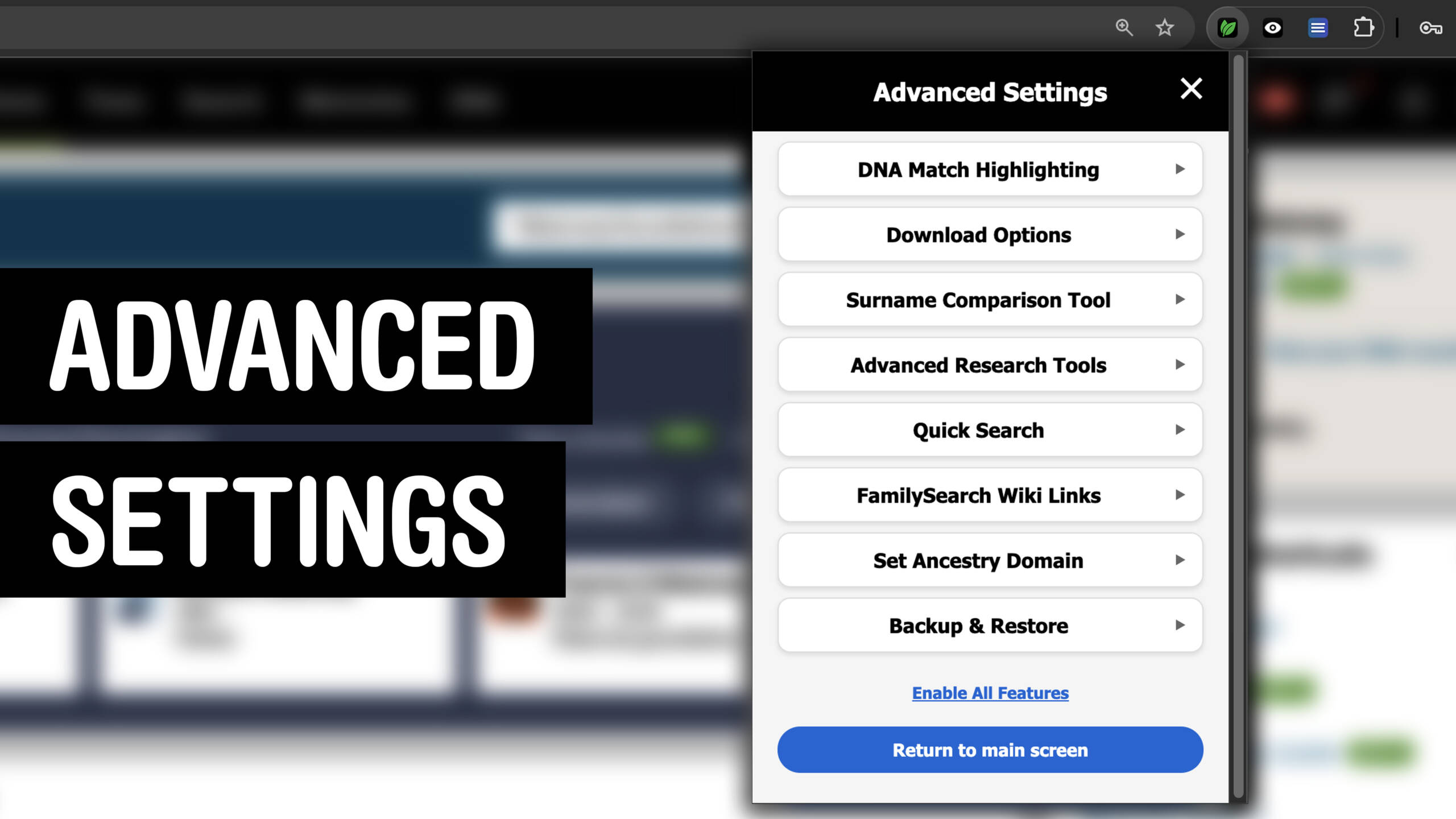
Genealogy Assistant is customizable to your own unique preferences, and things like downloads can be optimized to work with your system and setup. Click the “Edit advanced settings” button at the bottom of the Genealogy Assistant popup panel to configure the extension.
DNA Match Highlighting
Set the minimum cM threshold for highlighting your DNA matches. Matches above this value are highlighted in red so you can quickly spot significant connections. Settings are available for:
- Ancestry DNA Matches
- Ancestry Shared Matches
- Ancestry Matches of Matches
- MyHeritage DNA Matches
- MyHeritage Mutual Matches
- 23andMe DNA Matches
- 23andMe Shared Matches
Download Options
Customize how Genealogy Assistant saves files if you experience inconsistent downloads or other platform issues.
- Download method: Choose how files are saved to your computer: Streaming (best for large files), Standard (most compatible), or File System (modern file system API).
- Download Speed: Control the delay between pages during multi-page downloads. Slower speeds help avoid being rate-limited on large exports. Options: Standard, Walk, Crawl, or Custom.
- Custom page delay: Set your own delay (in seconds) between each page when using Custom speed.
- MyHeritage shared speed: Control the delay between pages when a MyHeritage shared matches list is loaded, either to select the matches or to download them as a CSV. MyHeritage adds these matches to the page in small batches and slows down if they are asked for too quickly, so a slower setting can finish a long list sooner rather than later. Options: Standard, Walk, Crawl, or Custom. Choosing Custom adds a Page delay (seconds) field below it. This is separate from Download Speed above, which paces full page loads on the other websites.
- Enable batch downloads: Break large downloads into smaller batches to avoid timeouts or errors.
- Batch size: Set how many pages are included in each batch.
- Ancestry additional DNA details: Adds unweighted cM, longest segment and average segment size to your Ancestry match and shared match CSV downloads. Ancestry keeps these figures behind a pop-up on each match, so collecting them takes an extra request per match. The setting is only available when Download Speed is set to Crawl, or to Custom with a delay of 14 seconds or more. When a slower speed is required you will see a Switch speed to “Crawl” and enable link that sets both at once.
Quick Search
Manage the shortcuts that open Quick Search, add your family trees so you can pull up anyone’s profile from any page, and control how the indexes keep themselves up to date. Everything here apart from the shortcuts is also available from the Settings link in the bottom right corner of the Quick Search prompt.
- Keyboard Shortcut:
Alt+Q(Option+Qon a Mac) opens Quick Search on any web page. Click Change shortcut in browser to pick a different key combination on your browser’s extension shortcuts page. - Legacy Shortcut on Genealogy Sites: The previous in-page shortcut,
Ctrl+/by default, still works on supported genealogy sites only. Click Record New Shortcut to change it. It will be retired in a future release. - Add GEDCOM to Quick Search: Upload a GEDCOM file exported from Ancestry (.ged or .zip) to add a tree in one go. Files are processed locally and never leave your computer. The tree is then kept up to date from Ancestry, starting from the date the file was exported, which makes this the quickest way to add a tree of more than 20,000 people. A tree with the same name as one already added is replaced after you confirm.
- Automatic Updates: Your tree list, your DNA tests and the people in the trees you have added are checked about every six hours, whether or not you have Ancestry open, and only the changes are fetched. You need to be signed in to Ancestry in this browser. Untick Update indexes automatically to stop the checks. The status box shows the last check and its result, when the next check is due, how many trees are in your tree list (yours and shared), how many DNA tests are indexed, and how many trees and people are indexed. Check now runs a check right away instead of waiting.
- Trees: One list of every tree on your Ancestry account plus any GEDCOM you have uploaded. Added to Quick Search shows the trees whose people are searchable. Each row has a tick box, a coloured dot (click it to change the colour of the tree’s label in Quick Search), the tree name, how many people are indexed and how long ago they were last updated, and a pencil icon to rename the tree. Untick a tree to remove it and its people. Available trees lists the rest of your trees, including trees shared with you, with their size. Tick one to add it, and it is fetched right away. A search box appears once you have more than five trees, and Show all expands the list past the first ten. Up to 10 trees can be added; trees over 20,000 people are marked as large, with a suggestion to upload their GEDCOM instead.
Surname Comparison Tool
Configure how the Surname Comparison Tool searches trees on your behalf.
- Also check unlinked trees: Include public unlinked trees when running surname comparisons, not just trees linked to DNA matches.
- Maximum unlinked tree size: Skip unlinked trees larger than this number of people to keep searches fast and manageable.
Advanced Research Tools
Choose how the Advanced Research Tools appear on Ancestry profiles.
- Link size: Choose between Standard or Larger text for the research tools menu on Ancestry profile pages.
- Individual tool toggles: Show or hide specific links in the research tools menu: View in tree, List of people, View notes, View comments, Merge duplicate, Save to tree, Member connect, Upload photo, Quick edit, Edit relationships, View changes, Print, Charts & reports, Check for errors.
Ancestry Tree Viewing Options
Choose which of Ancestry’s Tree viewing options are applied automatically the first time you open each family tree. Ancestry stores these separately for every tree, so without this they have to be set each time.
- Always view all spouses in trees: Shows all marriages from the moment the page loads, so second and later spouses appear beside a person instead of being hidden. On by default.
- Hide relationship line labels in trees: Removes the small text captions indicating relationships that sit between the generations. Off by default.
FamilySearch Wiki Links
The FamilySearch Wiki is a powerful tool to help you understand the records available in the different locales you research.
- Only search state/province and country: Limit automatic FamilySearch Wiki links to broader geographic levels. Useful when detailed local wiki pages don’t exist for your area.
Set Ancestry Domain
You can manually set the region for Genealogy Assistant, which is used for urls within the extension. This is automatically detected by default.
- Domain: Select which regional Ancestry site you use, listed by address: Ancestry.com, Ancestry.ca, Ancestry.co.uk, Ancestry.com.au, Ancestry.de, Ancestry.fr, Ancestry.it, or Ancestry.mx. Auto-detected on first visit but can be changed manually.
Feature Management
Turn every Genealogy Assistant feature on or off in a single click, without switching them one at a time in the pop-up panel.
- Enable all features: Switch on every feature and reset the colour scheme, DNA match list sorting, and shared matches sorting back to their default settings.
- Disable all features: Switch off every feature and return each website to its own default behaviour. Genealogy Assistant stays active, so this is the quickest way to start from a clean slate and then enable only the features you want.
Backup & Restore
Since Genealogy Assistant runs entirely on your computer, you may want to back up your settings and data. You can also use this to transfer everything to another computer or browser.
- Export Settings & Data: Save all your settings and indexed trees to a backup file.
- Restore Settings & Data: Restore from a previous backup. This will overwrite all current settings and data.
Service File
Genealogy websites change their pages regularly. The service file lets us send out a fix straight away, such as the new location of a button, instead of waiting for a new version of the extension to be approved by the browser stores.
- Update service file: Check for an updated service file right away. This happens automatically every 3 hours.