


What problem does Add Download Image Button to Viewer solve?
When you find a photo in an Ancestry tree or media gallery, Ancestry only gives you a small set of options for saving it, and saving a clean copy to your own computer is not one of them. Add Download Image Button to Viewer adds a one-click download button right next to the image so you can save the original file straight to your machine.
How does Add Download Image Button to Viewer work?
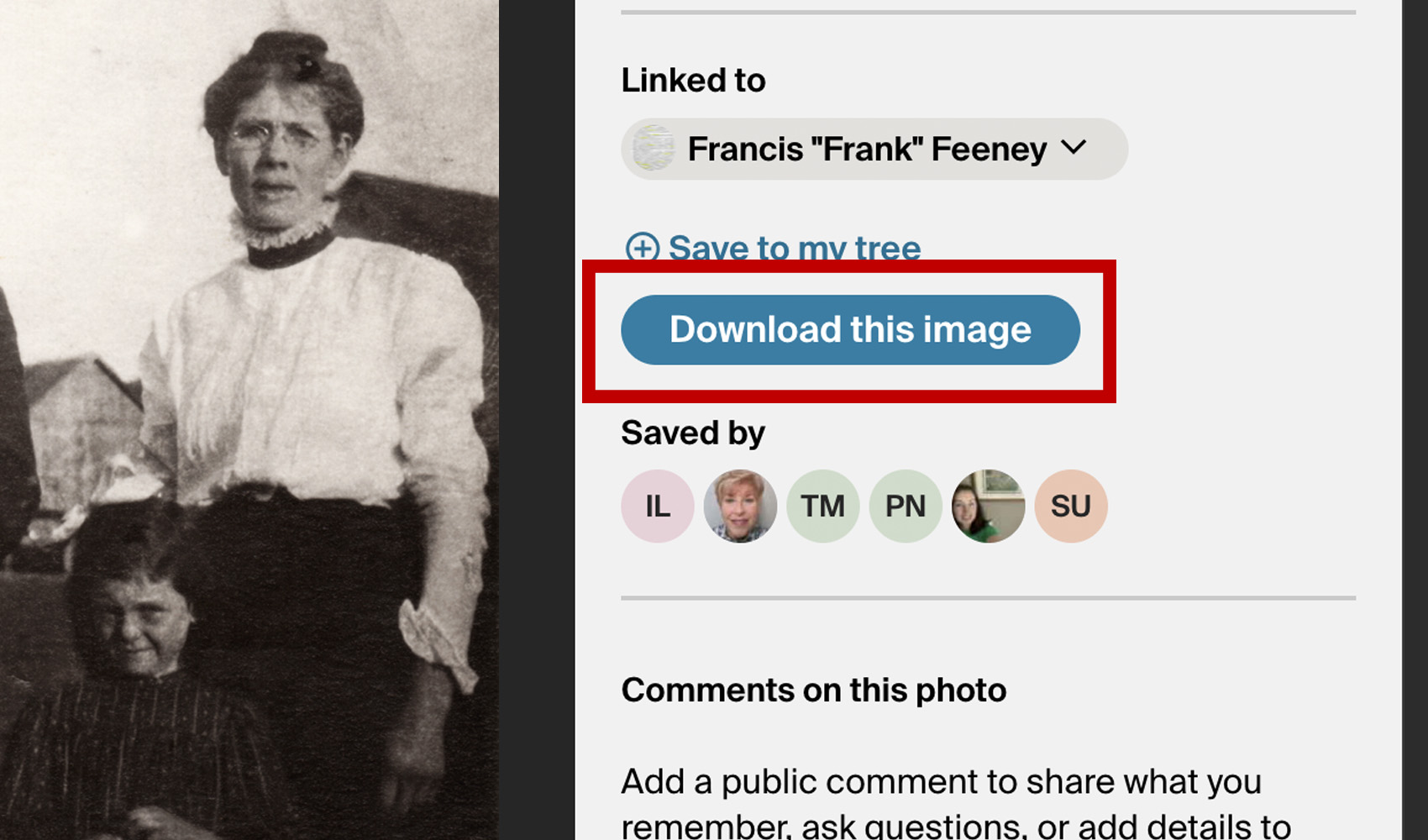
When you open a photo or image in the Ancestry media viewer, a new Download this image button is added to the side panel next to the image details. Clicking it saves the original image to your computer using the image’s title as the filename.
How do I use Add Download Image Button to Viewer?
- Ensure Add Download Image Button to Viewer is enabled in the Genealogy Assistant pop-up panel.
- Open any image in the Ancestry media viewer.
- Click Download this image in the side panel to save the image to your computer.
Add Download Image Button to Viewer is a feature of the software Genealogy Assistant.
Genealogy Assistant is an extension for Google Chrome, Mozilla Firefox, Microsoft Edge and Apple Safari which supercharges your family history research by adding over 100 custom features to popular genealogy websites like Ancestry, MyHeritage, FamilySearch, FamilyTreeDNA and more. You can watch a full video walkthrough on YouTube.
Install Genealogy Assistant for Google Chrome | Install for Mozilla Firefox | Install for Microsoft Edge | Install for Apple Safari