


What problem does Download Clusters as CSV File solve?
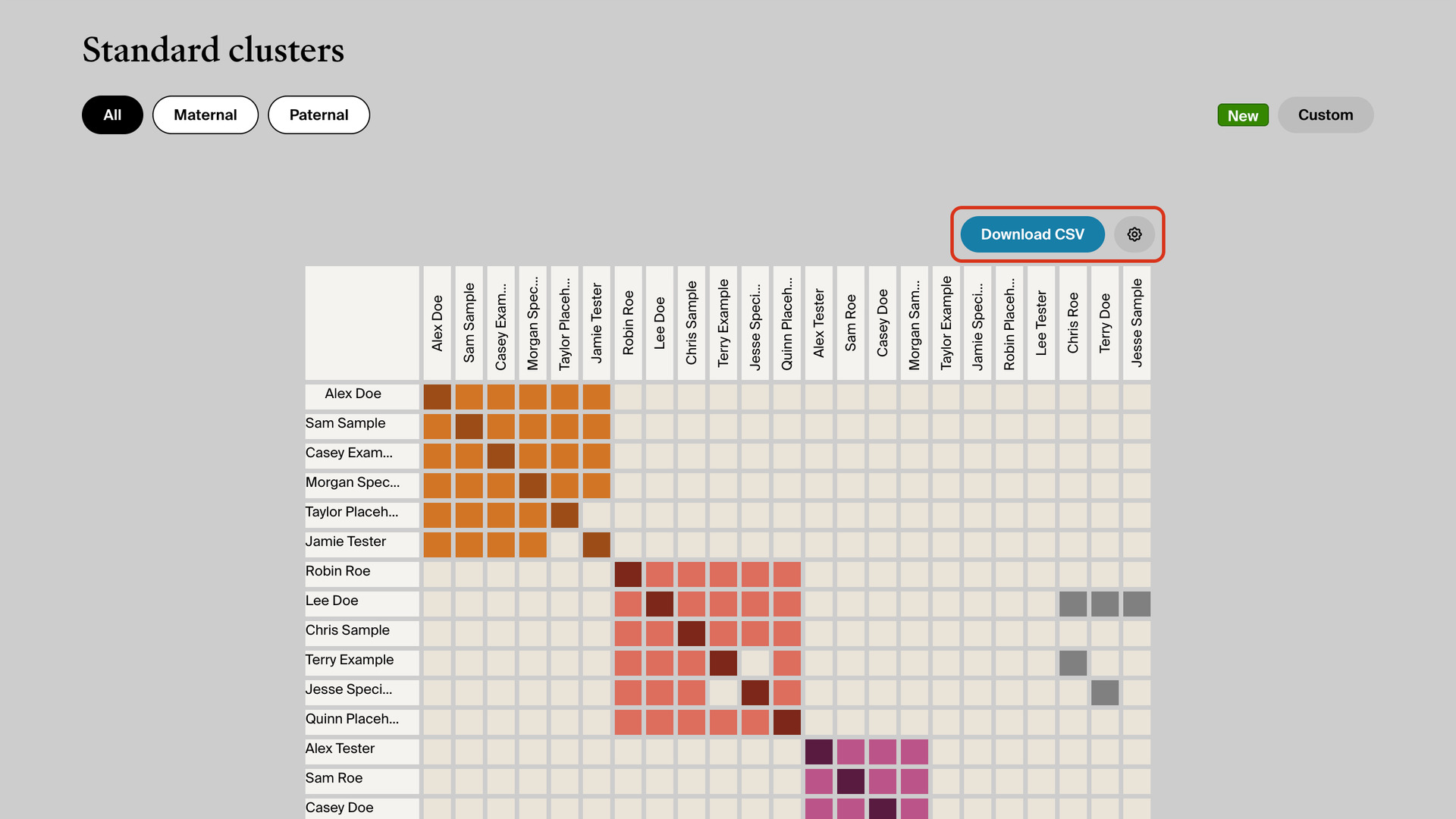
Download Clusters as CSV File adds a Download CSV button to the AncestryDNA clusters report. It saves every pair of matches that share DNA in the grid to a CSV file. Ancestry shows its clusters only as a coloured grid on screen and offers no way to export them.
How does Download Clusters as CSV File work?
The button sits at the top right of the grid, with a gear beside it. Click it and a row is saved for each pair of matches whose square in the grid is coloured in. Pairs that share no DNA are left out, and each pair appears only once, so nothing is repeated.
The file follows what the grid shows. With every cluster closed you get the whole report, and with one cluster open the grid narrows to it, so the file covers just those matches. It works on the standard clusters report and on custom clusters from the History list.
While it works, the button counts its progress and the tab’s icon turns red, then green once the file is saved. You can use other tabs meanwhile. The grid stays as you left it, so you can open another cluster and download that one as well.
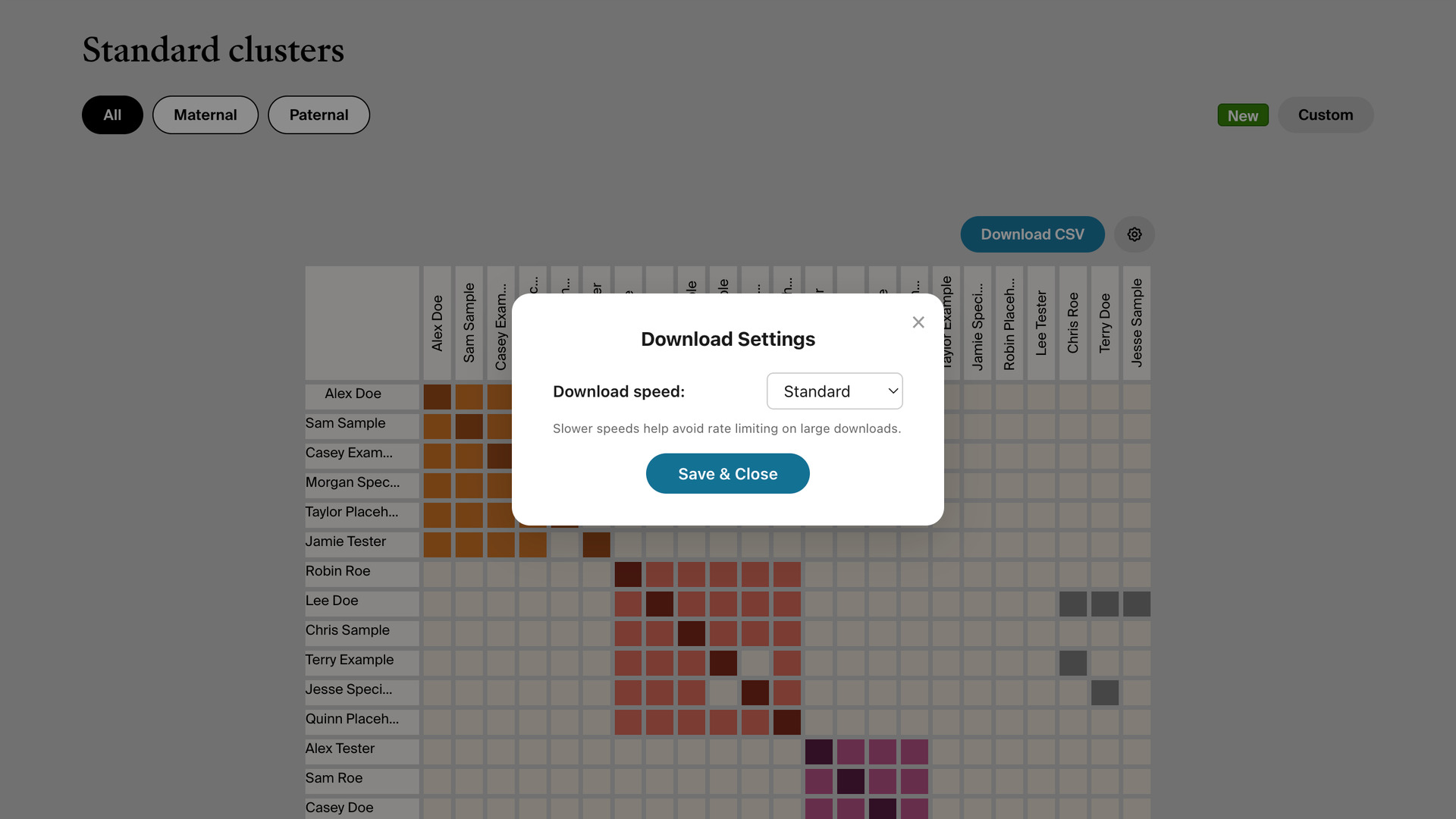
The gear opens the download settings, where you can slow the Download speed if Ancestry limits your downloads. The speed is shared with your other Ancestry downloads and is also on the Advanced Settings page, under Download Options.
How do I use Download Clusters as CSV File?
- In the Genealogy Assistant pop-up panel, make sure Download Clusters as CSV File is turned on.
- Open your AncestryDNA match list and choose By cluster.
- Click Standard clusters. The report opens with the grid showing.
- If the report shows Refresh cluster, it is more than 30 days old. Click it and wait for the new report to finish.
- To save a single cluster, click it to open it. The grid narrows to that cluster.
- Click Download CSV at the top right of the grid. When it finishes, the CSV file is saved to your downloads folder.
- To change the speed, click the gear beside Download CSV.
- Choose a Download speed. Standard suits most reports; choose Walk or Crawl only if Ancestry still limits your downloads.
- Click Save & Close.
CSV Columns
First Match, First Match GUID, First Match URL, Second Match, Second Match GUID, Second Match URL, Shared cM, Shared Segments, Relationship First to Second, Relationship Second to First, Shared cM (Exact), Shared DNA %, Meioses, Relationship Group, Predicted Relationships First to Second, Predicted Relationships Second to First, First Match Date, Second Match Date, First Gender, Second Gender, First Managed By, Second Managed By, Cluster
Shared cM (Exact) keeps the decimal places Ancestry rounds away in the grid. The two Relationship columns give Ancestry’s relationship each way, and the two Predicted Relationships columns list every relationship it considers possible, each with its likelihood.
Cluster names the cluster the pair belongs to, such as Cluster 3, and is blank for a pair from two different clusters. The file also has a row for each match with you, the tester, as the second match, giving that match’s relationship to you.
Match Date is the date each match first appeared in your match list. Managed By names the person who manages a test when it is not the match themselves, and Gender is the gender Ancestry shows for each match.
NOTICE: CSV DOWNLOAD TOOLS ARE FOR PERSONAL RESEARCH ONLY.
Related features
- Clusters Table Readability Enhancements: Shows full match names as vertical column headings on the Ancestry clusters page, and highlights the row and column under your pointer as you move across the grid.
- Download Shared Matches as CSV: Download the shared matches of any DNA match to a CSV file, every page or as many as you choose, with the extra triangulation columns on a ProTools account.
- Download Matches Pages as CSV File: Download your Ancestry DNA matches to a CSV file, as many pages as you choose, following the filters and sort order you have on screen.
Download Clusters as CSV File is a feature of the software Genealogy Assistant.
Genealogy Assistant is an extension for Google Chrome, Mozilla Firefox, Microsoft Edge and Apple Safari which supercharges your family history research by adding over 100 custom features to popular genealogy websites like Ancestry, MyHeritage, FamilySearch, FamilyTreeDNA and more. You can watch a full video walkthrough on YouTube.
Install Genealogy Assistant for Google Chrome | Install for Mozilla Firefox | Install for Microsoft Edge | Install for Apple Safari