


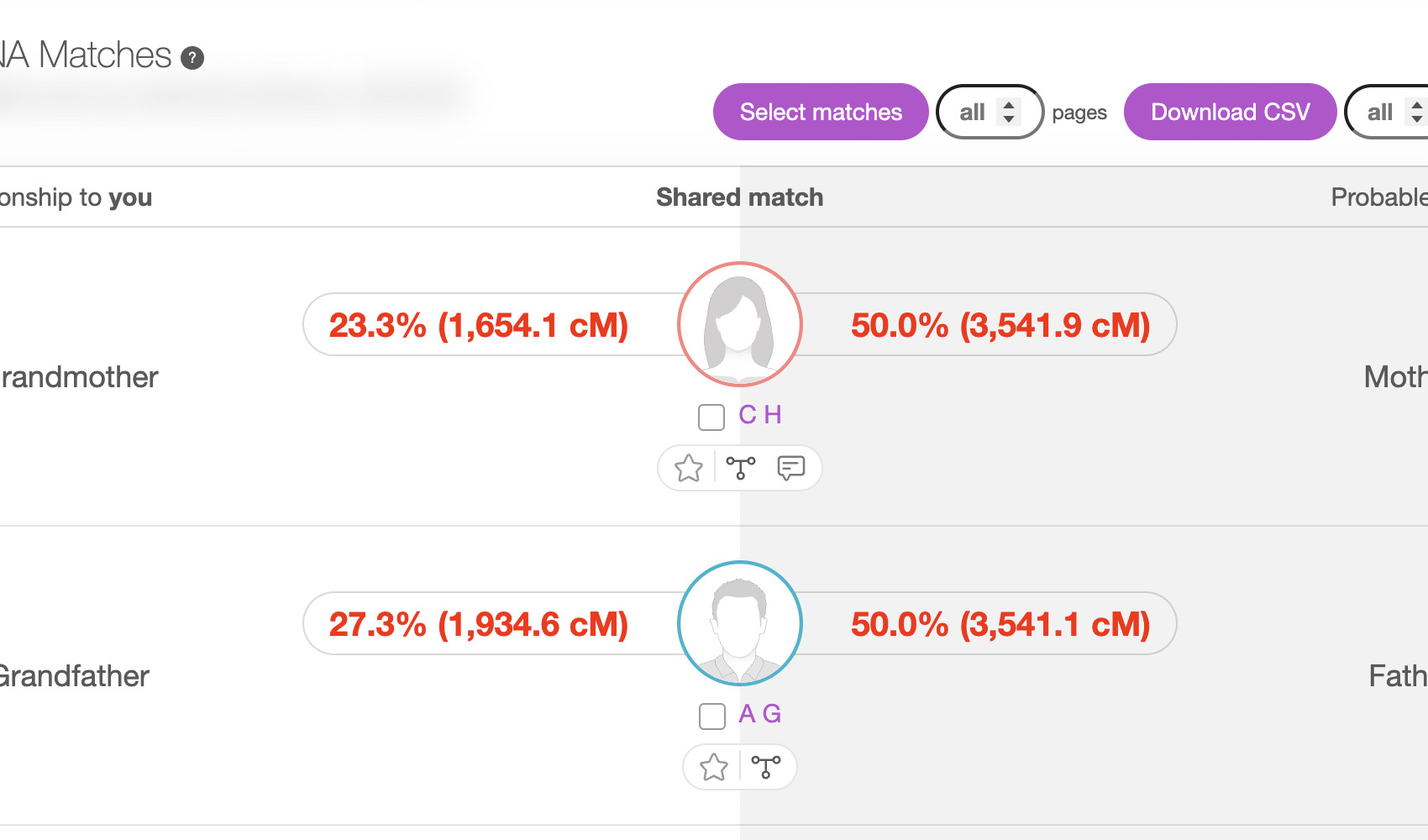
What problem does MyHeritage Open Shared Matches in New Tab solve?
When you click a name in a MyHeritage shared matches list, MyHeritage navigates away from the match you were viewing, and you lose your place in the shared matches list. MyHeritage Open Shared Matches in New Tab opens that match (and any tree linked from a shared match) in its own tab so you can keep working through the list without losing context.
How does MyHeritage Open Shared Matches in New Tab work?
On any MyHeritage shared matches list, clicking a shared match’s name opens that match in a new tab instead of replacing the current page. The same applies to the tree thumbnail tooltip: clicking it opens that match’s family tree in a new tab. Both left-click and middle-click are supported, so you can quickly fan out across several matches without ever leaving the list you started on.
How do I use MyHeritage Open Shared Matches in New Tab?
- Ensure MyHeritage Open Shared Matches in New Tab is enabled in the Genealogy Assistant pop-up panel.
- Open any DNA match on MyHeritage and view their shared matches.
- Click any shared match’s name. That match will open in a new tab while you stay on the current shared matches list.
- Hover over a shared match’s tree thumbnail and click it to open that match’s family tree in a new tab.
MyHeritage Open Shared Matches in New Tab is a feature of the software Genealogy Assistant.
Genealogy Assistant is an extension for Google Chrome, Mozilla Firefox, Microsoft Edge and Apple Safari which supercharges your family history research by adding over 100 custom features to popular genealogy websites like Ancestry, MyHeritage, FamilySearch, FamilyTreeDNA and more. You can watch a full video walkthrough on YouTube.
Install Genealogy Assistant for Google Chrome | Install for Mozilla Firefox | Install for Microsoft Edge | Install for Apple Safari