


What problem does Add Shared Matches to Surname Tool solve?
The Surname Comparison Tool works best when you can feed it an entire group of related matches at once, but adding them one at a time from each Compare Trees page is slow. If you have a strong DNA match with fifty shared matches, that is fifty round trips to compare every tree in the group. Add Shared Matches to Surname Tool adds a button to the shared matches page that scans every shared match’s tree in one pass and drops them all into the Surname Comparison Tool together.
How does Add Shared Matches to Surname Tool work?
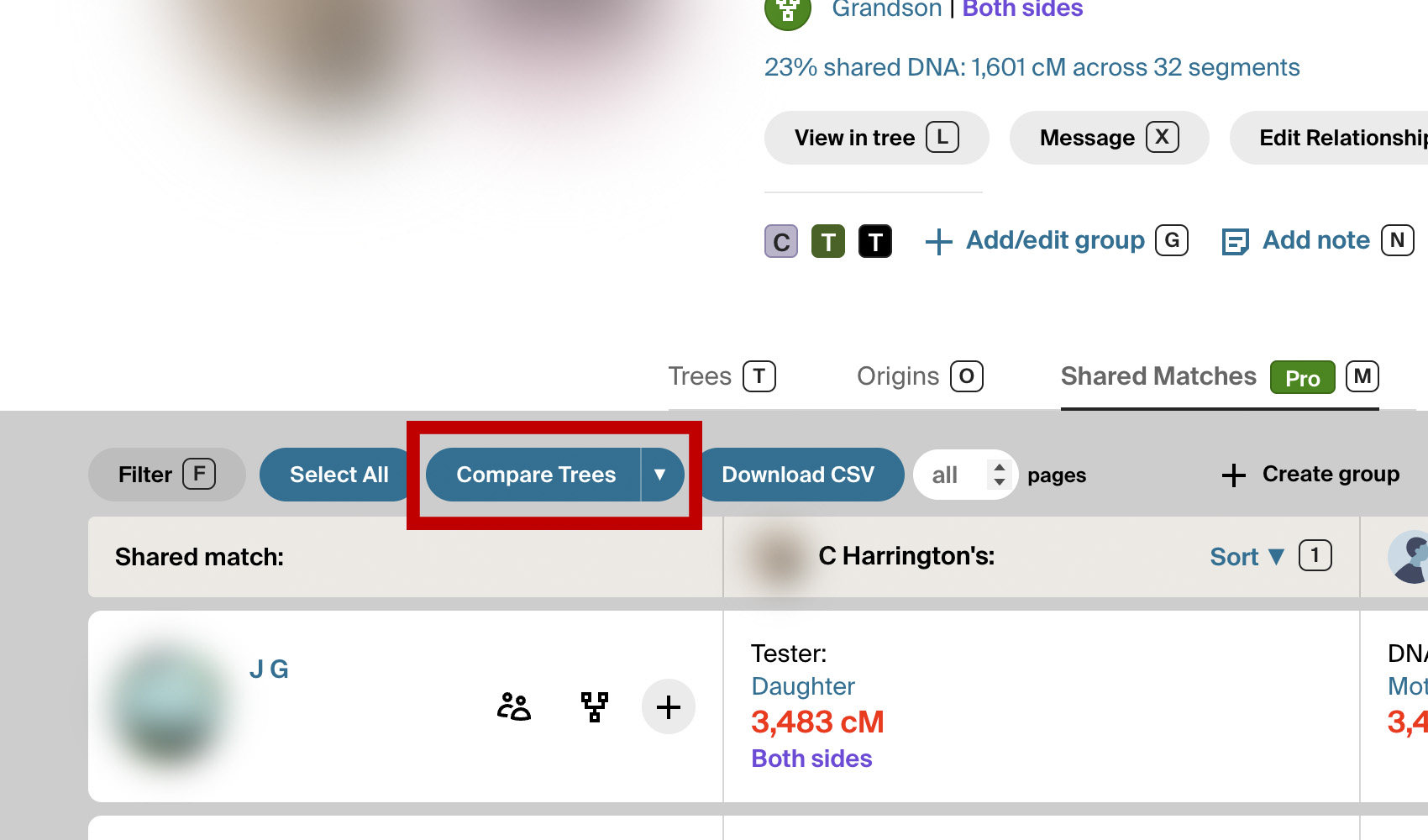
A button titled Compare Trees is added to the shared matches page. When clicked, Genealogy Assistant reads every page of shared matches and adds each one’s family tree surnames to the Surname Comparison Tool, covering both linked trees and any public unlinked trees the match has.
The button sits in the row above the shared matches list, beside Download CSV, with a caret that opens a drop-down containing View Surname Comparison Tool. The scan always covers the whole list, starting from the first page of shared matches whichever page you are on. Each match’s full surname list is collected, including the surnames the page hides behind See more, along with public unlinked trees up to the size limit set in the Advanced Settings page (5,000 people by default). Everything is read in the background, so no extra tabs open while it runs.
A progress overlay shows which match is being read and how many trees have been added so far. You can switch to other tabs while it runs, and Cancel stops the scan at any point. Everything collected up to that moment is kept. The pace follows the Download speed setting, and if Ancestry stops answering for a while the overlay counts down and tries again on its own. When the scan finishes, the Surname Comparison Tool opens automatically with every shared surname across the whole group. On a very large group, some big unlinked trees may be skipped to stay within Ancestry’s request limits, and the completion message says so.
How do I use Add Shared Matches to Surname Tool?
- Ensure Add Shared Matches to Surname Tool is enabled in the Genealogy Assistant pop-up panel. Download Shared Matches as CSV must be enabled as well, since the button sits in the same row as its Download CSV button.
- Open a DNA match and click the Shared Matches tab.
- Click Compare Trees above the shared matches list. The progress overlay counts through the matches, and you can carry on in other tabs while it works. Click Cancel to stop early and keep what has been collected.
- When the scan finishes, the Surname Comparison Tool opens with every shared surname. To open it again later, click the caret next to Compare Trees and choose View Surname Comparison Tool.
- To change which trees are scanned, open the Genealogy Assistant pop-up and click the settings icon next to Add Shared Matches to Surname Tool. The Advanced Settings page opens at the Surname Comparison Tool section.
- Untick Also check unlinked trees to scan linked trees only.
- Set Maximum unlinked tree size to the largest unlinked tree you want included.
- To change how quickly the scan runs, set Download speed in the Download Options section to Standard, Walk, Crawl or Custom. Choose a slower speed if Ancestry stops responding partway through. Settings save automatically.
Add Shared Matches to Surname Tool is a feature of the software Genealogy Assistant.
Genealogy Assistant is an extension for Google Chrome, Mozilla Firefox, Microsoft Edge and Apple Safari which supercharges your family history research by adding over 100 custom features to popular genealogy websites like Ancestry, MyHeritage, FamilySearch, FamilyTreeDNA and more. You can watch a full video walkthrough on YouTube.
Install Genealogy Assistant for Google Chrome | Install for Mozilla Firefox | Install for Microsoft Edge | Install for Apple Safari