


What problem does Add Select All People Link to Records solve?
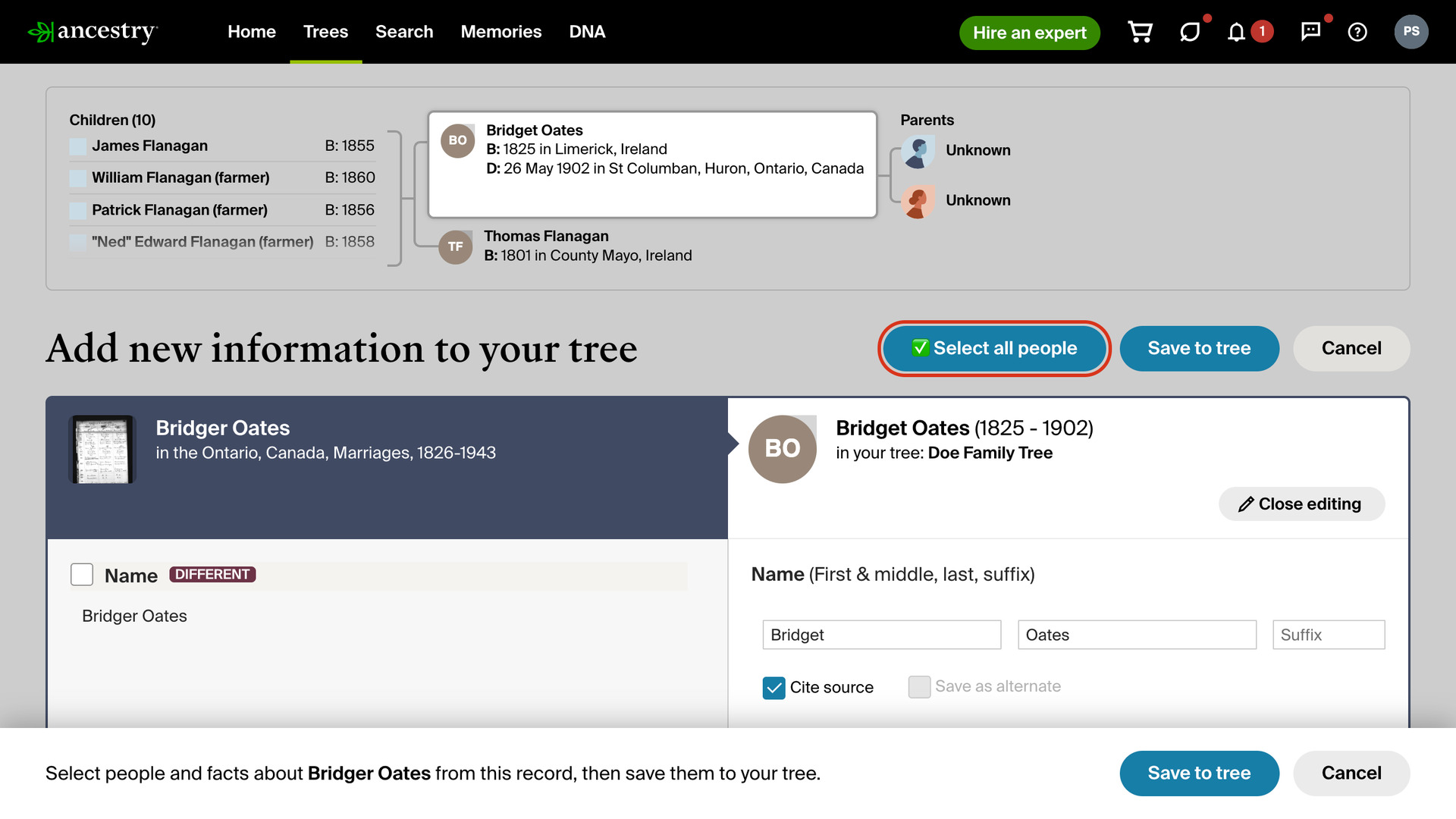
Add Select All People Link to Records adds a Select all people button to Ancestry’s Add new information to your tree page. One click ticks every person from the record, where otherwise each member of a household has to be ticked one at a time.
How does Add Select All People Link to Records work?
You reach the Add new information to your tree page by saving a record to someone in your tree. Reviewing a hint from All hints, or saving a person from another member’s tree, leads there too. Whichever way you arrive, the Select all people button sits beside Save to tree.
Clicking it ticks the box for every person on the page and leaves the boxes for their facts as Ancestry set them, so you still choose which facts to add. The button then reads Deselect All People; click it to untick every person again and start over.
Hints you review from a person’s Hints tab open in a sidebar instead of this page, so this button does not appear there. In that sidebar, Add Select All People Link to Hints adds the same button to the top.
How do I use Add Select All People Link to Records?
- In the Genealogy Assistant pop-up panel, make sure Add Select All People Link to Records is turned on.
- Open the Add new information to your tree page in one of these ways:
- On a record, click Save and choose the person in your tree it belongs to.
- On the All hints page, click Review on a hint, then Yes.
- On a person in another member’s tree, click Save to your tree.
- Click Select all people. Every person on the page is ticked.
- To untick everyone, click Deselect All People.
Related features
- Add Select All People Link to Hints: A Select all people button in the hint sidebar ticks every person on a hint at once when you review it from a profile’s Hints tab.
- Text Records Name Auto-fill: Fills in the Name box when you save a transcribed record to your tree, taking the name from the record so there is nothing to type or copy.
- Image Records Name Auto-fill: Image records get the same treatment, with the name attached to the image you are viewing filled into the Person in tree box on the Save to Tree window.
Add Select All People Link to Records is a feature of the software Genealogy Assistant.
Genealogy Assistant is an extension for Google Chrome, Mozilla Firefox, Microsoft Edge and Apple Safari which supercharges your family history research by adding over 100 custom features to popular genealogy websites like Ancestry, MyHeritage, FamilySearch, FamilyTreeDNA and more. You can watch a full video walkthrough on YouTube.
Install Genealogy Assistant for Google Chrome | Install for Mozilla Firefox | Install for Microsoft Edge | Install for Apple Safari