

What problem does Save DNA Match Trees as GEDCOM solve?
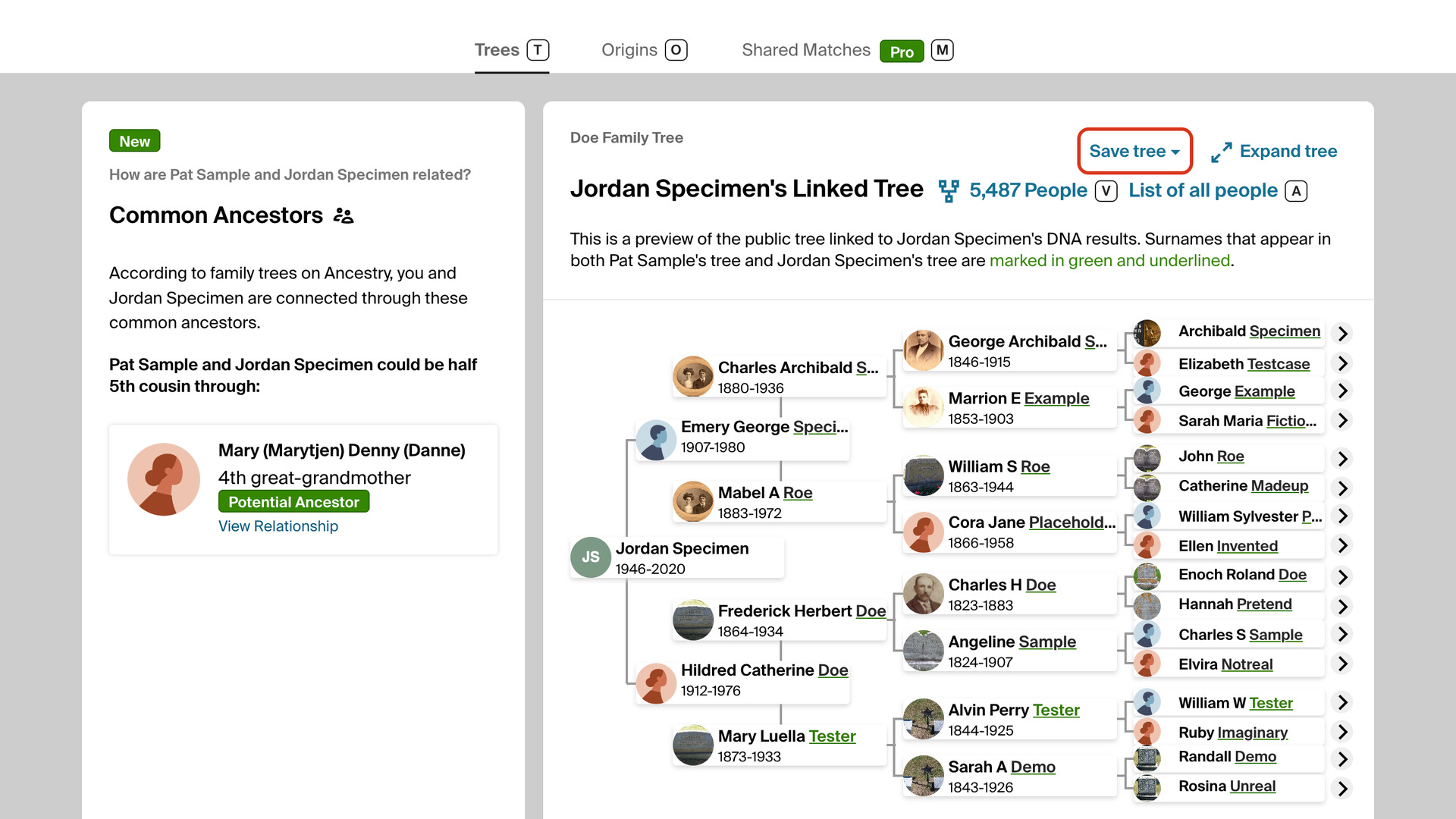
Save DNA Match Trees as GEDCOM adds a Save tree button to the Trees tab of an AncestryDNA match, which saves the match’s linked tree as a GEDCOM file or ahnentafel. From your match list it saves many matches’ trees and finds the ancestors they share. Ancestry offers no way to save them.
How does Save DNA Match Trees as GEDCOM work?
A Save tree button appears beside Expand tree on the Trees tab of an AncestryDNA match, whenever the match has a linked tree. Choose Ahnentafel (.txt) or GEDCOM (.ged) and the match’s ancestors are saved to your downloads folder, as far back as ten generations.

The ahnentafel numbers the match’s ancestors: the match is 1, their father 2, their mother 3, and each person’s father has double their number, their mother double plus one. The GEDCOM file opens in genealogy programs like RootsMagic and Gramps, with each ancestor linked to their parents.
Living people are listed as Living, so every position in the tree is kept, and the match takes the name shown on the page. When cousins in the tree married, their shared ancestor appears once in the GEDCOM file. A tree that does not share its ancestors shows a short message instead of a file.
On your match list and on the shared matches list, the arrow beside Download CSV opens a menu with three more choices. Like the CSV download, they use the pages box and follow the filters and sort order on screen, and they read the tree of every match with a public linked tree.
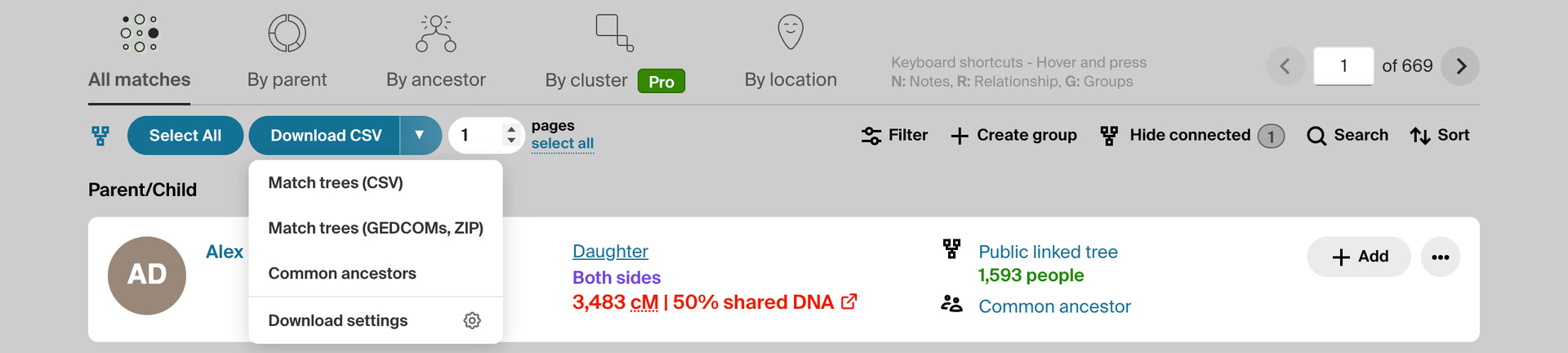
Match trees (CSV) saves one spreadsheet with a row for every ancestor of every match. Match trees (GEDCOMs, ZIP) saves a ZIP file holding one GEDCOM file per match, named after the match. Matches without a public linked tree are skipped, and the summary at the end says how many.
A progress bar shows how many matches have been checked and how many trees saved, with a Cancel Download button. If Ancestry starts limiting requests, the download pauses for two minutes and tries once more before it stops. A stopped download still saves a file with the trees read so far.
To finish a stopped download, open the menu again and choose the Resume line, which names the download and its tree count. It picks up where it stopped, skips trees it already has, and saves one file with every tree. The × beside it discards that download, and starting a new one replaces it.
Common ancestors reads the same trees and finds the ancestors who appear in the trees of two or more matches. Two people count as the same ancestor when surname and first given name agree and they were born within two years of each other, or share a birth place if a year is missing. When their trees give them different spouses and different birth years, they stay together, marked Possibly two people, for you to judge.
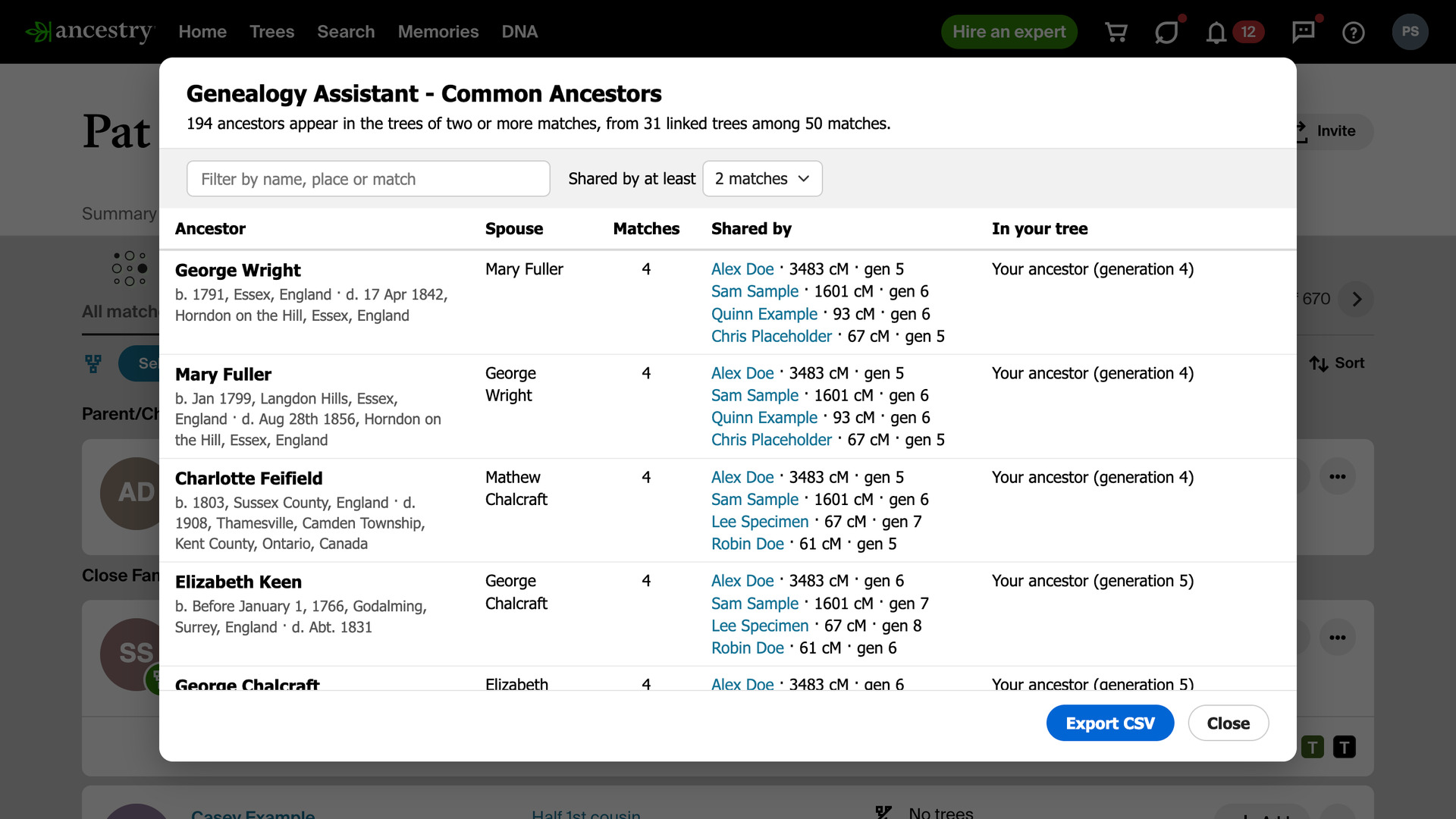
The results open in a window listing each ancestor with their spouse, how many matches share them, and which ones, with each match’s shared cM and how many generations back the ancestor is in that match’s tree. Click a match to open their Trees tab, or type to filter by name, place or match.
The In your tree column marks ancestors who are also in your own linked tree, with their generation. It also checks the FamilySearch ancestors you saved with FamilySearch: Index Family Tree in Quick Search and the trees you have saved for Quick Search, linked to the person. Export CSV saves the filtered rows. If a run stops early, the window shows what it read.
On a match’s shared matches list, that match’s own linked tree is read too and counts as one of the trees. An ancestor in it and in one shared match’s tree is enough to be listed. A column named after the match gives the ancestor’s generation in their tree, and those ancestors come first.
How do I use Save DNA Match Trees as GEDCOM?
- In the Genealogy Assistant pop-up panel, make sure Save DNA Match Trees as GEDCOM is turned on.
- To save one match’s tree, open the match and select the Trees tab.
- Click Save tree beside Expand tree and choose Ahnentafel (.txt) or GEDCOM (.ged). The file is saved to your downloads folder.
- To save the trees of many matches, open your match list or a match’s shared matches list, and apply any filters or sort order.
- Enter the number of pages in the box beside Download CSV, or choose every page (select all on the match list, an empty box on shared matches).
- Click the arrow beside Download CSV and choose Match trees (CSV), Match trees (GEDCOMs, ZIP) or Common ancestors. A progress bar opens, and the file is saved when it finishes.
- To stop early, click Cancel Download. The trees read so far are saved.
- To finish a stopped download, click the arrow beside Download CSV and choose the Resume line. It carries on where it stopped.
- In the Common Ancestors window, type in the box to filter by name, place or match, and choose under Shared by at least how many matches must share an ancestor.
- Click Export CSV. The rows the filters show are saved to your downloads folder.
- To slow the downloads down, click the arrow beside Download CSV and choose Download settings.
- Set Download speed to Walk or Crawl. It is saved straight away, so just click Close.
CSV Columns
Match Name, Match GUID, Match URL, Tree Name, Tree ID, Ahnentafel, Given Name, Surname, Gender, Living, Birth Date, Birth Place, Death Date, Death Place, Person ID, Father Person ID, Mother Person ID, Generation
NOTICE: CSV DOWNLOAD TOOLS ARE FOR PERSONAL RESEARCH ONLY.
Related features
- Add All People Link to Matches Trees: A View all people in tree link beside the size of each match’s linked tree opens its full list of people.
- Surname Comparison Tool for Ancestry: Collect the surnames from a DNA match’s linked tree, or any tree’s list of all people, and compare which ones appear across several trees, variants included.
- Download Matches Pages as CSV File: Download your Ancestry DNA matches to a CSV file, as many pages as you choose, following the filters and sort order you have on screen.
Save DNA Match Trees as GEDCOM is a feature of Genealogy Assistant.
Genealogy Assistant is an extension for Google Chrome, Mozilla Firefox, Microsoft Edge and Apple Safari which supercharges your family history research by adding over 100 custom features to popular genealogy websites like Ancestry, MyHeritage, FamilySearch, FamilyTreeDNA and more.
Install Genealogy Assistant for Google Chrome | Install for Mozilla Firefox | Install for Microsoft Edge | Install for Apple Safari