



Interested in genealogy and family history research tools? Genealogy Assistant adds hundreds of custom features to online platforms like Ancestry, MyHeritage, FamilySearch and more! Click here to try it out
Focus your research into purposeful discovery
Most of a research session isn’t research. It’s retyping the same query, hunting for the tab you had open ten minutes ago, and copying out a citation by hand for the fourth time. The thinking gets whatever attention is left over.
This post covers the tools that take that overhead off your desk: a timing method, seven kinds of automation, and three ways to keep your documents findable again. Most are free. The most expensive starts at $99. None of them ask you to rebuild how you research, and every one of them works on its own, so you can stop after the first if the first is enough.

What is a research workflow?
A research workflow is the machinery around the research: how you juggle browser tabs, move between applications, sort DNA matches, format citations, and transcribe documents. It stays the same whichever ancestor you happen to be chasing.
Design it once and the repetitive parts become repeatable. A template that logs a discovery with a single command. A colour that tells you at a glance which DNA match is worth opening. A keystroke that traces an ancestor’s X-DNA path. Each one saves a few seconds, which sounds too small to bother with until you count how many times in a session you do it.
What you get back is attention. That’s the one input in family history research you can’t buy more of.

The importance of flow state
Flow is when the work absorbs you and an hour slips by unnoticed. In family history research it’s when the good discoveries happen. Records line up. A pattern you’ve stared at for weeks finally resolves.
You can’t force it, but you can set the conditions for it. Flow needs a clear goal, few interruptions, and tools you don’t have to think about. “I’m going to verify John Harrington’s birthplace today” is a goal you can enter flow on. “Do some research” is not.
The tools matter more than they sound like they should. Every time you stop to remember a keyboard shortcut, hunt for a buried window, or retype an address, you drop out and have to climb back in. The climb costs more than the task did.

Cultivating flow in family history research
This work asks for long stretches of concentration. You’re holding several generations in your head at once while cross-reading vital records, wills, land grants, and whatever a relative half-remembered thirty years ago. Interruptions are expensive here in a way they aren’t in other hobbies.
Start each session with one question you could actually answer by the end of it. “What records can confirm John Harrington’s First World War service?” is answerable. It also gives you something to say no to when an interesting unrelated surname turns up three records down, which is how most sessions quietly become a different session.
Then protect the block of time. Notifications off, phone face down, one question on screen. The rest of this post is about the third condition, which is the one you can buy: tools that stay out of the way.
The Pomodoro Technique
Francesco Cirillo’s method is 25 minutes of work, then a 5 minute break, with a longer break after every fourth round. That’s the whole thing.
Pick the one task before you start the timer. Analyze a probate record, or tidy up the notes on a single person. Not “work on the Harringtons”, which is a project, not a task. That narrow scope is what makes 25 minutes feel short rather than arbitrary. After each round I write down what I did in my research log. It takes about a minute and it means I never have to reconstruct a session from memory a fortnight later.
The breaks earn their place too. Stepping away from an awkward piece of evidence is often when it rearranges itself into something sensible, and you come back with an approach you didn’t have when you left.
You need almost no technology for any of this. An egg timer works.
Try it out:
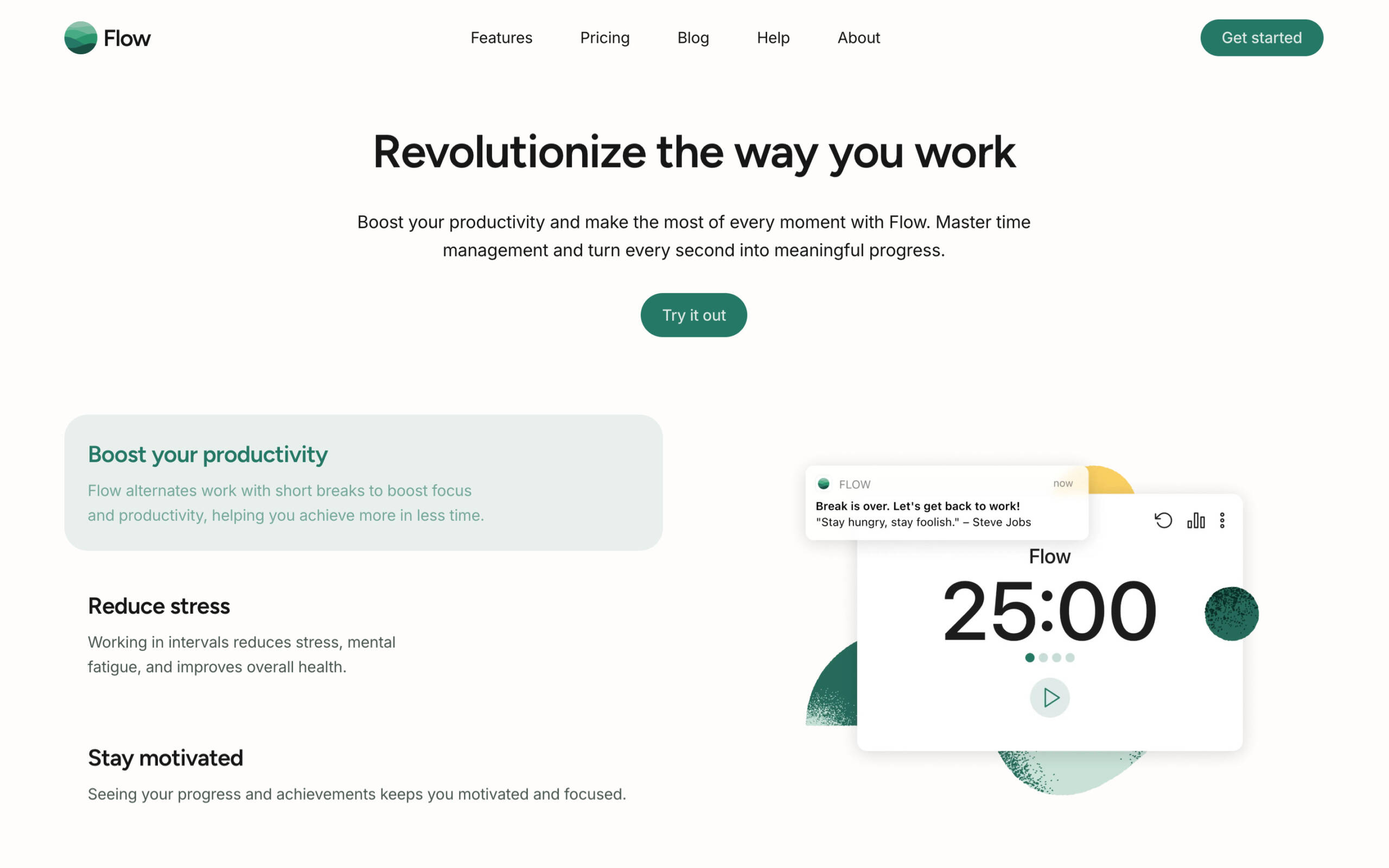
- Flow (MacOS, iOS) – Free version available – https://www.flow.app
- Pomotroid (MacOS, Windows) – Freeware – https://www.pomotroid.com
- Pomofocus (Web-based app) – Freeware – https://www.pomofocus.io
- Egg timer (Physical item) – $5-10 USD

Automating your family history research
Timing keeps you at the desk. Automation decides how you spend it.
Family history research is full of small, exactly repeated actions: the same five clicks to open a record image, the same opening paragraph to a new DNA match, the same window arrangement every time you sit down. A computer is better at those than you are, and it doesn’t get bored on the fortieth one. The seven sections that follow each take one category of them off your hands.
TextExpander
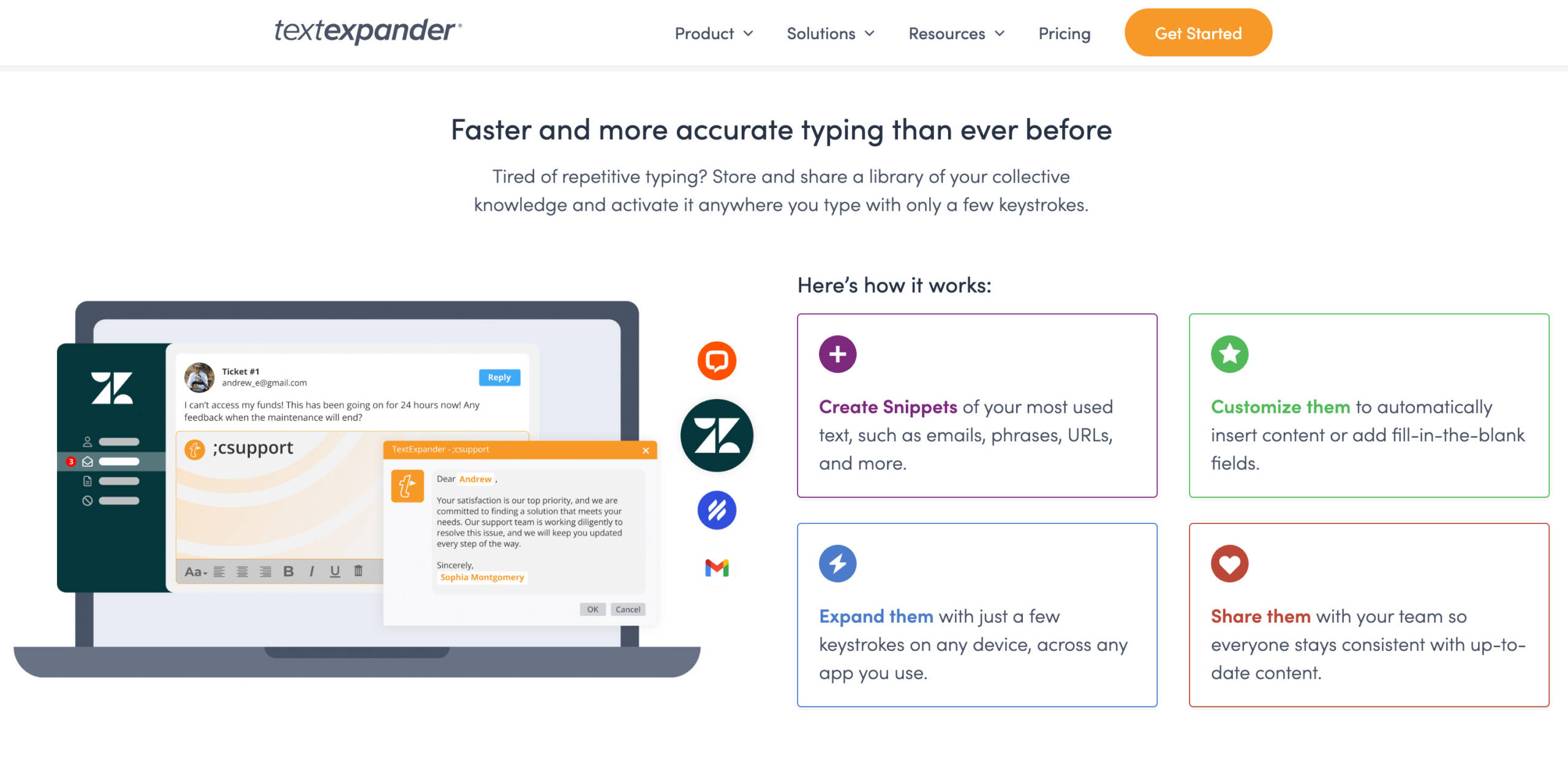
TextExpander turns a short abbreviation into a longer block of text, in any application. Type the trigger, get the paragraph.
I write to DNA matches often, and the opening message barely changes: who I am, how we appear to be related, what I’m hoping we can compare. That’s one snippet now instead of five minutes of drafting. Other snippets fill in a standard DNA match summary and the header format for a research log entry, so an entry I wrote a year ago and one I wrote this morning still read the same way.
It also works inside Obsidian, so a single snippet can insert the note links along with the text.
Try it out:
- TextExpander (MacOS, Windows) – $40 USD/year – https://www.textexpander.com
Raycast
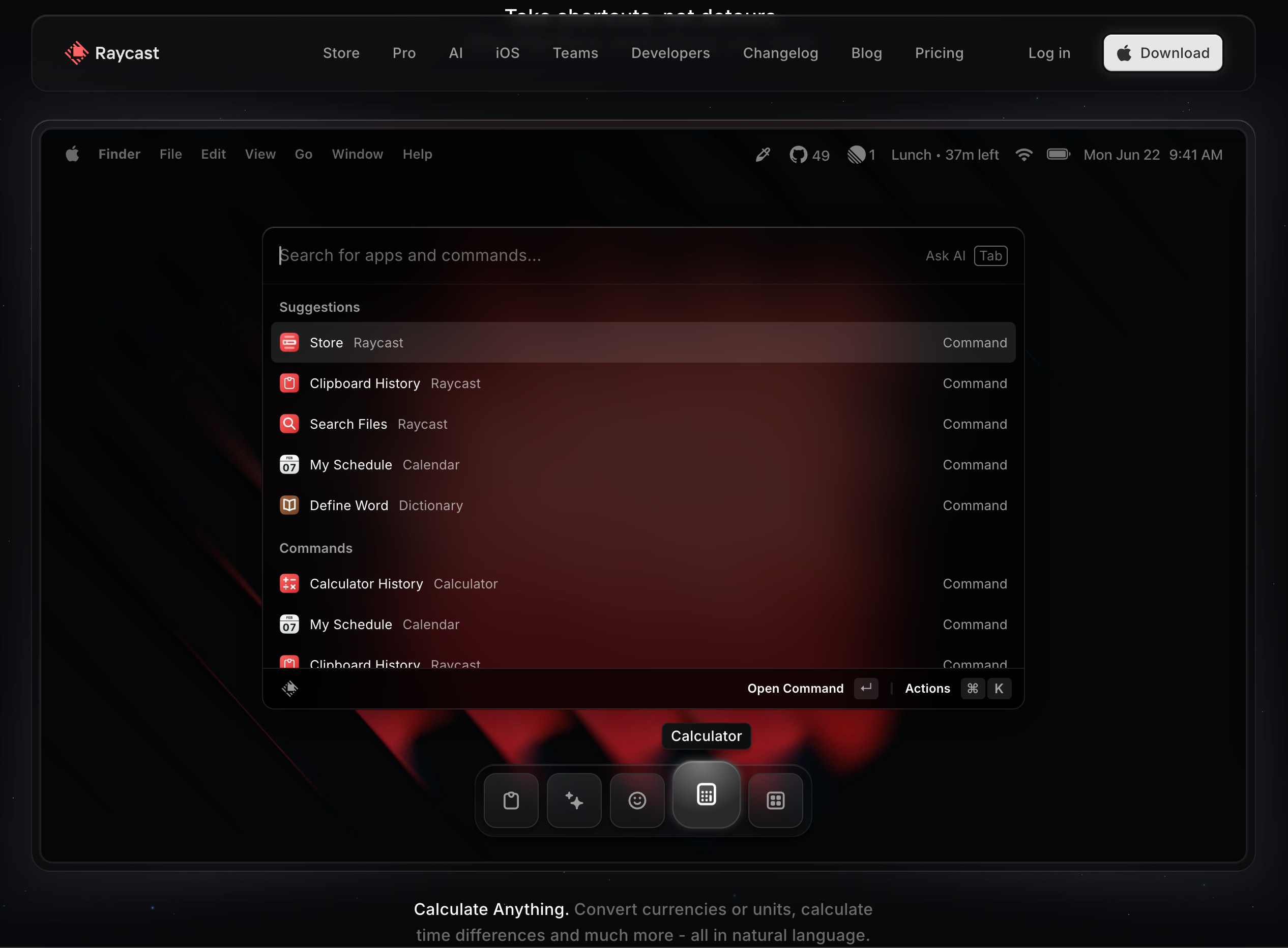
Raycast is a launcher for the Mac, with a Windows version on the way. One keystroke opens a search box, and from there you can start applications, run commands, or fire off a whole sequence of them.
The sequences are the useful part. Sitting down to work on a British Home Child ancestor, one command can open your genealogy software, your note-taking app, the OCR tool for the scans, and the record searches you would otherwise type out one at a time. Raycast also keeps a clipboard history, which is how you recover the citation you copied over twenty minutes ago, and it lets you save Quick Links for the pages you open every single session.
Try it out:
- Raycast (MacOS, Windows *soon) – Free version available – https://www.raycast.com
Macro tools
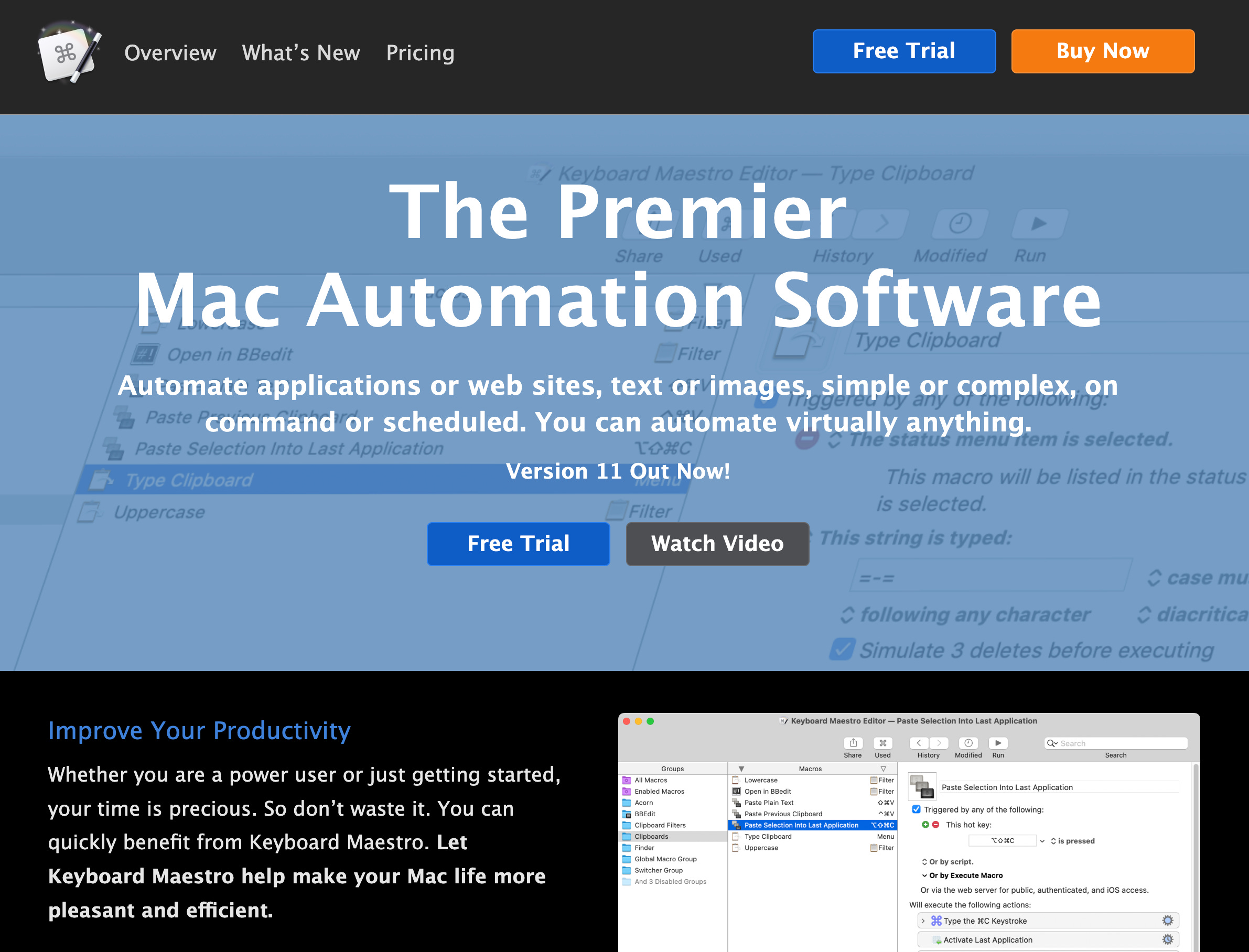
Macro software records a sequence of keystrokes, clicks, and window moves, then replays the whole thing on one command. Genealogy is full of sequences worth recording, because the databases we use rarely change their layout and we approach them the same way every time.
The real gain is turning one-at-a-time work into bulk work. Anything a site makes you do to a single record at a time, a macro can do to fifty of them while you read something else. Build up a small library of these and the tedious half of an evening disappears into the background.
Try it out:
- Perfect Automation (Windows) – Freeware – https://www.perfectautomation.com
- Keyboard Maestro (MacOS) – $36 USD – https://www.keyboardmaestro.com
Keyboard shortcut tools
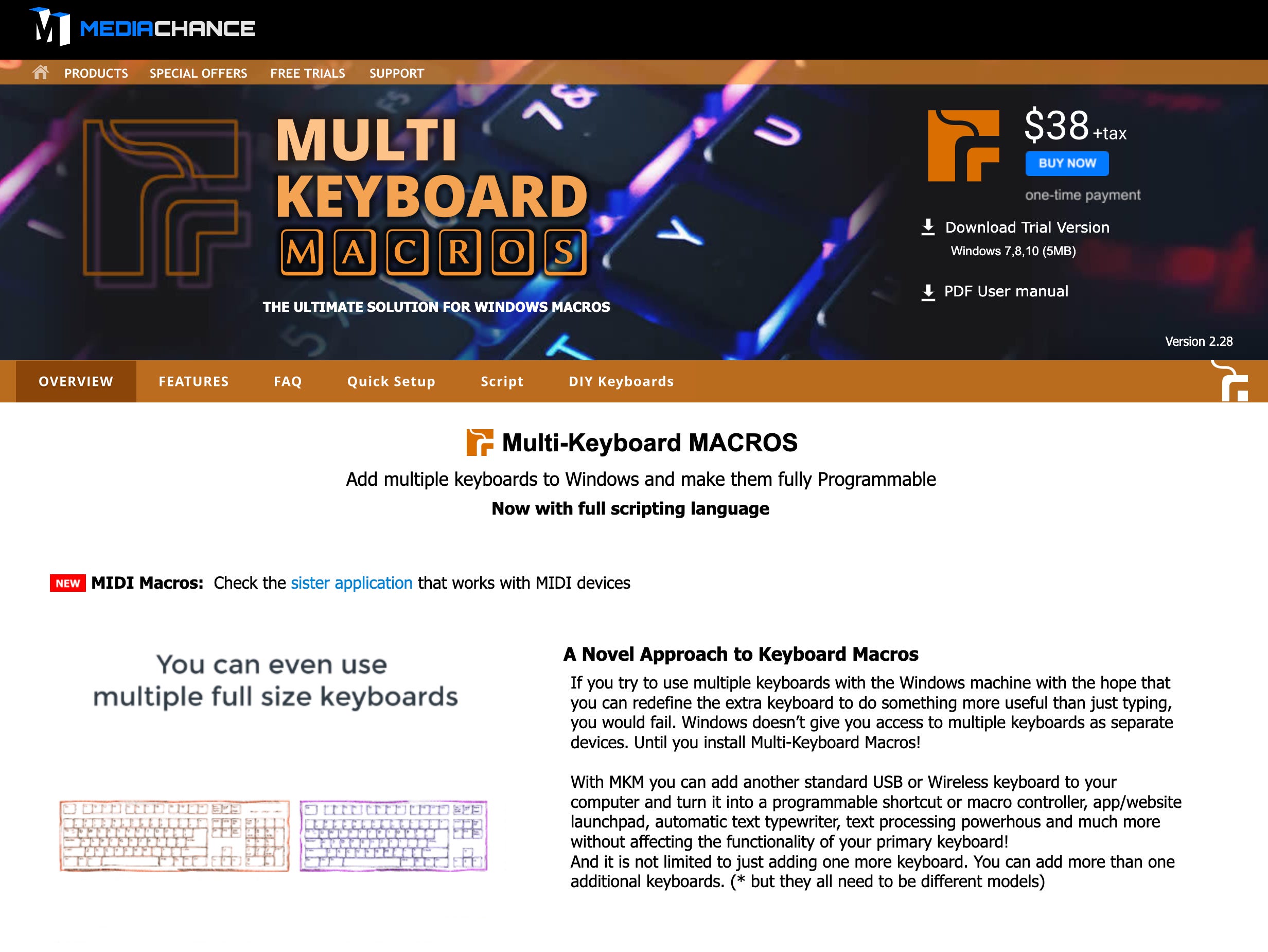
Close to macros, but working at the level of individual keys. Karabiner Elements on the Mac, and AutoHotkey or PowerToys on Windows, let you remap keys and invent your own shortcuts. Launching your tree software, jumping between applications, running a search, or dropping in a formatted citation each become one keypress.
If you want to take it further, a second small keyboard or a macro pad gives each of those actions its own physical key, labelled and sitting beside your main keyboard. Set it up once. After that your hands stay on the keys rather than chasing a menu with the mouse, and a long transcription session stops being a wrist exercise.
Try it out:
- Karabiner Elements (MacOS) – Freeware – https://www.karabiner-elements.pqrs.org
- Multi Keyboard Macros (Windows) – $38 USD – https://www.mediachance.com/multikeyboard/
Wispr Flow
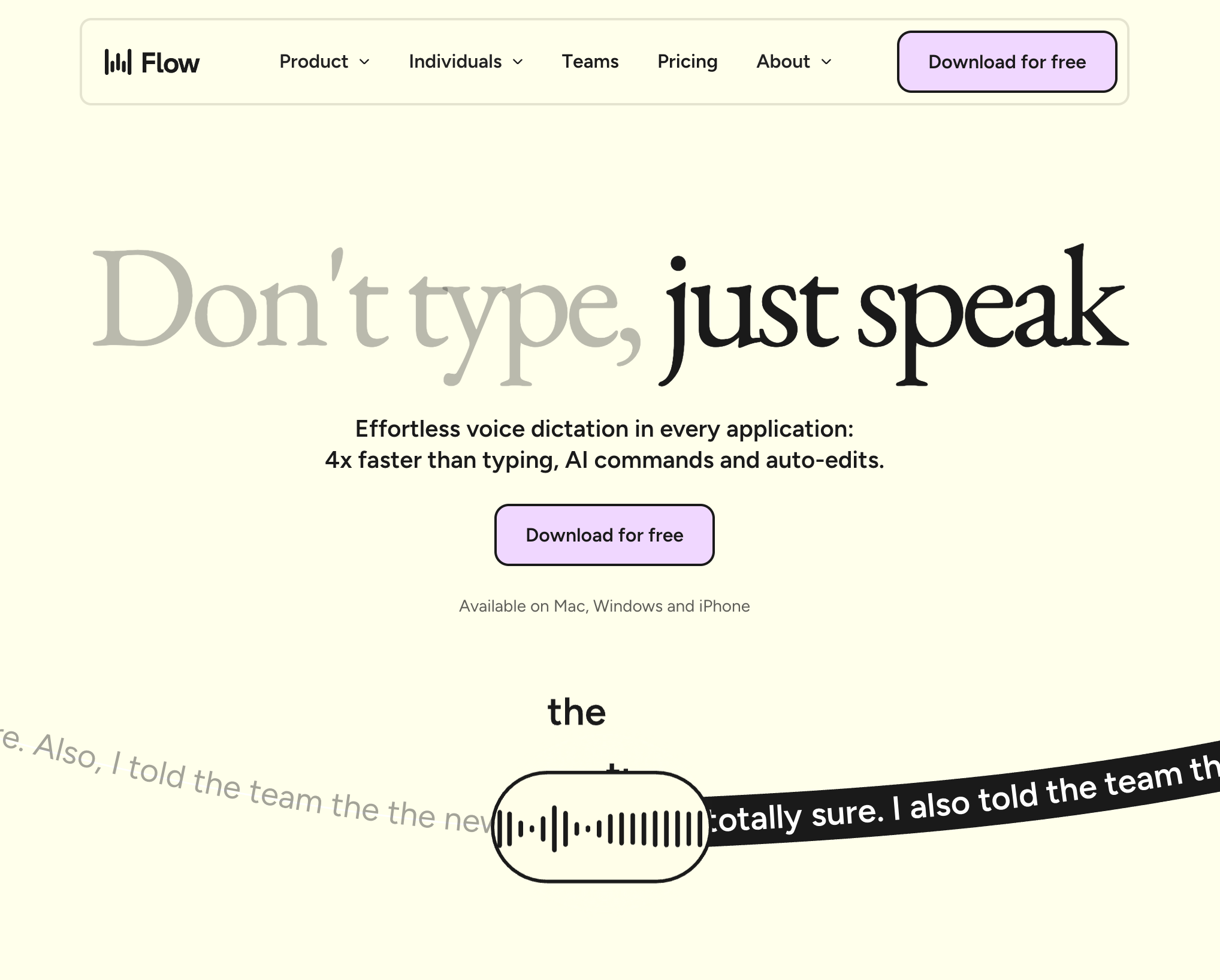
Wispr Flow types what you say into whatever application is in front of you. It earns its place anywhere your hands are busy or typing is awkward: reading records at an archive, interviewing a relative about what they remember, dictating a log entry while the record is still on screen, drafting a message to a DNA match.
The cleanup is what makes it usable for genealogy. Speak casually about “John Harrington’s life on Southwold Road in Clapton, East London” and it works out the spelling instead of writing down what it heard phonetically. Place names and surnames are exactly where ordinary dictation falls apart, so this is the difference between notes you can search later and notes you have to fix first.
It can also rewrite what you dictated from a prompt, which turns a rambling verbal note into a tidy paragraph without you retyping it.
Try it out:
- Wispr Flow (MacOS, Windows, iPhone) – Free version available – https://www.wisprflow.ai
Window management tools
Genealogy work runs several applications at once: tree software, a browser, an image viewer, and somewhere to take notes. Left to themselves they end up stacked on top of each other, and you spend the session dragging windows around instead of reading what’s in them.
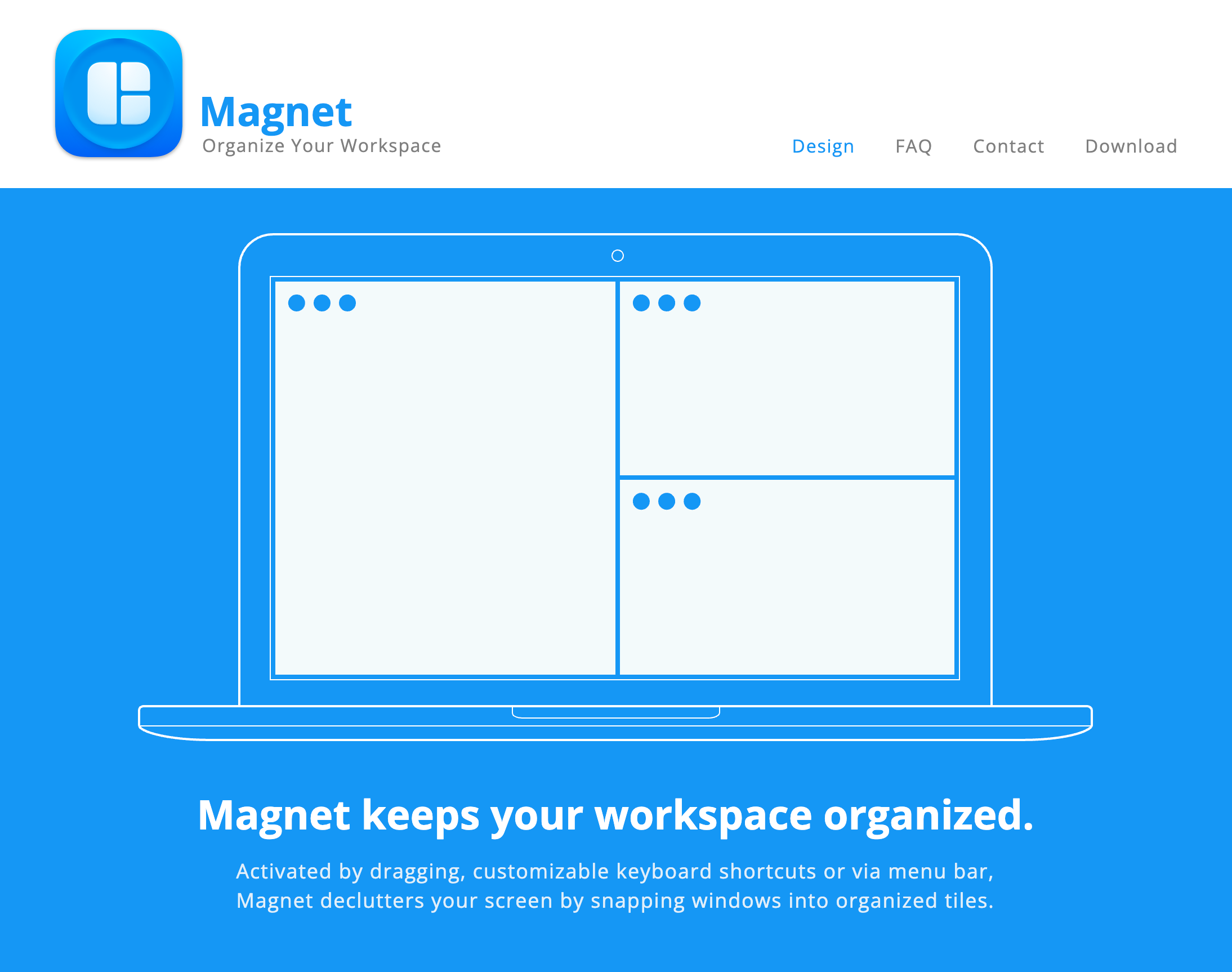
On the Mac, Magnet, BetterSnapTool, and Mosaic snap windows into set positions from a keyboard shortcut or a gesture. On Windows, PowerToys’ FancyZones or a tiling manager like FancyWM do the same job. Both operating systems have something built in already, but neither gives you keyboard shortcuts or saved workspaces, which are the two features you’ll actually reach for.
Save a layout per kind of task. Full screen for transcription. Two panes side by side when you’re checking a record against the tree. Switching from note-taking to DNA work then costs one shortcut, not a minute of rearranging, and you stop losing the image viewer behind the browser.
Try it out:
- FancyWM (Windows) – Freeware – https://www.github.com/FancyWM/
- Magnet (MacOS) – $4.99 USD – https://www.magnet.crowdcafe.com
Tab saving tools
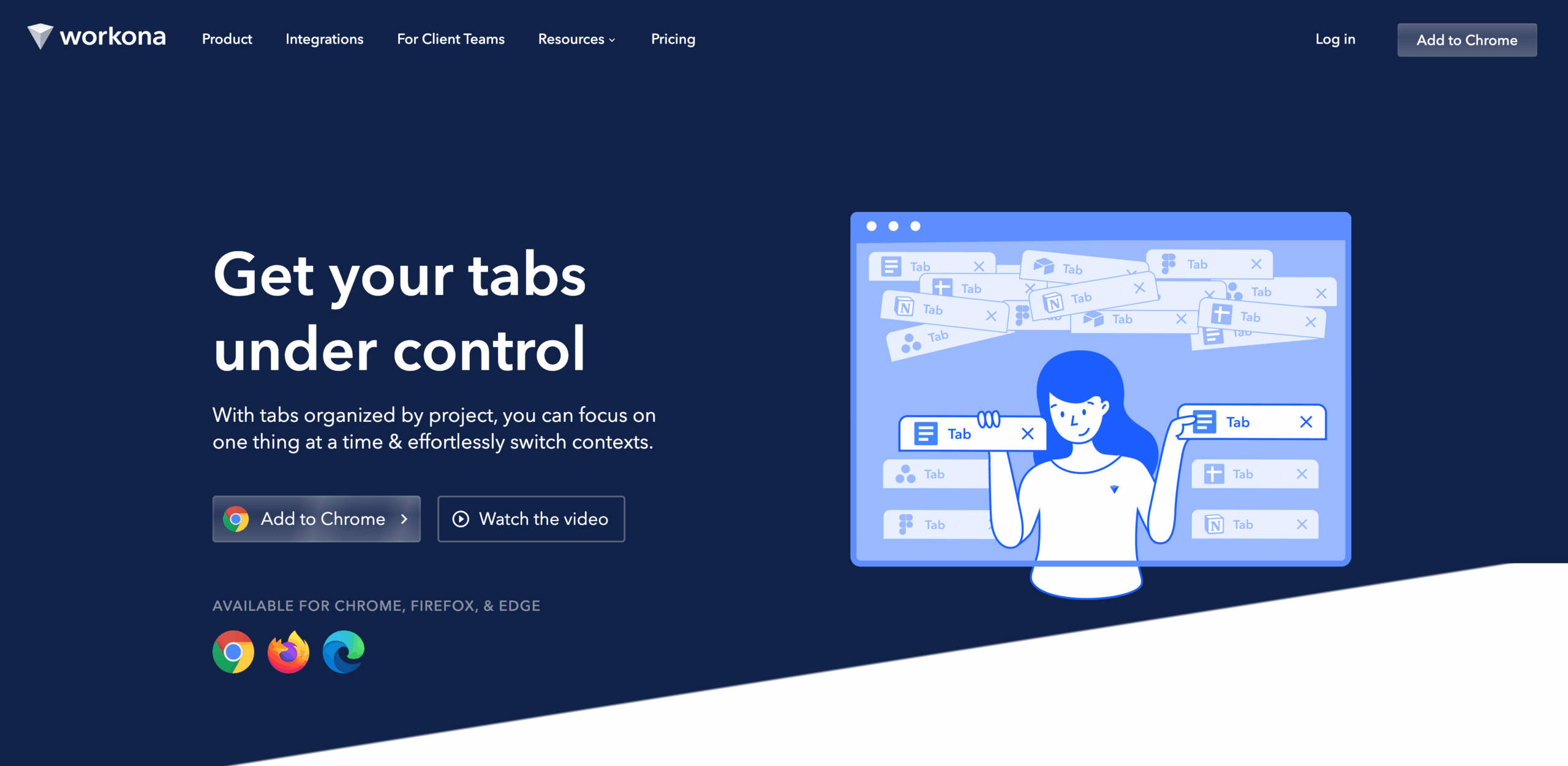
Tabs are the classic genealogy mess. Trees, profiles, record images, three near-identical versions of the same search, and by the afternoon the titles have shrunk to nothing and you can’t tell any of them apart.
Workona, OneTab, and Focus Tab Groups let you group tabs by project or record type, collapse the groups you aren’t using, and save a whole session to reopen tomorrow or on a different computer.
The reason to bother is that an open tab is often the only record of a lead. You found a promising entry, meant to come back to it, and left it open as the reminder to yourself. Close the window by accident and the lead goes with it, along with whatever search got you there. Grouped and saved sessions mean a stray keystroke costs you nothing.
Try it out:
- Workona (Google Chrome) – $7 USD/month – https://www.workona.com

Knowledge management tools
Automation handles the doing. The next problem is finding things again: the scans, the notes, the PDFs, the photographs, and the half-finished transcription you know you wrote somewhere. Three tools do this well, and they suit different collections.
DEVONthink
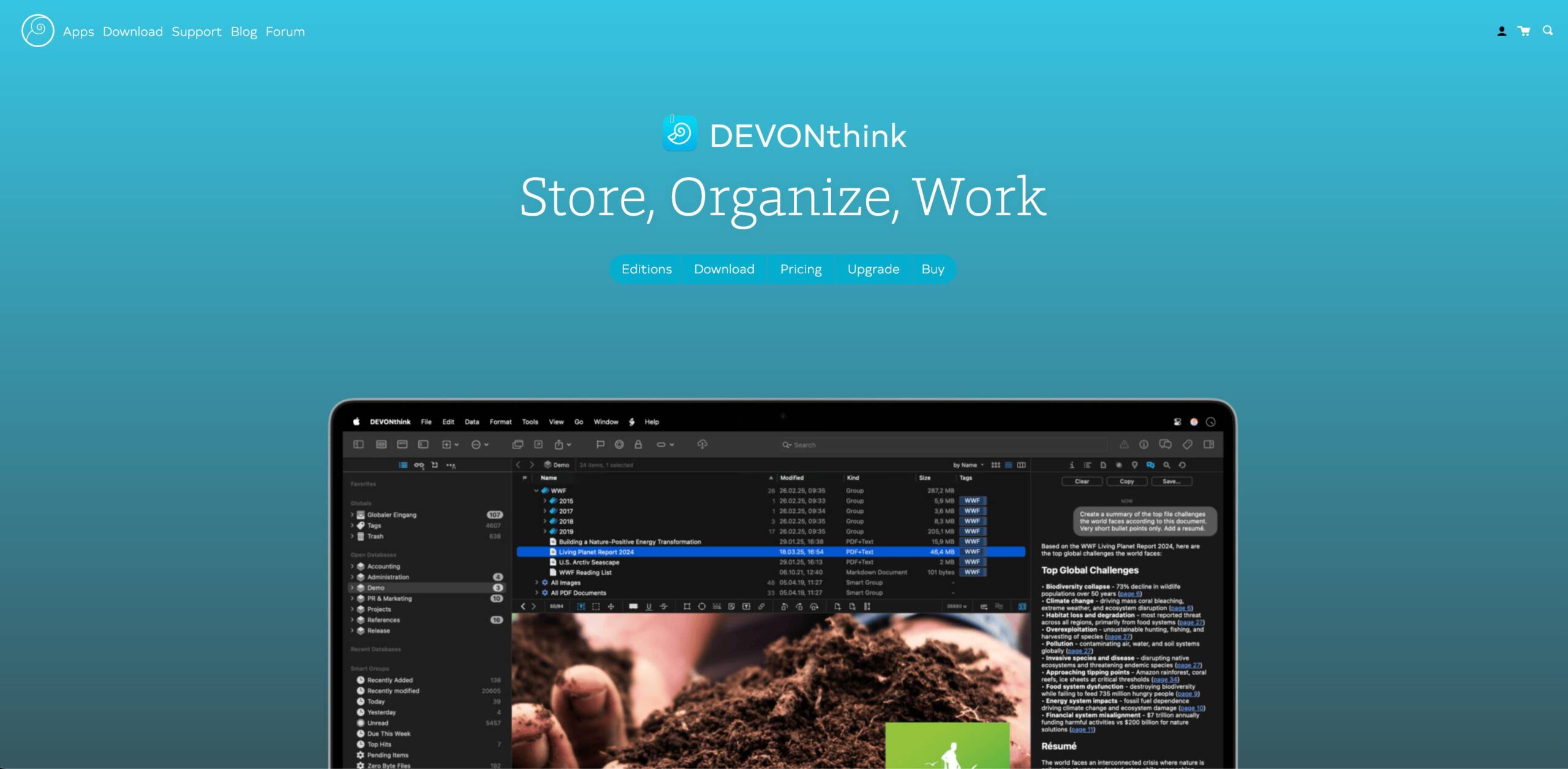
DEVONthink is one searchable database for everything you’ve collected: documents, images, web clippings, PDFs. Most genealogists who use it keep one database per tree, surname, or research problem, with a nested folder for each ancestor holding the vital records, photographs, written family histories, and any audio or video that belongs to them.
Its built-in OCR reads scanned and deteriorated documents into searchable text, so a surname or a place name will find the page it sits on. You can annotate as you go and leave the follow-up task attached to the source that prompted it, rather than on a list somewhere else that you’ll forget.
The feature worth the price is ‘See Also’, which surfaces other items in your database related to the one you’re reading. It’s how a will ends up sitting next to the newspaper obituary for the same person, without you having remembered that you had both.
Try it out:
- DEVONthink (MacOS) – $99-199 USD – https://www.devontechnologies.com
Tropy
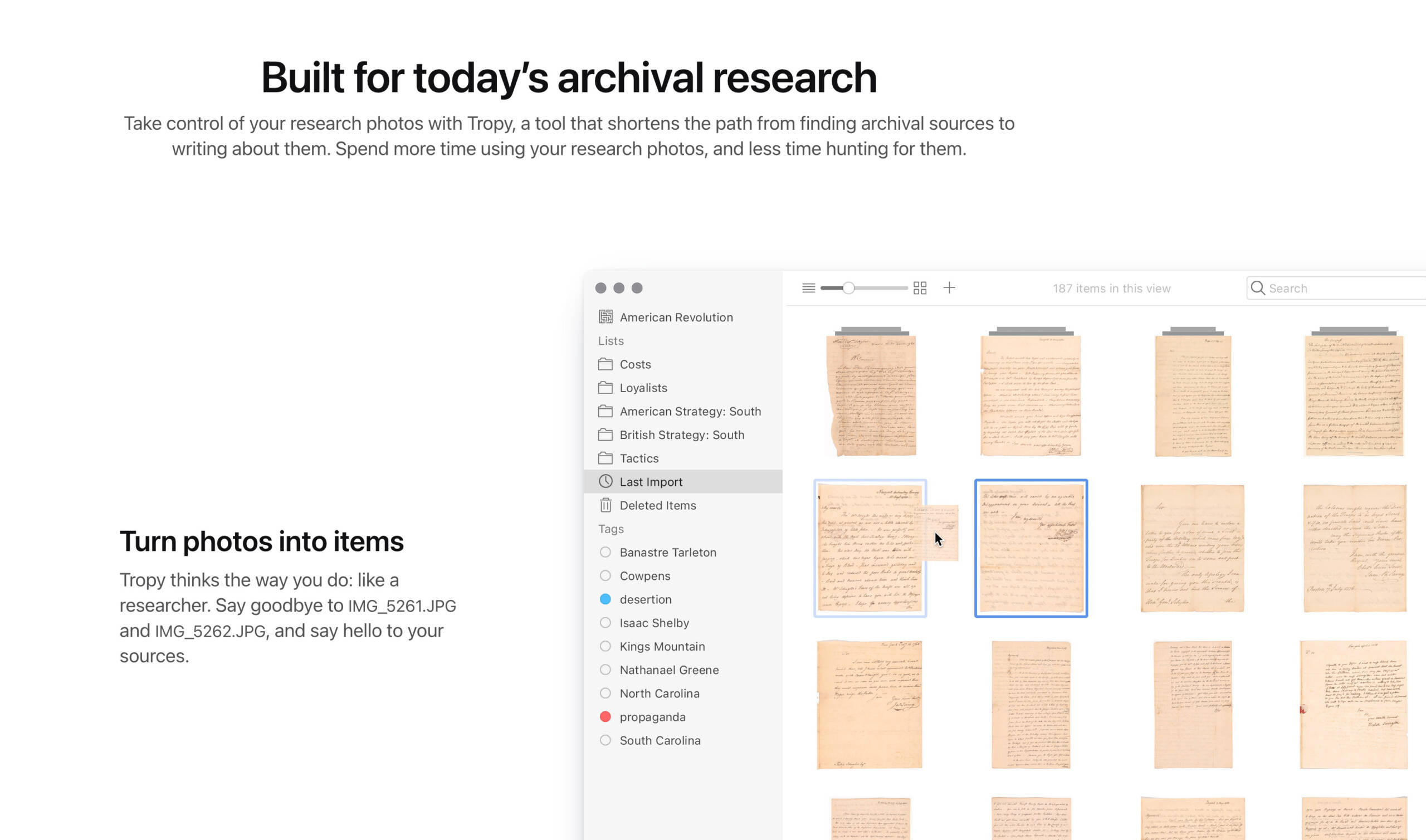
Tropy is narrower than DEVONthink, and free. It was built for photographs of documents, which is what you come home from an archive with: a few hundred images with names like DSC_0431.JPG.
Import the folder and tag each item with names, dates, document type, a transcription, and a note on where you found it. Multi-page scans group into a single item, so a long deed stays one deed rather than a stack of loose images. From then on you can search a large collection by name or keyword and have the right page back in seconds, which also makes it easy to line a photograph up against the vital record it belongs to.
Try it out:
- Tropy (MacOS, Windows) – Freeware – https://www.tropy.org
Obsidian
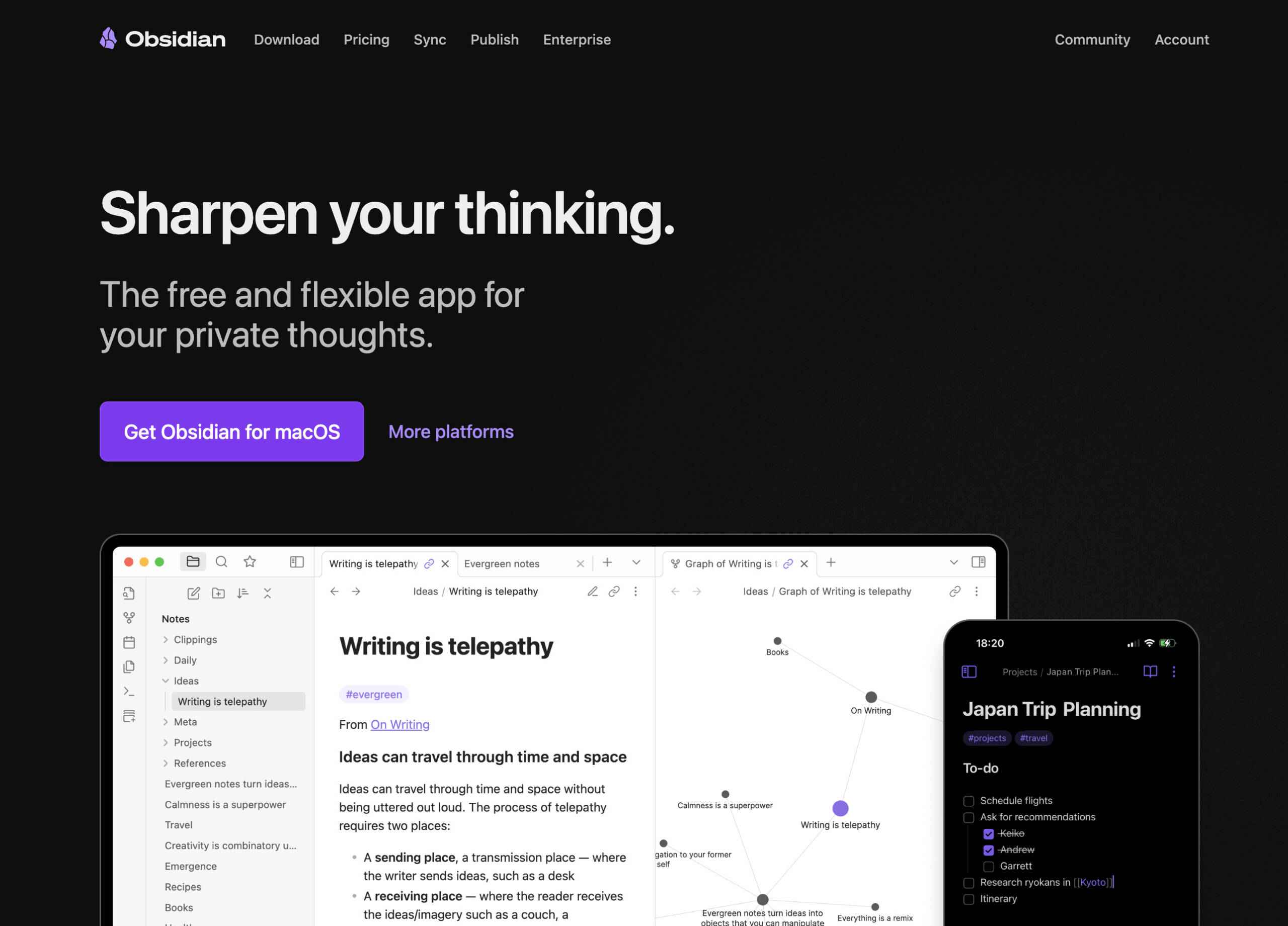
Obsidian keeps a folder of plain markdown files and lets you link them to each other. One file per person, event, place, or source. Because they’re plain text files sitting on your own disk, they’ll still open in thirty years, which is more than can be said for most genealogy software.
A file called “John Maloney (b. 1861)” links out to his birth record, his marriage license, and a file for ‘St. Columban, Ontario’ holding the map and the local dates. Open the St. Columban file and you see every person you’ve ever connected to it. Nobody built that index. It’s a by-product of having made the links in the first place.
The graph view draws the whole thing, and that’s where clusters show up: a group of families who left the same parish in the same decade, or a surname that never appears outside one county. Plugins fill in the rest, including calendar views if you want your events laid out on a timeline.
Try it out:
- Obsidian (MacOS, Windows) – Freeware – https://www.obsidian.md

Leave yourself in the best position for success
None of this is a system you have to adopt whole. Pick the one thing that matches whatever annoyed you most in your last session. If you retype the same message to every new DNA match, start with TextExpander. If you lose whole evenings to an interesting surname that had nothing to do with the plan, start with a timer and one written question.
Add the next one when the first has stopped feeling like a new habit. A tidy setup was never the goal. The goal is that a year from now, the part of this you remember is the discoveries and not the clicking.