


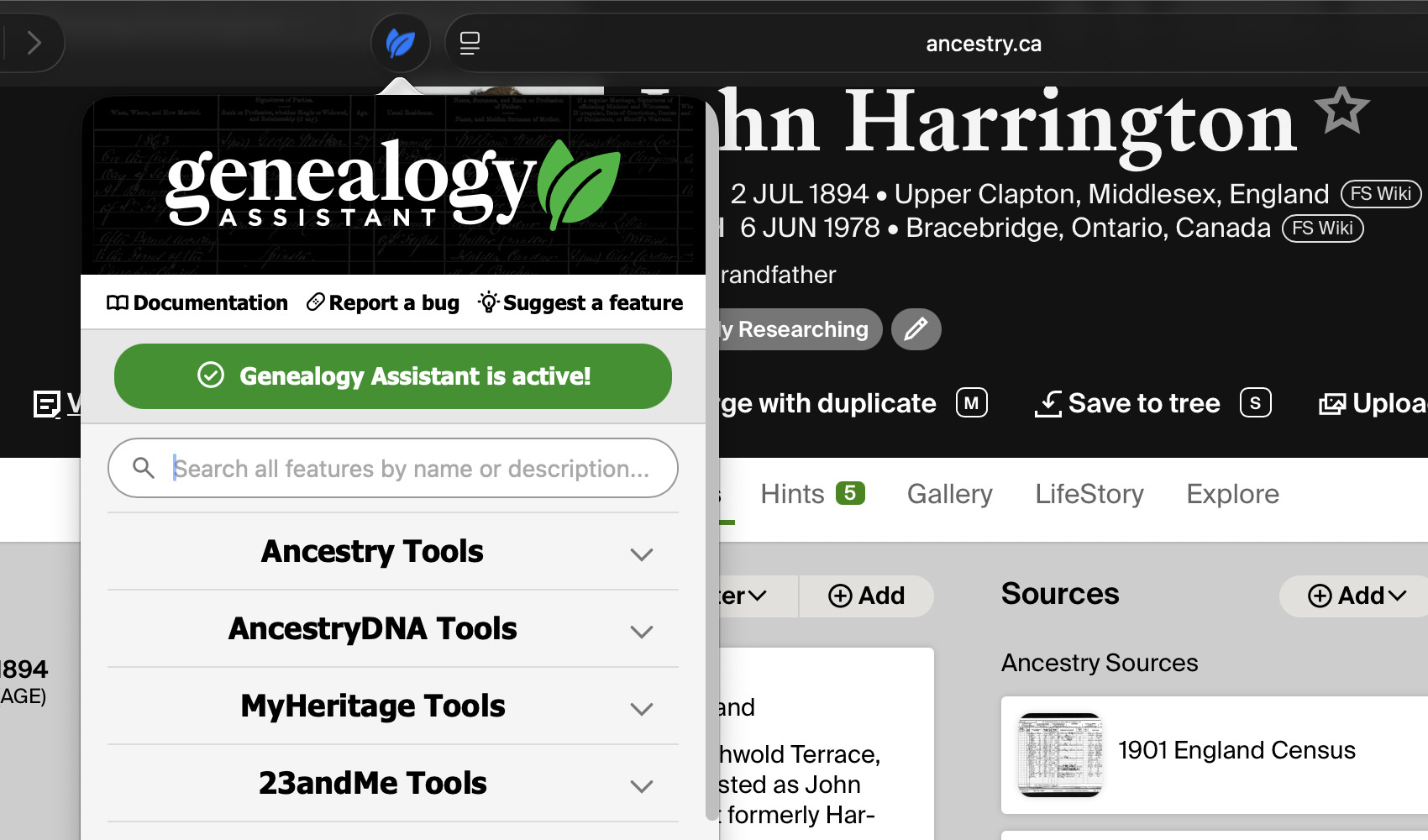
Get to know Genealogy Assistant for Safari
Genealogy Assistant is a Safari extension that adds research tools to Ancestry, MyHeritage, FamilySearch, FamilyTreeDNA, 23andMe, and other genealogy websites. Unlike the Chrome, Firefox, and Edge versions, it comes as a small Mac app that you download and install yourself. The app adds the extension to Safari and keeps it up to date. You need:
- A Mac running macOS 12 (Monterey) or newer.
- Safari 17 or newer, which comes with a supported macOS.
- About 5 minutes.
Step 1: Download and install the app
Download Genealogy Assistant for Safari, then:
- Open the downloaded .dmg file from your downloads folder.
- Drag the Genealogy Assistant icon onto the Applications folder in the window that appears.
- Eject the disk image from the Finder sidebar with its eject arrow.
The app is signed and notarized by Apple, so macOS opens it normally.
Step 2: Open the app once to add it to Safari
- Open your Applications folder and double-click Genealogy Assistant. If macOS asks whether you are sure you want to open it, click Open.
- In Safari, choose Safari, then Settings (
Command+,), then Extensions. - Find Genealogy Assistant in the sidebar on the left and tick the checkbox next to its name.
Opening the app is what makes the extension appear in Safari. You can quit the app afterwards; it does not need to keep running.
Step 3: Allow access to genealogy websites
Safari asks which sites the extension may read. The quickest way to answer is from the toolbar:
- Visit a supported page, for example your tree on Ancestry.
- Click the Genealogy Assistant button in the Safari toolbar.
- Choose Always Allow on Every Website, so every feature works on every supported site without asking again.
To set access site by site instead, open the Extensions tab in Safari settings, select Genealogy Assistant, click Edit Websites, and set each site to Allow, Ask, or Deny. Without access the extension stays on but does nothing, because it cannot read the page.
Step 4: Turn on the features you want
- Click the Genealogy Assistant button in the Safari toolbar to open its popup panel. If the button is missing, choose View, then Customize Toolbar, and drag the Genealogy Assistant icon into the toolbar.
- The popup lists every feature with a toggle. Turn on the ones you want.
- Reload the page and the tools appear.
New to Genealogy Assistant? It comes with a 30-day free trial. Follow the prompt in the popup to start it, and subscribe from the same panel when the trial ends. One subscription covers Safari, Chrome, Firefox, and Edge.
Already subscribed on Chrome, Firefox, or Edge? Open the popup, click Already paid? Log in, and enter the email address on your subscription. Click the link in the confirmation email to activate. If it does not arrive, check your spam or junk folder.
For a full tour of what each feature does, watch the walkthrough on YouTube or read the Genealogy Assistant product page.
Updates
The Safari version updates itself. New releases install quietly in the background and take effect the next time you restart Safari. There is nothing to check and nothing to reinstall.
Troubleshooting
- Genealogy Assistant is not in the Extensions list. Open the app once from your Applications folder, then check the Extensions tab again. Opening the app is what makes the extension appear.
- The extension is on but nothing appears on the page. Grant website access (Step 3), then reload the page. Choosing Always Allow on Every Website is the quickest fix.
- A feature still does not appear after reloading. Quit Safari completely (choose Safari, then Quit Safari) and reopen it. Check that the feature’s toggle is on in the popup, and that your trial or subscription is active.
- macOS will not open the app. Download it again with Safari from the link above, and check that your Mac is on macOS 12 (Monterey) or newer. Older versions of macOS are not supported.
- Still stuck? Contact us via email at [email protected] for support.