

What problem does FamilySearch Add Keyboard Navigation to Search solve?
FamilySearch Add Keyboard Navigation to Search lets you turn the pages of FamilySearch search results with the arrow keys on your keyboard. Without it, every new page of results means scrolling to the page buttons under the last result and clicking one.
How does FamilySearch Add Keyboard Navigation to Search work?
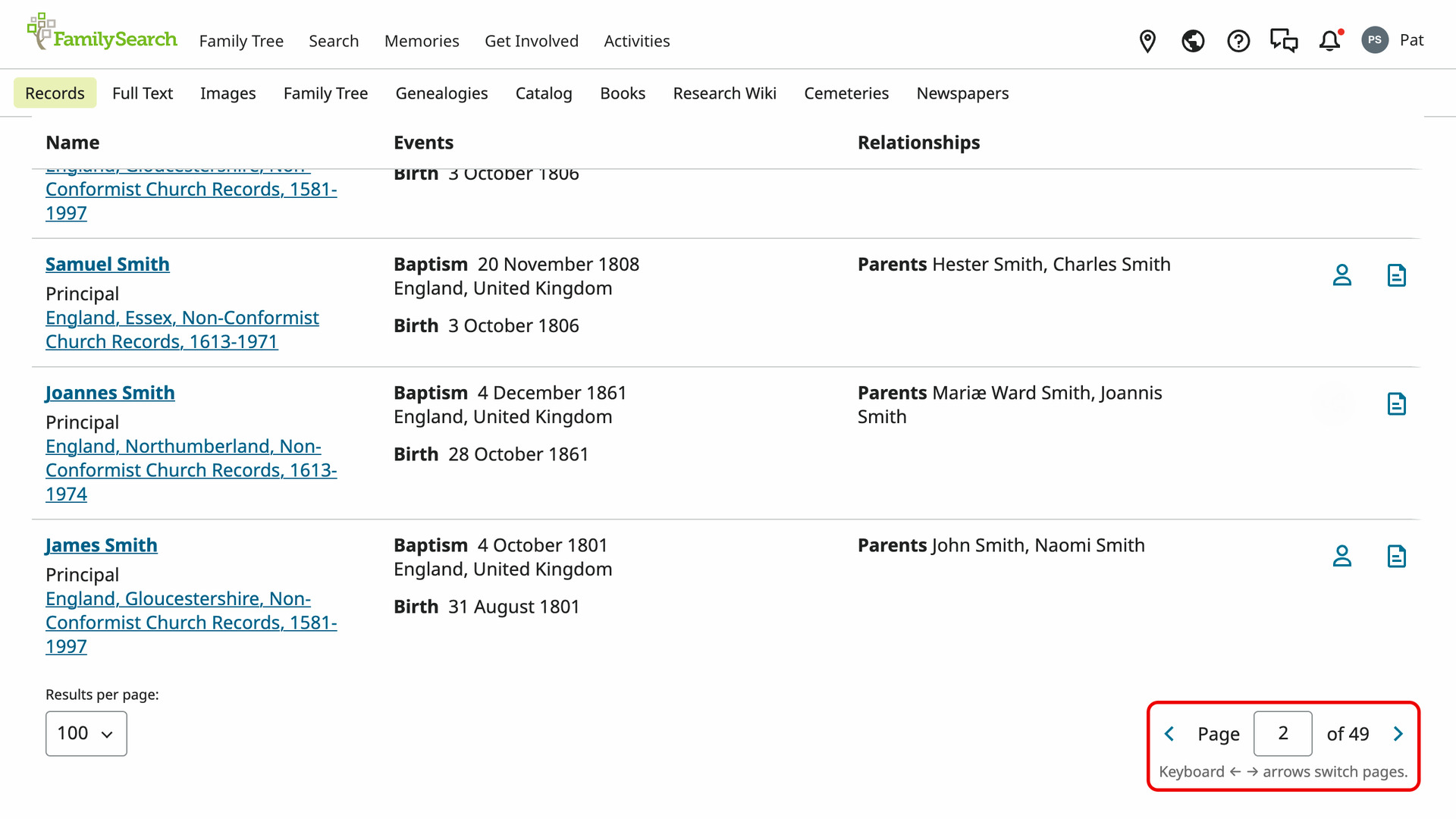
On FamilySearch search results, press the Right arrow key to load the next page, or the Left arrow key to go back a page. It works for searches of the historical records and of the Family Tree. Each key press does the same as clicking the next or previous page button.
A line under the page buttons reads Keyboard ← → arrows switch pages. While you are typing in a box, the arrow keys move through your text as usual. They also do nothing with Shift, Ctrl, Cmd or Alt held, so the browser’s own arrow shortcuts still work. There is nothing to set up.
How do I use FamilySearch Add Keyboard Navigation to Search?
- In the Genealogy Assistant pop-up panel, make sure Add Keyboard Navigation to Search is turned on.
- Search the historical records or the Family Tree on FamilySearch. The search results page opens.
- Press the
Rightarrow key. The next page of results loads. - Press the
Leftarrow key to go back to the previous page.
Keyboard Shortcuts
Rightloads the next page of search results.Leftloads the previous page of search results.
Related features
- Add Keyboard Navigation to Search: Page through any Ancestry search results with the arrow keys.
- FamilySearch: Add Keyboard Shortcuts to Family Tree: Open, centre or search anyone on the FamilySearch tree with one key as you point at them, and reach a person page’s main buttons and tabs by letter.
- ScotlandsPeople Keyboard Navigation: Use the left and right arrow keys to move between pages of any ScotlandsPeople search results.
FamilySearch Add Keyboard Navigation to Search is a feature of the software Genealogy Assistant.
Genealogy Assistant is an extension for Google Chrome, Mozilla Firefox, Microsoft Edge and Apple Safari which supercharges your family history research by adding over 100 custom features to popular genealogy websites like Ancestry, MyHeritage, FamilySearch, FamilyTreeDNA and more.
Install Genealogy Assistant for Google Chrome | Install for Mozilla Firefox | Install for Microsoft Edge | Install for Apple Safari