

What problem does FamilyTreeDNA Keyboard Shortcuts solve?
FamilyTreeDNA Keyboard Shortcuts lets you work through your Family Finder matches on FamilyTreeDNA from the keyboard, with Ancestry’s letters. The arrow keys turn the pages, and one key opens a match’s note or its matches in common. Without it, each of these takes a click, often two.
How does FamilyTreeDNA Keyboard Shortcuts work?
Press the right arrow key for the next page of matches and the left arrow key for the previous one. The list goes back to its top each time, ready to read from the first match. A line at the left of the page buttons, Keyboard ← → arrows switch pages., reminds you of the keys.
Hover over a match and press M to see the matches you have in common with them. It chooses In Common With from the match’s menu for you, without the menu showing. Press N instead to open the match’s note, already in edit mode with the cursor in the box.
Two keys work only in Detail View, where each match has a card. G ticks the hovered match in Add/Manage Groups, opening its sidebar first if it is closed. While the sidebar is open, G ticks or unticks whichever match you hover over, so you can gather a cluster without clicking each checkbox.
The other is S, which opens DNA Painter’s Shared cM Tool for the hovered match. Each key needs its own feature turned on: FTDNA: Add Groups to Matches List for G, and FTDNA: DNA Painter Shared cM Tool for S. Without its feature, a key does nothing and is left off the list beside Help.
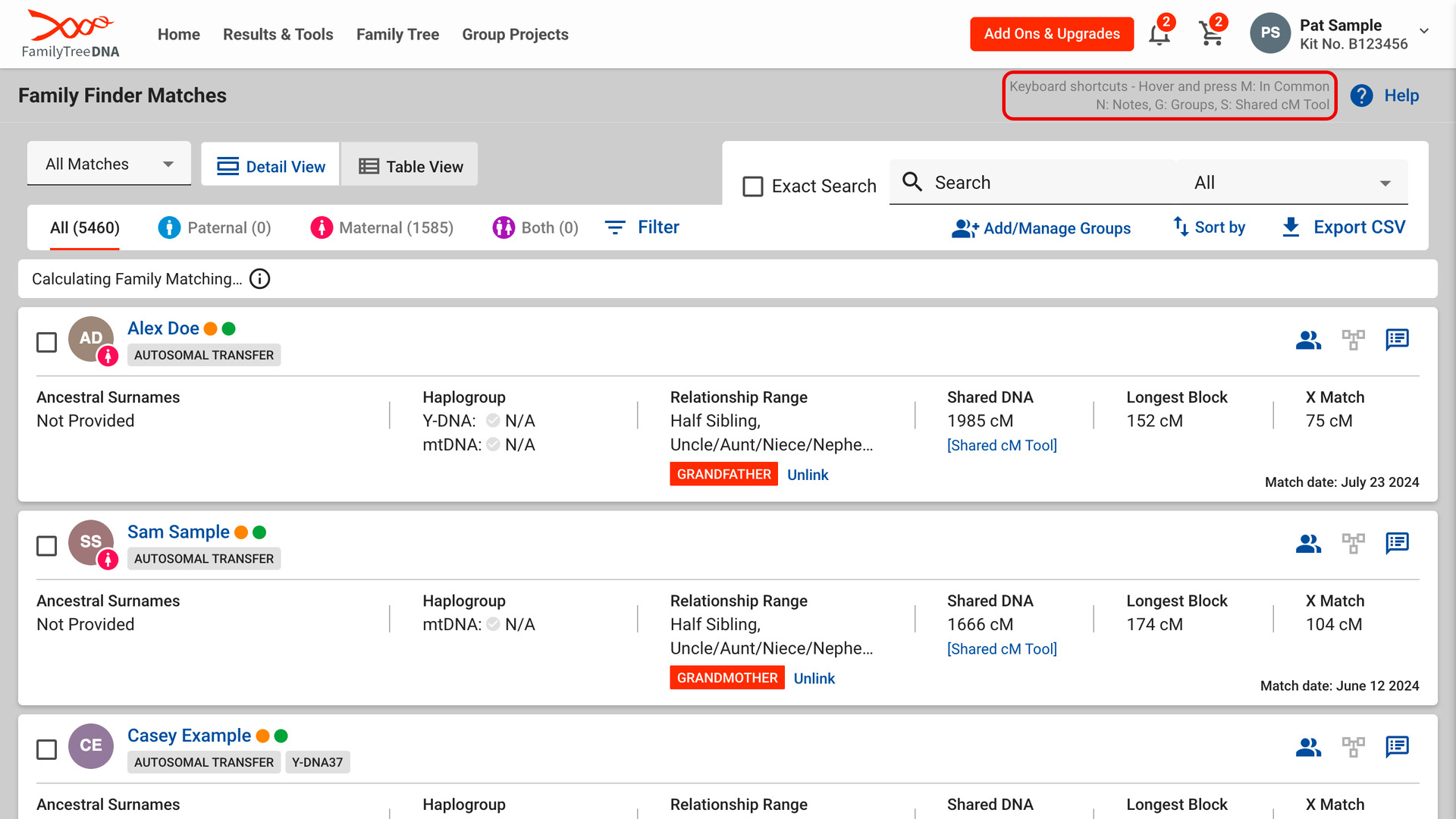
Two small lines starting Keyboard shortcuts sit beside Help at the top of the list. They name only the keys that work in the view you are in, so Table View shows M and N alone. In a narrow window, where they would cover the page title, they are hidden.
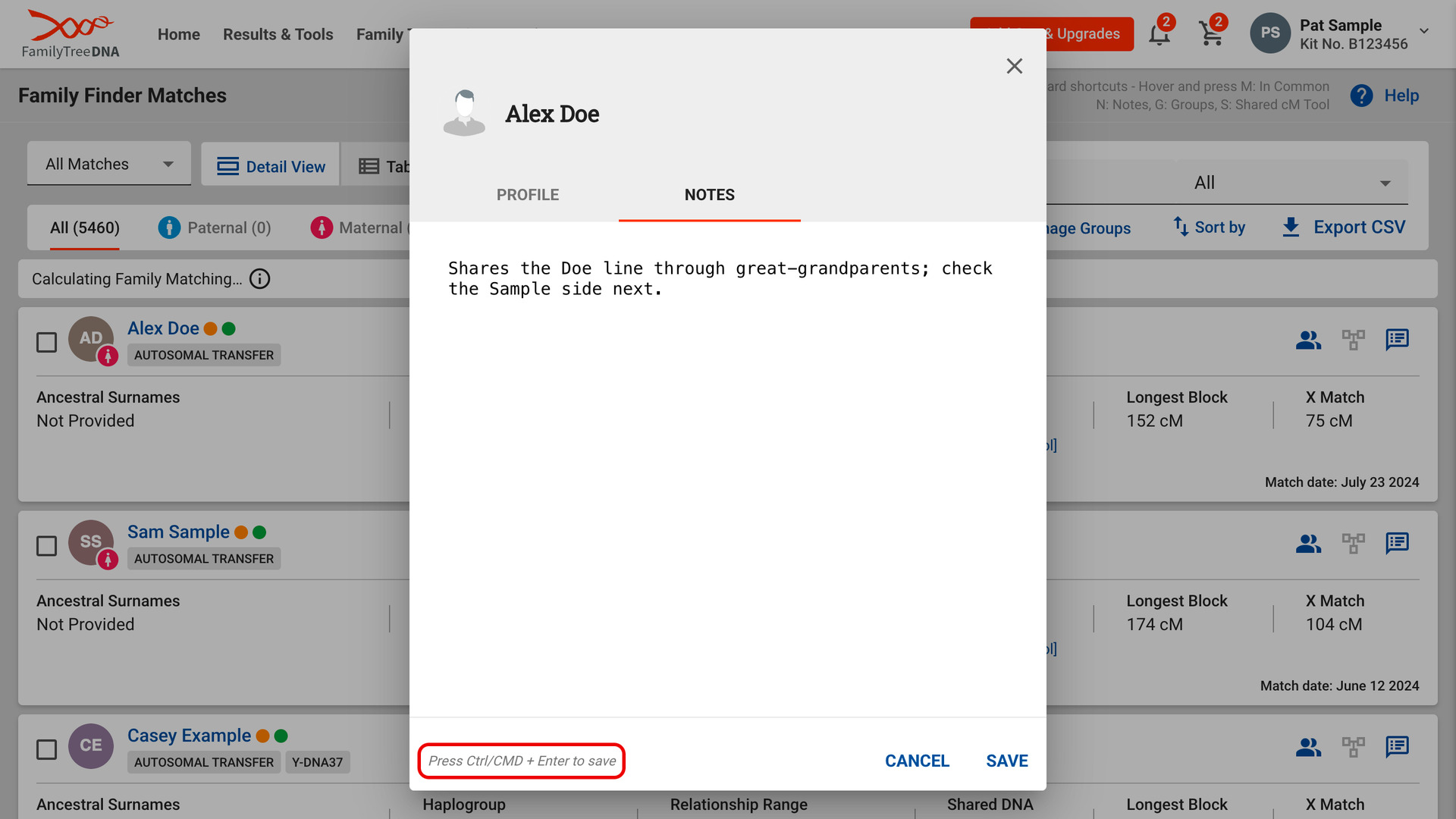
In the note, a line beside Cancel and Save reads Press Ctrl/CMD + Enter to save. Esc closes the note while you have not changed it. Once you have typed, Esc does nothing, because FamilyTreeDNA’s close button drops your text without asking.
The keys do nothing while you are typing in a box, or while the note or a match’s menu is open. Holding an arrow key down turns only one page, so you cannot skip past the page you wanted. Shortcuts with Ctrl, Cmd or Alt are left to your browser.
How do I use FamilyTreeDNA Keyboard Shortcuts?
G and S need Detail View, the view with a card for each match; the other keys work in Table View too.
- In the Genealogy Assistant pop-up panel, make sure FTDNA: Keyboard Shortcuts is turned on.
- Open your Family Finder matches on FamilyTreeDNA. The keys are listed beside Help at the top of the list.
- Press the
Rightarrow key. The next page of matches loads, from the top. - Hover over a match and press a letter. Every key is listed under Keyboard Shortcuts.
- To save a note, press
Ctrl+Enter(Cmd+Enteron a Mac).
Keyboard Shortcuts
Rightgoes to the next page of matches.Leftgoes to the previous page of matches.Mshows the matches you have in common with the match you are hovering over.Nopens the note of the match you are hovering over, ready to edit.Gticks or unticks the match you are hovering over in Add/Manage Groups. It works in Detail View, when FTDNA: Add Groups to Matches List is turned on.Sopens DNA Painter’s Shared cM Tool for the match you are hovering over. It works in Detail View, when FTDNA: DNA Painter Shared cM Tool is turned on.Ctrl+Enter(Cmd+Enteron a Mac) saves the open note.Esccloses the note while you have not changed it.
Related features
- FamilyTreeDNA: Add Groups to Matches List: Organize your FamilyTreeDNA matches into your own colour-coded groups from an Add/Manage Groups button at the top of the matches list.
- FamilyTreeDNA: DNA Painter Shared cM Tool: Click the shared cM of any match in a FamilyTreeDNA matches list to open it in DNA Painter’s Shared cM Tool.
- GEDmatch: Keyboard Shortcuts: Hover over a match in the GEDmatch One-to-Many results and press one key to open its One-to-One comparison, matches in common or note, and page with the arrow keys.
FamilyTreeDNA Keyboard Shortcuts is a feature of the software Genealogy Assistant.
Genealogy Assistant is an extension for Google Chrome, Mozilla Firefox, Microsoft Edge and Apple Safari which supercharges your family history research by adding over 100 custom features to popular genealogy websites like Ancestry, MyHeritage, FamilySearch, FamilyTreeDNA and more.
Install Genealogy Assistant for Google Chrome | Install for Mozilla Firefox | Install for Microsoft Edge | Install for Apple Safari