

What problem does GEDmatch Keyboard Shortcuts solve?
GEDmatch Keyboard Shortcuts lets you work through the GEDmatch One-to-Many results from the keyboard, with Ancestry’s letters where they apply. Hover over a match and one key opens its One-to-One comparison, its matches in common or its note. Without it, each one is a small link to find in a wide table.
How does GEDmatch Keyboard Shortcuts work?
The shortcuts work on all three layouts of the One-to-Many results: the classic Limited page, the classic Original results and GEDmatch’s beta. Hover over a match and press a letter, and it opens the same link you would click in that match’s row. Every key is listed under Keyboard Shortcuts.
Not every layout has every link. The classic Original results have no X-DNA or matches in common links, so X and M do nothing there. S needs GEDmatch: DNA Painter Shared cM Tool turned on, since it opens that feature’s link on the match’s Total cM.
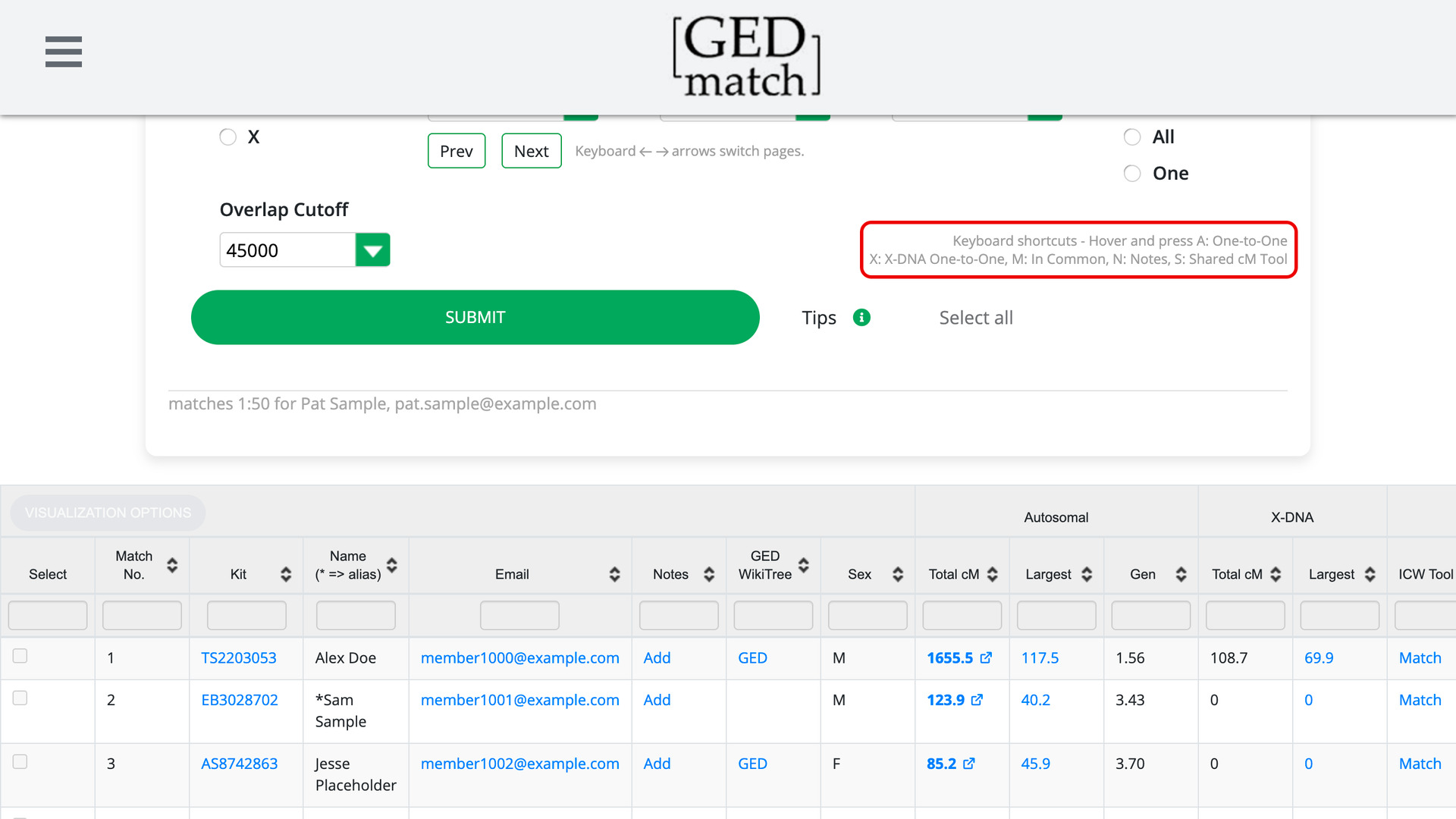
Two small lines starting Keyboard shortcuts list the keys that work on the layout you are using. They sit at the top right of the results:
- On the classic Limited page, at the right of the form, beside the SUBMIT button or, in a narrower window, just above it, once you have submitted the form.
- On the classic Original results, just above the right end of the table.
- On the beta, level with the Font Size setting above the table.
The left and right arrow keys turn the pages on the classic Limited page and the beta. The classic Original results are one long table with no pages, so the arrows do nothing there. Beside the page buttons, a line reads Keyboard ← → arrows switch pages. to remind you of them.
On the classic Limited page, the arrows show the next or previous set of matches, as GEDmatch’s Next and Prev buttons do. At either end of the list they do nothing, where those buttons stop with a warning. They also stop before the next set would go past 3,000 matches, where GEDmatch’s Next asks about Tier 1.
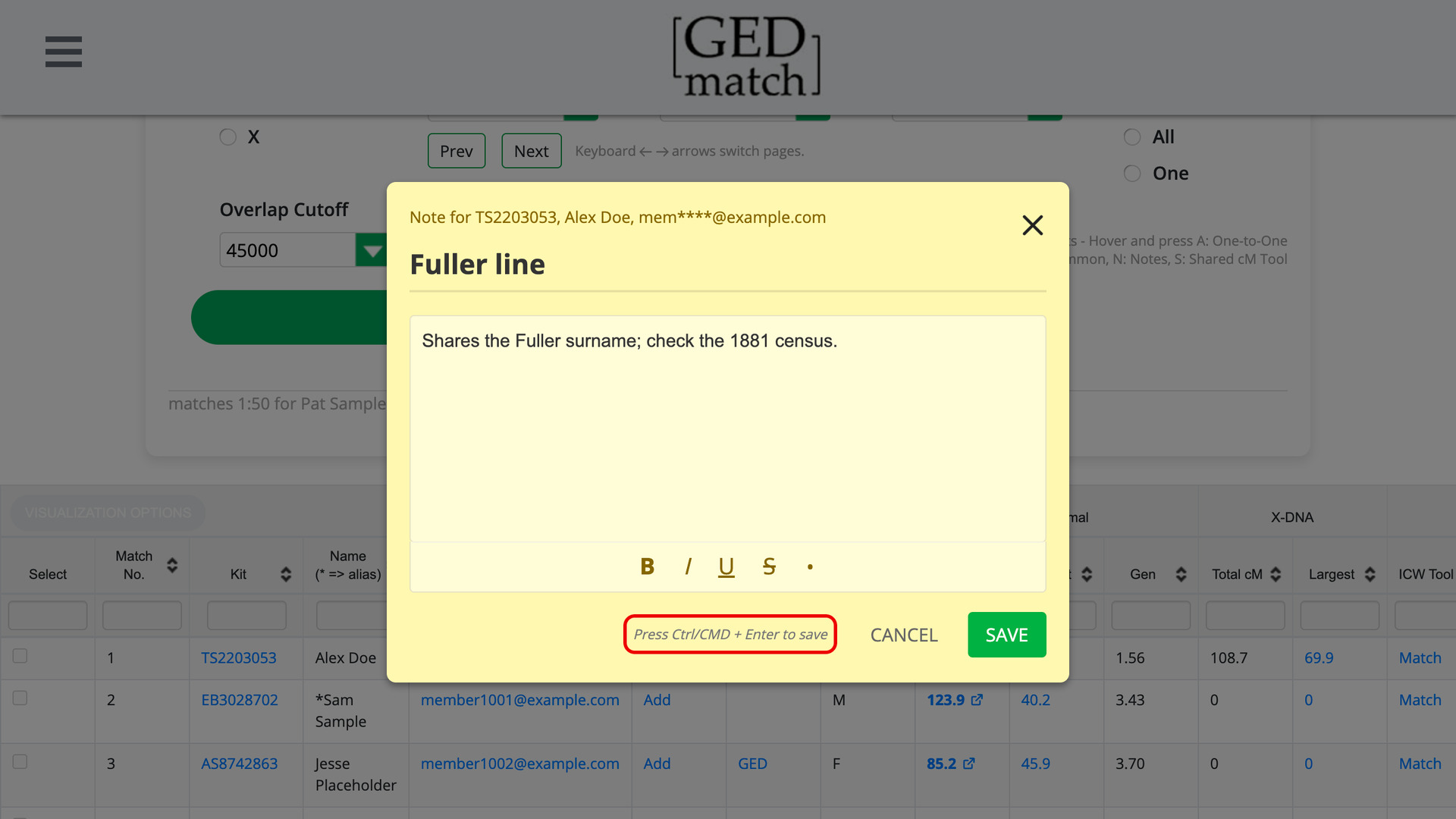
Pressing N opens the match’s note, the same as its note link or button in the row. On the classic pages the cursor goes straight to its title, ready to type. A line beside Cancel and Save reads Press Ctrl/CMD + Enter to save, and GEDmatch’s own Esc closes the note.
The keys do nothing while you are typing in a box or while a note is open. Your text is never mistaken for a shortcut. Holding an arrow key down turns only one page, so you cannot skip past the page you wanted. Shortcuts with Ctrl, Cmd or Alt are left to your browser.
How do I use GEDmatch Keyboard Shortcuts?
- In the Genealogy Assistant pop-up panel, make sure GEDmatch: Keyboard Shortcuts is turned on.
- Open the One-to-Many results for one of your kits on GEDmatch.
- On the classic Limited page, click SUBMIT. The results appear, with the Keyboard shortcuts lines at their top right.
- Hover over a match and press a letter. Its comparison, matches in common or note opens.
- To save a note, press
Ctrl+Enter(Cmd+Enteron a Mac). - Press the
Rightarrow key. The next page of matches loads.
Keyboard Shortcuts
Aopens the autosomal One-to-One comparison with the match you are hovering over.Xopens the X-DNA One-to-One comparison with the match you are hovering over, on the classic Limited page and the beta.Mopens the matches you have in common with the match you are hovering over, on the classic Limited page and the beta.Nopens the note of the match you are hovering over.Sopens DNA Painter’s Shared cM Tool for the match you are hovering over, when GEDmatch: DNA Painter Shared cM Tool is turned on.Ctrl+Enter(Cmd+Enteron a Mac) saves the open note.Rightgoes to the next page of matches, on the classic Limited page and the beta.Leftgoes to the previous page of matches, on the classic Limited page and the beta.
Related features
- GEDmatch DNA Painter Shared cM Tool: Total cM values in the GEDmatch One-to-Many comparison become links that open DNA Painter’s Shared cM Tool with the amount filled in.
- FamilyTreeDNA: Keyboard Shortcuts: Turn the pages of your FamilyTreeDNA Family Finder matches with the arrow keys, and hover over a match to open its note, groups or matches in common with one key.
- Add Keyboard Shortcuts to Matches List: Hover over any match and press n, r or g to open its note, relationship or groups window.
GEDmatch Keyboard Shortcuts is a feature of the software Genealogy Assistant.
Genealogy Assistant is an extension for Google Chrome, Mozilla Firefox, Microsoft Edge and Apple Safari which supercharges your family history research by adding over 100 custom features to popular genealogy websites like Ancestry, MyHeritage, FamilySearch, FamilyTreeDNA and more.
Install Genealogy Assistant for Google Chrome | Install for Mozilla Firefox | Install for Microsoft Edge | Install for Apple Safari