

What problem does FamilySearch Save Family Tree as CSV or GEDCOM solve?
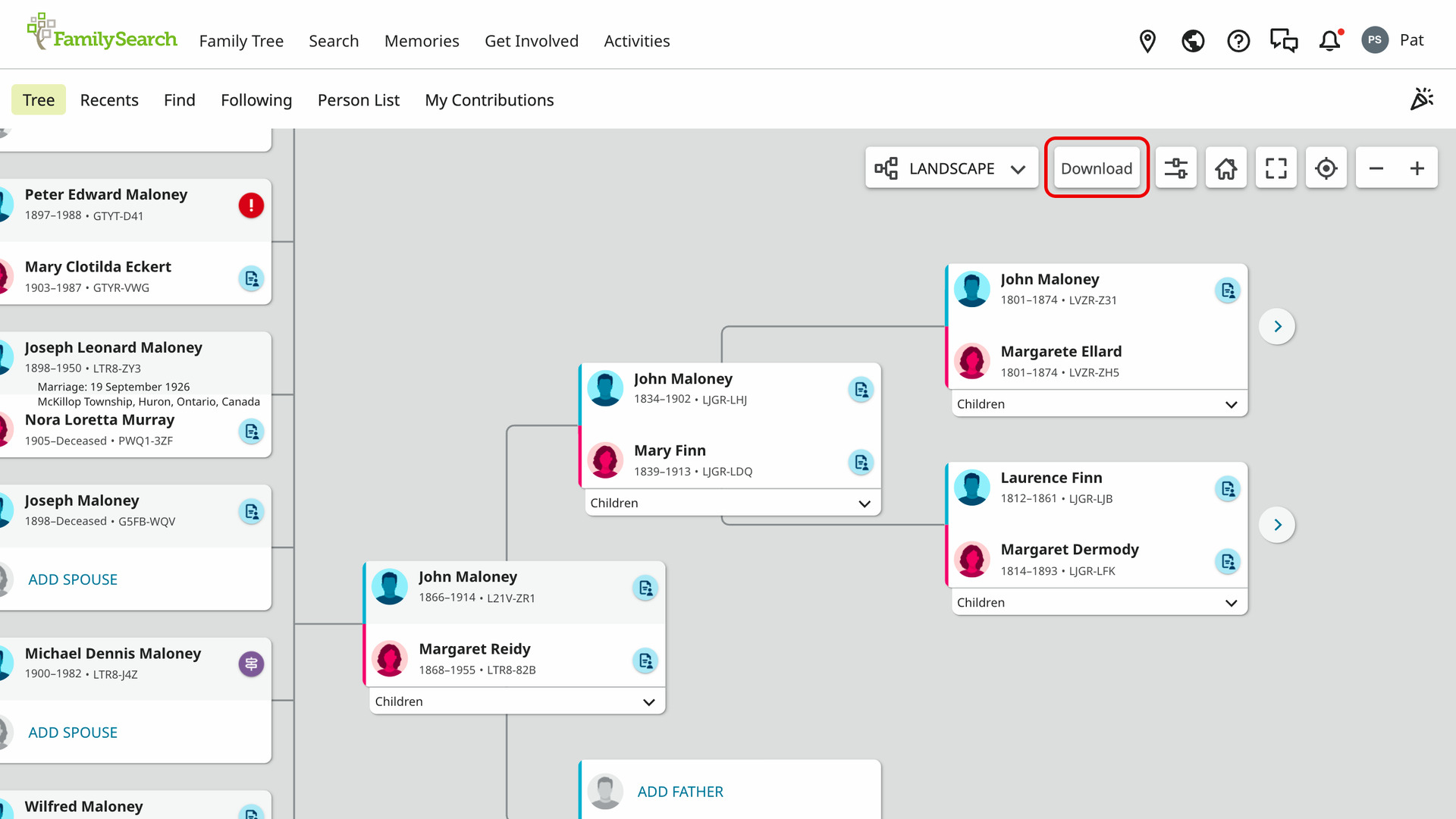
FamilySearch Save Family Tree as CSV or GEDCOM adds a Download button to the FamilySearch Family Tree. It saves a person’s descendants, ancestors or close family to a file. FamilySearch’s own pages have no way to save a branch of the tree, so without it every name has to be copied by hand.
How does FamilySearch Save Family Tree as CSV or GEDCOM work?
The Download button sits right of the view menu in the toolbar of the Landscape, Portrait, Fan Chart, Descendancy and First Ancestor views. On a person page, a Download link follows View Tree, View Relationship and Follow. Both save from the person the page is about.
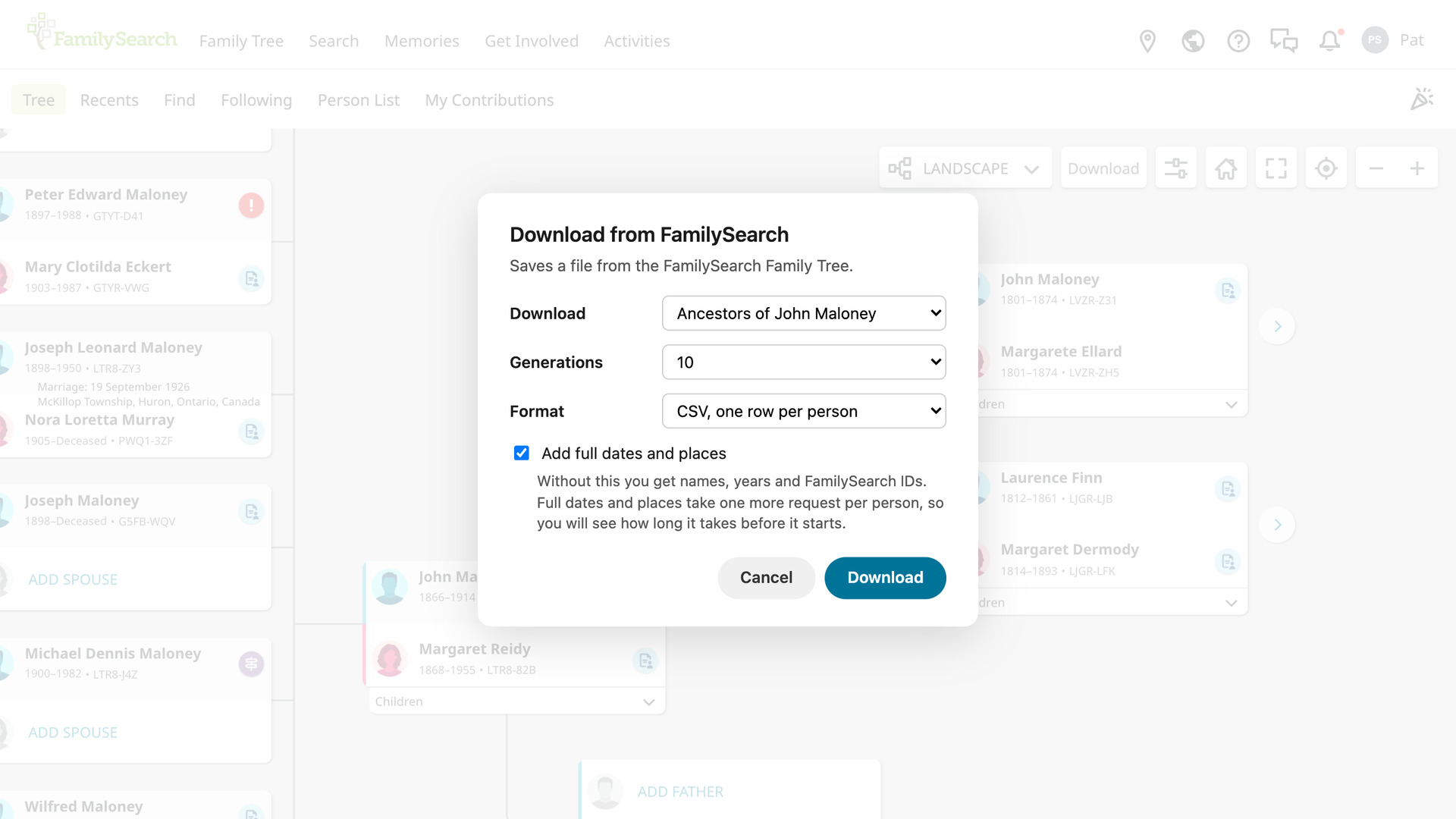
Clicking it opens the Download from FamilySearch window. Its Download menu chooses the person’s descendants, ancestors or family. It starts on descendants in the Descendancy view, on ancestors in the other views and on the family on a person page.
The Generations menu sets how far to go, counting the person as generation 1. Descendants go from 2 to 10 generations and start at 4; ancestors go from 4 to 15 and start at 10. All follows every line to its end, up to 50 generations of ancestors.
The family is the person, each spouse and their children. For the person and each spouse it adds their parents, a parent’s other husband or wife, brothers and sisters, half-siblings, grandparents, aunts and uncles. It has a fixed shape, so there is no Generations menu.
The Format menu holds the kinds of file each choice can be saved as:
- CSV, one row per person, for Excel, Numbers or Google Sheets.
- CSV, generation columns, for descendants: each name sits in its generation’s column, so the file reads like an indented descendancy chart.
- Ahnentafel text, for ancestors: a numbered list with one ancestor on each line.
- GEDCOM, for genealogy programs like RootsMagic and Gramps.
Without Add full dates and places, the file has names, years and FamilySearch IDs. Ticked, it adds each person’s full birth, death and burial dates and places. It starts ticked for the family, which is small, and unticked for the rest. Your choices are remembered for each of the three.
Click Download and a progress window counts the people found and the families or branches still to open. The tab title shows the same count. A big family takes a few minutes to read. You can use other tabs while it runs, but keep this one open.
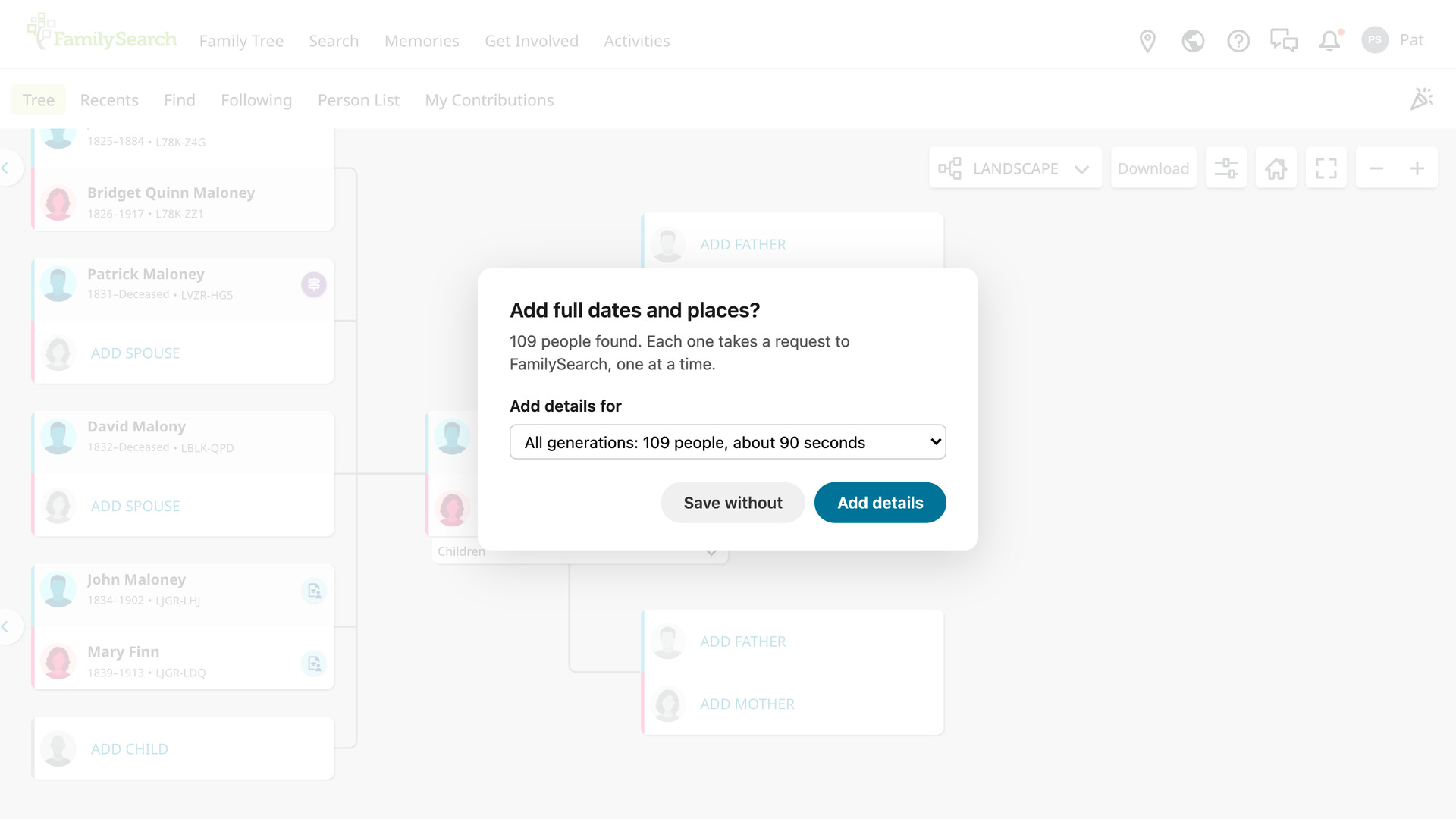
With full dates and places ticked, a second window, Add full dates and places?, then says how many people were found. Full details take much longer than names, about a minute for every 75 people, so the window shows how long they take before they start.
Its Add details for menu lists the first few generations, then all of them, each with its number of people and its time. Click Add details to go on, or Save without to save names and years only. When there is only one choice, as for the family, it gives the time in a sentence instead.
A progress window then counts the people done and the time left. Stop and save in either progress window stops the download and saves what has been read. When it finishes, Download complete says how many people were saved to your downloads folder, or Stopped and saved if you stopped it.
If FamilySearch asks for a pause, the window counts down a minute and then carries on. If it asks again, the download stops and saves everyone read so far. The Stopped early window then suggests waiting 15 minutes before the next download, with other FamilySearch tools closed.
Each file is named after the person and what it holds, such as John Smith – Ancestors.txt. The ahnentafel in it numbers the ancestors: the person is 1, their father 2 and their mother 3. Each person’s father has double their number, and their mother double plus one.
The GEDCOM files keep every spouse and family together and carry each person’s FamilySearch ID. When cousins in the tree married, their shared ancestor appears once in the GEDCOM file. The ahnentafel and the ancestors CSV file list them under each of their numbers.
How do I use FamilySearch Save Family Tree as CSV or GEDCOM?
- In the Genealogy Assistant pop-up panel, make sure Save Family Tree as CSV or GEDCOM is turned on.
- Open the FamilySearch Family Tree at the person you want to start from, in any of the five views, or open their person page.
- Click Download. The Download from FamilySearch window opens.
- In the Download menu, choose the descendants, the ancestors or the family.
- Choose the number of Generations and a Format.
- To add full dates and places, tick Add full dates and places.
- Click Download. A progress window counts the people as they are found.
- If you ticked full dates and places, choose under Add details for how many generations get them, then click Add details.
- When Download complete appears, click Close. The file is in your downloads folder.
CSV Columns
The descendants file has one row per person: d’Aboville, Generation, Name, Given Name, Surname, Sex, Birth Date, Birth Place, Death Date, Death Place, Father, Mother, Spouses, Spouse IDs, Children, Y-DNA Line, mtDNA Line, Living, Person ID, Person URL.
The d’Aboville number places each descendant: the person is 1, their children 1.1, 1.2 and so on. The first child’s children are 1.1.1, 1.1.2. Children are numbered across all of a parent’s marriages, and the Children column counts each person’s children.
Y-DNA Line reads Yes for men linked to the starting man through sons only, who carry his Y-DNA. mtDNA Line reads Yes for those linked to the starting couple through daughters only, who carry the starting woman’s mtDNA. Both help you choose who to ask to take a DNA test.
The generation columns file puts each name in the column for its generation, from Generation 1 on the left. Then come Spouses, Birth Date, Death Date, Y-DNA Line, mtDNA Line, Person ID and Person URL. With full dates and places, Birth Place and Death Place follow the dates.
The ancestors file has one row per ahnentafel number: Ahnentafel, Generation, Name, Given Name, Surname, Sex, Birth Date, Birth Place, Death Date, Death Place, Father ID, Mother ID, No Father, No Mother, End of Line, Living, Person ID, Person URL.
No Father and No Mother read Yes when the tree has no father or no mother for that person. End of Line reads Yes when it has neither: these are the brick walls to work on. The last generation you asked for is never flagged, since their parents were not looked up.
The family file has one row per relative: Relationship, Related Through, Name, Given Name, Surname, Sex, Birth Date, Birth Place, Death Date, Death Place, Father, Mother, Spouses, Possible Namesakes, Living, Person ID, Person URL.
Relationship is from the person you started from, such as Wife’s paternal aunt, and Related Through names whose relative they are. Possible Namesakes lists the older relatives on the same side who share one of the person’s given names. It shows a naming pattern in a single cell.
With full dates and places, Burial Date and Burial Place follow Death Place in the descendants, ancestors and family files. In all of them, Living reads Yes for living people, Person ID is the FamilySearch ID, and Person URL opens the person’s FamilySearch page.
NOTICE: CSV DOWNLOAD TOOLS ARE FOR PERSONAL RESEARCH ONLY.
Related features
- FamilySearch: Download Record as CSV File: Download everyone on a FamilySearch record, such as a census household, to a CSV file, or copy them as a table to paste into a spreadsheet or document.
- FamilySearch: Index Family Tree in Quick Search: Add your FamilySearch ancestors to Quick Search to open any of them by name, and have the Surname Comparison Tool and Common ancestors count them as your tree.
- Save All People in Tree to CSV File: Download every person in a family tree to a CSV file, with births, deaths, marriages, places, parents, spouses and notes, following your current search and filters.
FamilySearch Save Family Tree as CSV or GEDCOM is a feature of the software Genealogy Assistant.
Genealogy Assistant is an extension for Google Chrome, Mozilla Firefox, Microsoft Edge and Apple Safari which supercharges your family history research by adding over 100 custom features to popular genealogy websites like Ancestry, MyHeritage, FamilySearch, FamilyTreeDNA and more.
Install Genealogy Assistant for Google Chrome | Install for Mozilla Firefox | Install for Microsoft Edge | Install for Apple Safari