

What problem does MyHeritage Add Keyboard Shortcuts to Matches List solve?
MyHeritage Add Keyboard Shortcuts to Matches List opens a match’s notes or labels on your MyHeritage DNA matches list with one key, as on Ancestry. Without it, each one takes a click on a small icon or checkbox on the match’s card, which is easy to miss among the others.
How does MyHeritage Add Keyboard Shortcuts to Matches List work?
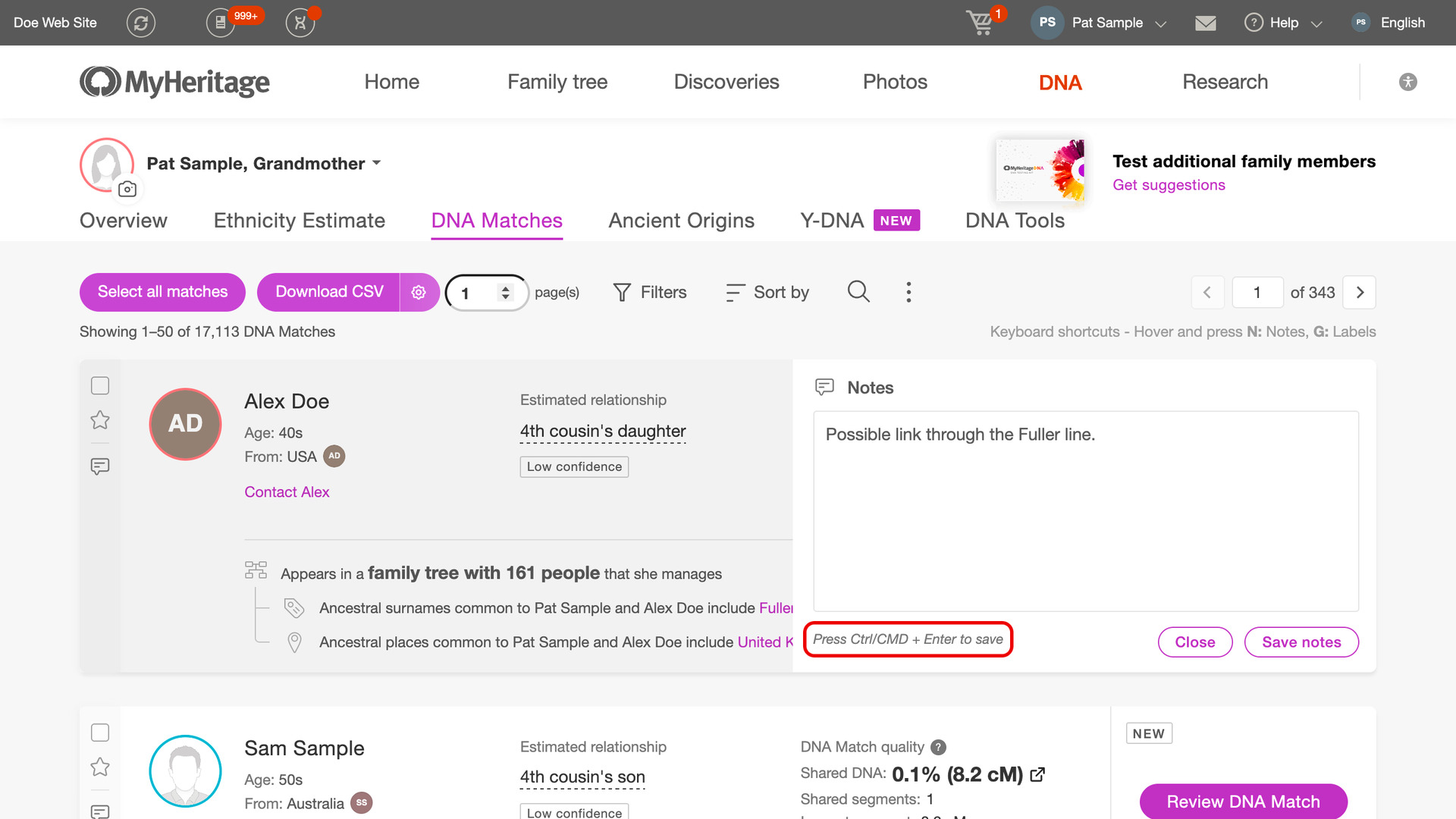
Hover over a match and press N for its notes or G for its labels. MyHeritage’s own note box opens in the match’s card, or its Manage labels panel opens for that match alone. Everything in them works as usual, and the match is not left ticked.
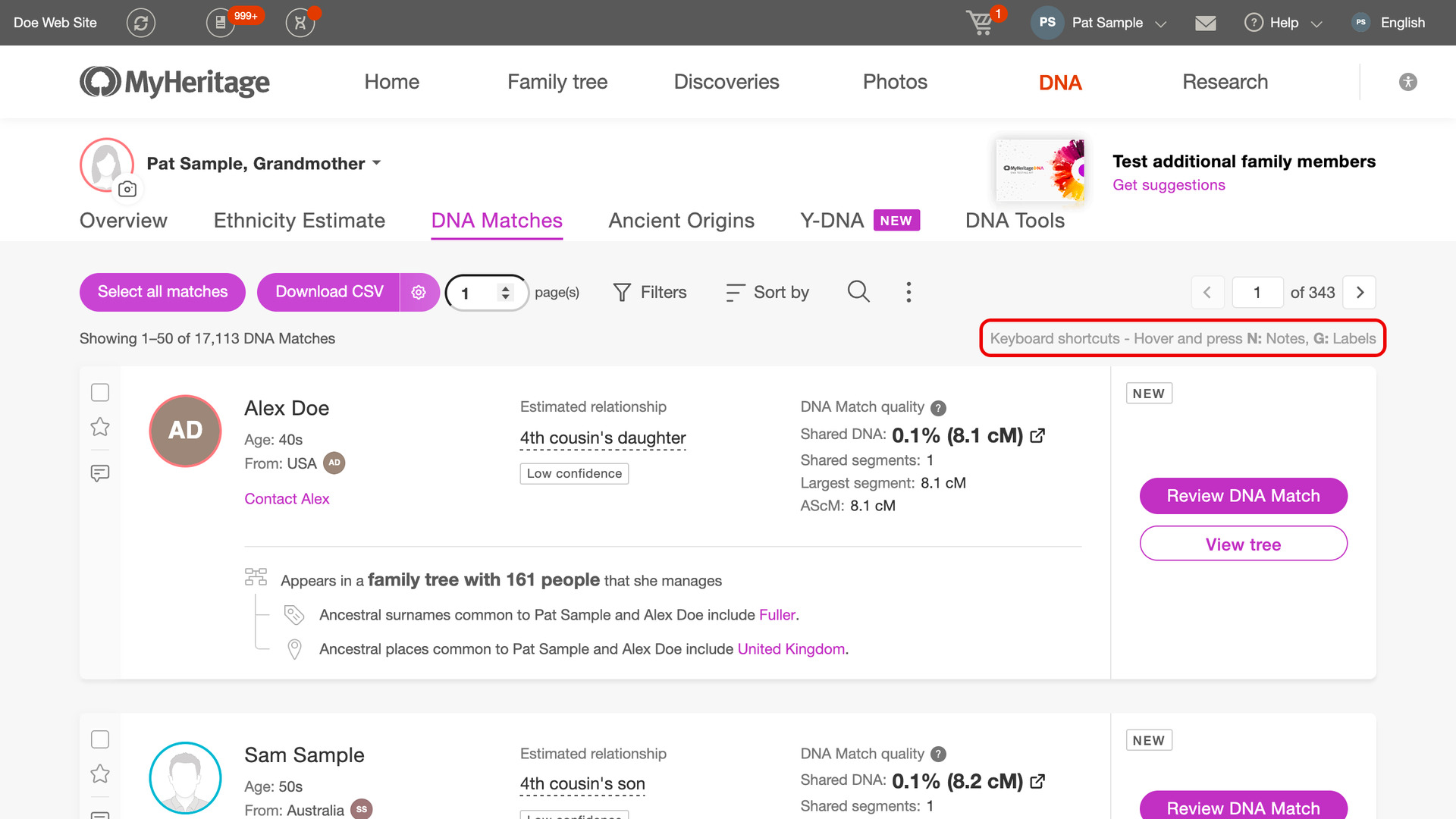
A reminder of the two keys, starting Keyboard shortcuts, sits at the right of the line that counts your matches. Beside the note’s buttons, a line reads Press Ctrl/CMD + Enter to save, so you can save a note without the mouse. Press Esc to close the note or the labels panel.
The letter keys do nothing while you are typing in a box, or while a note or a MyHeritage window is open. Shortcuts with Ctrl, Cmd or Alt are left to your browser. To turn the pages of the list with the arrow keys, turn on Add Pagination to Top of Matches List.
How do I use MyHeritage Add Keyboard Shortcuts to Matches List?
- In the Genealogy Assistant pop-up panel, make sure Add Keyboard Shortcuts to Matches List is turned on.
- Open your MyHeritage DNA matches list. The reminder of the keys appears at the right of the count of your matches.
- Hover over a match and press
NorG. That match’s notes or its Manage labels panel opens. - Make your changes. To save a note, press
Ctrl+Enter(Cmd+Enteron a Mac). - Press
Escto close the note or the panel.
Keyboard Shortcuts
Nopens the notes of the match you are hovering over.Gopens the Manage labels panel for the match you are hovering over.Ctrl+Enter(Cmd+Enteron a Mac) saves the open note.Esccloses the open note or the Manage labels panel.
Related features
- MyHeritage: Add Keyboard Shortcuts to DNA Matches: Move between matches with the arrow keys on MyHeritage’s Review DNA Match page, and open a match’s labels, notes or relationship with a single key.
- MyHeritage: Add Pagination to Top of Matches List: Move between pages of your MyHeritage matches list from the top of the page, with page buttons or by typing a page number.
- MyHeritage Add Select All Button to Matches List: A Select all matches button at the top of your MyHeritage matches list ticks every match on the page, ready to sort into DNA groups.
MyHeritage Add Keyboard Shortcuts to Matches List is a feature of the software Genealogy Assistant.
Genealogy Assistant is an extension for Google Chrome, Mozilla Firefox, Microsoft Edge and Apple Safari which supercharges your family history research by adding over 100 custom features to popular genealogy websites like Ancestry, MyHeritage, FamilySearch, FamilyTreeDNA and more.
Install Genealogy Assistant for Google Chrome | Install for Mozilla Firefox | Install for Microsoft Edge | Install for Apple Safari