

What problem does FamilySearch Add Wiki and Map Links to Places solve?
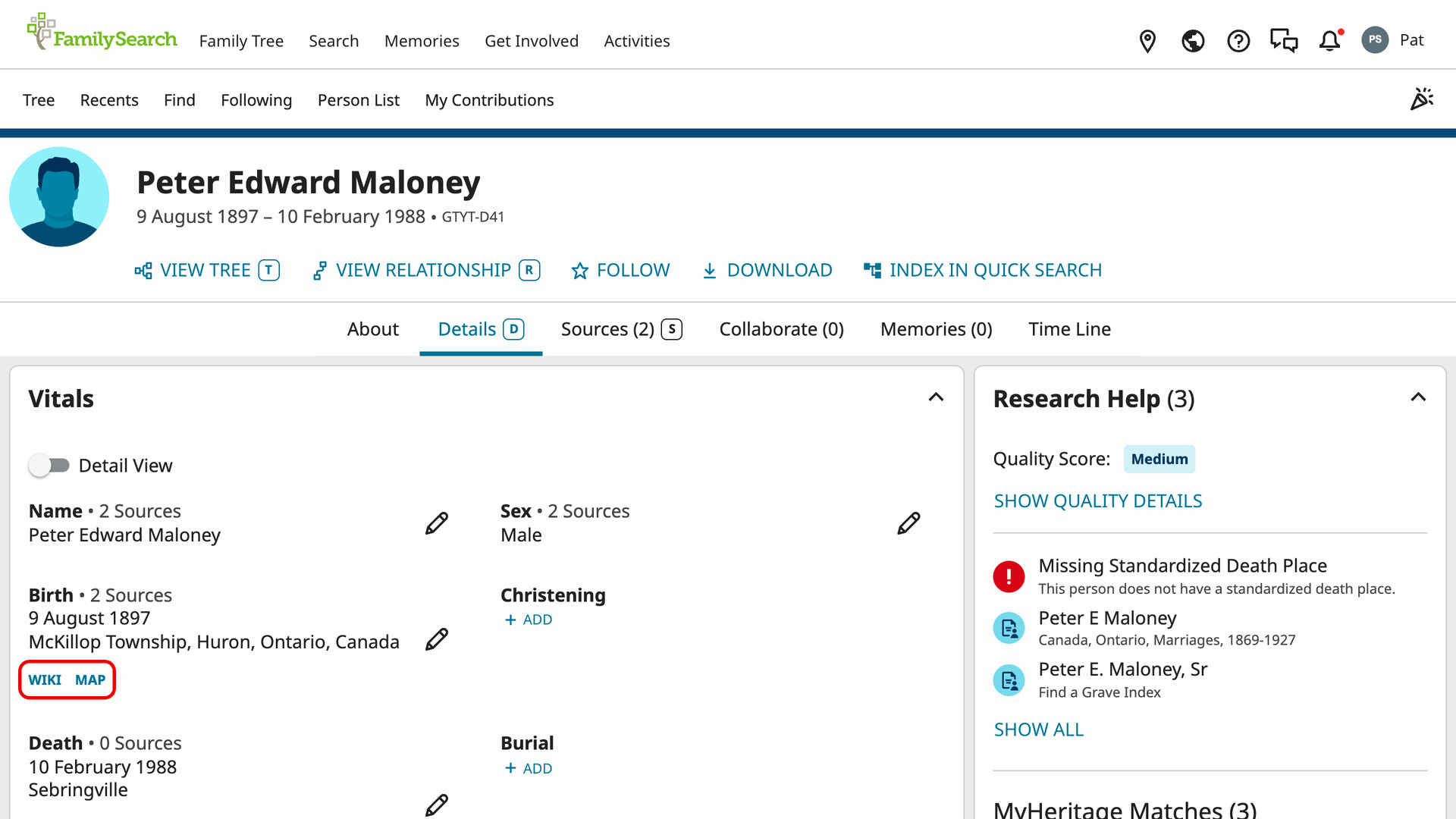
FamilySearch Add Wiki and Map Links to Places adds Wiki and Map links under each place on a FamilySearch person page. Wiki opens the FamilySearch Research Wiki page for the place, which lists the records kept there, and Map shows it in Google Maps. You no longer copy the place across yourself.
How does FamilySearch Add Wiki and Map Links to Places work?
On the Details tab of a person page, the two links sit on one line under every place in the person’s facts and events. They are small, bold and in capitals, in the same teal as the page’s own links for adding a fact. Each one opens in a new tab.
Wiki opens the Wiki page for the most specific part of the place that has one. That is the parish or town where the Wiki has a page for it, otherwise the county, the state or province, or the country. The new tab stays blank for a moment while the page is found.
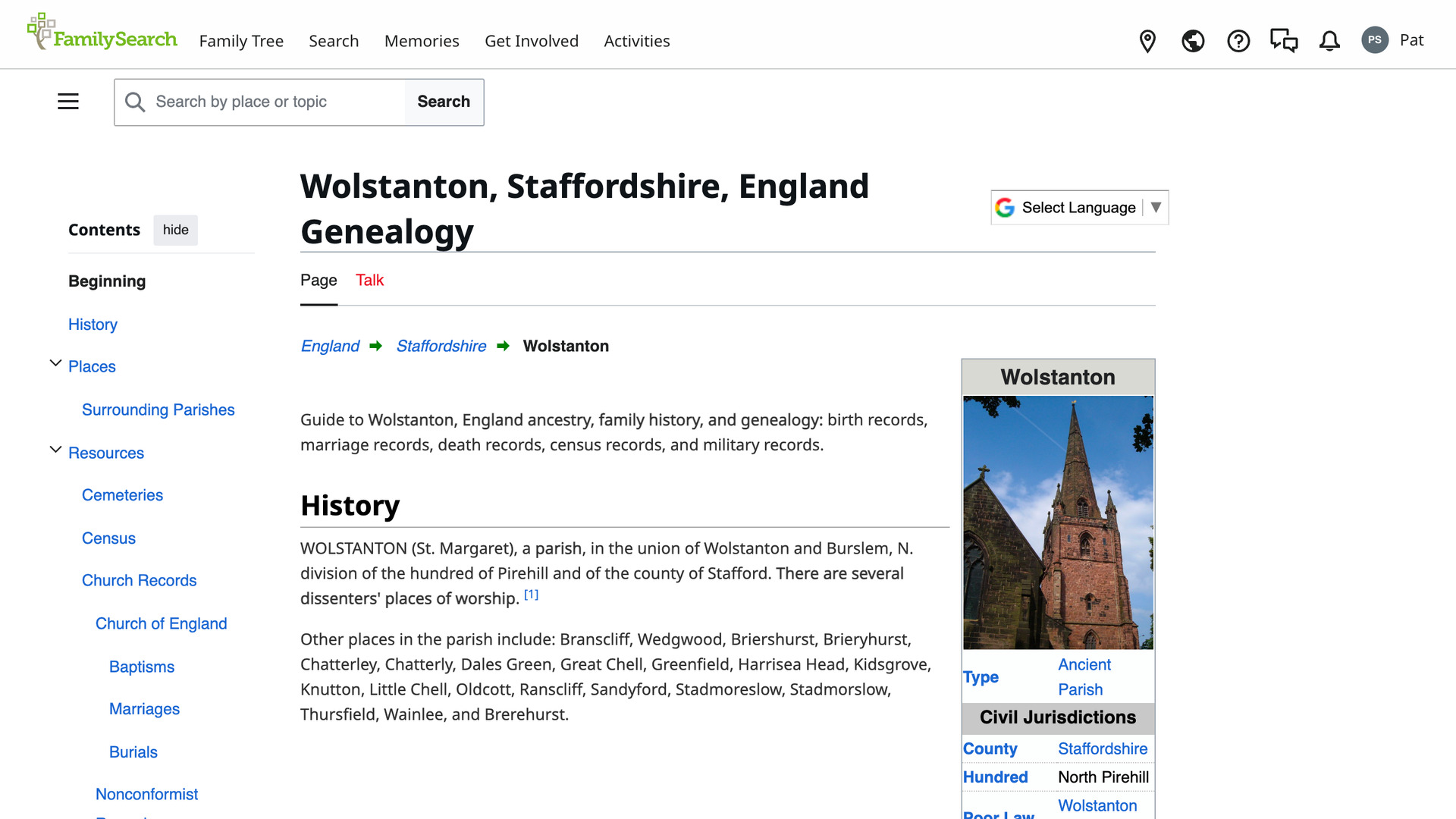
If the Wiki has no page for any part of the place, its search results for the place open instead. The search uses the last three parts of the place, such as the county, province and country. It adds the word Genealogy, which is how the Wiki titles its place pages. A place written with the short form Co, as in Perth Co, is searched as County.
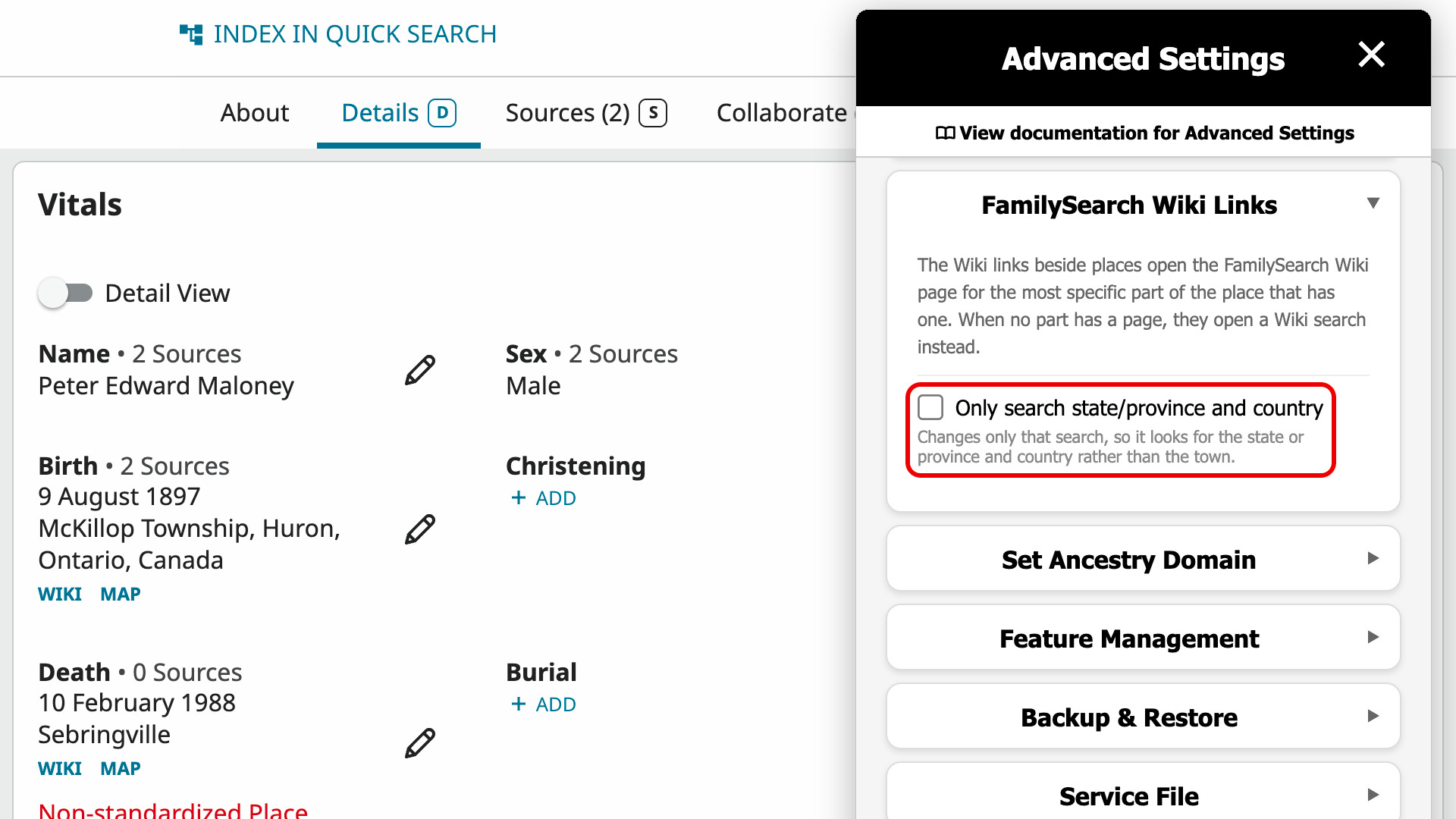
When that search finds nothing that narrow, you can search just the last two parts, such as the province and country. Tick Only search state/province and country for that on the Advanced Settings page. It also changes the FS Wiki buttons that Add Advanced Search to Profiles adds on Ancestry.
Map opens Google Maps searching for the whole place as it is written on the page. You can see where it lies and which places are near it. Clicking the place name itself still opens FamilySearch’s own panel for that fact, as it did before.
How do I use FamilySearch Add Wiki and Map Links to Places?
The FamilySearch tree needs you to be signed in to a free FamilySearch account.
- In the Genealogy Assistant pop-up panel, make sure Add Wiki and Map Links to Places is turned on.
- Open a person’s details page in the FamilySearch tree.
- Click Wiki under a place. The Wiki page for the place opens in a new tab.
- Click Map under a place. Google Maps opens in a new tab.
- To search fewer parts of the place, click the settings icon next to Add Wiki and Map Links to Places in the pop-up panel. Advanced Settings opens at FamilySearch Wiki Links.
- Tick Only search state/province and country. It saves as soon as you click.
- Reload the person’s page to use the new setting.
Related features
- Link Place Names to Google Maps: Turns places on Ancestry profiles, in the Timeline and on tree cards into links to Google Maps.
- FamilySearch: Add Advanced Search to Profiles: Search FamilySearch people and records on the civil registration index for their places, WikiTree, Find a Grave and Newspapers.com, filled in for you.
- Add Advanced Search to Profiles: Search anyone in your Ancestry tree on eight genealogy websites from their profile, with civil registration indexes beside each place and an age added to the death date.
FamilySearch Add Wiki and Map Links to Places is a feature of the software Genealogy Assistant.
Genealogy Assistant is an extension for Google Chrome, Mozilla Firefox, Microsoft Edge and Apple Safari which supercharges your family history research by adding over 100 custom features to popular genealogy websites like Ancestry, MyHeritage, FamilySearch, FamilyTreeDNA and more.
Install Genealogy Assistant for Google Chrome | Install for Mozilla Firefox | Install for Microsoft Edge | Install for Apple Safari