

What problem does FamilySearch Add Keyboard Shortcuts to Family Tree solve?
FamilySearch Add Keyboard Shortcuts to Family Tree lets you open, centre and search people on the FamilySearch tree with one key as you point at them. On a person page, letters press its main buttons and tabs. Without it, each of these is a click or two, repeated for every person you look at.
How does FamilySearch Add Keyboard Shortcuts to Family Tree work?
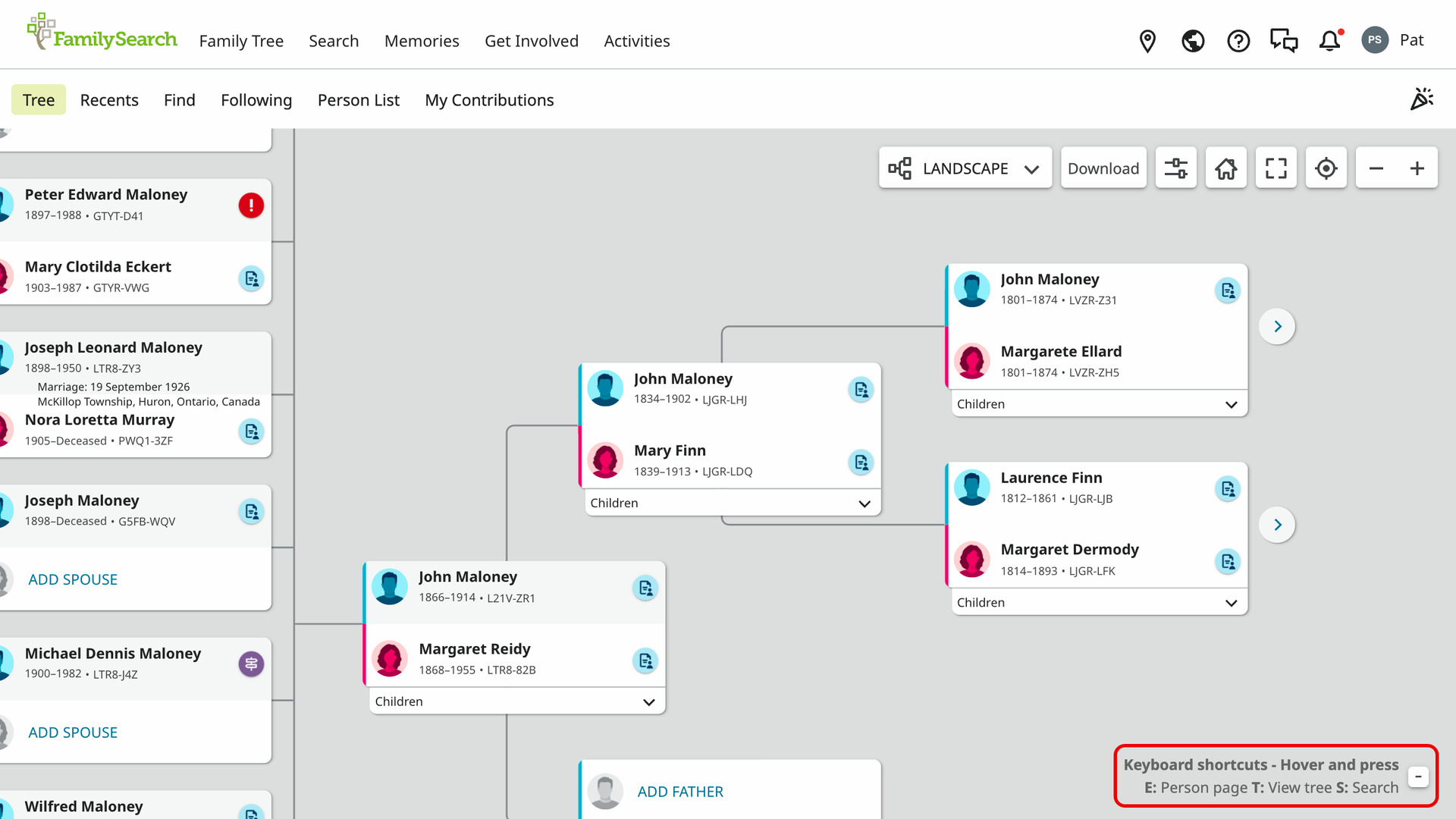
The tree shortcuts work in the landscape, portrait, fan chart and descendancy views. Point at a person and press E to open their person page, or T to centre the tree on them. S searches FamilySearch’s historical records for them in a new tab.
The search is filled in with the person’s name and their birth and death years and places. If you move around the tree with FamilySearch’s own arrow keys, the same letters act on the person you have moved to. The letters are the same as on Ancestry’s tree wherever the action is the same.
A short guide at the bottom right of the tree lists the three keys. Its heading tells you to hover and press, and the line under it reads E: Person page T: View tree S: Search. When you open a drawer such as Options, the guide moves aside with the tree instead of covering it.
To fold the guide away, click the small minus button at the end of its heading. It becomes a Keyboard shortcuts + button, which brings it back. Your choice is remembered on every view and the next time you open the tree. The guide follows FamilySearch’s light and dark tree themes.
On a person page, letters press the page’s own buttons and tabs, as listed under Keyboard Shortcuts. A small letter is added after each of those buttons, so you can learn the keys as you go. The Details and Sources tabs carry theirs on both tab bars, including the one that stays at the top as you scroll.
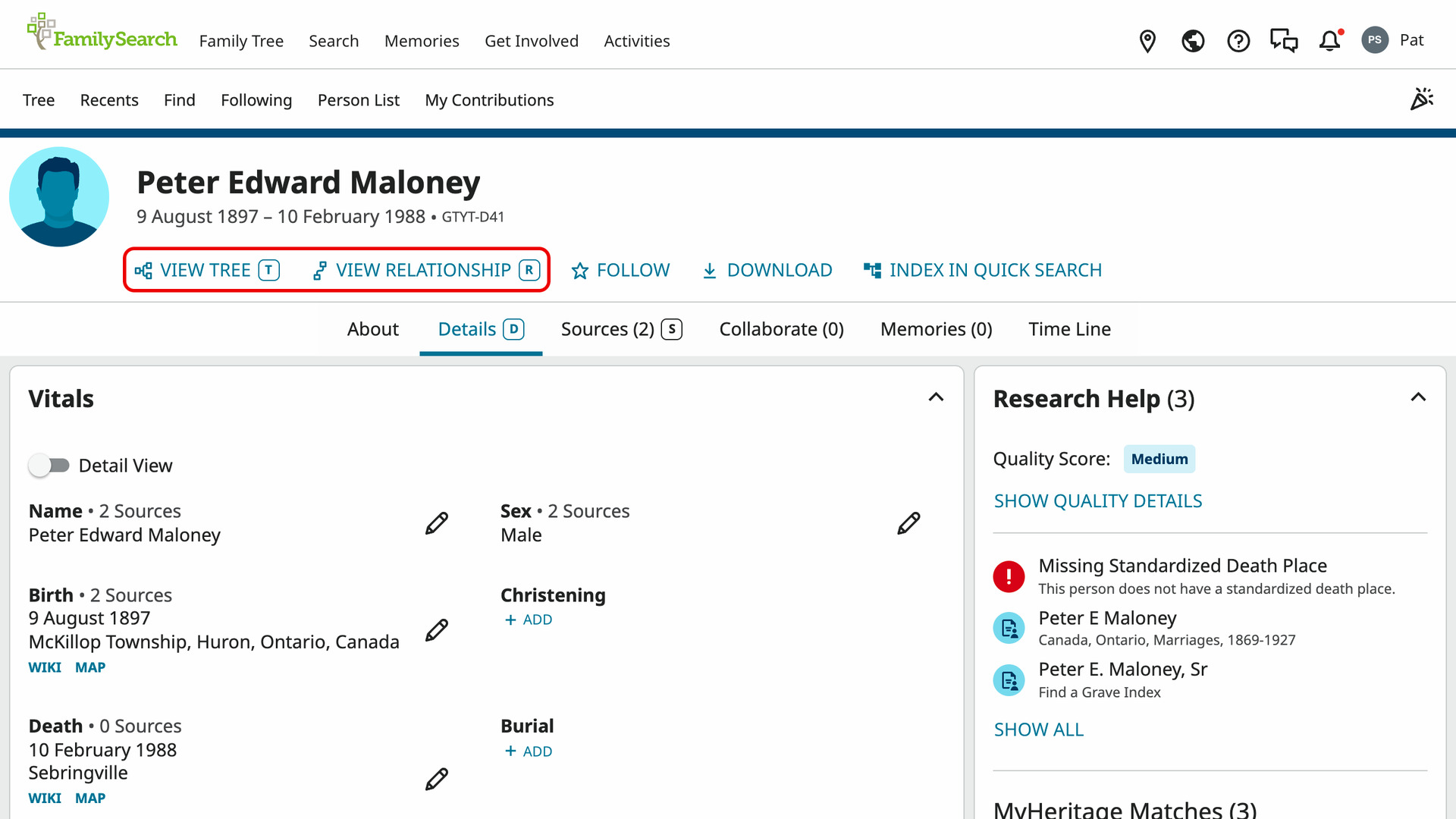
Q and Y press the FamilySearch and Ancestry rows of the Search Records card, which open a new tab as they do when clicked. The Ancestry row first shows FamilySearch’s notice that you are leaving the site. When Add Fact is further down the page, A scrolls to it before opening its menu of fact types.
The letters do nothing while you are typing in a box or while one of FamilySearch’s windows is open, such as Add Note. They also do nothing with Ctrl, Cmd or Alt held, while Shift and Caps Lock still work. FamilySearch’s own tree keys keep working as before. There is nothing to set up.
How do I use FamilySearch Add Keyboard Shortcuts to Family Tree?
The FamilySearch Family Tree needs you to be signed in to a free FamilySearch account.
- In the Genealogy Assistant pop-up panel, make sure Add Keyboard Shortcuts to Family Tree is turned on.
- Open the FamilySearch Family Tree in the landscape, portrait, fan chart or descendancy view. The shortcut guide appears at the bottom right.
- Point at a person and press
E,TorS. - Open a person page. A letter appears after each button and tab that has a shortcut.
- Press a letter to run its action. Every key is listed under Keyboard Shortcuts.
Keyboard Shortcuts
In the tree views, each key acts on the person you point at:
Eopens their person page.Tcentres the tree on them.Ssearches FamilySearch’s historical records for them in a new tab.
On a person page, each key presses one of the page’s own controls:
Topens the person in the tree, as View Tree does.Rshows how you are related to the person, as View Relationship does.Dopens the Details tab.Sopens the Sources tab.Aopens the Add Fact menu of fact types.Nopens the Add Note window.Vshows all the latest changes to the person, as Show All under Latest Changes does.Qsearches FamilySearch’s historical records for the person in a new tab.Ysearches Ancestry for the person in a new tab.
Related features
- FamilySearch: Save Family Tree as CSV or GEDCOM: Save a person’s descendants, ancestors or close family from the FamilySearch Family Tree as a CSV, GEDCOM or ahnentafel file, with full dates and places if you want.
- FamilySearch: Add Keyboard Navigation to Search: Page through FamilySearch record and Family Tree search results with the left and right arrow keys.
- Add Keyboard Shortcuts to Family Tree: Move around any Ancestry tree with single-key shortcuts, and search anyone on eight genealogy sites from their person card, even in other members’ trees.
FamilySearch Add Keyboard Shortcuts to Family Tree is a feature of the software Genealogy Assistant.
Genealogy Assistant is an extension for Google Chrome, Mozilla Firefox, Microsoft Edge and Apple Safari which supercharges your family history research by adding over 100 custom features to popular genealogy websites like Ancestry, MyHeritage, FamilySearch, FamilyTreeDNA and more.
Install Genealogy Assistant for Google Chrome | Install for Mozilla Firefox | Install for Microsoft Edge | Install for Apple Safari