

What problem does MyHeritage Add Keyboard Shortcuts to DNA Matches solve?
MyHeritage Add Keyboard Shortcuts to DNA Matches lets you work through MyHeritage’s Review DNA Match page from the keyboard, with Ancestry’s letters. One key moves to the next match or opens its labels, notes or relationship. Without it, each of these is a mouse click, repeated for every match you review.
How does MyHeritage Add Keyboard Shortcuts to DNA Matches work?
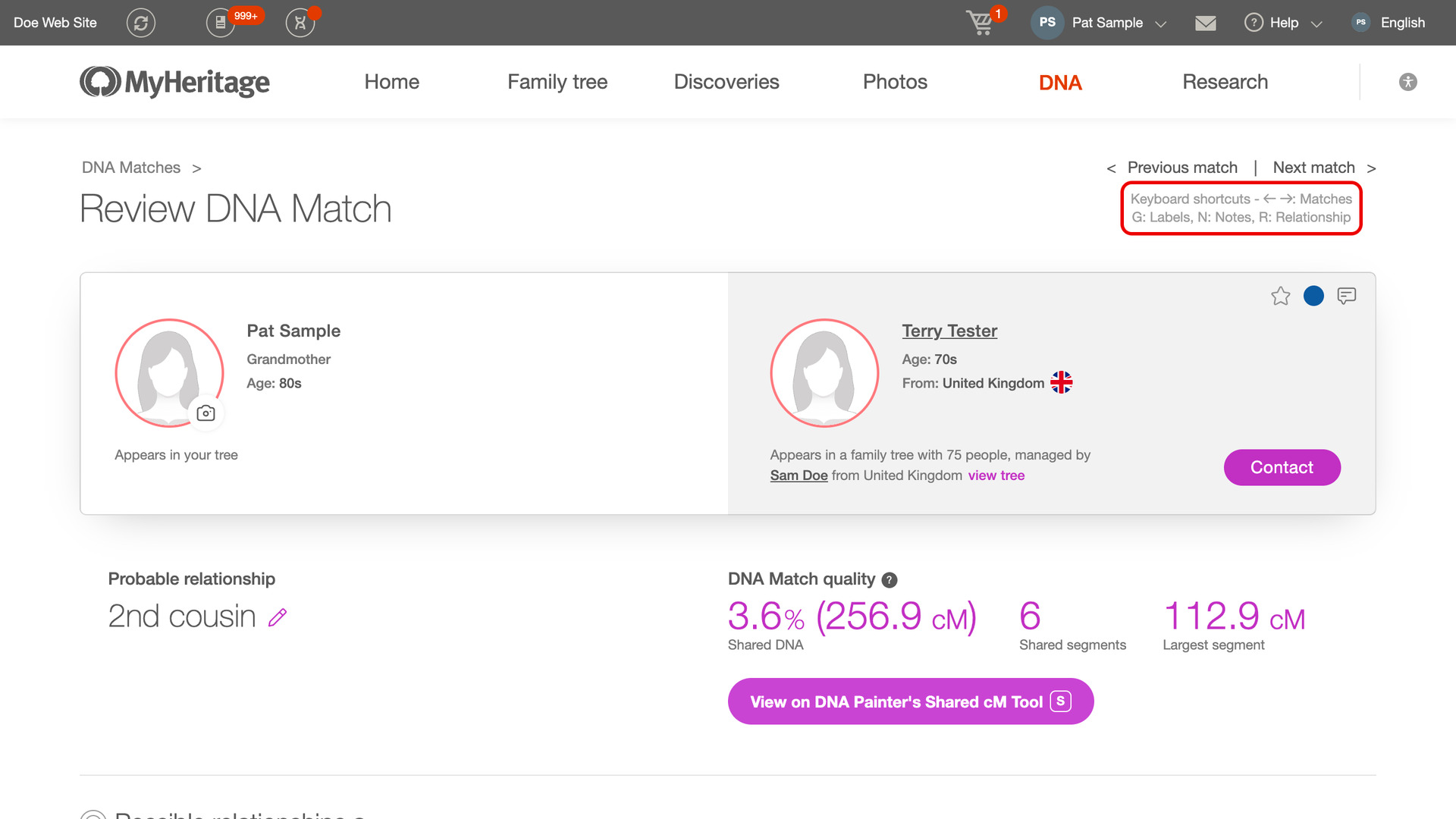
The left and right arrow keys move to the previous and next match. They do the same as the Previous match and Next match links at the top right of the page. Neither key goes past the first or last match in your list. Your matches list has its own set in Add Keyboard Shortcuts to Matches List.
Two small lines starting Keyboard shortcuts, under Previous match and Next match, list the arrow keys and the letters for labels, notes and the relationship. Those controls are small icons on the match’s card. R is listed only when MyHeritage shows its pencil for editing the relationship.
Two more keys show a small letter beside their label. M sits after the Shared DNA Matches heading, and S on the View on DNA Painter’s Shared cM Tool button. That button comes from DNA Painter Shared cM Tool Button, so S works when it is turned on.
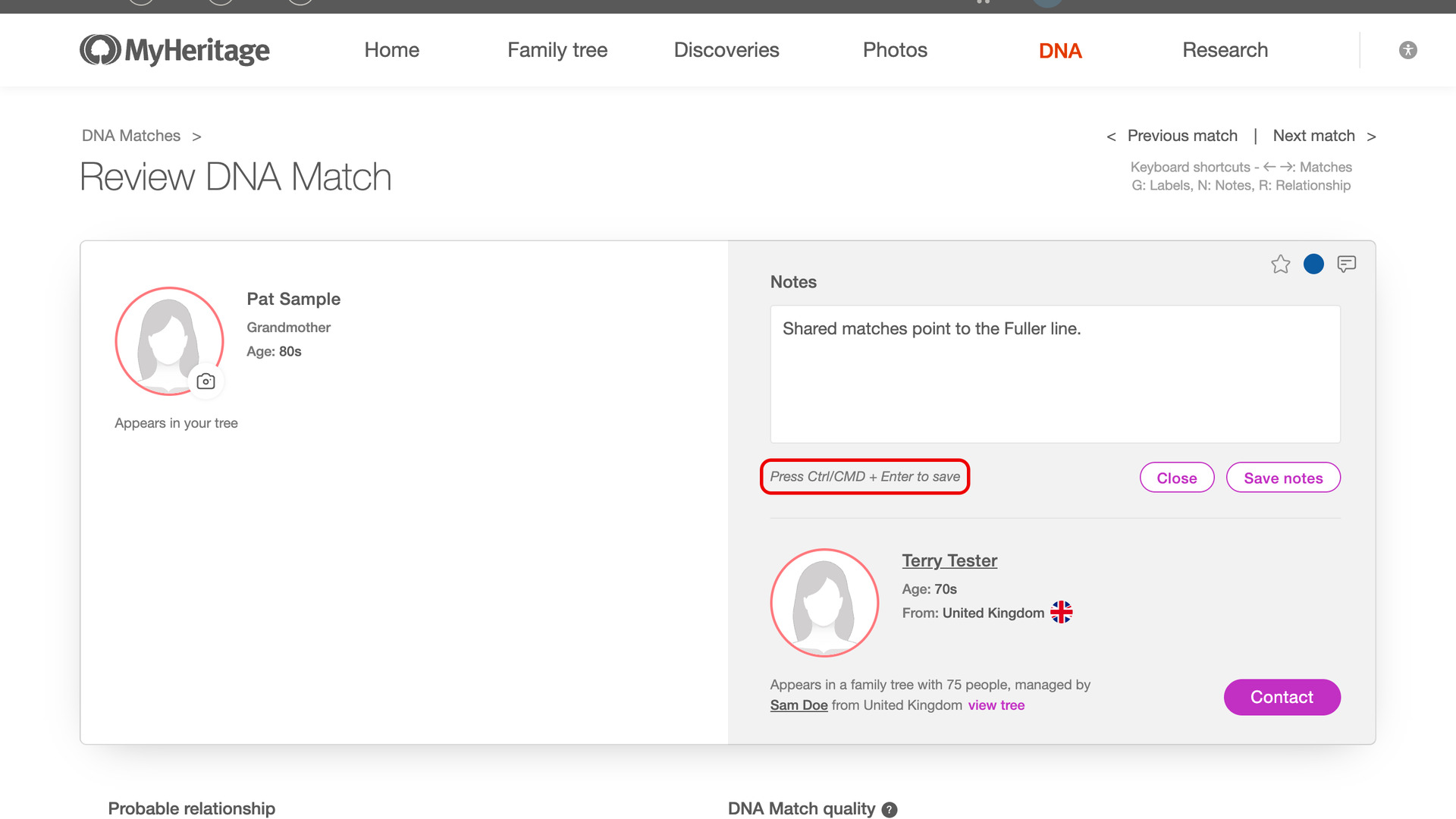
Pressing N opens the match’s notes in the card at the top of the page, scrolling up to it if needed. A line beside the note’s buttons reads Press Ctrl/CMD + Enter to save, so you can save a note without the mouse. Esc closes the note, and MyHeritage asks first if you have typed something.
G opens the Manage labels panel for the match, wherever you are on the page, and Esc closes it again. R opens MyHeritage’s window for editing the estimated relationship. M scrolls down to the shared matches, stopping just under MyHeritage’s header.
The keys do nothing while you are typing in a box, or while a note or a MyHeritage window is open. A half-written note is never lost to a key press. Esc still works while you type. Shortcuts with Ctrl, Cmd or Alt are left to your browser.
How do I use MyHeritage Add Keyboard Shortcuts to DNA Matches?
- In the Genealogy Assistant pop-up panel, make sure Add Keyboard Shortcuts to DNA Matches is turned on.
- Open a match from your MyHeritage DNA matches list. The Review DNA Match page opens, with the Keyboard shortcuts lines under Previous match and Next match.
- Press a key to run its action. Every key is listed under Keyboard Shortcuts.
- To save a note, press
Ctrl+Enter(Cmd+Enteron a Mac). - Press the
Rightarrow key. The next match opens.
Keyboard Shortcuts
Rightmoves to the next match.Leftmoves to the previous match.Gopens the Manage labels panel to add labels to the match.Nopens the match’s notes.Ctrl+Enter(Cmd+Enteron a Mac) saves the open note.Ropens the window for editing the estimated relationship.Mscrolls down to the Shared DNA Matches.Sopens DNA Painter’s Shared cM Tool for the match, when DNA Painter Shared cM Tool Button is turned on.Esccloses the open note or the Manage labels panel.
Related features
- MyHeritage: Add Keyboard Shortcuts to Matches List: Hover over any match on your MyHeritage DNA matches list and press N or G to open its notes or its labels.
- MyHeritage DNA Painter Shared cM Tool Button: Opens DNA Painter’s Shared cM Tool from any MyHeritage match page with the shared cM already filled in, ready to compare likely relationships.
- MyHeritage Highlight Mutual Matches 50cM+: Highlights mutual matches who share 50 cM or more with each other in bold red, using a threshold you can change.
MyHeritage Add Keyboard Shortcuts to DNA Matches is a feature of the software Genealogy Assistant.
Genealogy Assistant is an extension for Google Chrome, Mozilla Firefox, Microsoft Edge and Apple Safari which supercharges your family history research by adding over 100 custom features to popular genealogy websites like Ancestry, MyHeritage, FamilySearch, FamilyTreeDNA and more.
Install Genealogy Assistant for Google Chrome | Install for Mozilla Firefox | Install for Microsoft Edge | Install for Apple Safari