

What problem does FamilySearch Download Record as CSV File solve?
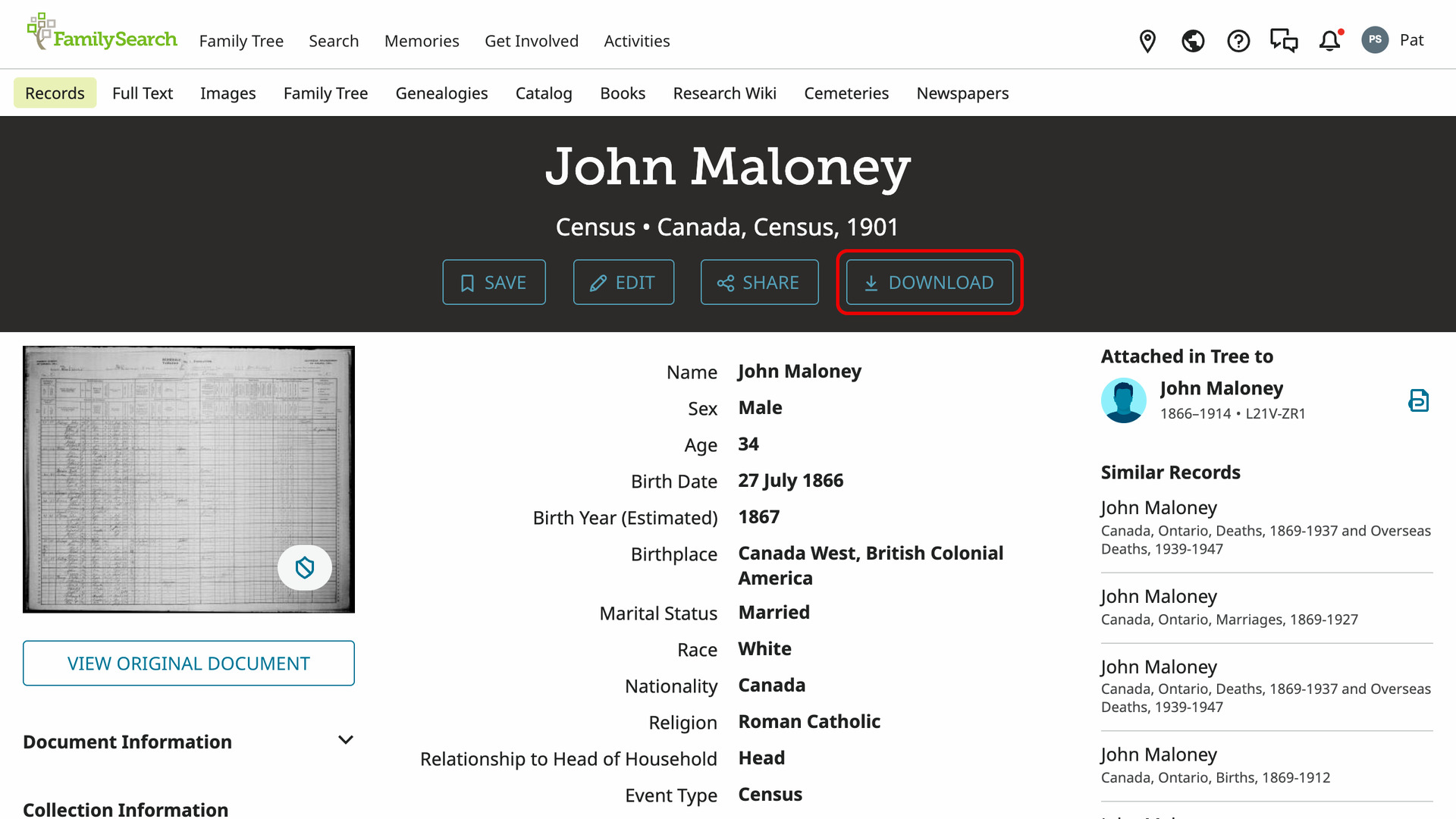
FamilySearch Download Record as CSV File adds a Download button to FamilySearch record pages that saves everyone on the record to a CSV file. A Copy Record button copies the same table to paste into a spreadsheet or document. Without them, each person’s details have to be copied one field at a time.
How does FamilySearch Download Record as CSV File work?
The Download button sits after Share in the row of buttons under the record’s title. It saves everyone the record names in one file for Excel, Numbers or Google Sheets. That can be a whole census household, or a couple and their parents on a marriage record.
Each person has a row, in the order the record lists them. The columns are the fields the record page shows, with its own labels, so they change from one collection to the next. A column that nobody on the record has a value for is left out.
Besides the record’s own fields, every file has these columns:
- Relationship: Self for the person whose record you opened, and everyone else’s relationship to them, up to three steps away, such as Son’s wife’s father.
- Given Name and Surname, after the full name.
- Tree Person ID and Tree Person URL: the Family Tree person the record is attached to for that person, blank if no one yet.
- Collection, Record URL and Image URL.
- Citation: a citation for each person.
The file is named after the record’s person and its collection, such as John Smith – Canada, Census, 1901.csv. While it is made, the button reads Downloading…, then Downloaded for a moment once the file is in your downloads folder.
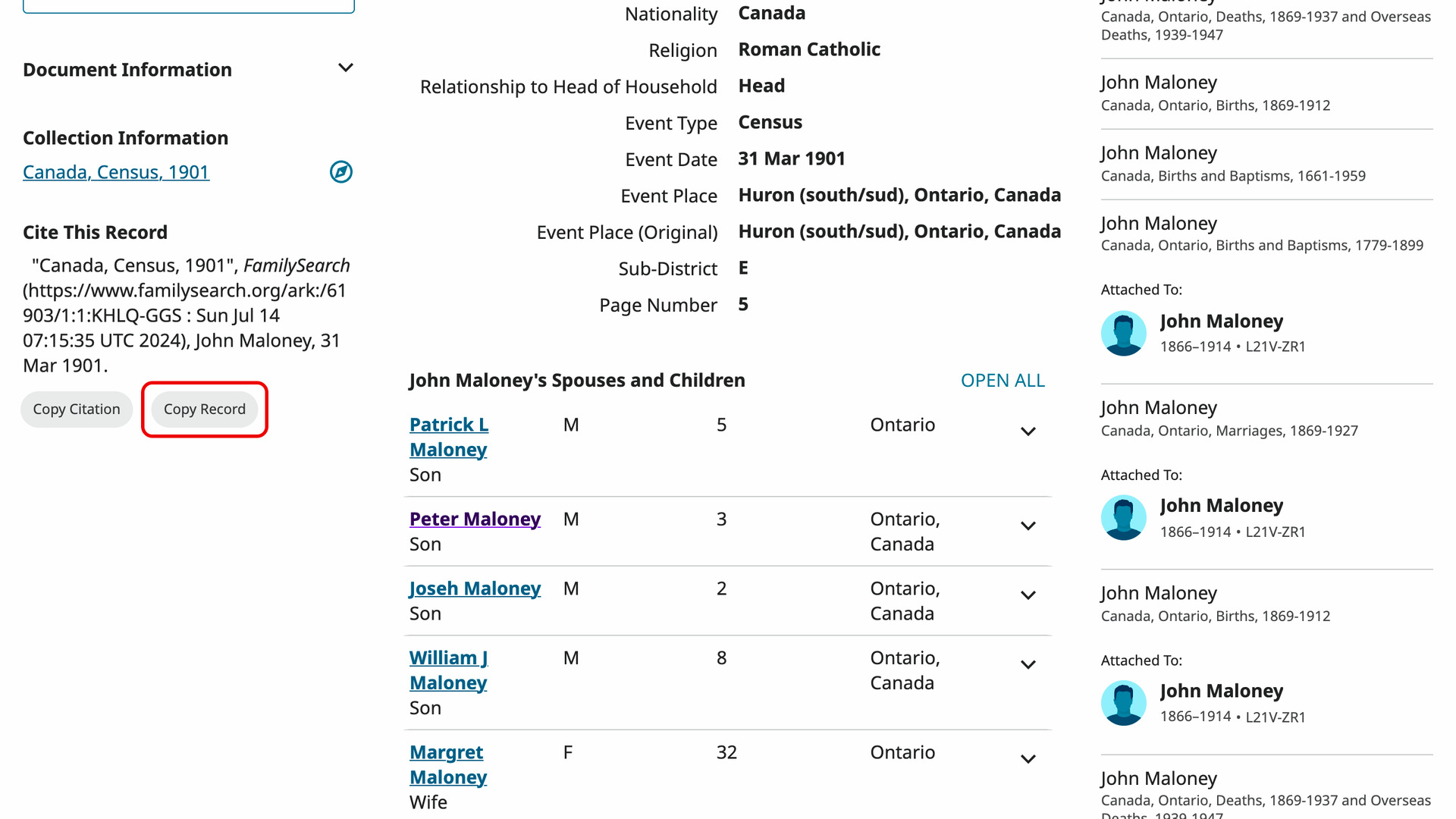
Copy Record sits beside Copy Citation and copies the same table. Paste it into a spreadsheet and each value lands in its own cell. Paste it into Word or Google Docs and it arrives as a table. The button reads Copying…, then Copied when it is ready to paste.
How do I use FamilySearch Download Record as CSV File?
- In the Genealogy Assistant pop-up panel, make sure Download Record as CSV File is turned on.
- Open a record page on FamilySearch, for example from your search results.
- Click Download after Share under the record’s title. The CSV file is saved to your downloads folder.
- To paste the record instead, click Copy Record beside Copy Citation. The button reads Copied.
- Paste the table into your spreadsheet or document.
NOTICE: CSV DOWNLOAD TOOLS ARE FOR PERSONAL RESEARCH ONLY.
Related features
- FamilySearch: Add Advanced Search to Profiles: Search FamilySearch people and records on the civil registration index for their places, WikiTree, Find a Grave and Newspapers.com, filled in for you.
- FamilySearch: Save Family Tree as CSV or GEDCOM: Save a person’s descendants, ancestors or close family from the FamilySearch Family Tree as a CSV, GEDCOM or ahnentafel file, with full dates and places if you want.
- FamilySearch Advanced Paging for Image Viewer: Skip 1, 2, 10, 25 or 50 images at a time in the FamilySearch viewer.
FamilySearch Download Record as CSV File is a feature of the software Genealogy Assistant.
Genealogy Assistant is an extension for Google Chrome, Mozilla Firefox, Microsoft Edge and Apple Safari which supercharges your family history research by adding over 100 custom features to popular genealogy websites like Ancestry, MyHeritage, FamilySearch, FamilyTreeDNA and more.
Install Genealogy Assistant for Google Chrome | Install for Mozilla Firefox | Install for Microsoft Edge | Install for Apple Safari