

What problem does FamilySearch Download Following List as CSV File solve?
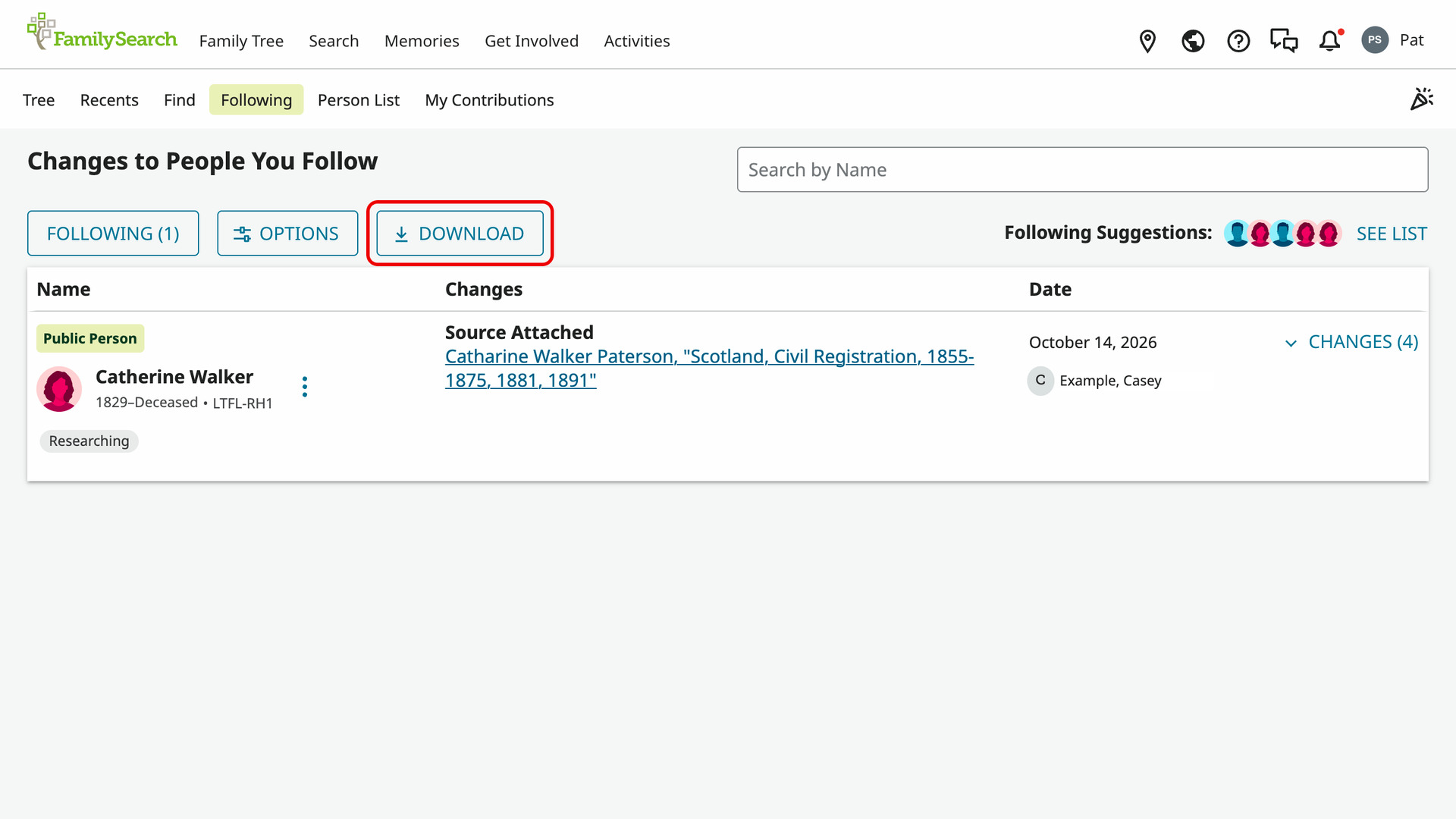
FamilySearch Download Following List as CSV File adds a Download button to your FamilySearch Following page. It saves the people you follow, or the changes made to them, to a CSV file for Excel, Numbers or Google Sheets. FamilySearch has no way to save the list itself.
How does FamilySearch Download Following List as CSV File work?
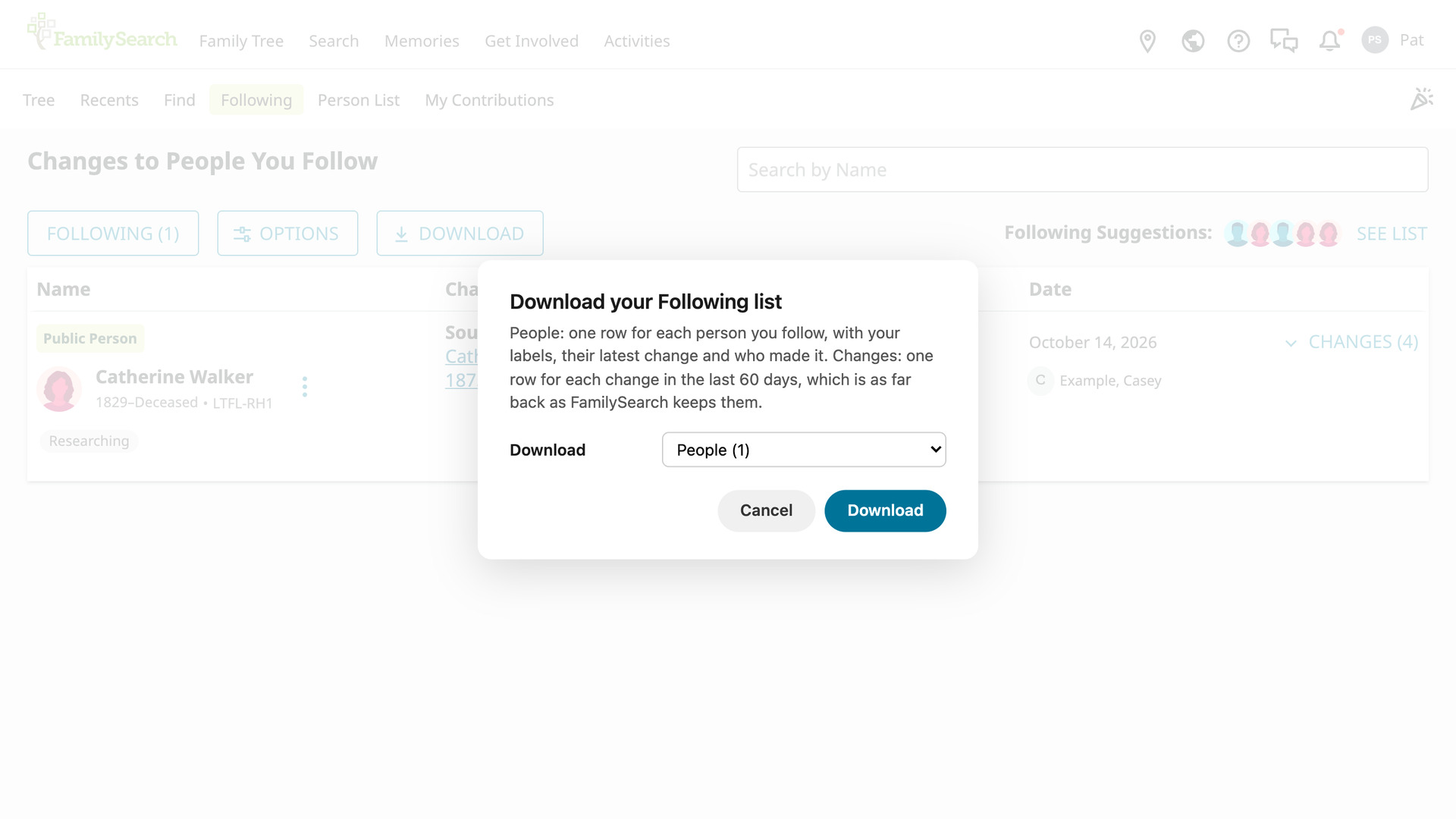
The Download button sits after Options at the top of the Following page, in the same style as the page’s own buttons. Clicking it opens the Download your Following list window. Its Download menu offers two lists:
- People, with the number you follow: one row for each person, with your labels, their latest change and who made it.
- Changes, last 60 days: one row for each change made to the people you follow, as far back as FamilySearch keeps them.
Click Download in the window and the button reads Reading…. It then counts the rows as they come in, such as 300 of 1,250 or 75 changes. A list of a few thousand people takes about a minute, and you can use other tabs meanwhile.
To stop partway through a long list, click the button again, and what has been read so far is saved. When the file is in your downloads folder, the button shows Saved and the number of rows for a moment. It then reads Download again.
The file is named with the date, such as FamilySearch Following 2026-10-28.csv or FamilySearch Following Changes 2026-10-28.csv. Older files keep their own names, so you can compare them with a new download to see who was added or changed.
How do I use FamilySearch Download Following List as CSV File?
- In the Genealogy Assistant pop-up panel, make sure Download Following List as CSV File is turned on.
- Open your Following page in the FamilySearch Family Tree.
- Click Download after Options. The Download your Following list window opens.
- In the Download menu, choose People or Changes, last 60 days.
- Click Download. The button counts the rows as they are read.
- When the button shows Saved, the CSV file is in your downloads folder.
CSV Columns
The people file has one row per person, latest change first, as on the Following page. Its columns are Name, Lifespan, Sex, Person ID, Labels, Label Notes, Latest Change, Detail, Changed On, Changed By, Changes in Last 60 Days, Deleted, Link.
Labels lists your labels for the person, such as Researching or Stuck, and Label Notes the notes you wrote on them. Latest Change is named as the Following page names it, such as Source Attached, and Changed On and Changed By say when and by whom.
Detail says what a change was about, where FamilySearch records it. That is the title of a source or memory, or the other person in a relationship change. Sorting by Changes in Last 60 Days shows which of your people are being edited most.
Deleted reads Yes for a person since removed from the Family Tree, and Link opens each person’s FamilySearch page. The changes file has one row per change, newest first: Changed On, Name, Lifespan, Person ID, Change, Detail, Changed By, Link.
NOTICE: CSV DOWNLOAD TOOLS ARE FOR PERSONAL RESEARCH ONLY.
Related features
- FamilySearch: Save Family Tree as CSV or GEDCOM: Save a person’s descendants, ancestors or close family from the FamilySearch Family Tree as a CSV, GEDCOM or ahnentafel file, with full dates and places if you want.
- FamilySearch: Download Record as CSV File: Download everyone on a FamilySearch record, such as a census household, to a CSV file, or copy them as a table to paste into a spreadsheet or document.
- FamilySearch: Index Family Tree in Quick Search: Add your FamilySearch ancestors to Quick Search to open any of them by name, and have the Surname Comparison Tool and Common ancestors count them as your tree.
FamilySearch Download Following List as CSV File is a feature of the software Genealogy Assistant.
Genealogy Assistant is an extension for Google Chrome, Mozilla Firefox, Microsoft Edge and Apple Safari which supercharges your family history research by adding over 100 custom features to popular genealogy websites like Ancestry, MyHeritage, FamilySearch, FamilyTreeDNA and more.
Install Genealogy Assistant for Google Chrome | Install for Mozilla Firefox | Install for Microsoft Edge | Install for Apple Safari