

This guide combines several Genealogy Assistant CSV downloads into one spreadsheet, such as the match lists of several DNA kits you manage, or the shared matches of several matches you are comparing. Pick the section for the program you already use. The last three are for people comfortable typing a command.
Every method here runs on your own computer or in your own Google account, and nothing is sent anywhere else. Match lists name living people, so avoid websites that offer to merge files you upload to them.
How do I get the files ready?
Every Genealogy Assistant CSV of the same kind has the same columns in the same order, so the rows line up when you stack them. The exception is the Ancestry additional DNA details setting under Download Options in Advanced Settings, which adds three columns to Ancestry match lists.
- Download each CSV with the same settings, and only files of one kind (all match lists, or all shared match lists).
- Make a new, empty folder.
- Move the CSV files into it. Leave nothing else in the folder.
How do I combine them in Excel on Windows?
- Open a blank workbook in Excel.
- On the Data tab, click Get Data, then choose From File and From Folder.
- Choose the folder with your CSV files and click Open. A window lists the files in it.
- Click Combine, then choose Combine & Load. The Combine Files window shows a preview of the first file.
- Click OK. The rows of every file load into one table on a new sheet. Its first column, Source.Name, shows the file each row came from.
- Click File, then Save As, and choose a place outside the folder with your CSV files.
- In the file type menu, choose CSV UTF-8 (Comma delimited), then click Save. The combined file is saved, with accented names kept as they are.
Excel remembers the folder, which helps when you download again later. If you also save the workbook as an Excel Workbook, you can add new downloads to the folder, open the workbook and click Refresh All on the Data tab to bring them in.
How do I combine them in Excel on a Mac?
- Open the first CSV file in Excel.
- Open the next CSV file.
- In the file you just opened, click the row number 2, then press
Shift+Command+Down Arrow. Every row under the column names is selected. - Press
Command+Cto copy the rows. - In the first file, click the first empty cell in column A, under the last row, and press
Command+V. The rows are added to the end. - Repeat steps 2 to 5 for each of the other files.
- In the first file, click File, then Save As, and choose a place outside the folder with your CSV files.
- In the File Format menu, choose CSV UTF-8 (Comma delimited), then click Save. The combined file is saved.
How do I combine them in Google Sheets?
- Open a blank spreadsheet in Google Sheets.
- Click File, then Import.
- Click Upload and choose the first CSV file.
- In Import location, choose Insert new sheet(s), then click Import data. The file opens in a new tab.
- Repeat steps 2 to 4 for each of the other files.
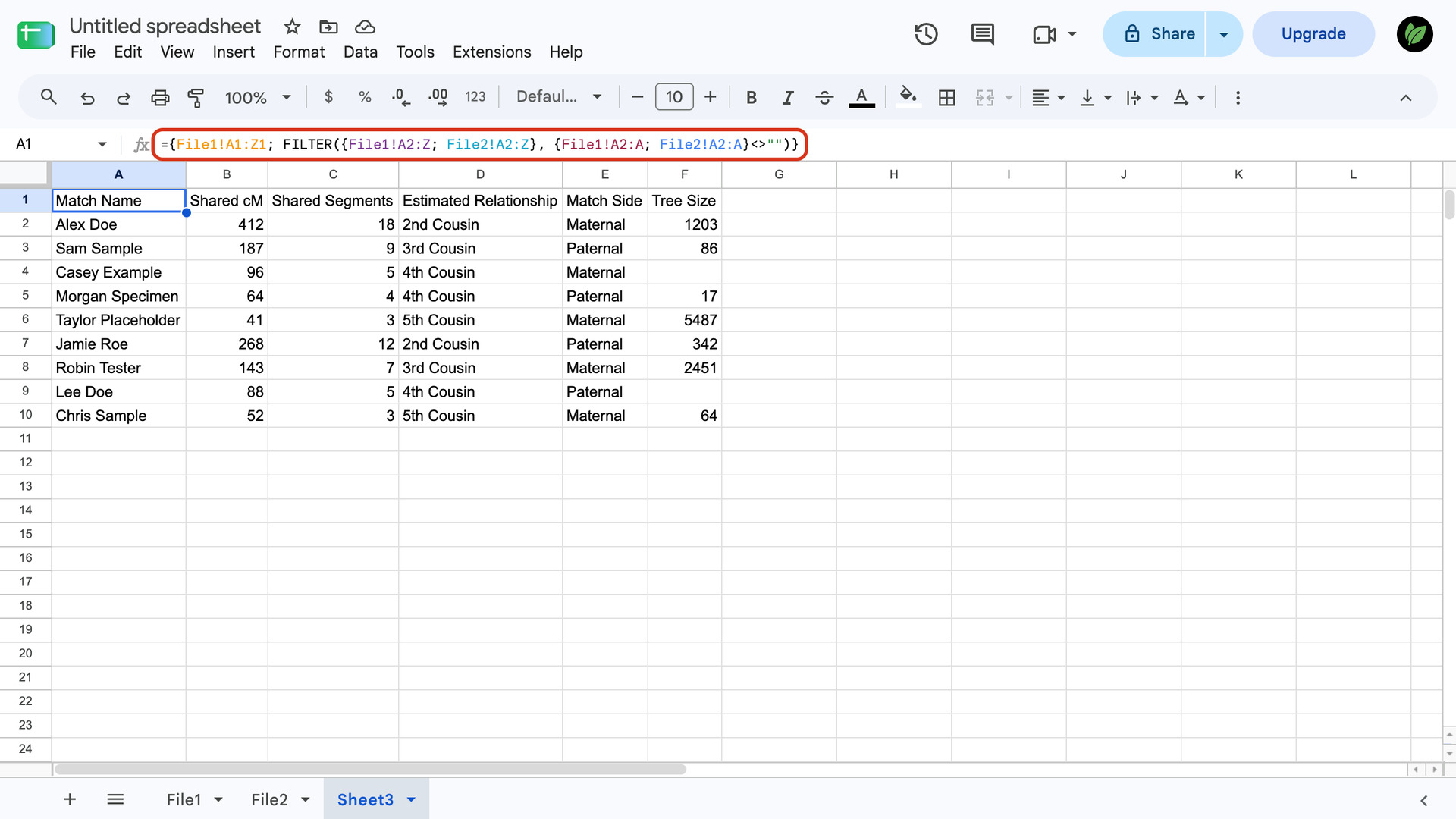
- Double-click each imported tab at the bottom and rename it File1, File2, File3 and so on, which keeps the formula short.
- Click the plus sign at the bottom left. A blank sheet opens.
- Click cell A1 of the blank sheet, type this formula and press
Enter:
={File1!A1:Z1; FILTER({File1!A2:Z; File2!A2:Z; File3!A2:Z}, {File1!A2:A; File2!A2:A; File3!A2:A}<>"")}The formula takes the column names from the first file and stacks the rows of every file under them, leaving out empty rows so there are no gaps between files. Add or remove a File name in both lists to match your files, and change Z if your files have more than 26 columns.
- With the combined sheet open, click File, then Download, then Comma Separated Values (.csv). The combined sheet is saved to your downloads folder.
How do I combine them in Numbers?
- In Finder, right-click the first CSV file and choose Open With, then Numbers.
- Open the next CSV file the same way.
- In the file you just opened, click the row number 2, scroll to the last row and
Shift-click its row number. Every row under the column names is selected. - Press
Command+Cto copy the rows. - In the first file, click the first cell of the empty row under the last row, and press
Command+V. The rows are added to the end of the table. - Repeat steps 2 to 5 for each of the other files.
- In the first file, click File, then Export To, then CSV.
- Click Next, choose a place outside the folder with your CSV files, and click Export. The combined file is saved.
LibreOffice Calc works the same way on Windows, Mac and Linux. Open each file in it, copy its rows under the rows of the first file, then click File, then Save As, and choose Text CSV (.csv) as the file type.
How do I combine them in Terminal on a Mac?
- Open Terminal, which is in the Utilities folder inside Applications.
- Type
cdand a space, drag the folder with your CSV files from Finder into the Terminal window, and pressReturn. Terminal now works in that folder. - Type or paste this command and press
Return:
awk 'FNR==1 && NR!=1 {next} {print}' *.csv > ~/Desktop/combined.csvThe combined file, combined.csv, is saved on your desktop. It keeps the column names from the first file and skips them in every other file, so they appear once at the top. Because it is saved outside the folder, running the command again never mixes the combined file in with your downloads. The same command works in a terminal on Linux.
How do I combine them in PowerShell on Windows?
- In File Explorer, open the folder with your CSV files.
- Click the address bar, type
powershelland pressEnter. PowerShell opens, already working in that folder. - Paste this command and press
Enter:
Get-ChildItem -Filter *.csv | Where-Object Name -ne 'combined.csv' | Import-Csv -Encoding UTF8 | Export-Csv combined.csv -NoTypeInformation -Encoding UTF8The combined file, combined.csv, is saved in the same folder, with the column names once at the top and accented names kept as they are. The command leaves out any combined.csv already in the folder, so you can add more downloads and run it again.
How do I combine them with Python?
- If Python is not on your computer, install it from python.org.
- Open Terminal on a Mac, or Command Prompt on Windows.
- Type
pip install pandasand pressEnterto install the pandas library. On a Mac, typepip3instead ofpip. - Save this script as merge_csv.py in the folder with your CSV files:
import glob
import pandas as pd

files = [f for f in sorted(glob.glob("*.csv")) if f != "combined.csv"]
frames = []
for name in files:
    frame = pd.read_csv(name, dtype=str, keep_default_na=False, encoding="utf-8-sig")
    frame["Source File"] = name
    frames.append(frame)
pd.concat(frames, ignore_index=True).to_csv("combined.csv", index=False, encoding="utf-8-sig")
print(f"Merged {len(files)} files into combined.csv")- Type
cdand a space, drag the folder into the window, and pressEnter. - Type
python merge_csv.pyand pressEnter. On a Mac, typepython3instead ofpython. The script reports how many files it merged.
The combined file, combined.csv, is saved in the same folder. The script reads every value as text, so IDs, dates and amounts are written back exactly as downloaded. It adds a Source File column naming the file each row came from, and skips any combined.csv already there.