

What problem does Review All Hints Back to Back solve?
Review All Hints Back to Back adds a Review all button to a person’s Hints page and to All hints on Ancestry, which opens one hint after another so you can decide each one with a click or a single key. Without it, every hint means finding its card, clicking Review and starting again.
How does Review All Hints Back to Back work?
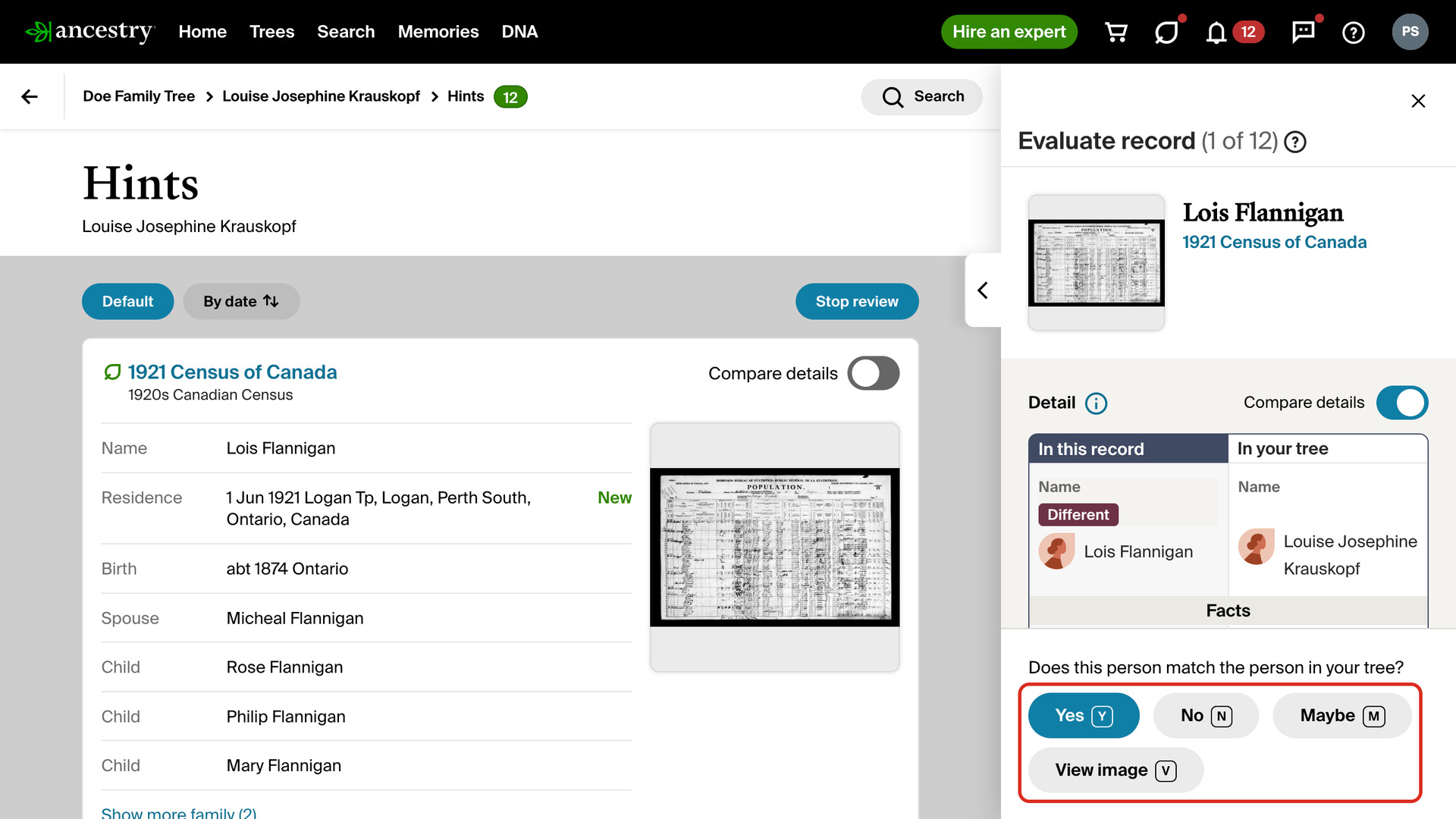
On a person’s Hints page, Review all opens the first hint in Ancestry’s own review panel with Compare details turned on, so the record and your tree sit side by side. The panel’s title shows where you are, such as Evaluate record (1 of 12).
Yes, No and Maybe stay in the same place for every hint, and each has a key: Y, N and M. Maybe puts a hint aside in Ancestry’s Undecided list for later, and No sends it to Ignored. On a photo hint, Y saves the photo to your tree and N ignores it.
View image, or V, opens the record’s image in Ancestry’s own viewer on top of the page, with the person’s line already marked, so you can check the original without leaving the hint. A Newspapers.com hint opens its page on Newspapers.com in a new tab instead.
When you answer Yes, Ancestry’s Add new information to your tree step follows. Press A to select all people, and S or Ctrl/Cmd+Enter to save; Ctrl/Cmd+Enter also works while you type in a field. These keys work every time you save a record or a hint, not only in a review.
After each answer the next hint opens by itself, and the confirmation Ancestry shows after a save closes for you. Click Stop review or press Esc to stop; a review on All hints also ends when you go anywhere else on Ancestry. Nothing is saved to your tree without your own click or key.
Two buttons above a person’s hints sort them. Default keeps Ancestry’s order, and By date puts them in order of the record’s year, oldest first; click it again for the newest first. Hints with no date go last. Your choice is remembered, and Review all follows it.
On All hints, Review all sits beside Sort by and Filter by name. It opens each hint on the page on its record page, with the same keys and Compare details on. Saving or cancelling brings you back to All hints, where the next hint opens at once, then the next page.
How do I use Review All Hints Back to Back?
On a person’s page, Review all needs Ancestry’s newer Hints page; a profile that still has the older Hints tab can use All hints.
- In the Genealogy Assistant pop-up panel, make sure Review All Hints Back to Back is turned on.
- Open a person’s Hints page on Ancestry, or All hints for your tree.
- Click Review all. The first hint opens.
- To check the original first, press V or click View image.
- Answer with Yes, No or Maybe, or press Y, N or M. After No or Maybe the next hint opens.
- After Yes, choose what to add, then click Save to tree or press S. The next hint opens.
- To stop, click Stop review or press Esc.
- To sort a person’s hints by date, click By date; click it again for the newest first, or Default for Ancestry’s order.
Keyboard Shortcuts
Yanswers Yes, and on a photo hint saves the photo to your tree.Nanswers No, and on a photo hint ignores the photo.Manswers Maybe.Vshows the record’s image.Aselects all people when you add a record to your tree.SorCtrl/Cmd+Entersaves to your tree.Escstops the review.
Related features
- Add Select All People Link to Hints: A Select all people button in the hint sidebar ticks every person on a hint at once when you review it from a profile’s Hints tab.
- Add Select All People Link to Records: Puts the same Select all people button on the Add new information to your tree page, for records, hints and people saved from another member’s tree.
- Save to Tree Name Auto-fill: Saving a person to your tree fills in the Person in Tree box with their name for you, which saves a lot of typing when building out a DNA match’s tree.
Review All Hints Back to Back is a feature of the software Genealogy Assistant.
Genealogy Assistant is an extension for Google Chrome, Mozilla Firefox, Microsoft Edge and Apple Safari which supercharges your family history research by adding over 100 custom features to popular genealogy websites like Ancestry, MyHeritage, FamilySearch, FamilyTreeDNA and more.
Install Genealogy Assistant for Google Chrome | Install for Mozilla Firefox | Install for Microsoft Edge | Install for Apple Safari