

What problem does FamilyTreeDNA Download Matches as CSV solve?
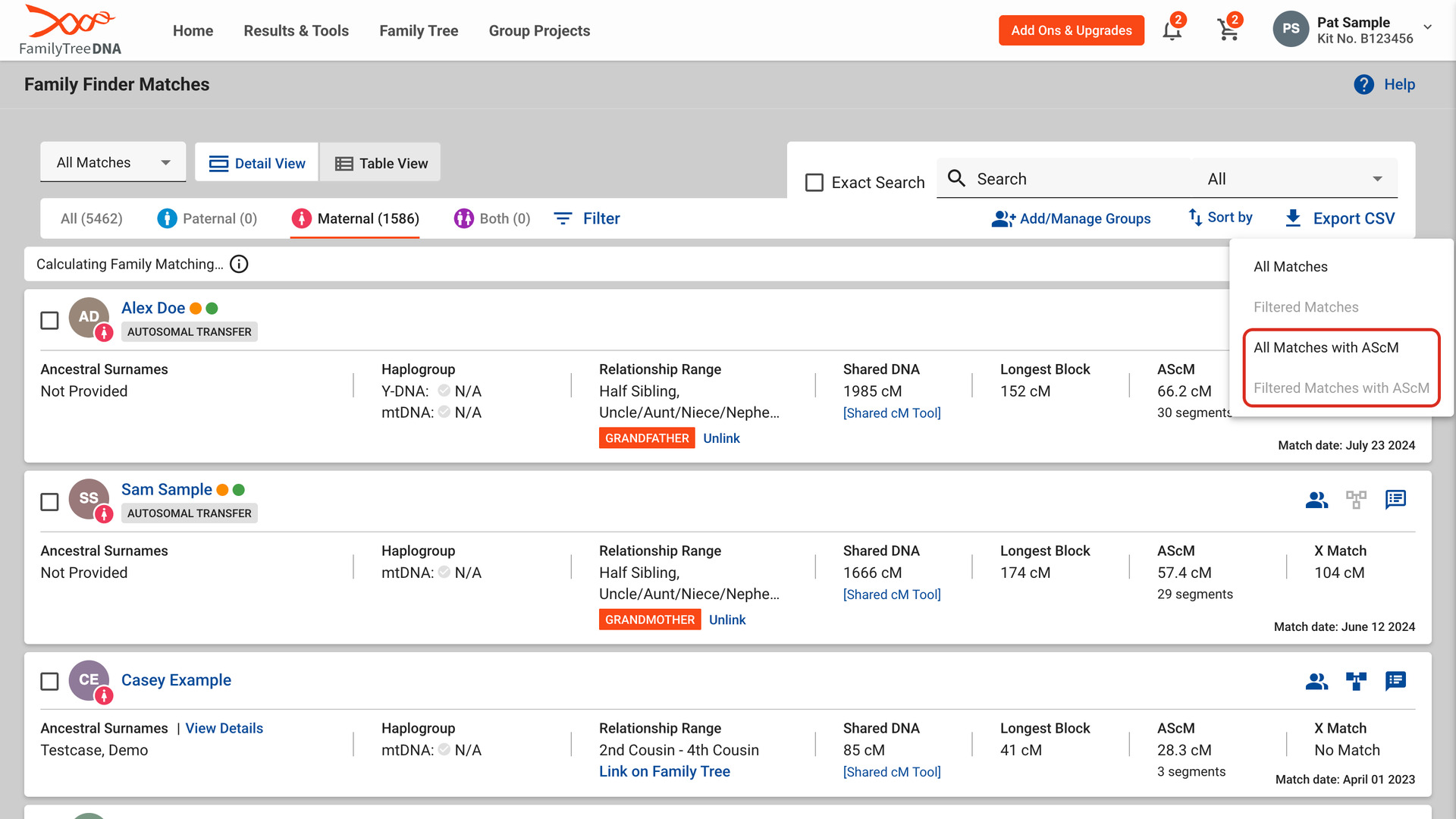
FamilyTreeDNA Download Matches as CSV adds two items to the Export CSV menu on your Family Finder matches list. They save FamilyTreeDNA’s own file with two more columns: each match’s segment count and average segment size (AScM). Neither of FamilyTreeDNA’s downloads gives a segment count for each match.
How does FamilyTreeDNA Download Matches as CSV work?
Click Export CSV at the top of the list. Under FamilyTreeDNA’s own two items, the menu shows All Matches with AScM and Filtered Matches with AScM. They work like the items above them. All Matches saves every match you have, and Filtered Matches keeps the filters you have set, so it is greyed out until you set one.
FamilyTreeDNA’s Export CSV file has no segment count. Download All Segments on the Chromosome Browser gives one row for each segment, not one for each match. The counts are fetched from FamilyTreeDNA and added to the same file, one row per match, ready for Excel, Numbers or Google Sheets.
The file has these columns: Full Name, First Name, Middle Name, Last Name, Match Date, Relationship Range, Shared DNA, Longest Block, Shared Segments, Avg Segment cM, Linked Relationship, Ancestral Surnames, Y-DNA Haplogroup, mtDNA Haplogroup, Notes, Matching Bucket, X-Match and Autosomal Transfer.
The two new columns sit right after Longest Block, beside the figures they come from. Avg Segment cM is the AScM: the shared DNA divided by the number of segments, to one decimal place. Every other column is exactly as FamilyTreeDNA writes it, including its two decimal places of cM and your notes.
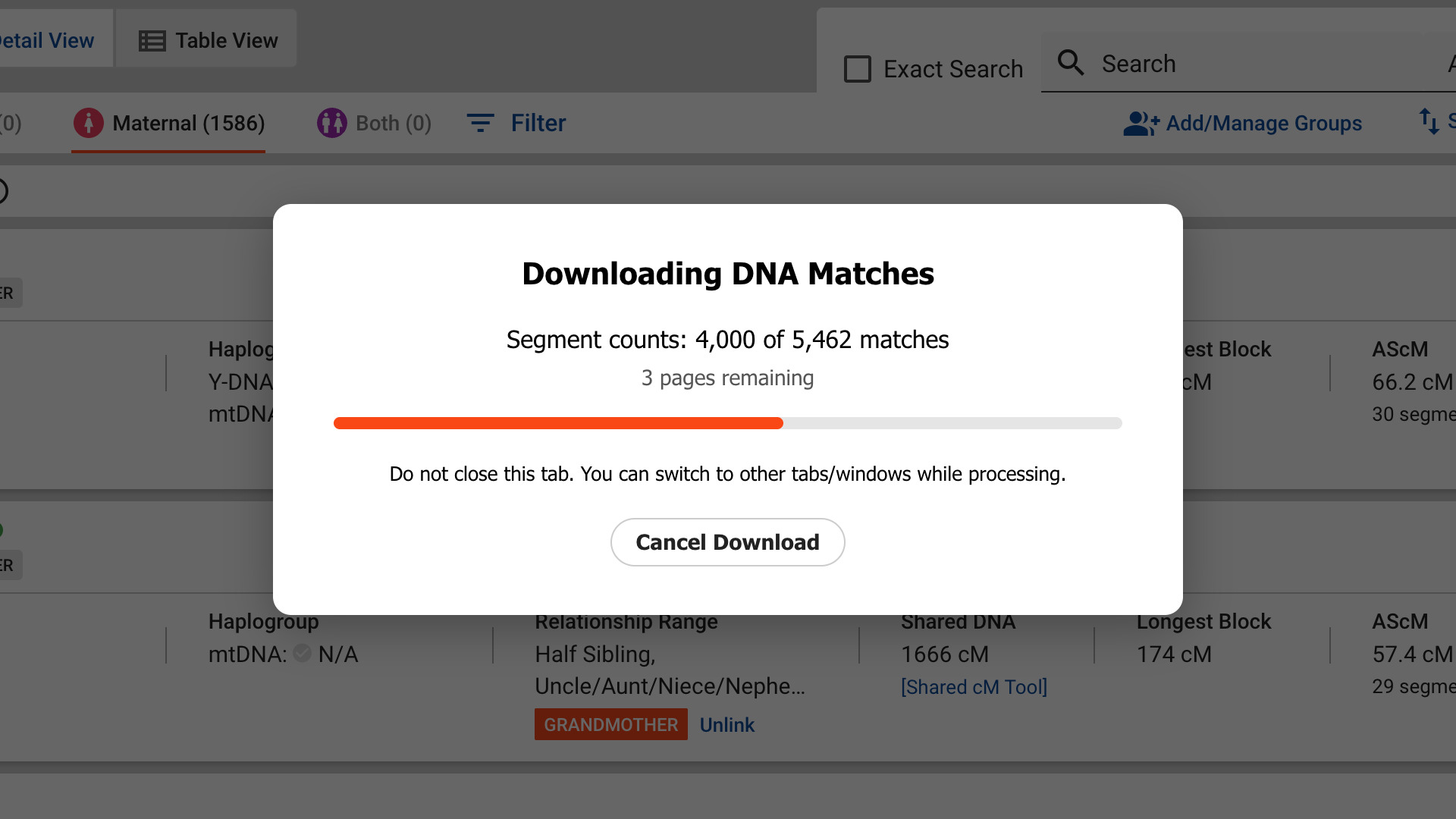
A progress window counts the matches as their segment counts arrive, with a Cancel Download button. A list of 5,000 matches takes about 20 seconds. A cancelled download saves no file.
When it finishes, a window says how many matches were saved to your downloads folder. The file has FamilyTreeDNA’s own name, with your kit number and the date, and with AScM added at the end.
Now and then two of your matches share the same name, shared DNA and longest block but not the same segment count. Their two new columns are left blank rather than risk the wrong count. Gil Bardige, who coined the term AScM, explains how to use it in the JewishGen Talks webinar Help! I Got My DNA Results and I’m Confused.
How do I use FamilyTreeDNA Download Matches as CSV?
- In the Genealogy Assistant pop-up panel, make sure FTDNA: Download Matches as CSV is turned on.
- Open your Family Finder matches list on FamilyTreeDNA.
- To download only some of your matches, set the filters you want with Filter.
- Click Export CSV, then All Matches with AScM or Filtered Matches with AScM. The progress window opens.
- When the window says the download is complete, click Close. The file is in your downloads folder.
NOTICE: CSV DOWNLOAD TOOLS ARE FOR PERSONAL RESEARCH ONLY.
Related features
- FamilyTreeDNA: AScM on Match Lists: Adds the average segment size (AScM) to FamilyTreeDNA’s Chromosome Browser and Family Finder match lists, with the segment count the Family Finder list leaves out.
- Download Matches Pages as CSV File: Download your Ancestry DNA matches to a CSV file, as many pages as you choose, following the filters and sort order you have on screen.
- 23andMe: Download Matches Pages as CSV File: Download your 23andMe DNA Relatives list to a CSV file, as many pages as you choose, with your filters, sort order and each match’s AScM.
FamilyTreeDNA Download Matches as CSV is a feature of the software Genealogy Assistant.
Genealogy Assistant is an extension for Google Chrome, Mozilla Firefox, Microsoft Edge and Apple Safari which supercharges your family history research by adding over 100 custom features to popular genealogy websites like Ancestry, MyHeritage, FamilySearch, FamilyTreeDNA and more.
Install Genealogy Assistant for Google Chrome | Install for Mozilla Firefox | Install for Microsoft Edge | Install for Apple Safari