

What problem does Segment Stats on DNA Match Lists solve?
Segment Stats on DNA Match Lists adds the number of segments under the shared DNA of every match on your AncestryDNA match list and Shared Matches tab. One click adds the unweighted cM, longest segment and average segment size. Ancestry keeps those figures in a window you open one match at a time, and never shows the average.
How does Segment Stats on DNA Match Lists work?
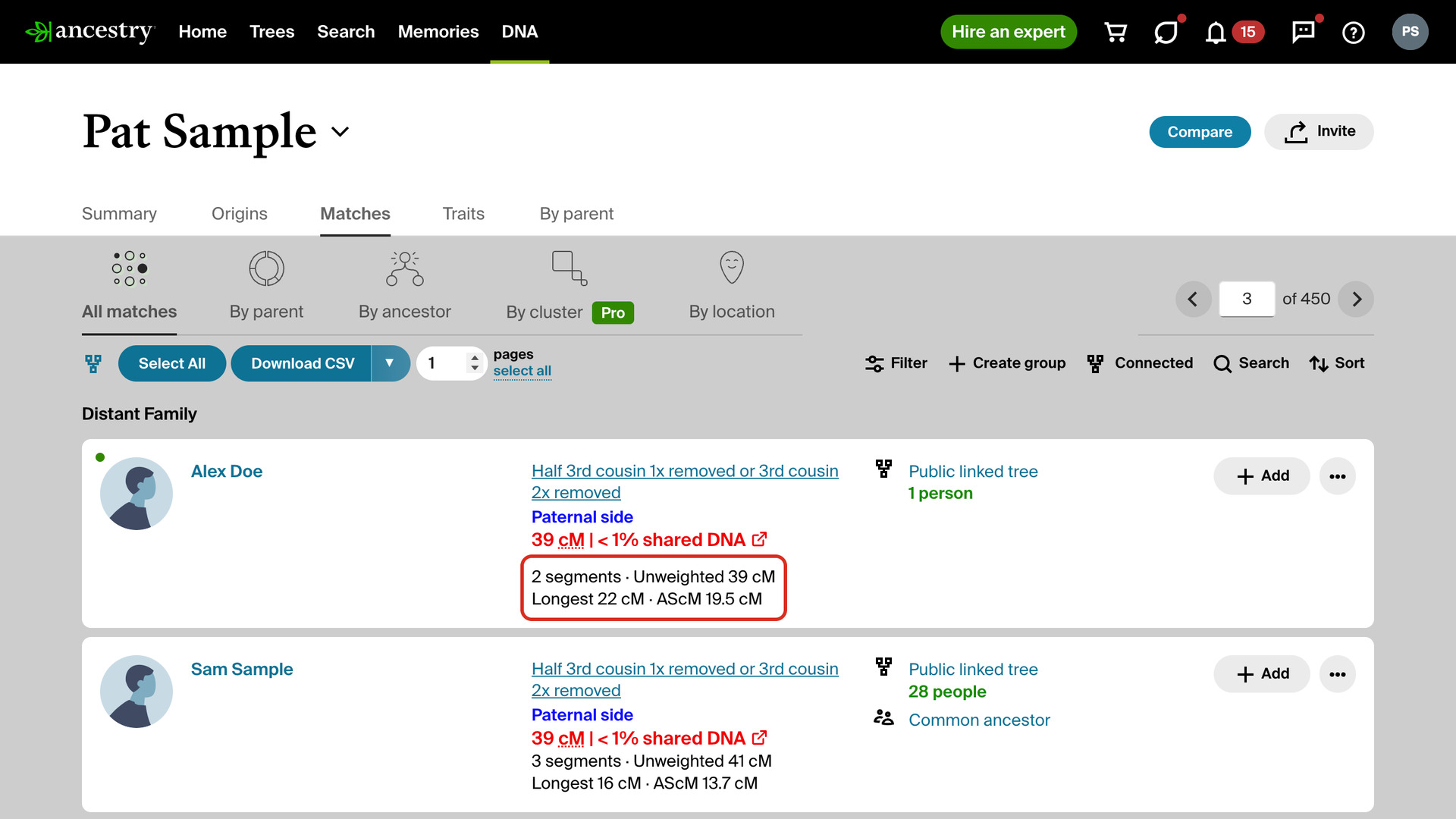
Under the shared DNA amount on each row, a line shows how many segments you share with that match. On the Shared Matches tab of a match, one column shows the DNA each shared match shares with you. The other shows what they share with the match you are viewing. Each column gets its own line.
For a match whose figures are already saved, the line runs to two lines, for example 2 segments · Unweighted 39 cM and Longest 22 cM · AScM 19.5 cM. AScM is the average segment size: the unweighted cM divided by the number of segments. Hover over the line for a reminder, or click AScM to open a video explaining it.
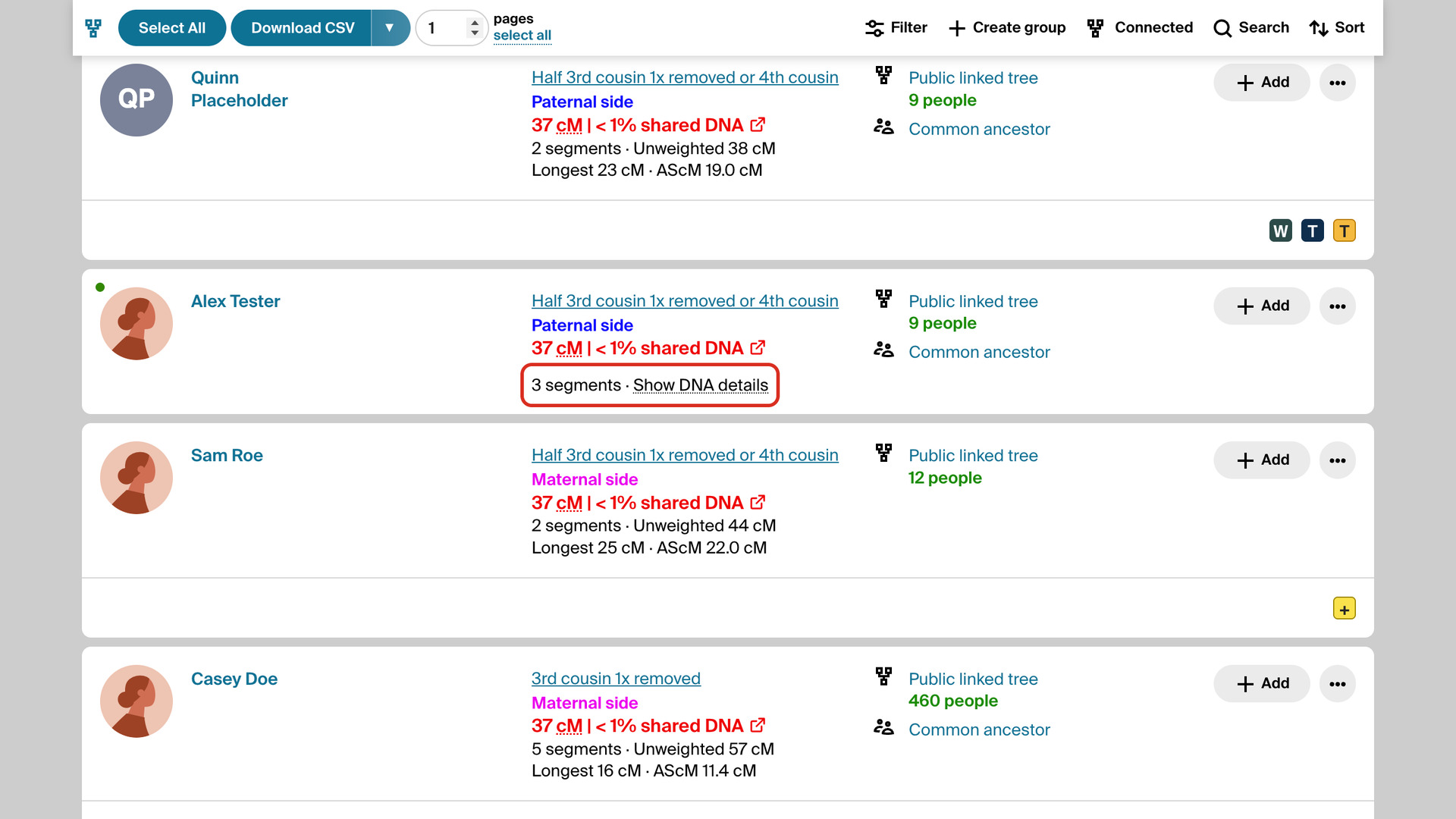
Any other match shows Show DNA details after its segment count. Click it to fill in that match’s unweighted cM, longest segment and AScM. It reads Loading… while the figures arrive, then the line runs to two lines like the others.
The figures for the DNA you share with a match are kept, so that match shows them straight away from then on, wherever it appears in your lists. That covers every match you have:
- Saved in a CSV file from Download Matches Pages as CSV File or Download Shared Matches as CSV with Ancestry additional DNA details ticked.
- Opened on their match page, with Segment Stats on DNA Match Pages turned on.
- Opened in Ancestry’s relationship window.
- Filled in with Show DNA details.
The figures in the second column of a Shared Matches tab, for the DNA two of your matches share, last until you leave or reload the page. Click Show DNA details again to see them another time.
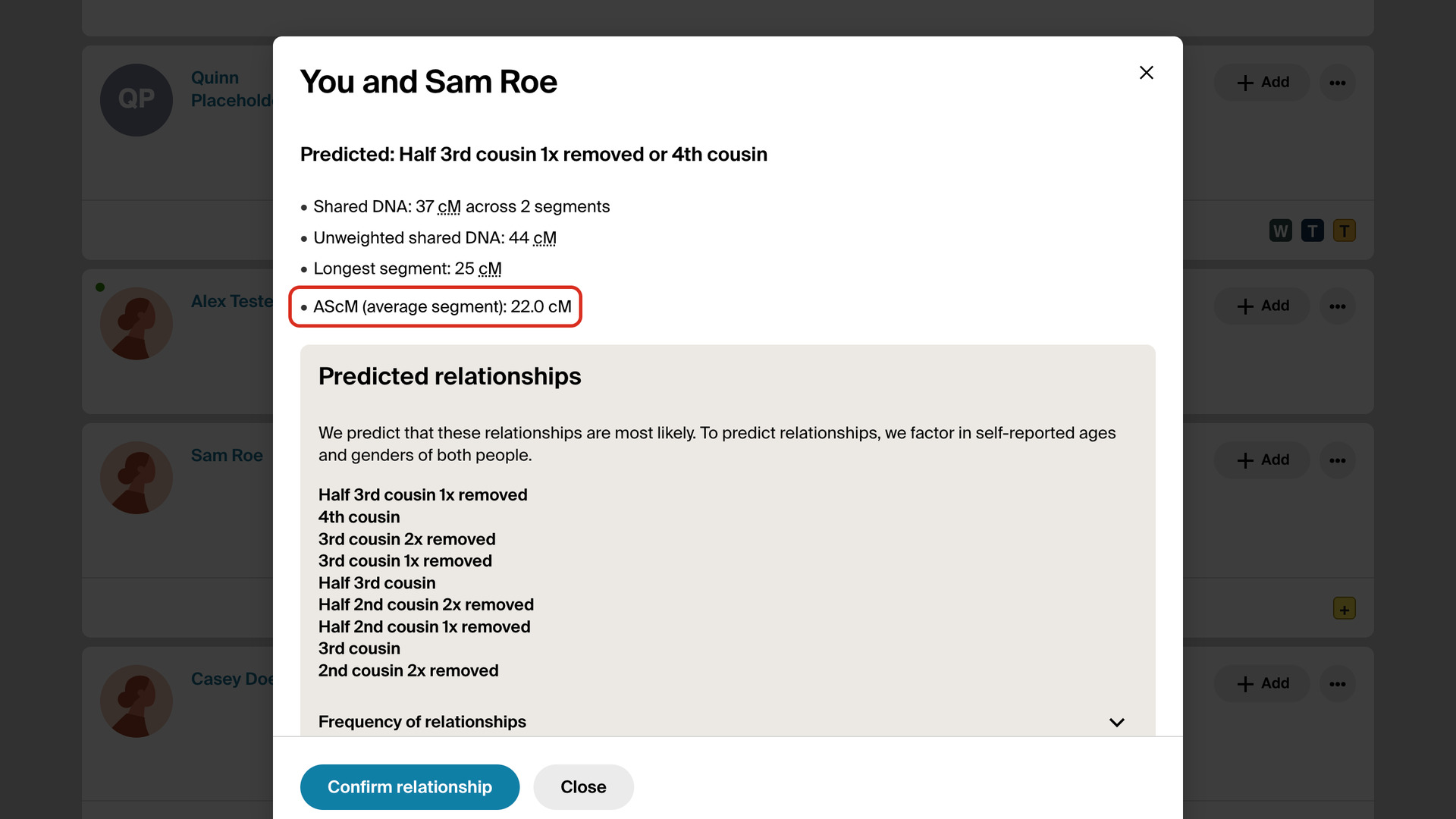
Click the predicted relationship on a row, such as 4th cousin, and Ancestry’s relationship window opens. Under Shared DNA, Unweighted shared DNA and Longest segment, it gets one more line, such as AScM (average segment): 22.0 cM. Its AScM opens the same video.
Ancestry’s Timber filter removes segments it considers common to a whole population, so the unweighted figure can be higher than the shared cM on the row. Ancestry counts segments and measures the longest one on the unweighted DNA, so the average uses the unweighted total too.
With endogamous ancestry, matches share many small segments from the same population, so the longest segment and the average tell you more than the total. One long segment and a high average point to a closer cousin than the same total spread over dozens of small pieces.
Gil Bardige, who coined the term AScM, explains his method in the JewishGen Talks webinar Help! I Got My DNA Results and I’m Confused. He starts with matches sharing 90 cM or more, then picks those with a longest segment of 20 cM or more and an AScM of 12 cM or more.
With Highlight AScM ticked in Advanced Settings, the AScM is shown in bold when a match reaches all three values, on the list and in the relationship window. On Ancestry, Shared DNA at least is compared with the unweighted cM. You can change the three values there, and the list follows a change without a reload.
How do I use Segment Stats on DNA Match Lists?
- In the Genealogy Assistant pop-up panel, make sure Segment Stats on DNA Match Lists is turned on.
- Open your AncestryDNA match list, or the Shared Matches tab of a match. The segment count is under each shared DNA amount.
- To see a match’s unweighted cM, longest segment and AScM, click Show DNA details under its shared DNA.
- To see the AScM in Ancestry’s relationship window, click the predicted relationship on a match’s row. The AScM line is under Longest segment.
- Hover over a line to see how the AScM is worked out, or click AScM to watch Gil Bardige explain it.
- To have the AScM shown in bold, click Edit advanced settings at the bottom of the pop-up panel, then open DNA Match Highlighting.
- Under Average Segment (AScM), tick Highlight AScM. Three boxes appear below it, with 90, 20 and 12 cM unless you have changed them.
- To change a value, type a new number in Shared DNA at least, Longest segment at least or AScM at least. It saves as soon as you click away from the box, and the list updates straight away.
Related features
- Segment Stats on DNA Match Pages: Shows the unweighted cM, segment count, longest segment and average segment size (AScM) under the shared DNA on every match page, without opening the pop-up.
- Highlight DNA Matches by cM: Shows matches above 25 cM, or a threshold you choose, in bold red, with maternal matches in pink, paternal matches in blue and public linked trees in green.
- Download Matches Pages as CSV File: Download your Ancestry DNA matches to a CSV file, as many pages as you choose, following the filters and sort order you have on screen.
Segment Stats on DNA Match Lists is a feature of the software Genealogy Assistant.
Genealogy Assistant is an extension for Google Chrome, Mozilla Firefox, Microsoft Edge and Apple Safari which supercharges your family history research by adding over 100 custom features to popular genealogy websites like Ancestry, MyHeritage, FamilySearch, FamilyTreeDNA and more.
Install Genealogy Assistant for Google Chrome | Install for Mozilla Firefox | Install for Microsoft Edge | Install for Apple Safari