

What problem does Save Record Search Results to CSV solve?
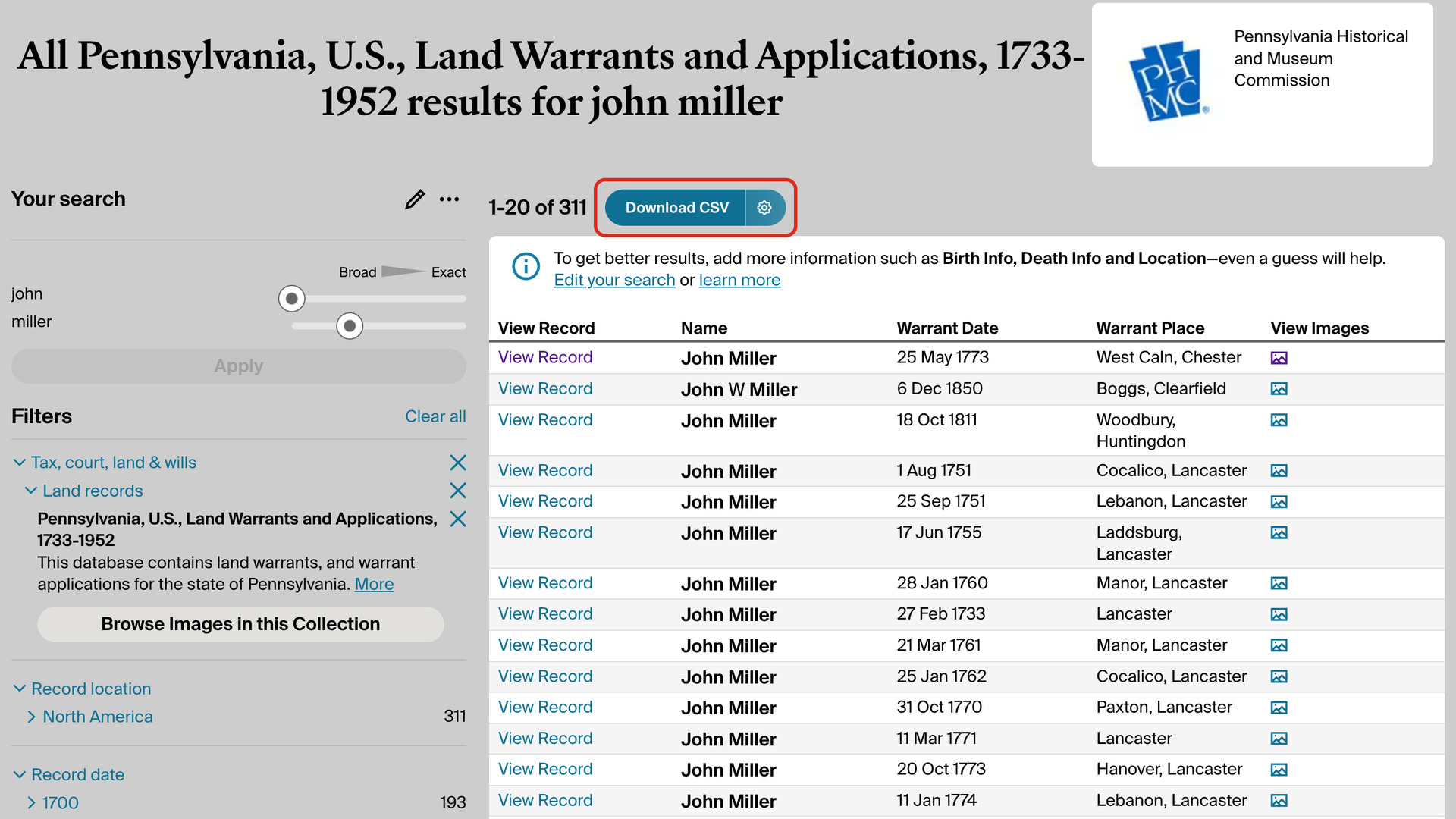
Save Record Search Results to CSV adds a Download CSV button to Ancestry’s search results for a single record collection. It saves every result to one CSV file for Excel, Numbers or Google Sheets. Ancestry shows the results 20 or 50 at a time, sorts its table one page at a time, and has no way to save them.
How does Save Record Search Results to CSV work?
When you search one record collection, such as a census, a passenger list or a land record collection, the Download CSV button sits beside the number of results, with a settings icon on its right.
Clicking it reads every page of the results and saves one row per record, with the same columns as Ancestry’s results table. A census gives names, birth years, birthplaces and homes; a land collection gives warrant dates and places. Every row also names the collection and has two links: one to the record and one to its image.
The file keeps Ancestry’s order, with the best matches first, and follows your search as it stands: the names, dates and places you entered, exact or broad matching, and any filters. Once it is saved, you can sort it on any column.
Ancestry shows no more than the first 5,000 results of any search. A search with more saves those 5,000, and the window at the end says so. To reach the rest, narrow the search with a birth year, a place or a family member and download again.
A progress window shows the page it has reached and how many records it has found, with a Cancel Download button. A few hundred results take under a minute, and 5,000 take several minutes; you can use other tabs in the meantime. If you cancel, the file still saves every record collected so far.
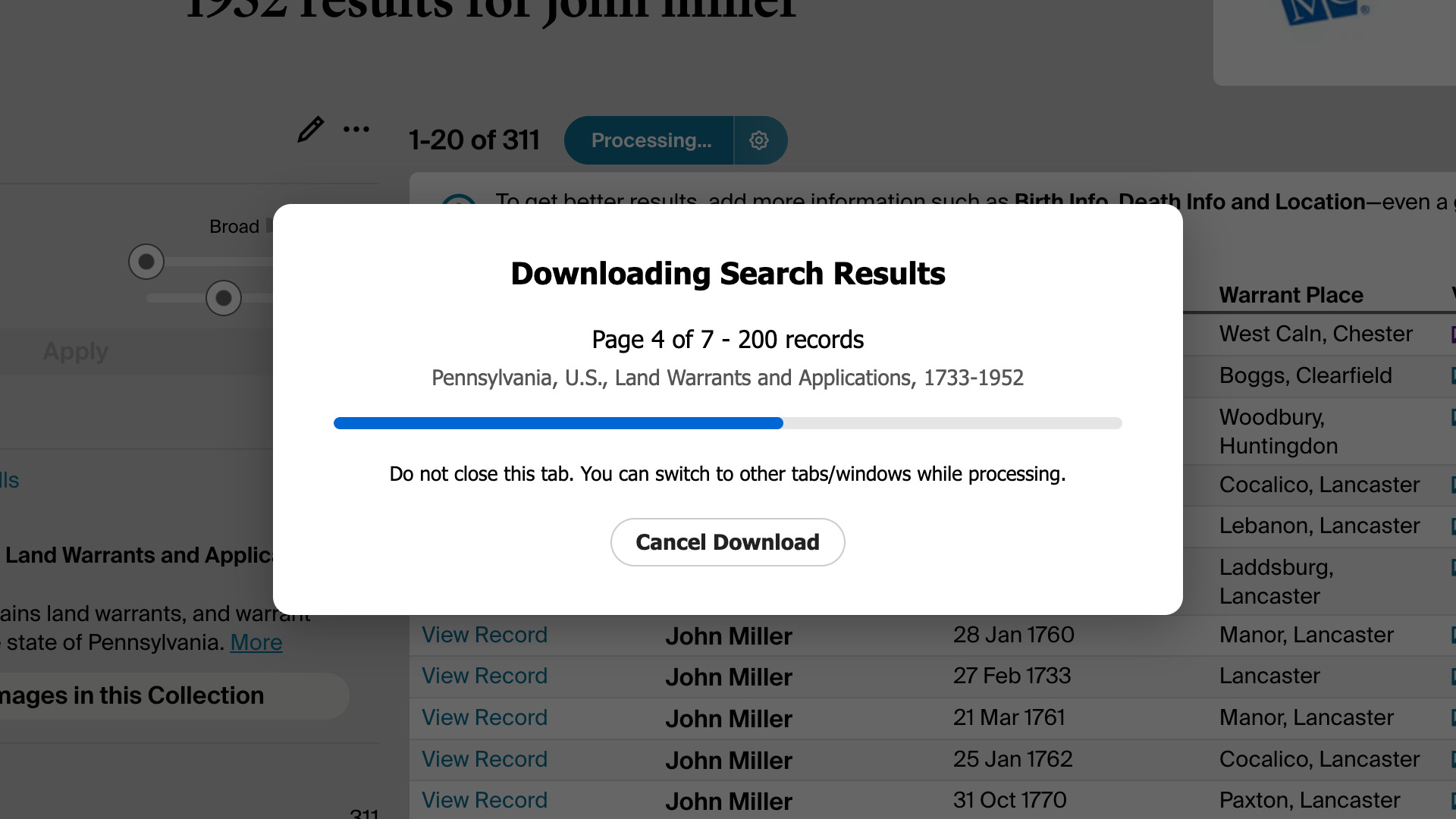
If Ancestry starts limiting requests, the download pauses and the window counts down to the next try. When it finishes, the file is saved to your downloads folder, named after the collection, the name you searched and the date, and a window says how many records it holds.
The settings icon on the button opens Download Settings, where Download speed can be Standard, Walk or Crawl. Standard suits most searches; choose Walk or Crawl if Ancestry stops responding partway through a long one. The speed you choose applies to all your downloads.
How do I use Save Record Search Results to CSV?
- In the Genealogy Assistant pop-up panel, make sure Save Record Search Results to CSV is turned on.
- On Ancestry, open a record collection’s search page, for example from the Card Catalogue, and search it.
- Click Download CSV beside the number of results. When it finishes, the CSV file is saved to your downloads folder.
- To change the speed, click the settings icon on the right of Download CSV.
- Choose a Download speed. Standard suits most searches; choose Walk or Crawl only if Ancestry stops responding during your downloads.
- Click Close. Your choices are saved as you make them.
The same Download speed setting is on the Advanced Settings page under Download Options, where it applies to every download.
CSV Columns
The columns of the collection’s results table, then Collection, Record URL, Image URL
Each collection has its own columns. For Pennsylvania, U.S., Land Warrants and Applications, 1733-1952 they are Name, Warrant Date and Warrant Place; for the 1940 United States Federal Census they are Name, Parent or Spouse Names, Home in 1940, Birth Year, Birthplace and Relation to Head of House.
The table’s View Record and View Images links become Record URL and Image URL. Image URL is empty for a record that has no image.
NOTICE: CSV DOWNLOAD TOOLS ARE FOR PERSONAL RESEARCH ONLY.
Related features
- Save Public Member Trees to CSV: Download every public tree a person appears in from the View all window in your search results, one row per tree with the facts, family and links each tree holds.
- Add Keyboard Navigation to Search: Page through any Ancestry search results with the arrow keys.
- Advanced Search for Records Page: A Search menu at the top of transcribed record pages looks for the same person on other genealogy websites, using the names, dates and places in the record.
Save Record Search Results to CSV is a feature of Genealogy Assistant.
Genealogy Assistant is an extension for Google Chrome, Mozilla Firefox, Microsoft Edge and Apple Safari which supercharges your family history research by adding over 100 custom features to popular genealogy websites like Ancestry, MyHeritage, FamilySearch, FamilyTreeDNA and more.
Install Genealogy Assistant for Google Chrome | Install for Mozilla Firefox | Install for Microsoft Edge | Install for Apple Safari