

What problem does Copy from Tree solve?
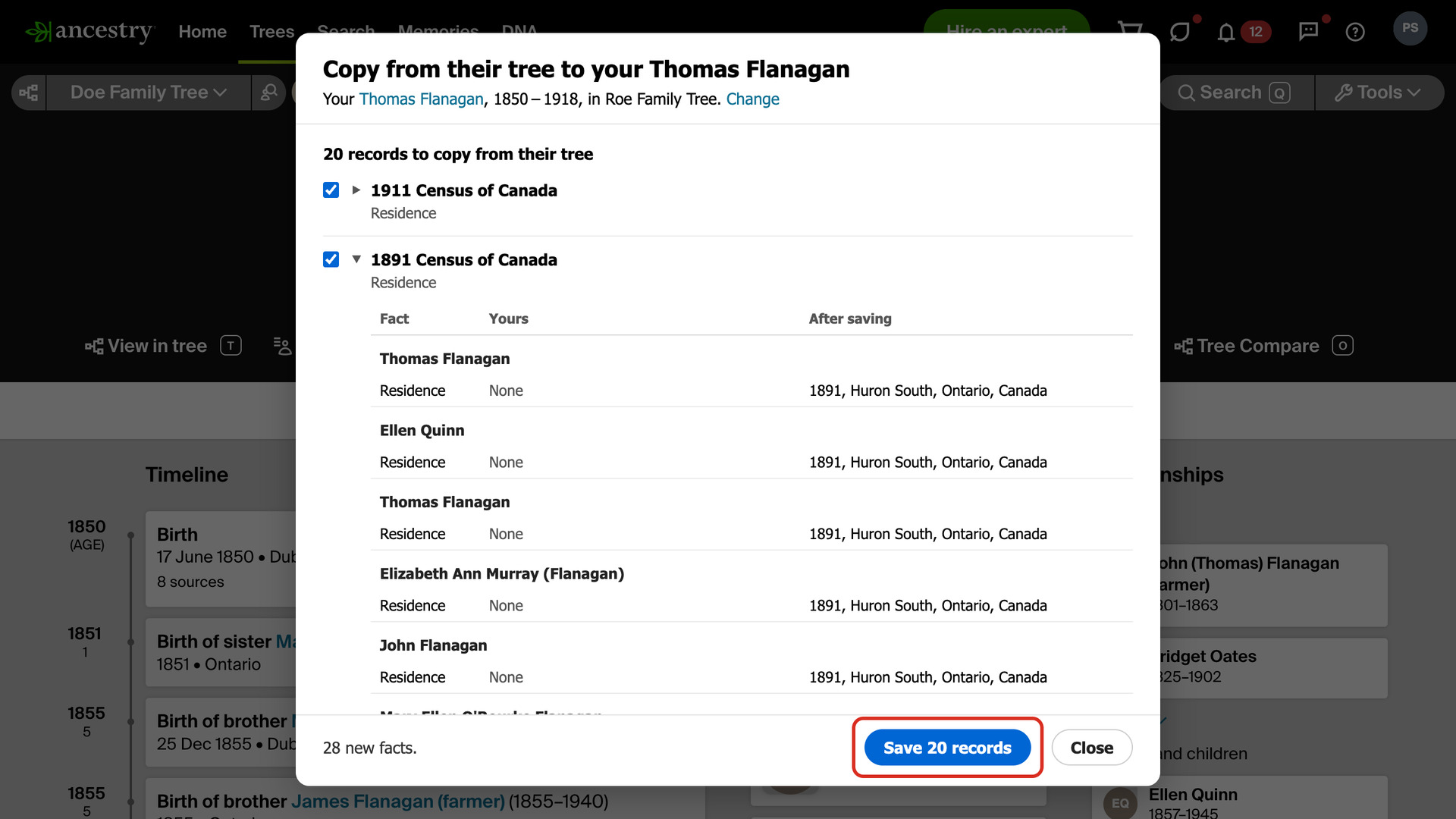
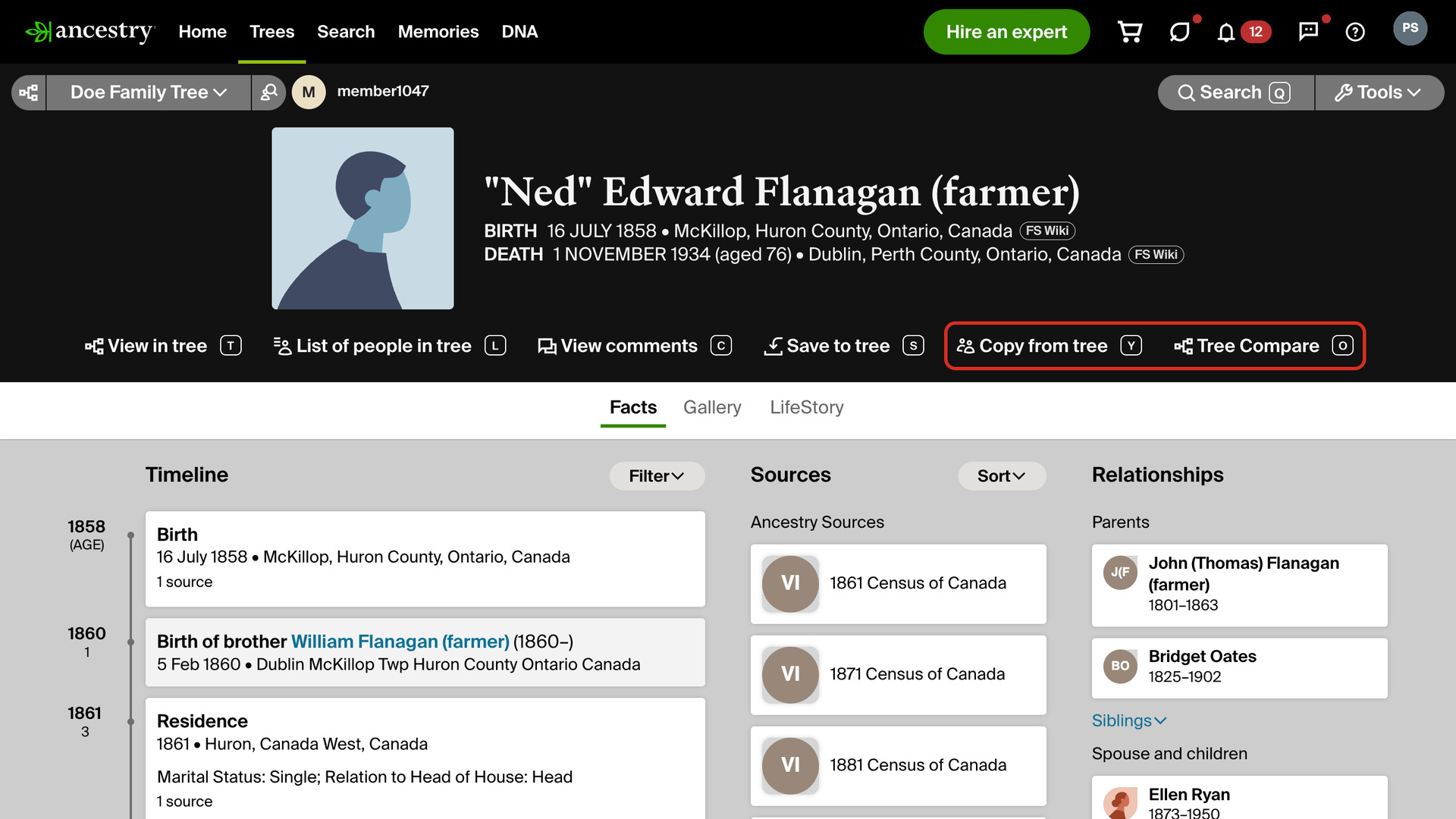
Copy from Tree adds a Copy from tree link to profiles in Ancestry trees you can only view. It copies the records on their person to the same person in your tree, with the facts and relatives their tree has from each record. Without it, each record has to be opened and saved one at a time.
How does Copy from Tree work?
Copy from tree is one of the links added by Advanced Research Tools on Profiles. The first time you click it, a window asks which person in your tree is theirs. Nothing is picked for you, even when one name matches.
The window lists the people in your tree whose first and last names start the same way as theirs, middle names included. People marked Same years as theirs, with the same known birth and death years, come first, then Same birth year, where one death year is missing. Anyone born 15 or more years apart comes last, such as a father found through his son’s middle name.
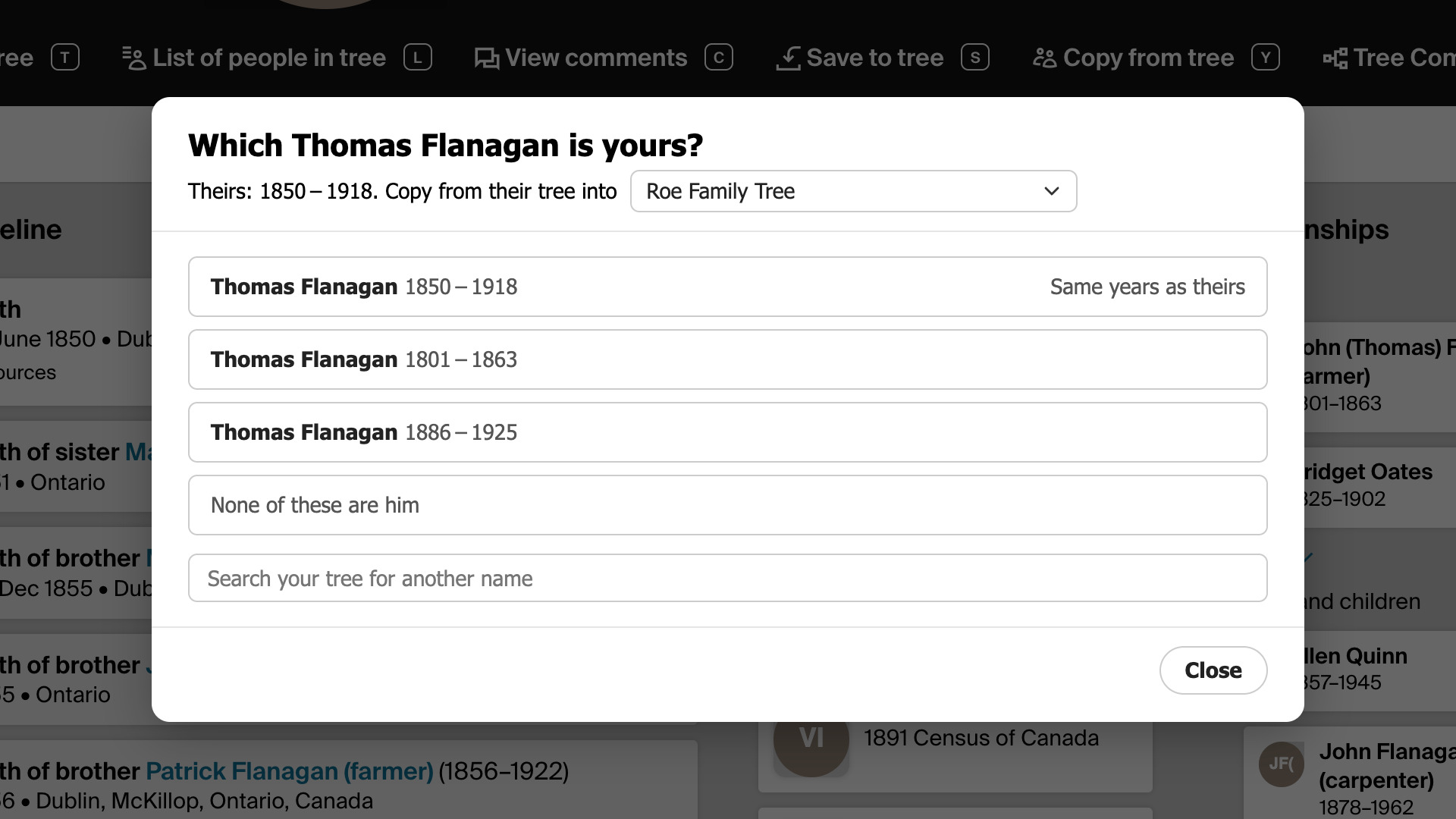
The menu at the top chooses which of your own trees to copy into. It starts on the tree you used last, or on your most recently changed tree the first time. To look under another spelling or a married name, type it in Search your tree for another name and press Enter.
Once you choose, a preview lists the records their person has that yours does not. Click a record’s title to see who it is saved to, and each fact as it is in your tree and as it will be after saving, with the changed part in bold.
Each relative their tree saved a record to gets it in your tree too. Someone their tree has who is not in yours is added as a new person, named as their tree has them, and only once, however many records name them. They are listed in the preview under New people in your tree.
Their date or place never replaces a more specific one of yours, so “1867” leaves your “27 Oct 1866” alone, and “Canada” leaves your “Logan, Perth, Ontario, Canada” alone. One as exact as yours, or more exact, does replace it, such as 1867 for 1866, so check the values in the preview before saving.
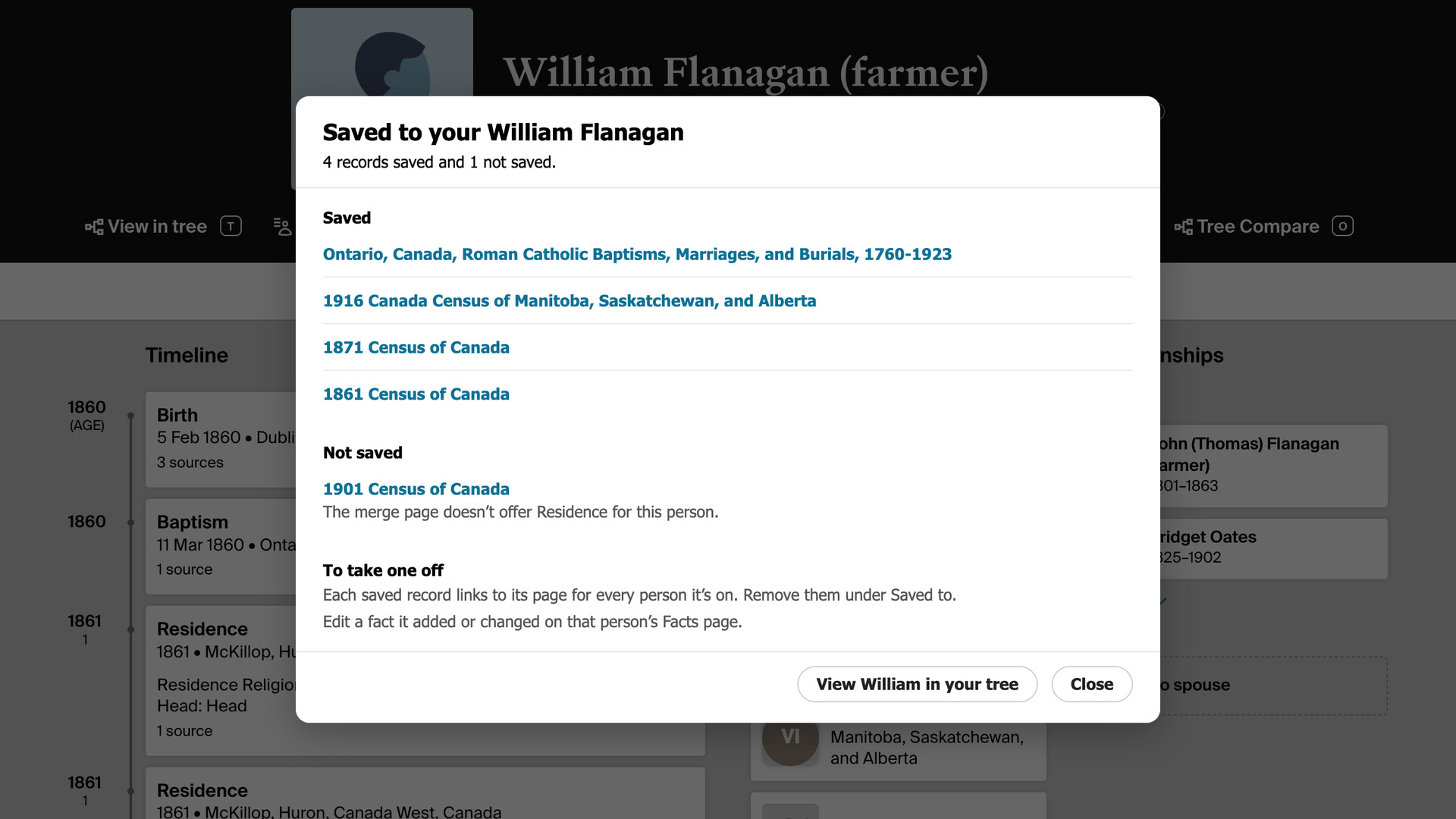
Where saving could put a record on the wrong person or add someone twice, the record is listed under Not saved with the reason, such as a relative who may already be in your tree. Its title opens the record, to save it yourself.
Records listed under Not about a person are left out of the save, because Ancestry saves them as soon as you open them. Records your person already has are listed under Already on yours.
Each record is saved through Ancestry’s own merge page, the page Ancestry opens when you save a record yourself, in a background tab. Keep the profile’s tab open while the bar shows the progress. Stop after this record ends the save once the record in hand is done.
When the save is done, the window lists the records saved and any not saved, each linked to its page. A record under Save unconfirmed may already be saved, so check Saved to on its page before trying again. To take one off later, remove it there for each person and edit any fact it changed.
The person you choose is used by both Copy from tree and Tree Compare while the profile is open. To choose someone else or another of your trees, click Change beside your person’s name at the top of the preview.
If their person is not in your tree, click None of these are him (or her, or them). When no name matches, the window goes straight to adding them. It looks for their parents, spouse, children and siblings in your tree, and suggests where they belong when Ancestry matches others in the family.
A suggestion such as the daughter of your John William Flanagan and Elizabeth Crowley is selected under Where in your tree. When several places are possible, choose one. As a new person, not connected yet adds them through Ancestry’s form, with their tree’s name, dates and places.
Click Add and their first name, such as Add Elizabeth, to add just that person, or Add Elizabeth and family to add the relatives it names too. Each is checked against your tree first, and a possible duplicate is left out.
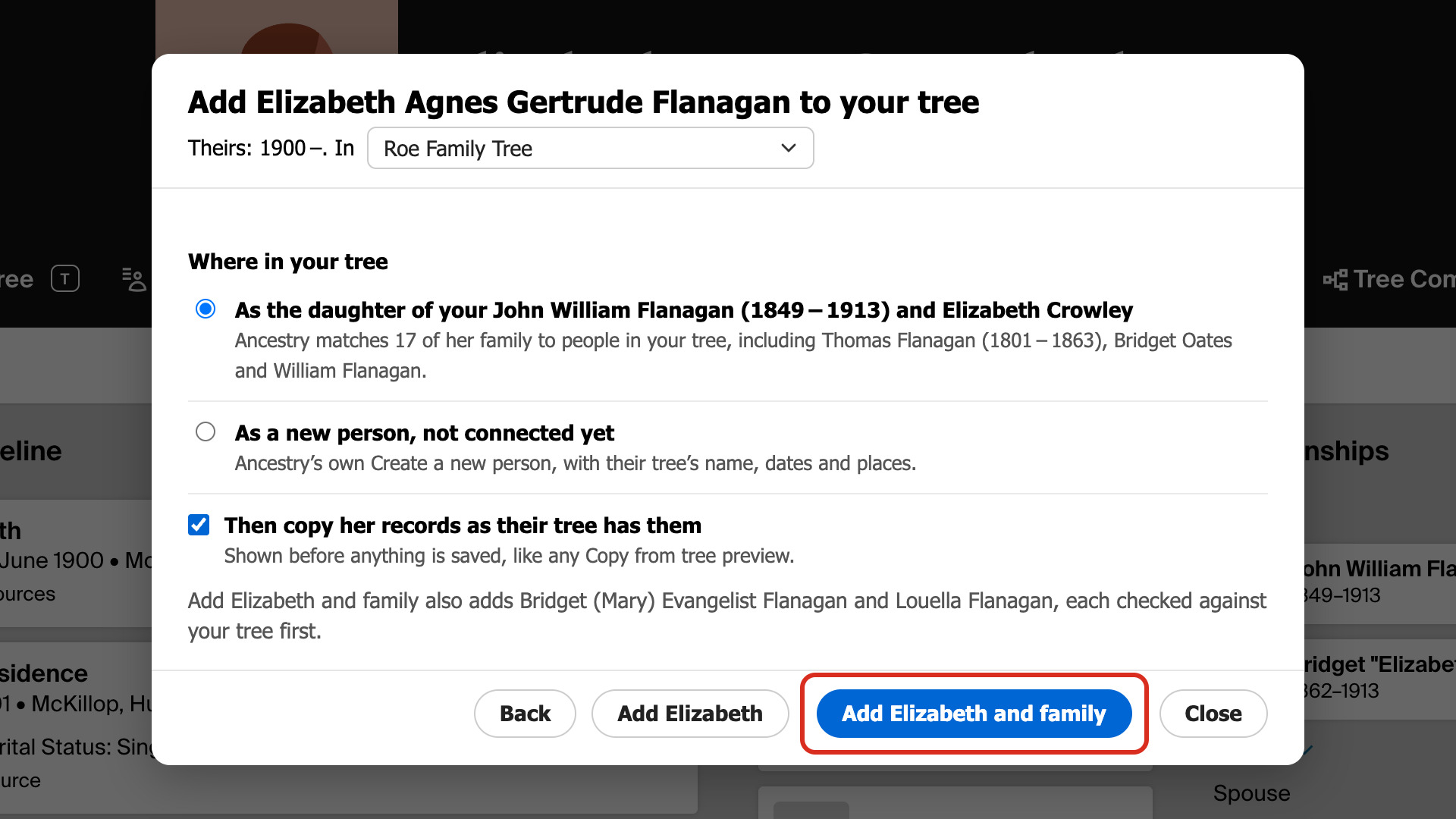
With Then copy her records as their tree has them (or his) selected, the record preview follows the add. Deselect it to add the person only. If Ancestry already matches their person to someone in your tree under another name, a button such as Copy to your Katerine uses that person.
Tree Compare, the link beside Copy from tree, opens Ancestry’s Tree Compare for their person and yours in a new tab, to compare the two families side by side. It asks for your person in the same window, or uses the person you already chose on this profile.
How do I use Copy from Tree?
To use it, you need a tree of your own on Ancestry. A tree someone else invited you to edit is not listed in the window’s menu.
- In the Genealogy Assistant pop-up panel, make sure Advanced Research Toolbar is turned on.
- Open a person’s profile page in an Ancestry tree you can only view, such as another member’s public tree.
- In the row of links under their name, click Copy from tree, or press
Y. A window asks which person in your tree is theirs. - Choose your tree from the menu at the top of the window, then click your person. The preview lists the records to copy.
- Deselect the checkbox of any record you want to leave out. The count of new and changed facts and new people beside the buttons follows your choice.
- Click Save, which names how many records it saves, such as Save 2 records. The window lists what was saved when it is done.
- To compare the two families instead, click Tree Compare, or press
O. Ancestry’s Tree Compare opens in a new tab. - To turn either link off, click the settings icon next to Advanced Research Toolbar in the pop-up panel. Advanced Settings opens at Advanced Research Tools. Deselect Copy from tree or Tree Compare. Each change saves as soon as you click.
- Reload the profile page to see the change.
Keyboard Shortcuts
Yopens Copy from tree.Oopens Tree Compare.Entersearches for the name typed in the window’s search box.Esccloses the window, except during a save or an add.
Related features
- Advanced Research Tools on Profiles: Adds Save to Tree, Quick Edit and Edit Relationships to the research tools menu on profile pages, including other members’ trees, with a shortcut letter beside each link.
- Save to Tree Name Auto-fill: Saving a person to your tree fills in the Person in Tree box with their name for you, which saves a lot of typing when building out a DNA match’s tree.
- Sort Sources by Date: Sorts the Sources on a person’s Facts page by the record’s date, oldest or newest first, with undated sources such as member trees last.
Copy from Tree is a feature of Genealogy Assistant.
Genealogy Assistant is an extension for Google Chrome, Mozilla Firefox, Microsoft Edge and Apple Safari which supercharges your family history research by adding over 100 custom features to popular genealogy websites like Ancestry, MyHeritage, FamilySearch, FamilyTreeDNA and more.
Install Genealogy Assistant for Google Chrome | Install for Mozilla Firefox | Install for Microsoft Edge | Install for Apple Safari