


Genealogy Assistant
Break down brick walls in record time
Adds over 100 tools to the genealogy websites and DNA testing services you already use, including Ancestry, MyHeritage, FamilySearch, FamilyTreeDNA, 23andMe, FindAGrave, GEDmatch and more.


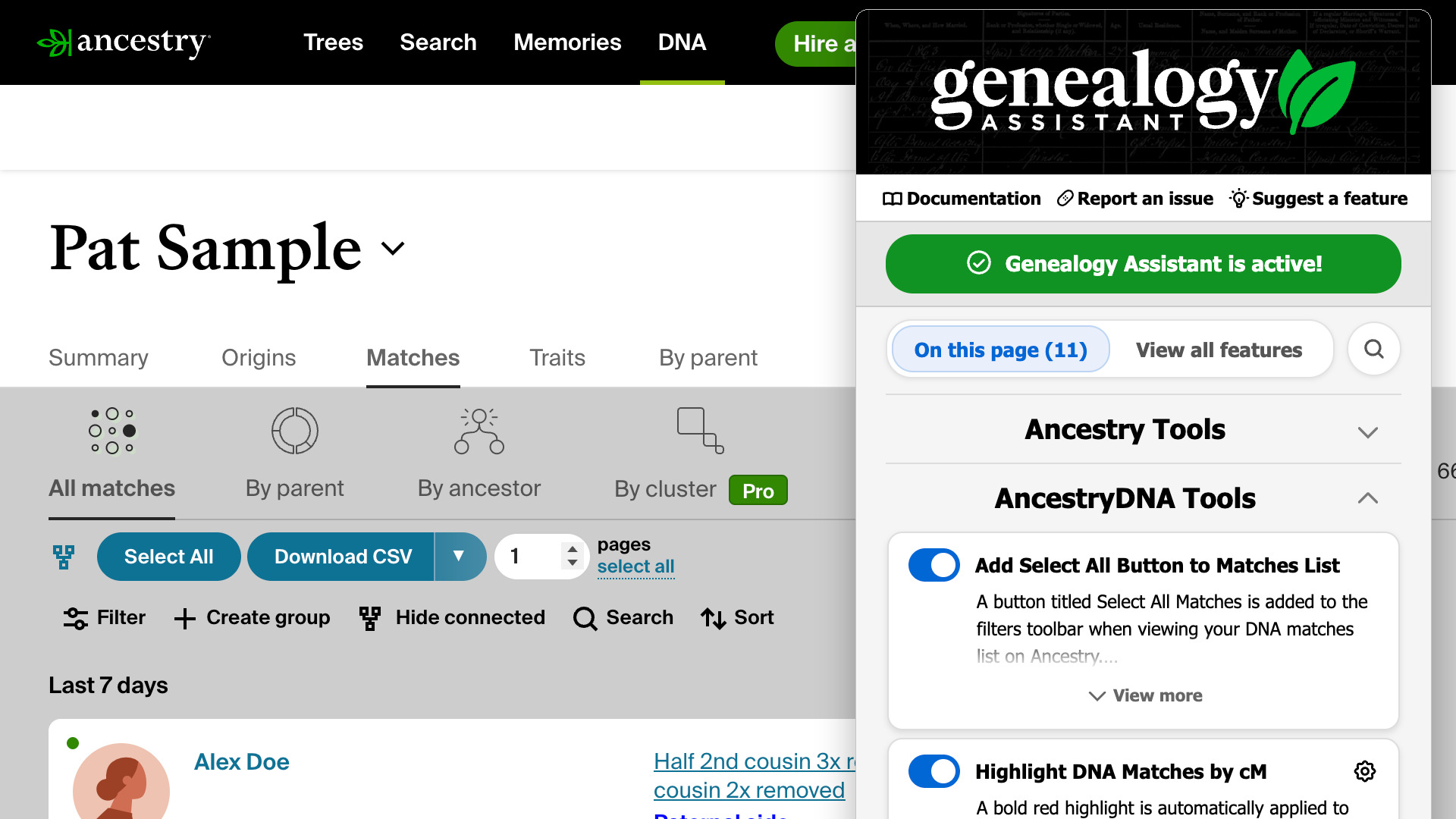
Powerful tools for every genealogy website you use, all working together
Genealogy Assistant connects the different websites you use into a unified research platform, designed with both traditional and genetic genealogy in mind. It takes away the “busy work” and helps you focus on uncovering the connections that reveal our fascinating family histories.
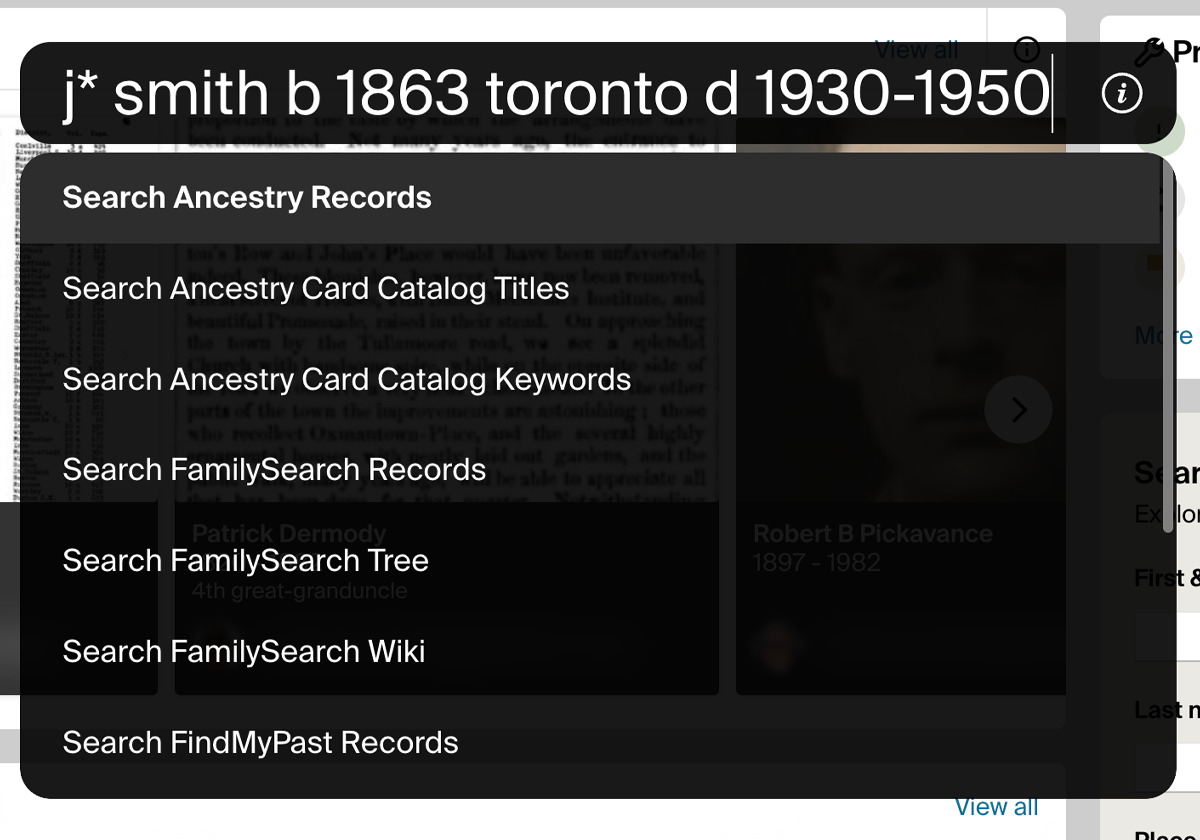
All your trees, tests and multi-platform search at your fingertips
Press Alt + Q on any web page, then type a few letters to find your DNA tests, people in your trees and record collections, or search any platform in plain language.
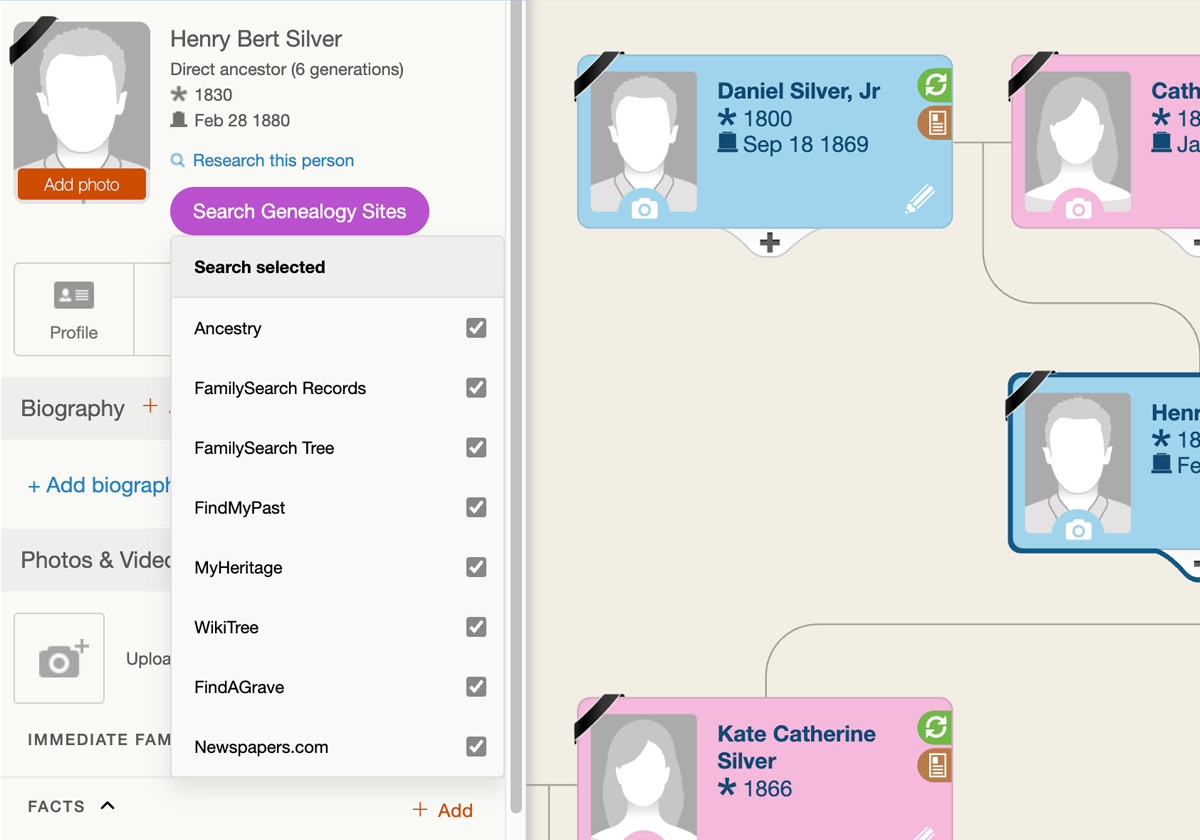
Search someone across multiple genealogy websites with a single click
Work across the family history websites you use daily with ease, and search multiple sites at once from any family tree, even trees belonging to other members.
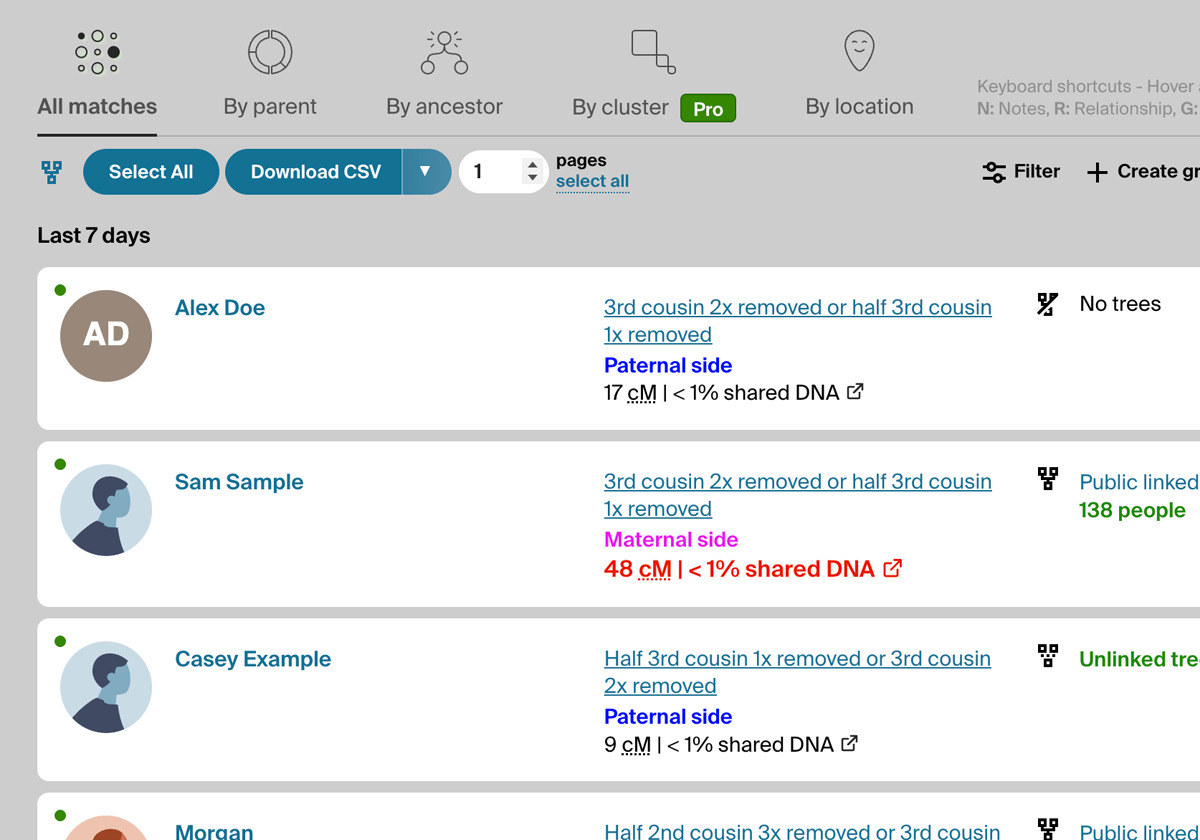
Automatically highlight matches of interest with customizable settings
Our highlighting tools make things like shared centimorgans, tree sizes and segment data stand out, based on your own unique research needs.
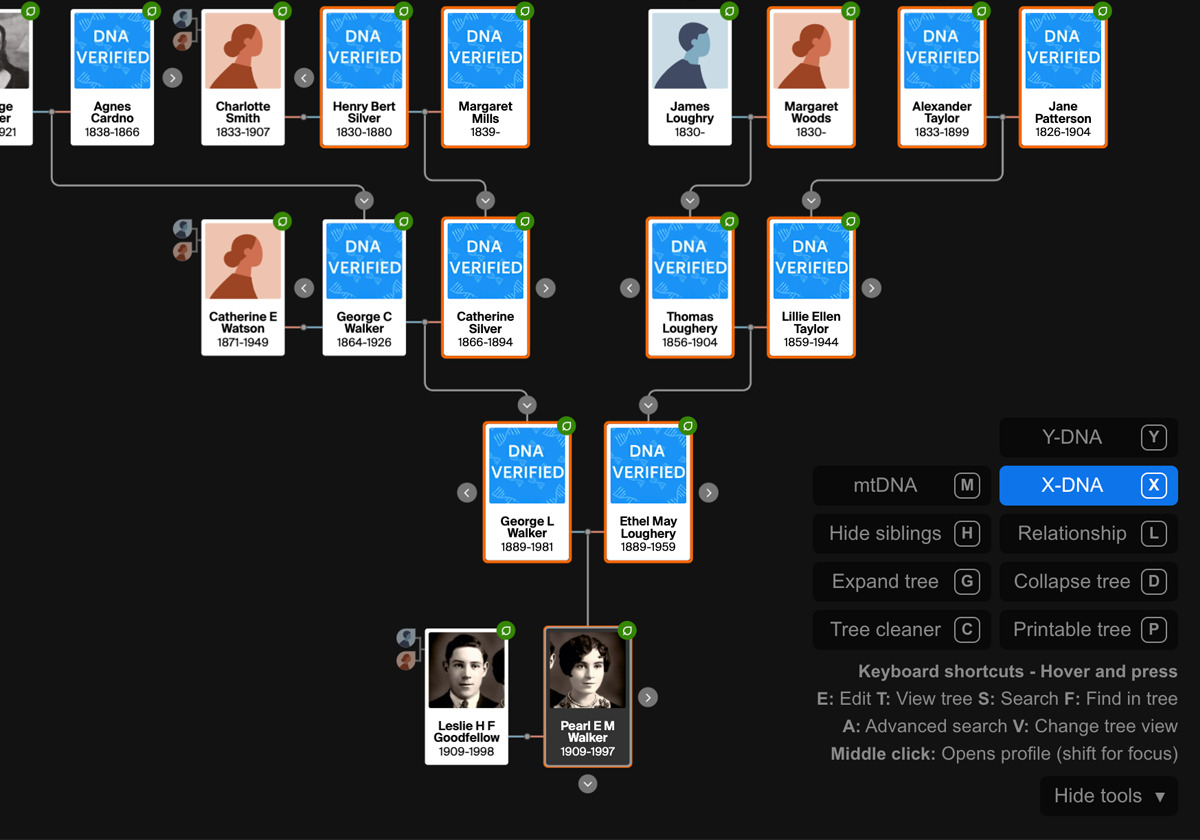
Trace DNA paths and move around any family tree with a single key
Follow Y-DNA, X-DNA and mtDNA inheritance paths, hide siblings, see how any two people are related, and tidy your tree for screenshots or printing.
More tools to explore
These are a handful of the tools available in Genealogy Assistant, which work across all popular genealogy platforms, and over 180 archive, newspaper and record sites genealogists use every day.
Keep your DNA matches in a spreadsheet
Download your matches, shared matches, clusters and ThruLines to CSV files on Ancestry, MyHeritage and more.
Find the ancestors your matches share
Save a DNA match’s linked tree as a GEDCOM, download a whole match list’s trees, and find common ancestors.
Organize matches into coloured groups
Sort your 23andMe and FamilyTreeDNA matches into your own coloured groups, which neither site offers on its own.
Review hints and records faster
Select every person on a hint or a record with one click, leaving the facts you have already checked as they are.
Stop retyping names when you save records
Save a record to your tree with the name already filled in for you, which saves a lot of typing when building a tree.
Page through record images faster
Skip forward or back 2, 10, 25 or 50 images at a time in the Ancestry and FamilySearch record image viewers.
Navigate family trees from your keyboard
Move around any tree with single-key shortcuts, and search anyone on eight genealogy sites from their card.
Export whole family trees
Download every person in a family tree, a member search or a set of public member trees to a CSV file, ready to sort.
Map places and see ages at death
Open any place name on Ancestry profiles and tree cards in Google Maps, and read an age beside every death date.
Find any relationship in your tree
See how any two people in your tree are related, from 3rd cousin 2x removed to wife of 2nd great-granduncle.
Trusted by over 8,000 genealogists and family historians around the world
I’ve been able to list DNA matches for each Ancestry and MyHeritage DNA cousin… in a spreadsheet.
This is an amazing tool that has genuinely saved me countless hours. Highly recommend!
It’s a really great extension. They have a generous trial period and payment options as well!
Try a fully functional version of Genealogy Assistant free for 30 days
After that it is $3.95 per month, $39.95 per year, or a one-time payment of $59.95 for lifetime access. One account covers all of your own computers and browsers. Install the extension on each of them and log in with the same email address. New tools arrive automatically, multiple times a week.
Discover all the features of Genealogy Assistant
AncestryAncestry DNAMyHeritage23andMeFamilySearch & More
Ancestry Research Tools
Use Darker Styled Look and Feel: Gives every page of Ancestry a high-contrast dark theme in place of the bright white background, from the homepage to profile pages and search results.
Advanced Research Toolbar: Adds Save to Tree, Quick Edit and Edit Relationships to the research tools menu on profile pages, including other members’ trees, with a shortcut letter beside each link.
Quick Search via Alt + Q: Press Alt + Q on any web page and type a census year, a place or a record type to go straight to the matching collection in the Ancestry Card Catalog.
Add Select All People Link to Hints: A Select all people button in the hint sidebar ticks every person on a hint at once when you review it from a profile’s Hints tab.
Add Select All People Link to Records: Puts the same Select all people button on the Add new information to your tree page, for records, hints and people saved from another member’s tree.
Add Advanced Search to Profiles: Search anyone in your Ancestry tree on eight genealogy websites from their profile, with civil registration indexes beside each place and an age added to the death date.
Link Place Names to Google Maps: Turns places on Ancestry profiles, in the Timeline and on tree cards into links to Google Maps.
Advanced Paging for Image Viewer: Skip forward or back 2, 10, 25 or 50 images at a time in the Ancestry image viewer, using new buttons at the bottom of the viewer.
Advanced Search for Records Page: A Search menu at the top of transcribed record pages looks for the same person on other genealogy websites, using the names, dates and places in the record.
Save All People in Tree to CSV File: Download every person in a family tree to a CSV file, with births, deaths, marriages, places, parents, spouses and notes, following your current search and filters.
Save Member Search Results to CSV: Saves Member Search results to a CSV file with each member’s name, matching research interest, location, join and last sign-in dates, tree count and profile link.
Save Public Member Trees to CSV: Download every public tree a person appears in from the View all window in your search results, one row per tree with the facts, family and links each tree holds.
Keyboard Shortcuts for Family Tree: Move around any Ancestry tree with single-key shortcuts, and search anyone on eight genealogy sites from their person card, even in other members’ trees.
Add Keyboard Navigation to Search: Page through any Ancestry search results with the arrow keys.
Search Family Trees by Name: Find any of your trees, or a tree shared with you, by typing its name into a search box on the Create and Manage Trees page or into Quick Search.
Index Family Tree in Quick Search: Index the people in a family tree once and you can open any of their profiles by typing a name into Quick Search, with the index kept up to date for you.
Index DNA Tests in Quick Search: Type dna and a test name into Quick Search to open its match list.
View DNA Inheritance Paths: Trace the Y-DNA, X-DNA and mtDNA inheritance paths of any person in your family tree, in the horizontal, vertical and fan views.
Family Tree Screenshot Tools: Clear the hint icons and navigation from your family tree for a clean screenshot, or switch it to a black-and-white version made for printing.
Easy Hide and Expand in Family Tree: Expand tree, Collapse tree and Hide siblings buttons open or close one generation at a time in the vertical view, so you can stay focused on a direct line.
Relationship Finder in Family Tree: Click any two people in the vertical tree view to see how they are related, from 3rd cousin 2x removed to wife of 2nd great-granduncle.
Custom Tree Viewing Options: Applies your preferred Tree viewing options, such as showing all spouses, to each tree the first time you open it, instead of setting every tree by hand.
Save to Tree Name Auto-fill: Saving a person to your tree fills in the Person in Tree box with their name for you, which saves a lot of typing when building out a DNA match’s tree.
Text Records Name Auto-fill: Fills in the Name box when you save a transcribed record to your tree, taking the name from the record so there is nothing to type or copy.
Image Records Name Auto-fill: Image records get the same treatment, with the name attached to the image you are viewing filled into the Person in tree box on the Save to Tree window.
Change Text Case via Shift + Up/Down: Hold Shift and press the up or down arrow in any input box to switch it to uppercase or standard case.
Automatically Expand All ThruLines: Opens every collapsed group of DNA matches in a ThruLine as the page loads, so all the matches descending from an ancestor are ready to review or capture.
Add Download Image Button to Viewer: Adds a Download this image button to the Ancestry image viewer that saves it to your computer.
Always Search Global Records: Card Catalog searches cover records from every country rather than only your own, with the national records filter unticked each time you search.
Ancestry DNA Tools
Ancestry Match List Sorting: Choose whether your Ancestry DNA matches list opens with your newest matches or your closest matches first, using a toggle in the Genealogy Assistant pop-up.
Ancestry Shared Matches Sorting: Pick how shared matches are sorted every time you open them, by date, by cM shared with you or by cM shared with the match you are viewing.
Surname Comparison Tool: Collect the surnames from a DNA match’s linked tree, or any tree’s list of all people, and compare which ones appear across several trees, variants included.
Add Select All Button to Matches List: A Select All Matches button in the filters toolbar ticks every match on the page, even with filters or a surname search applied, ready to add to a group.
Select All Button for Shared Matches: Select or deselect every match on a shared matches page at once with new buttons in the filters toolbar, ready for adding to a group.
Highlight DNA Matches by cM: Shows matches above 25 cM, or a threshold you choose, in bold red, with maternal matches in pink, paternal matches in blue and public linked trees in green.
Highlight Shared Matches by cM: Highlights shared matches who share 25 cM or more with you, and matches of matches who share 50 cM or more, with both thresholds yours to change.
Download Pages as CSV File: Download your Ancestry DNA matches to a CSV file, as many pages as you choose, following the filters and sort order you have on screen.
Download Shared Matches as CSV: Download the shared matches of any DNA match to a CSV file, every page or as many as you choose, with the extra triangulation columns on a ProTools account.
Save DNA Match Trees as GEDCOM: Save a DNA match’s linked tree as an ahnentafel or GEDCOM, download the trees of a whole match list, and find the ancestors your matches have in common.
Download ThruLines as CSV File: Download every DNA match in a ThruLine to a CSV file, with relationships, shared cM, segments and the full path from the ancestor to each match.
Download Clusters as CSV File: Save every pair of matches that share DNA in your Ancestry clusters grid to a CSV file, for the whole report or just the cluster you have open.
Open Shared Matches from Match Name: Clicking a name in your DNA matches list opens that match’s shared matches, and clicking their photo opens their trees.
Open Trees from Shared Match Photo: On a shared matches list, the photo opens a match’s trees and the name opens their own shared matches, so you can follow a cluster without extra clicks.
Add Keyboard Shortcuts to DNA Matches: Reach the common links and buttons on any Ancestry DNA match page from your keyboard, with a small letter beside each one showing its shortcut.
Add Keyboard Shortcuts to Matches List: Hover over any match and press n, r or g to open its note, relationship or groups window.
DNA Painter Shared cM Tool Button: A Shared cM Tool button on every Ancestry DNA match page opens DNA Painter’s Shared cM Tool with the match’s cM already filled in.
Segment Stats on DNA Match Pages: Shows the unweighted cM, segment count, longest segment and average segment size (AScM) under the shared DNA on every match page, without opening the pop-up.
Top Pagination for Matches List: Adds page buttons and a page number box to the top of your AncestryDNA matches list, so changing pages no longer means scrolling to the bottom.
Top Pagination for Shared Matches: Change pages at the top of any AncestryDNA shared matches list, with page buttons or by typing the page number, instead of scrolling to the bottom.
Add Percentage to Origins Regions: See the total for each region of your AncestryDNA ethnicity estimate, added up from its sub-regions and shown beside the region’s name.
Sort Regions by Parent & Grandparent: Click a parent or grandparent in the regions by parent & grandparent chart to sort every column by the regions that person passed down to you.
Always Display 50 Matches in List: Shows 50 Ancestry DNA matches per page instead of 20.
Always Display 50 Shared Matches: Shows 50 Ancestry shared matches per page instead of 20.
Hide Matches Already Connected to Tree: Hide DNA matches already linked to your tree and bring them back with the same button.
Add All People Link to Matches Trees: A View all people in tree link beside the size of each match’s linked tree opens its full list of people.
Clusters Table Enhancements: Shows full match names as vertical column headings on the Ancestry clusters page, and highlights the row and column under your pointer as you move across the grid.
Preload Number of ThruLines Matches: Load the match count and shared cM range for every ancestor on your ThruLines card view at once, so the large clusters and the gaps stand out.
Copy Surnames from Family Tree: Copy every surname in a match’s tree to your clipboard, comma-separated, with one button on the trees tab.
Add Shared Matches to Surname Tool: A Compare Trees button on the shared matches list reads every shared match’s linked and public unlinked trees and adds their surnames to the Surname Comparison Tool.
MyHeritage DNA Tools
Highlight DNA Matches 25cM+: Shows MyHeritage matches sharing 25 cM or more, or a threshold you choose, in bold red, and adds an average segment size (AScM) row under Largest segment.
Highlight Mutual Matches 50cM+: Highlights mutual matches who share 50 cM or more with each other in bold red, using a threshold you can change.
Download Matches Pages as CSV File: Download your MyHeritage DNA matches to a CSV file, as many pages as you choose, including the average segment size (AScM) for each match.
Download Shared Matches as CSV File: Save the shared matches of any MyHeritage match to a CSV file, or only the triangulated ones from the drop-down beside the Download CSV button.
Search Genealogy Sites from Tree: Search anyone in a MyHeritage family tree on other genealogy websites from a Search Genealogy Sites button, filled in with their names, dates and places.
Add Select All Button to Matches List: A Select all matches button at the top of your MyHeritage matches list ticks every match on the page, ready to sort into DNA groups.
Add Select All Button to Shared Matches: Tick every shared match on the page with one button, and load a set number of pages at once with Auto-load pages at the bottom of the list.
Add Pagination to Top of Matches List: Move between pages of your MyHeritage matches list from the top of the page, with page buttons or by typing a page number.
Open Shared Matches in New Tab: Clicking a name in a MyHeritage shared matches list opens that person’s profile in a new tab, leaving your place in the list where it was.
Default Sort by Highest Mutual Matches: MyHeritage shared matches open sorted by the most centimorgans shared with your match, so the strongest connections are at the top.
DNA Painter Shared cM Tool Button: Opens DNA Painter’s Shared cM Tool from any MyHeritage match page with the shared cM already filled in, ready to compare likely relationships.
Always Display 50 Matches in List: Shows 50 MyHeritage DNA matches per page instead of 10.
Add Keyboard Shortcuts to DNA Matches: Move between matches with the arrow keys on MyHeritage’s Review DNA Match page, and open a match’s labels, notes or relationship with a single key.
Add Keyboard Shortcuts to Matches List: Hover over any match on your MyHeritage DNA matches list and press N or G to open its notes or its labels.
23andMe Tools
Highlight DNA Matches 50cM+: Shows 23andMe matches sharing 50 cM or more, or a threshold you choose, in bold red, and adds the average segment size (AScM) after the segment count.
Highlight Shared Matches 50cM+: 23andMe shared matches who share 50 cM or more with you appear in bold red, with a threshold you can raise or lower.
Download Matches Pages as CSV File: Download your 23andMe DNA Relatives list to a CSV file, as many pages as you choose, with your filters, sort order and each match’s AScM.
Download Shared Matches as CSV File: Download the relatives you have in common with any 23andMe match to a CSV file, including the average segment size you share with each of them.
DNA Painter Shared cM Tool Button: Open DNA Painter’s Shared cM Tool from any 23andMe match page with the estimated shared cM already filled in.
Add Groups to Matches List: Sort your 23andMe matches into your own colour-coded groups from an Add/Manage Groups button on the matches list, which 23andMe does not offer on its own.
Add Groups to Shared Matches: Add relatives in common to your colour-coded groups straight from the shared matches list of any 23andMe match, with the same Add/Manage Groups button.
Add Top Pagination to Matches List: Puts page buttons and a page number box at the top of your 23andMe matches list, with keyboard shortcuts, so you can change pages without scrolling down.
Add Top Pagination to Shared Matches: Change pages at the top of the shared matches list for any 23andMe match, using page buttons, a page number box or keyboard shortcuts.
Automatically Open Shared Matches: The Relatives in Common section opens by itself on every 23andMe match profile, so your shared relatives are there when the page loads.
Add Keyboard Shortcuts to Matches List: Page through your 23andMe DNA Relatives list with the arrow keys, and hover over a match and press G to tick it for one of your groups.
Add Keyboard Shortcuts to DNA Matches: Write a note, edit the relationship or message a 23andMe match from the keyboard, and page through Relatives in Common with the arrow keys.
FamilySearch & More
FS: Advanced Paging for Image Viewer: Skip 1, 2, 10, 25 or 50 images at a time in the FamilySearch viewer.
FS: Save Family Tree as CSV or GEDCOM: Save a person’s descendants, ancestors or close family from the FamilySearch Family Tree as a CSV, GEDCOM or ahnentafel file, with full dates and places if you want.
FS: Download Record as CSV File: Download everyone on a FamilySearch record, such as a census household, to a CSV file, or copy them as a table to paste into a spreadsheet or document.
FS: Download Following List as CSV File: Keep a copy of your FamilySearch Following list as a CSV file, with your labels and each person’s latest change, or every change from the last 60 days.
FS: Index Family Tree in Quick Search: Add your FamilySearch ancestors to Quick Search to open any of them by name, and have the Surname Comparison Tool and Common ancestors count them as your tree.
FS: Add Advanced Search to Profiles: Search FamilySearch people and records on the civil registration index for their places, WikiTree, Find a Grave and Newspapers.com, filled in for you.
FS: Add Keyboard Shortcuts to Family Tree: Open, centre or search anyone on the FamilySearch tree with one key as you point at them, and reach a person page’s main buttons and tabs by letter.
FS: Add Keyboard Navigation to Search: Page through FamilySearch record and Family Tree search results with the left and right arrow keys.
FS: Add Wiki and Map Links to Places: Wiki and Map links under each place on a FamilySearch person page open that place’s own FamilySearch Wiki page or show it in Google Maps.
FTDNA: Match List Improvements: Darkens the background of FamilyTreeDNA matches lists to reduce eye strain, and gives connected matches an orange relationship tag that is easy to spot.
FTDNA: DNA Painter Shared cM Tool: Click the shared cM of any match in a FamilyTreeDNA matches list to open it in DNA Painter’s Shared cM Tool.
FTDNA: Add Groups to Matches List: Organize your FamilyTreeDNA matches into your own colour-coded groups from an Add/Manage Groups button at the top of the matches list.
FTDNA: Keyboard Shortcuts: Turn the pages of your FamilyTreeDNA Family Finder matches with the arrow keys, and hover over a match to open its note, groups or matches in common with one key.
ScotlandsPeople: Keyboard Navigation: Use the left and right arrow keys to move between pages of any ScotlandsPeople search results.
GEDmatch: DNA Painter Shared cM Tool: Total cM values in the GEDmatch One-to-Many comparison become links that open DNA Painter’s Shared cM Tool with the amount filled in.
GEDmatch: Keyboard Shortcuts: Hover over a match in the GEDmatch One-to-Many results and press one key to open its One-to-One comparison, matches in common or note, and page with the arrow keys.
LivingDNA: Download Match List as CSV: Save your whole LivingDNA match list to a CSV file, including the largest segment and average segment size (AScM), which LivingDNA does not show on the page.
LivingDNA: Download Shared Matches as CSV: Download every relative you share with a LivingDNA match to a CSV file, with the estimated relationship, segment count, largest segment and AScM.
LivingDNA: Keyboard Navigation: Page through your LivingDNA Relatives List with the left and right arrow keys.
Canadiana: Image Viewer Tools: Skip 1, 2, 10, 25 or 50 images at a time in the Canadiana Heritage viewer, page with the arrow keys, and download a range of full-size images as one ZIP file.
FindAGrave: Search Genealogy Websites: Search the person on a FindAGrave memorial on Ancestry, FamilySearch, FindMyPast, MyHeritage, WikiTree and Newspapers.com from a button beside Share.
Support and suggestions
New to Genealogy Assistant?
Our step-by-step guides show you how to install, purchase, log in to and use it, and explain every option in Advanced Settings.
Read the guidesSomething not working?
If something is not working the way you expect, right-click on the page and choose “Report an issue on this page”, or email us at [email protected].
Report an issueMissing a feature?
If there is a feature you were hoping for that isn’t there yet, no matter how small, please don’t hesitate to let us know.
Suggest a featureGenealogy Assistant is not created or endorsed by Ancestry, MyHeritage, FamilySearch, 23andMe, or any other platform.